
Struggling to get the built-in webcam working on your Dell monitor? You’re not alone. Many owners of the Dell S2422HZ and S2722DZ monitors find their camera is not detected during video calls, even after installing all the right apps. The cause is almost always a simple setup step that gets overlooked. This guide shows you exactly how to use the camera on a Dell monitor, from physical activation to app configuration, so you can join meetings without technical headaches.
You’ll learn the five essential checks that resolve 95% of webcam issues, how to enable the camera in Windows and the monitor’s menu, and which audio path to select for clear sound. Follow these steps in order for the fastest fix.
Pop Up the Built-In Webcam

The Dell S2422HZ and S2722DZ monitors hide the webcam inside the top bezel. It only works when physically raised.
Raise the Webcam Cover
- Press gently upward on the bottom edge of the webcam cover at the top of the monitor.
- Continue until you feel a soft click indicating it has locked in place.
- A small red LED next to the lens will illuminate to confirm the camera is active.
Confirm the Red Indicator Is On
- Look directly at the lens area for a glowing red light.
- If the light stays off, the camera is still disabled regardless of any software changes.
Connect the USB Cable Between Monitor and Computer
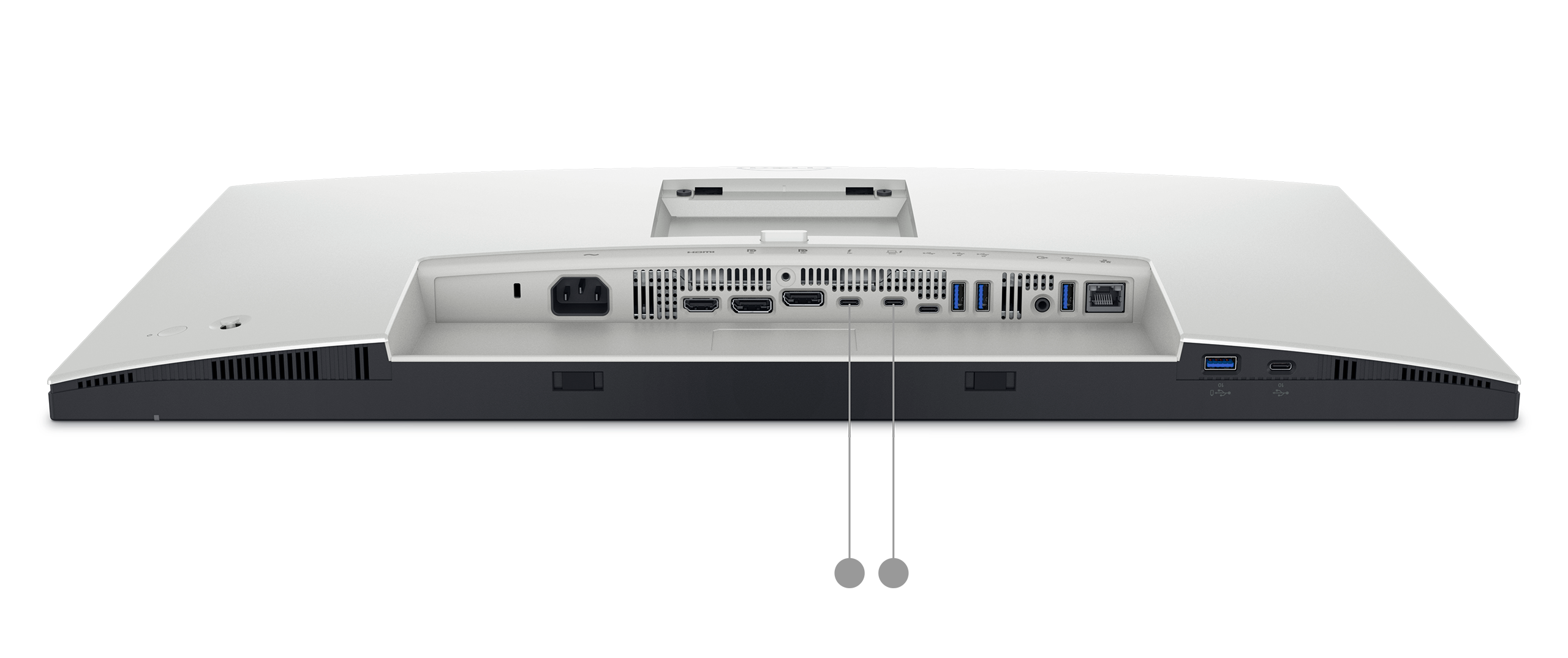
The webcam requires a USB data connection to your PC or docking station. Without this link, your system will never detect the camera.
Plug in the USB Upstream Cable
- Locate the USB upstream cable coming from the back of the monitor.
- Connect the free end to an open USB port on your computer or dock.
- Push both connectors in firmly until they seat completely.
Wait for Device Recognition
- Allow 10 to 15 seconds for Windows to detect the new hardware.
- Open the Windows Camera app to verify the webcam appears in the list.
Enable Camera Access in Windows Settings
Windows blocks camera access by default for privacy. You must grant permission before any app can use the webcam.
Turn On Global Camera Access
- Press Windows + I to open Settings.
- Click Privacy and security in the left sidebar.
- Select Camera from the list.
- Toggle Camera access to On.
Grant Permissions to Specific Apps
- Scroll to Let apps access your camera.
- Switch on access for conferencing tools you use, such as Teams or Zoom.
- Open any missing app at least once so it registers in the list.
Enable the Webcam in the Monitor’s On-Screen Display

The Dell monitor has its own menu setting that controls the webcam independently of Windows.
Open the OSD and Navigate
- Press the Menu button on the back or bottom edge of the monitor.
- Use the joystick or arrow keys to browse to Audio and webcam.
- Select Webcam.
- Set the option to Enabled.
Save and Exit the Menu
- Press the Menu button again to close the on-screen display.
- Your changes are saved automatically when you exit.
Select the Correct Camera in Your Conferencing App

Even with everything enabled, your meeting app may default to a different camera source.
Choose the Dell Monitor Webcam
- Open your conferencing app’s Settings or Preferences.
- Navigate to the Video section.
- Under Camera, pick Dell Monitor RGB webcam or Integrated Camera (S2422HZ/S2722DZ).
- A live preview should appear once selected.
Test Before Joining a Real Meeting
- Use the app’s built-in test feature if available.
- Start a private meeting with yourself to confirm both video and audio work.
Configure the Right Audio Path
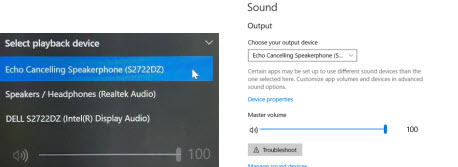
Audio issues often appear alongside webcam problems. Choosing the wrong source disables your microphone entirely.
Use the Echo Canceling Speakerphone
- For microphone and speaker use, select Echo Canceling Speakerphone (S2422HZ or S2722DZ) in your app’s audio settings.
- This option delivers full audio support including echo cancellation.
Avoid HDMI or DisplayPort Audio for Calls
- The Dell S2422HZ or Dell S2722DZ audio option that appears over HDMI or DP supports playback only.
- Selecting this path disables your microphone and is not suitable for meetings.
Troubleshoot Persistent Detection Failures
If the camera still does not appear after completing all the steps above, run through these targeted fixes.
Camera Missing from Device Manager
- Press Windows + X and choose Device Manager.
- Expand the Cameras or Imaging devices category.
- Look for entries named Dell Monitor RGB webcam or Integrated Camera.
- If nothing appears, reseat the USB cable and try a different port.
Camera Shows Up But Displays a Black Screen
- Update the monitor firmware using Dell Display Manager or the Dell Support website.
- Right-click the camera entry in Device Manager and choose Uninstall device.
- Restart your PC to let Windows reinstall the driver automatically.
Webcam Works in One App But Not Another
- Review the camera selection inside the failing app.
- Update or reinstall that specific app.
- Clear the app’s cache, which is a common fix for Teams and Zoom glitches.
Prevent Camera Problems From Returning
A few simple habits will keep your webcam working reliably over time.
Set a Default Camera in Windows
- Open Settings and go to Apps.
- Click Default apps and scroll to the Camera entry.
- Choose your preferred default camera app.
Reserve a USB Port for the Monitor
- Plug the monitor’s USB cable into a dedicated port on your PC.
- Avoid USB hubs when possible, since they can interrupt data flow.
Keep Firmware and Drivers Current
- Visit the Dell Support website and enter your monitor’s service tag.
- Download the latest firmware and USB driver updates for your model.
Frequently Asked Questions About Using the Camera on a Dell Monitor
Why is my Dell monitor camera not detected?
The webcam is hidden inside the monitor and only works when physically popped up. It also requires a USB cable connection between the monitor and your computer. If either step is missing, Windows will not detect the camera.
Do I need to enable the camera in the monitor menu?
Yes. The Dell S2422HZ and S2722DZ monitors have an on-screen display setting under Audio and webcam that must be set to Enabled. Without this, the camera stays off even when raised and connected.
How do I select the Dell monitor camera in Zoom or Teams?
Open the app’s video settings and choose Dell Monitor RGB webcam from the camera list. You should see a live preview once the correct device is active.
Which audio setting should I use with the Dell monitor webcam?
Select Echo Canceling Speakerphone (S2422HZ or S2722DZ) in your app’s audio settings. This option supports both your microphone and speakers with echo cancellation for clear calls.
Can I use the Dell monitor camera without a USB cable?
No. The webcam requires a USB data connection to your computer or docking station. A video cable alone, such as HDMI or DisplayPort, does not enable the camera.
How do I update the Dell S2422HZ or S2722DZ webcam driver?
Open Device Manager, find the camera under Cameras or Imaging devices, right-click it, and select Update driver. You can also download the latest firmware from the Dell Support site using your service tag.
Key Takeaways for Setting Up Your Dell Monitor Camera
Getting the camera on your Dell S2422HZ or S2722DZ monitor to work comes down to five core actions: pop up the webcam, connect the USB cable, enable camera access in Windows, turn on the webcam in the monitor’s on-screen display, and select the Dell Monitor RGB webcam in your conferencing app. Skipping any one of these steps will prevent the camera from functioning.
For the best experience, pair your camera setup with the Echo Canceling Speakerphone audio path so your microphone and speakers work correctly during calls. Bookmark this guide and run through the checklist whenever you connect your monitor to a new device, and you’ll avoid the most common webcam frustrations.


