
You’re working with two or more monitors and want to turn off just one to reduce distractions, save power, or create a focused workspace. But when you try Windows + P or Display Settings, your open windows jump to the remaining screen, ruining your carefully arranged layout. That’s because Windows doesn’t natively support putting a single monitor to sleep while preserving its desktop space.
The good news is that you can make one monitor sleep without disrupting your workflow, but it takes the right tools and techniques. This guide reveals how to truly power down a single display while keeping your apps in place, avoiding window migration, and minimizing energy use. Whether you prefer free software, hardware hacks, or commercial tools, you’ll find a solution that fits your setup.
Use MultiMonitorTool for True Single Monitor Sleep
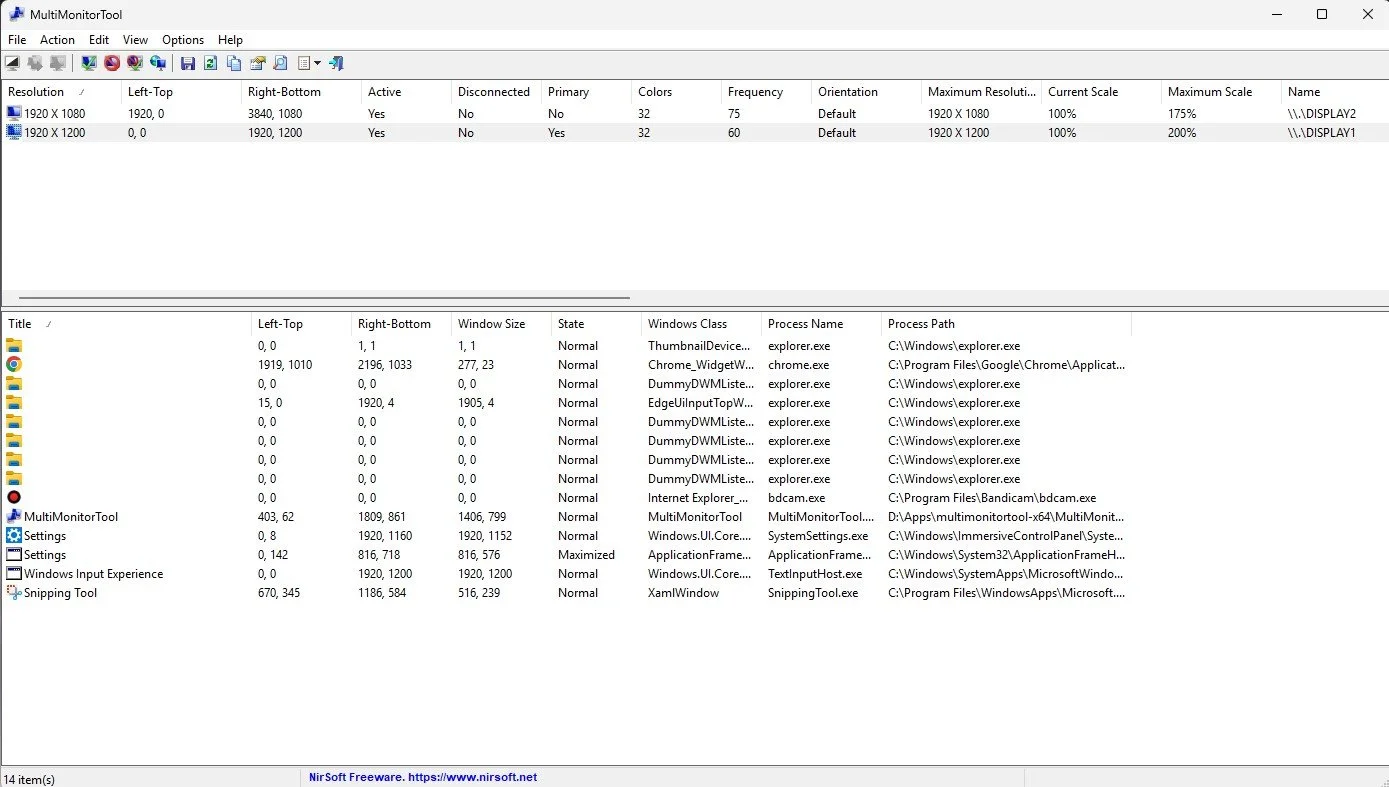
NirSoft’s MultiMonitorTool is the most effective free way to put one monitor to sleep while preserving window positions and avoiding desktop reconfiguration.
Run Commands to Disable a Specific Monitor
MultiMonitorTool uses command-line instructions to control individual displays. Unlike Windows’ native methods, it sends a disable signal that often triggers the monitor’s power-saving sleep mode without disconnecting it logically from the desktop.
- Open Command Prompt or PowerShell.
- Navigate to where
MultiMonitorTool.exeis saved (e.g.,C:\Tools). - List all monitors using
MultiMonitorTool.exe /listto see index numbers, names, and resolutions. - To sleep Monitor 1, run
MultiMonitorTool.exe /disable 1. - To wake it back up, run
MultiMonitorTool.exe /enable 1.
The screen goes black and enters a low-power state, just like sleep, while Windows still treats it as active. Your apps stay put.
Automate Sleep with Keyboard Shortcuts
Manually typing commands isn’t practical for daily use. Instead, create batch files and assign hotkeys for instant control.
- Create a file called
sleep_monitor1.batcontaining"C:\Tools\MultiMonitorTool.exe" /disable 1. - Create another called
wake_monitor1.batcontaining"C:\Tools\MultiMonitorTool.exe" /enable 1. - Use AutoHotkey or Windows shortcut properties to bind keys like Ctrl + Alt + F1 to these scripts.
One keystroke triggers instant single-monitor sleep without window migration.
Pro Tip: Some graphics drivers may treat
/disableas a full disconnect. If windows still move, try the/switchoffoncommand, which attempts a cleaner power cycle.
Try Ultramon for Easy One-Click Control
If you want a simple, no-code solution, Ultramon delivers one-click per-monitor sleep with excellent window preservation.
Toggle Monitors via Right-Click Menu
Ultramon adds a tray icon and context menu options directly to your taskbar.
- Right-click the taskbar and select Ultramon.
- Choose Disable Secondary Monitor from the menu.
- The selected monitor turns off while others stay active.
- All windows on the disabled screen remain in place.
No command lines, no scripts, just point and click.
Save Display Profiles for Quick Switching
Switch between work modes instantly using saved profiles.
- Save a Dual Monitor profile with both screens active.
- Save a Single Monitor profile with one disabled.
- Assign hotkeys to toggle between profiles seamlessly.
This approach works perfectly for users who regularly switch between full setup and focused work.
Note: Ultramon costs around $40, but it’s ideal for professionals who rely on stable, repeatable multi-monitor control.
Use a Dummy Plug for Permanent Stability
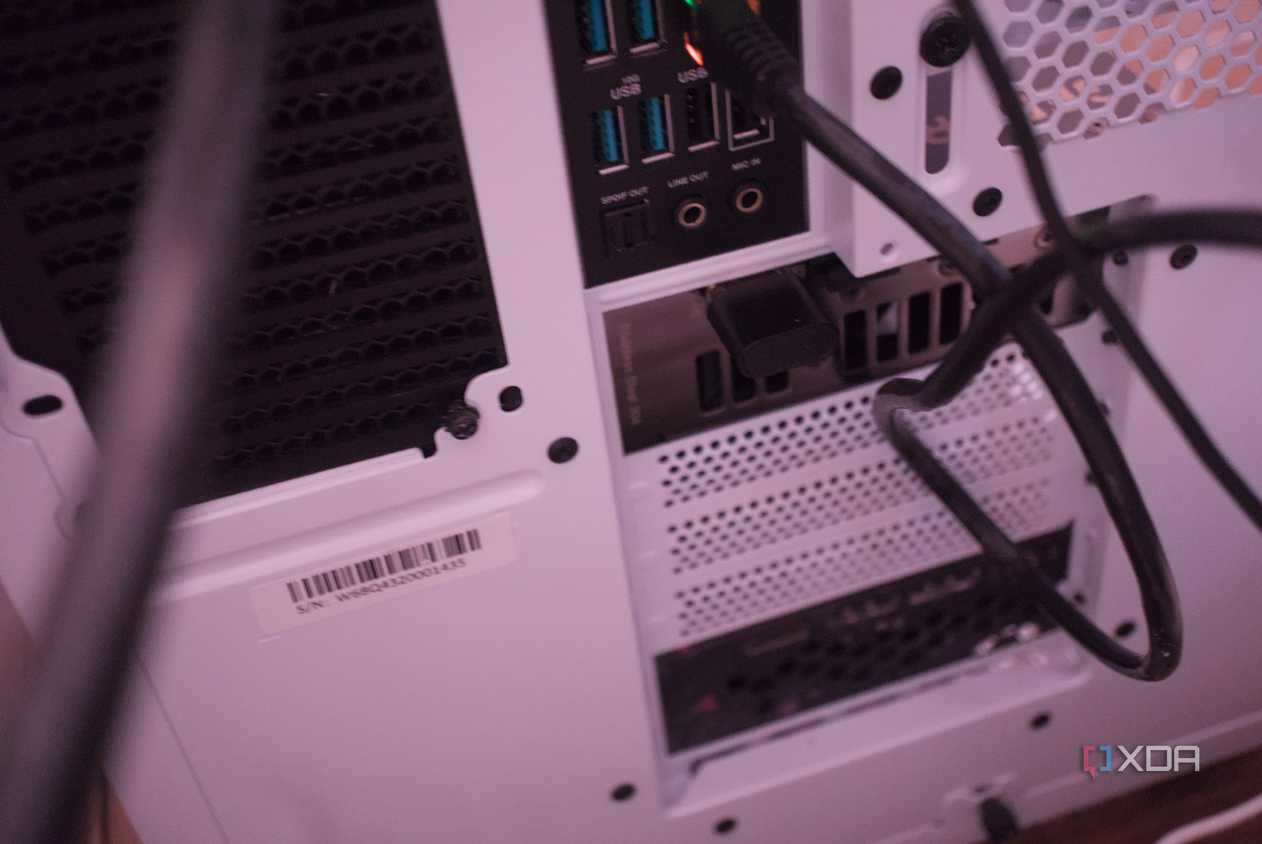
When software fails or you need guaranteed window stability, a dummy HDMI or DisplayPort plug tricks Windows into thinking a monitor is always connected, even when it’s off.
Set Up the Virtual Monitor
- Buy a dummy plug online for approximately $10.
- Plug it into an available video port on your GPU.
- Open Settings > System > Display.
- Identify the new monitor created by the plug.
- Set its resolution to match your real monitor (e.g., 1920×1080).
- Drag all apps you want to preserve onto this virtual screen.
Power Off the Real Monitor
Now turn off the physical monitor using its power button or OSD menu.
- Windows still sees the display via the dummy plug, so no windows move.
- The real screen is completely off with zero light and full power savings.
- Re-enable the monitor later without layout disruption.
Best for: Workstations where certain apps (e.g., surveillance, logs) must stay open but don’t need constant visibility.
Try DisplayFusion for Advanced Multi-Monitor Management
DisplayFusion is a powerhouse for complex multi-monitor environments, especially when you need asymmetric power states across screens.
Dim or Sleep Specific Monitors via Scripts
While DisplayFusion doesn’t have a direct sleep-one-monitor button, its scripting engine enables precise control.
- Use Functions > Monitor > Turn Off Monitor in a custom script.
- Assign the script to a global hotkey.
- Target specific monitors by index or name.
Alternatively, use the Dimmer feature to darken inactive screens.
- Set dim level to 100% for pure black.
- Apply only to selected monitors.
- Schedule dimming based on time or activity.
Use Case: Keep a security camera monitor always on while productivity screens dim after 5 minutes of inactivity.
Avoid Common Workarounds That Don’t Really Sleep
Many users try quick fixes that look like sleep mode, but they don’t save power or fully eliminate distractions.
Browser Full-Screen Blackout
- Open a black HTML page in Chrome or Edge.
- Press F11 to go full screen on the target monitor.
- Result: Solid black background.
❌ Problem: The monitor backlight stays on. Power draw remains high. In dark rooms, you’ll still see screen glow.
Java-Based Dimmer Apps
Tools like Dimmer.jar run a full-screen black window on a specified monitor.
- Run
java -jar Dimmer.jar 1to cover monitor 1 with black.
❌ Limitation: This is visual masking, not power management. The GPU keeps sending a signal, and the monitor never enters standby mode.
These methods help with distraction reduction but not power savings.
Use a Smart Power Strip for Manual Control
If software isn’t an option, control power physically through a switched outlet.
Isolate Monitor Power
- Plug one monitor into a switched power strip.
- Keep your PC and primary monitor on a separate circuit.
- Flip the switch to cut power to the secondary monitor.
✅ Pros:
– Zero power consumption
– Total darkness
– Works with any system
❌ Cons:
– No window preservation unless combined with a dummy plug
– Manual operation only
Tip: Pair this with MultiMonitorTool or Ultramon so windows don’t jump when the monitor disconnects.
Compare All Methods Side-by-Side
| Method | Sleep Mode | Window Safe | Power Saved | Cost | Setup Difficulty |
|---|---|---|---|---|---|
| MultiMonitorTool | ✅ Yes | ✅ Yes | ✅ Full | Free | Medium |
| Ultramon | ✅ Yes | ✅ Yes | ✅ Full | ~$40 | Low |
| Dummy Plug + Off Button | ✅ Yes | ✅ Yes | ✅ Full | ~$10 | Medium |
| DisplayFusion Script | ✅ Yes | ✅ Yes | ✅ Full | Paid | Medium |
| Java Dimmer App | ❌ No | ✅ Yes | ❌ Minimal | Free | Medium |
| Browser Full Screen | ❌ No | ✅ Yes | ❌ Minimal | Free | Low |
| Power Strip Only | ✅ Yes | ❌ No | ✅ Full | Variable | Low |
For true sleep with window preservation, stick to MultiMonitorTool, Ultramon, or dummy plugs.
Prevent Window Migration Automatically
The biggest frustration is windows moving every time a monitor disconnects.
Why It Happens
Windows treats a disconnected monitor as removed hardware. The desktop manager reclaims that space by relocating all windows to active screens.
How to Stop It
Only methods that maintain the logical presence of the monitor prevent migration:
- MultiMonitorTool keeps the monitor registered in the system.
- Dummy plugs emulate a constant connection.
- Ultramon manages the transition gracefully using driver-level control.
Avoid Windows + P or Display Settings > Show only on 1 because they trigger full re-layout.
Expert Note: Some users report success by setting a dummy monitor as “main” and running critical apps there. Even if the real screen is off, Windows won’t reposition windows.
Maximize Power Savings and Monitor Longevity
Putting a monitor to sleep saves energy, but how much depends on the method.
Power Draw Comparison
| State | Approx. Power Use |
|---|---|
| Active (White Screen) | 20–50W |
| Active (Black Screen) | 18–45W |
| Sleep Mode | 0.3–1W |
| Powered Off | 0W |
Software black screen methods save little energy. Only true sleep or power-off cuts consumption significantly.
Balance Longevity vs. Savings
Frequent power cycling (on/off daily) can stress capacitors and reduce monitor lifespan. For most users, sleep mode via MultiMonitorTool or Ultramon offers the best balance:
- Saves 95%+ power
- Preserves window layout
- Minimizes hardware wear
Use full power-off (dummy plug + switch) only if you need total darkness or maximum efficiency.
Fix Common Issues When One Monitor Won’t Sleep
Even with the right tools, problems happen.
Monitor Wakes Up Unexpectedly
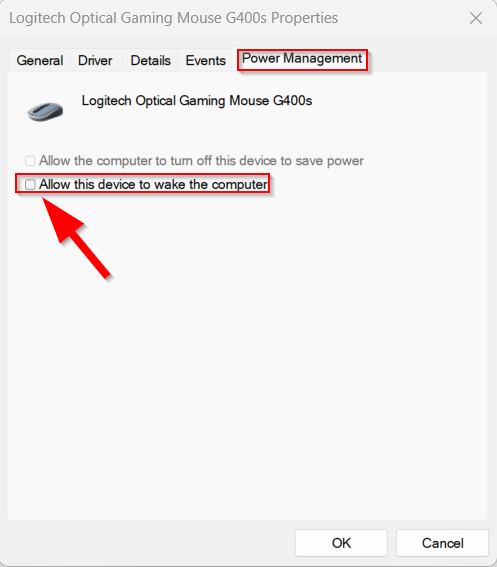
- Cause: Mouse movement, keyboard input, or background apps triggering wake signals.
- Fix: Open Device Manager > Mice and Keyboards, right-click each device, select Properties > Power Management, and uncheck Allow this device to wake the computer.
Command Doesn’t Work in MultiMonitorTool
- Check: Are you using the correct monitor index?
- Fix: Run
/listfirst to confirm numbering. - Run as Admin: Some GPUs require elevated privileges for display control.
Dummy Plug Not Detected
- Cause: GPU port limit reached or incompatible plug.
- Fix: Try a different port (HDMI instead of DisplayPort), ensure the dummy plug supports your resolution (e.g., 4K, HDR), and update GPU drivers.
Frequently Asked Questions About Making One Monitor Sleep
Can Windows put only one monitor to sleep natively?
No. Windows power management settings are global and apply to all connected displays simultaneously. There is no built-in per-monitor sleep timer in the operating system.
Why do my windows move when I turn off a monitor?
Windows treats a disconnected monitor as removed hardware and relocates all open windows from that screen to active displays. This happens with native methods like Windows + P and Display Settings.
Does a black screen save power on a monitor?
No. A black screen only masks visual content. The monitor backlight stays active, and power consumption remains nearly identical to displaying bright content.
What is the cheapest way to make one monitor sleep?
MultiMonitorTool is completely free and supports command-line scripts to disable specific monitors. Pair it with AutoHotkey for hotkey automation at zero cost.
Will turning a monitor on and off frequently damage it?
Repeated power cycling can stress internal capacitors over time. For daily use, sleep mode is gentler on hardware than full power-off cycles.
Can I keep one monitor on while another sleeps?
Yes. Tools like DisplayFusion and MultiMonitorTool support asymmetric power states, allowing you to keep a surveillance or NVR monitor active while productivity displays sleep.
Key Takeaways for Making One Monitor Sleep
You can absolutely make one monitor sleep without disrupting your workflow, but Windows alone won’t do it. Use MultiMonitorTool for free, scriptable control that preserves window positions. Choose Ultramon for a user-friendly commercial experience with one-click toggling. Pick a dummy plug for rock-solid stability when you need guaranteed window preservation.
Avoid black-screen workarounds if true power savings or complete darkness matters. With the right method, your multi-monitor setup stays efficient, distraction-free, and energy-smart. Start with MultiMonitorTool today since it’s free, and upgrade to a paid tool only if you need advanced features like display profiles or specialized scripting.


