
You’re staring at one screen, juggling windows, and losing focus every time you switch tasks. A dual screen monitor setup solves this problem by doubling your workspace in just a few minutes. Whether you edit videos, analyze data, game, or manage emails, adding a second display is one of the easiest productivity upgrades available. Research shows that using two monitors can boost productivity by up to 42%, and you don’t need advanced tech skills to get started.
This guide walks you through every step of learning how to setup a dual screen monitor on Windows 10 using only built-in tools. From connecting the hardware to fine-tuning resolution and display behavior, you’ll learn how to arrange, extend, and optimize your setup for seamless performance. By the end, you’ll have a fully functional dual display workspace tailored to your physical layout and workflow.
Align Your Display Map With Your Desk Layout
Your mouse cursor should move naturally between monitors, just like your eyes do. If your left monitor appears on the right in settings, navigation becomes confusing fast. You must align the digital display map with your real-world desk arrangement before anything else.
Identify Each Physical Monitor
Windows assigns numbers to connected displays, but these don’t always match their physical positions. To avoid confusion:
- Right-click your desktop and select Display settings.
- At the top of the window, you’ll see two labeled boxes representing your monitors.
- Click the Identify button. A large number will appear on each screen showing which is Monitor 1 and which is Monitor 2.
Pro Tip: Write down which number appears on which physical monitor before continuing.
Drag Screens to Reflect Desk Position
Once identified, arrange the monitor boxes to mirror how they sit on your desk:
• Click and drag Box “1” to the left if it’s your left monitor.
• Place Box “2” to the right if it’s on the right side.
• For vertical stacking, position one box directly above or below the other.
✅ Visual Cue: The blue highlight around a box shows which monitor you’re currently adjusting.
After dragging, click Keep Changes to lock the layout. Without this confirmation, settings revert after 15 seconds.
Set Your Primary Monitor
Decide which screen will act as your main workspace, the one where apps open by default and where your taskbar stays active. Choosing the right primary monitor keeps your daily workflow intuitive.
Assign Primary Display Status
- In Display settings, click the box for your preferred main screen.
- Scroll down and check Make this my main display.
- The secondary monitor automatically adjusts its role.
What Changes?
• The login screen, desktop icons, and taskbar appear on the primary monitor.
• New windows typically launch on the main display unless moved manually.
Close the settings window when finished. No additional confirmation is needed after clicking Keep Changes earlier.
Calibrate Resolution on Both Screens

Each monitor performs best at its native resolution. Mismatched or incorrect settings cause blurry text, stretched images, or black borders that hurt your eyes and slow you down.
Set Correct Resolution Per Monitor
- In Display settings, click the box for the first monitor.
- Scroll to Display Resolution and open the dropdown menu.
- Select the resolution marked as (Recommended), which is the panel’s optimal setting.
- Click Keep Changes to apply.
- Repeat for the second monitor, especially if it has a different size or aspect ratio.
⚠️ Warning: If the screen goes black after changing resolution, wait 15 seconds. Windows reverts automatically. Try again and pick the recommended option.
Handle Mismatched Resolutions
Using two different monitors, such as 1080p and 1440p, works fine in Extend mode. However:
• Windows handles scaling per monitor, but some apps may appear larger or smaller when dragged across screens.
• To reduce visual jarring, consider enabling Let Windows try to fix apps so they’re not blurry under Scale and Layout.
Choose the Right Display Mode
Windows offers four ways to use multiple monitors. Pick the one that fits your current task and switch anytime using a simple shortcut.
Extend These Displays
• Best for: Daily work, multitasking, and creative projects.
• How it works: Your desktop spans both screens, and you can drag windows freely between them.
• Example: Keep email on the left and a spreadsheet on the right.
This is the most common mode when you setup a dual screen monitor for productivity.
Duplicate These Displays
• Best for: Presentations, training sessions, and screen sharing.
• How it works: Both monitors show the exact same image.
• Use Case: Connecting a laptop to a projector so both display your slides.
Show Only on 1 or 2
• Show only on 1: Turns off Monitor 2; everything appears on Monitor 1.
• Show only on 2: Turns off your laptop screen and uses only the external monitor.
💡 Shortcut: Press Win + P to open the projection menu and switch modes instantly.
Always click Keep Changes after selecting a mode, or the system reverts.
Troubleshoot Common Dual Monitor Problems
Even with correct steps, issues can appear. Here’s how to fix them fast without calling tech support.
Cursor Disappears Between Screens
Cause: Digital layout doesn’t match physical placement.
Fix:
• Go to Display settings.
• Drag the monitor boxes so they align exactly as they sit on your desk.
• Ensure edges touch with no gaps or overlaps.
One Monitor Not Detected
Try this troubleshooting sequence:
- Check cable connections (HDMI, DisplayPort, etc.) and reseat both ends.
- Power cycle the monitor by turning it off and on.
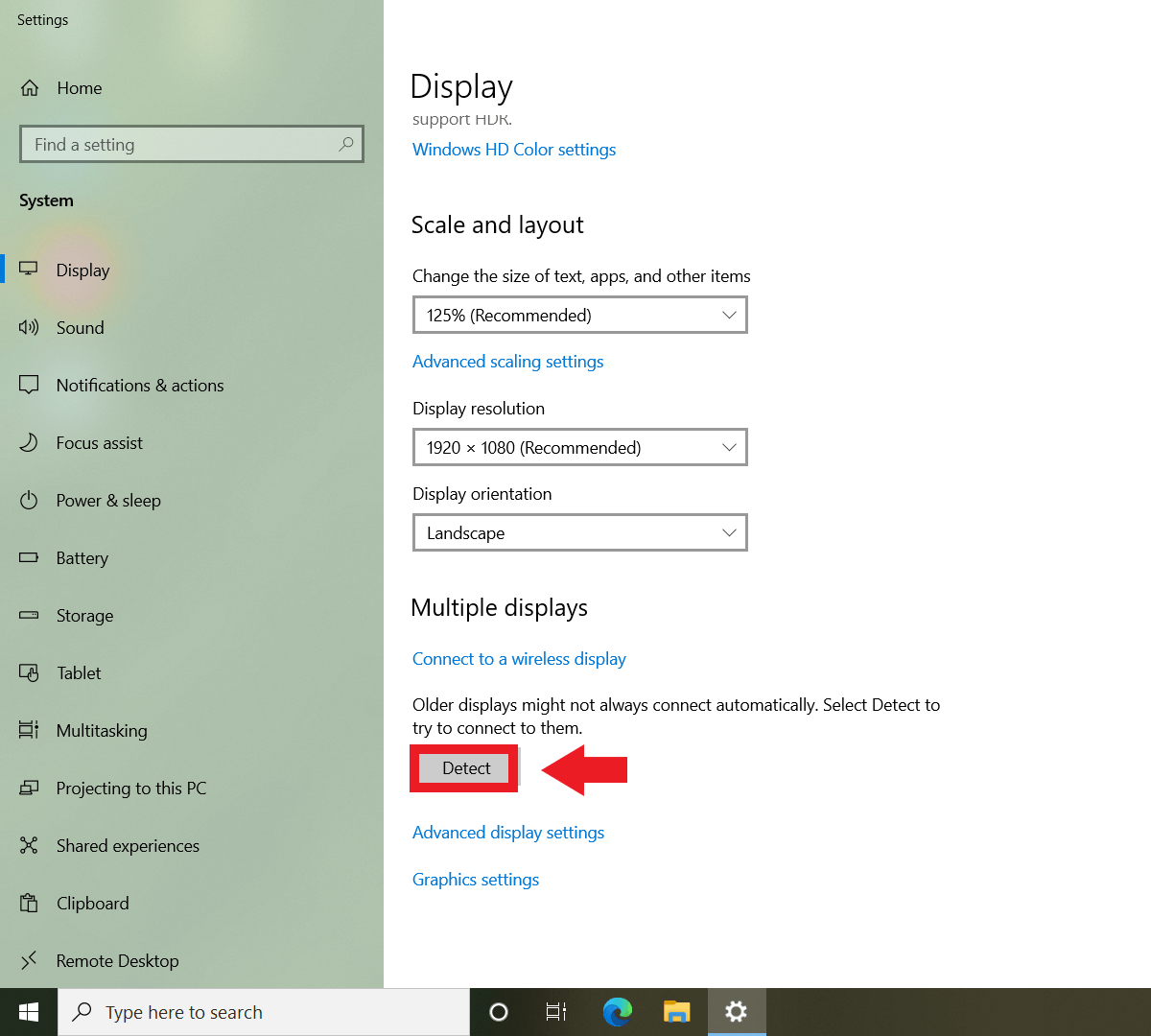
- Click Detect in Display Settings to force recognition.
- Update graphics drivers via Device Manager if detection still fails.
🔄 If using an older monitor, try a different cable type, such as switching from VGA to HDMI.
Text Appears Blurry on One Screen
Likely Cause: Incorrect scaling or non-native resolution.
Solution:
1. Click the affected monitor in Display Settings.
2. Confirm resolution is set to (Recommended).
3. Under Scale and layout, try 100%, 125%, or 150% until text looks sharp.
4. Enable Fix apps so they’re not blurry if needed.
Optimize Your Workspace for Daily Use
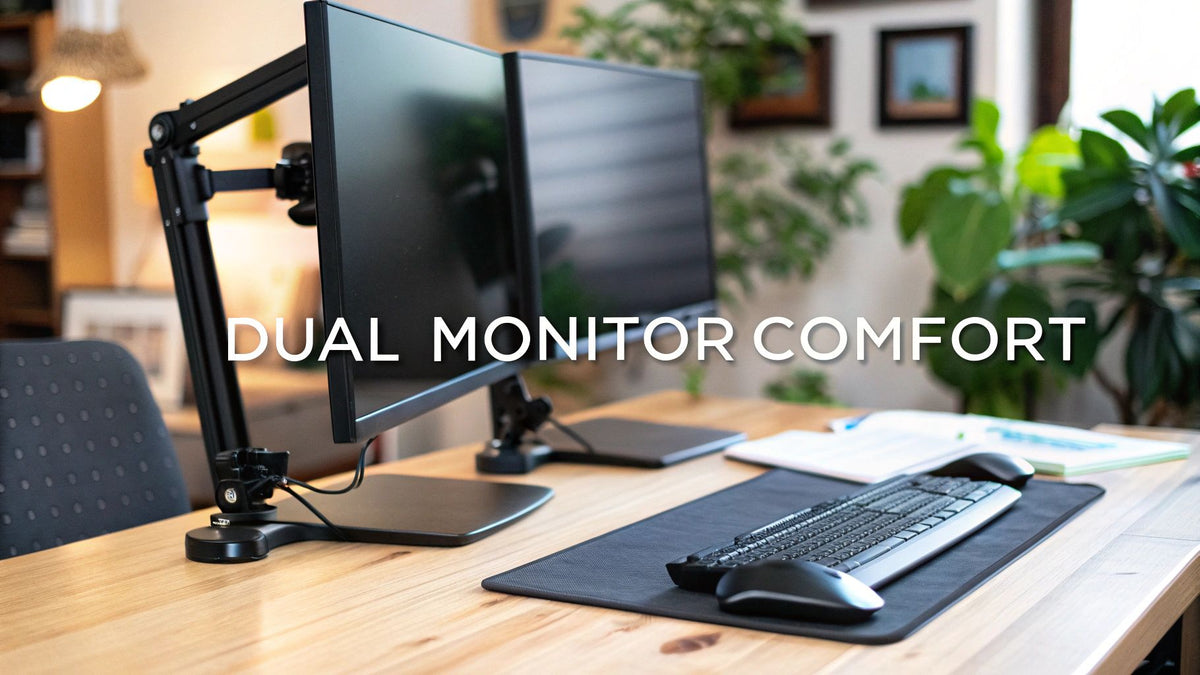
A well-configured dual screen monitor setup should feel invisible. Your focus stays on work, not the tech behind it.
Position Screens for Ergonomics
• Center the primary monitor directly in front of you.
• Angle both screens inward slightly, like a shallow V, to reduce neck strain.
• Position the top of screens at or slightly below eye level.
Use Keyboard Shortcuts
Speed up window management with these shortcuts:
• Win + Shift + Left/Right Arrow: Move window between monitors.
• Win + Left/Right Arrow: Snap window to half-screen on current display.
• Win + P: Switch projection mode instantly.
Maintain Your Setup Long-Term
• Periodically clean display connectors and ports.
• Recheck resolution after major Windows updates.
• Label cables if using multiple devices like laptops, desktops, or docks.
Frequently Asked Questions About Dual Screen Monitor Setup
Do I need special software to setup a dual screen monitor?
No. Windows 10 includes all the tools needed for basic dual monitor configuration. The built-in Display settings handle layout, resolution, and display modes without third-party software.
How do I know which monitor is Monitor 1 or Monitor 2?
Click the Identify button in Display settings. Windows projects a large number onto each physical screen so you can map the software identity to the hardware position.
Can I use two monitors with different resolutions?
Yes. Extend mode allows each monitor to run at its native resolution independently. However, window dragging between screens may cause size shifts due to pixel density differences.
Why does my cursor jump awkwardly between screens?
The digital layout in Display settings likely doesn’t match your physical desk arrangement. Drag the monitor boxes so they touch in the same configuration as your real monitors.
Will my laptop work with an external monitor?
Most laptops support at least one external display. Check available ports (HDMI, USB-C, DisplayPort) and use the appropriate cable or adapter to connect your second screen.
What happens if I don’t click Keep Changes?
Windows reverts to the previous configuration after 15 seconds. This safety feature prevents you from being locked out if an unsupported resolution or layout is selected accidentally.
Key Takeaways for Setting Up a Dual Screen Monitor
Learning how to setup a dual screen monitor comes down to three core actions. First, align your digital display map with your physical desk so cursor movement feels natural. Second, choose the right display mode, with Extend being the standard for daily productivity. Third, calibrate resolution on each screen individually to avoid blurry text and visual jarring.
Now that your dual screen setup is running smoothly, consider exploring virtual desktops or third-party window managers for advanced control. For most users, the built-in Windows 10 display settings are all you need to transform how you work, one extra screen at a time.


