
You just bought a high-refresh gaming monitor and now you want to hook up your PlayStation, Xbox, or Nintendo Switch. But monitors lack built-in speakers, and HDMI auto-switching rarely works the way you expect. So figuring out how to connect gaming console to monitor without trial and error takes a little know-how.
The good news is that monitors often outperform TVs for gaming. You get sharper visuals, faster response times, and lower input lag, which makes them perfect for competitive play. This guide walks you through every connection method, audio workaround, and display tweak so your console runs flawlessly on your new screen.
Match Your Console to the Right Monitor Port
Check Available Video Outputs First
Before you grab any cable, look at what ports your console and monitor actually have. Most modern consoles output through HDMI, while monitors may accept HDMI, DisplayPort, or USB-C. Older systems like the PS3 or Wii rely on analog cables that need conversion before they reach a modern display.
If both devices have HDMI ports, you are ready to go. If your monitor only offers DisplayPort, you will need an active adapter. For retro consoles, a video converter box bridges the gap. And if you plan to use a laptop screen, a direct HDMI cable will not work. You will need a capture card instead.
Knowing this compatibility upfront saves you from buying the wrong cable or adapter.
Plug In Directly With HDMI for the Best Results
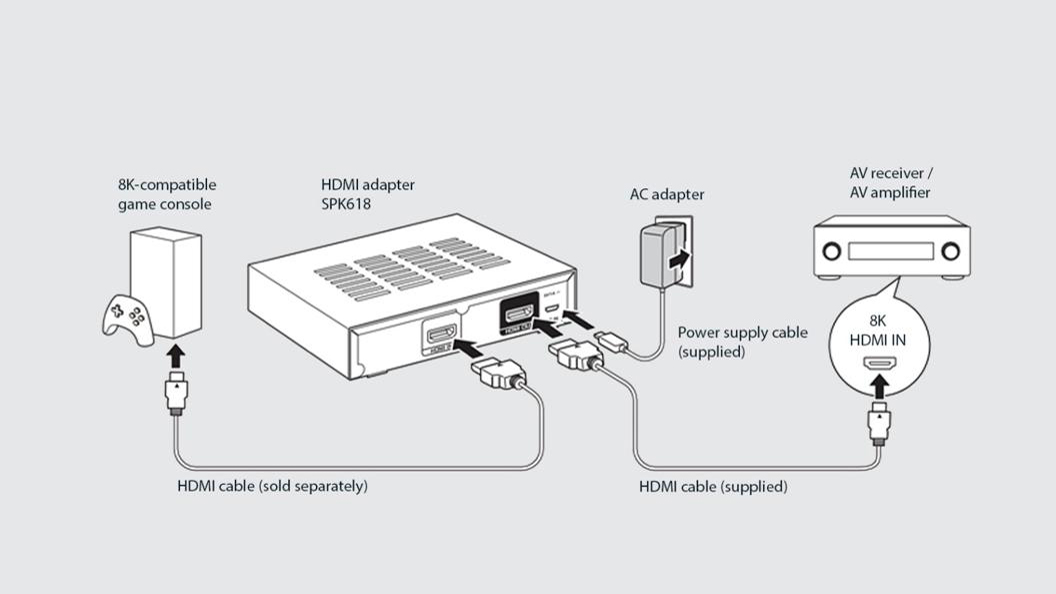
Step-by-Step HDMI Setup
This is the simplest and most reliable method for modern consoles. The PS5, Xbox Series X/S, and Nintendo Switch all output HDMI, and nearly every gaming monitor includes at least one HDMI input.
- Power off both the console and the monitor before connecting anything.
- Plug one end of an HDMI cable into the console’s HDMI OUT port.
- Connect the other end to the monitor’s HDMI IN port.
- Turn on the monitor first, then power up the console.
- Press the input or source button on the monitor and pick the correct HDMI port.
If your monitor supports HDMI 2.1, use a certified Ultra High Speed cable to unlock 4K at 120Hz with HDR on PS5 or Xbox Series X.
Confirm the Signal Is Detected
Some monitors do not auto-switch inputs when you plug in a new device. If the screen stays black:
- Press the input or source button on the monitor
- Manually choose the HDMI port you used
- Make sure the console is fully powered on, not in rest mode
Once the signal is detected, the console’s home screen should appear right away.
Bridge HDMI and DisplayPort With an Active Adapter
Why You Cannot Use a Passive Cable
Many high-end gaming monitors use DisplayPort as their main input, especially models built for PC gaming. Since consoles only output HDMI, you need an active HDMI to DisplayPort adapter to bridge the two. Passive cables will not work because they cannot convert the signal type.
Choose a Powered Adapter for Stable Performance
Pick an active adapter that supports at least 4K at 60Hz or 1440p at 120Hz. Reliable options include the CableCreation or StarTech models. These adapters require USB power to function properly.
- Plug the HDMI end into your console.
- Run a DisplayPort cable (DP 1.2 or higher) from the adapter to the monitor.
- Power the adapter using a USB-A port on the console, a wall charger, or a powered USB hub.
Know the Resolution and Refresh Limits
- Xbox One S/X and Series X/S can hit 4K at 60Hz or 1440p at 120Hz with compatible adapters
- PlayStation 5 was originally capped at 60Hz over HDMI to DisplayPort, but newer firmware and updated adapters now support 1440p at 120Hz
- Full 4K at 120Hz may not be possible through this method
Always check adapter reviews and update firmware before assuming top performance.
Fix Audio Dropouts Over DisplayPort
DisplayPort carries audio, but not every adapter passes it cleanly. If sound cuts out:
- Plug headphones into the controller’s 3.5mm jack
- Use the console’s optical audio out if available
- Change audio output in console settings to Headset or Optical instead of HDMI
Connect Older Consoles Using a Video Converter
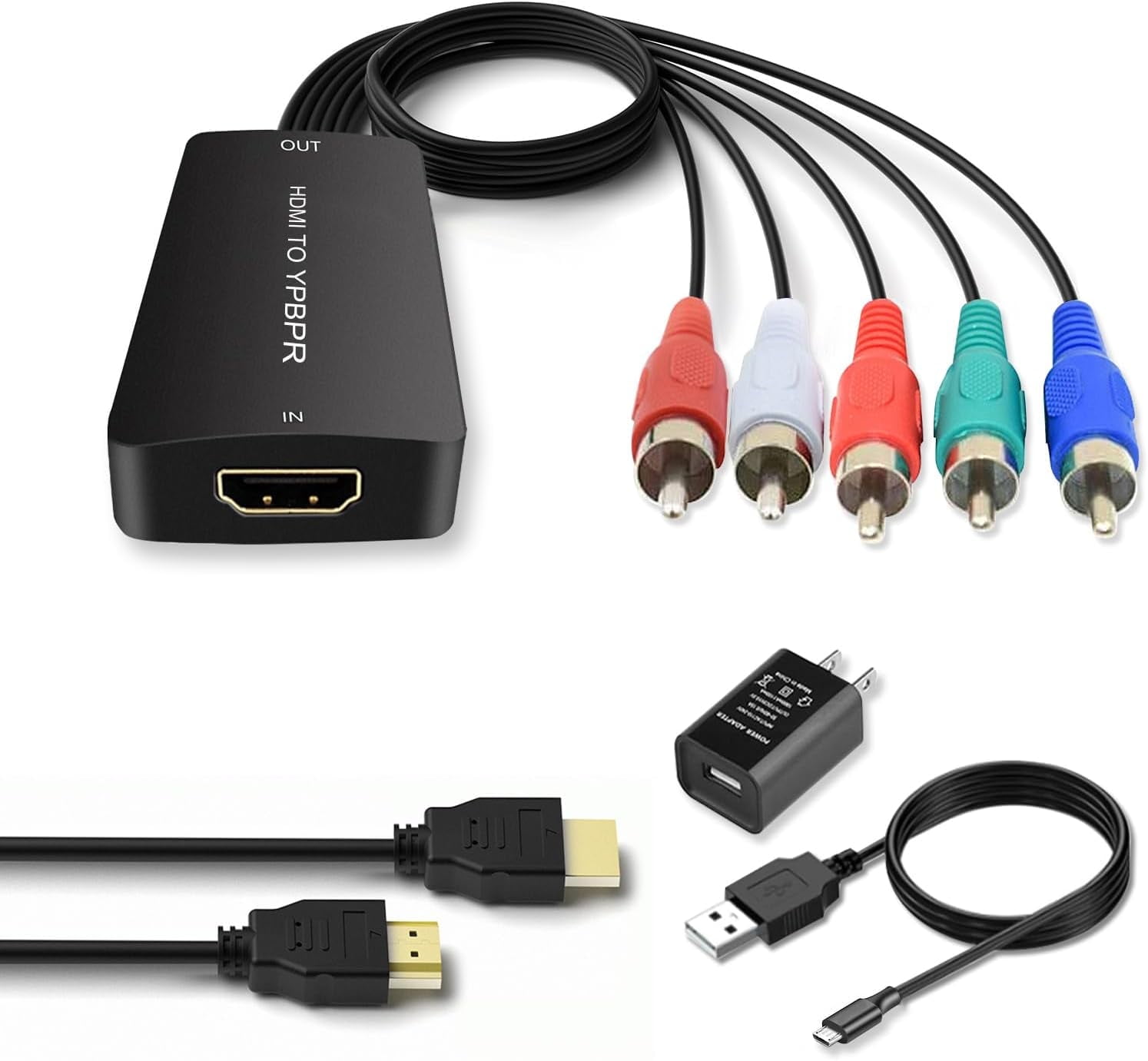
Translate Analog Signals to HDMI
Consoles like the PS3, Xbox 360, and Wii output through composite (RCA) or component cables, which most modern monitors do not accept. A video converter box translates these analog signals into HDMI so your monitor can display them.
These boxes usually include:
– Input for red, white, and yellow RCA cables or component RGB
– HDMI or DVI output to connect to your monitor
Set Up the Converter Box
- Plug the RCA or component cables from the console into the INPUT on the converter box.
- Connect the red and white audio cables to the converter’s audio input.
- Run an HDMI cable from the converter’s output to the monitor.
- Power the converter with its included power supply.
Some models offer pass-through, letting you toggle between a PC and a console on the same monitor.
Improve Picture Quality From Analog Sources
Analog signals often look soft or blurry on high-resolution screens. To sharpen the image:
- Use component cables instead of composite if your console supports them
- Enable 480p or 720p output in the console’s video settings
- Pick a converter with built-in upscaling to 720p or 1080p
The result will not match modern HDMI clarity, but it brings retro gaming to your desk with acceptable quality.
Use a Laptop Screen as a Console Display

Why a Direct HDMI Cable Fails
Most laptops have HDMI output, not input. Plugging a console into your laptop’s HDMI port does nothing because the port only sends signals out, not in. To use your laptop screen, you need an external HDMI capture card.
Install a USB Capture Device
- Buy a USB capture card such as the Elgato HD60 S, AverMedia Live Gamer Mini, or a budget alternative.
- Connect the console to the capture card via HDMI.
- Plug the capture card into your laptop through USB.
- Install and open software like OBS Studio, Streamlabs, or the manufacturer’s app.
- Select the console feed as your video source.
Now you can play console games directly on your laptop screen.
Stream With Remote Play Apps
You can also stream games over your home network without extra hardware:
- PS5 and PS4 users can install the PS Remote Play app on their PC and enable Remote Play in console settings
- Xbox users can use the Xbox app for Windows to stream from the console over the local network
These options rely on strong Wi-Fi or Ethernet but eliminate the need for capture cards.
Check for Rare HDMI Input Laptops
A few high-end laptops like certain Alienware or Razer models include HDMI input ports. If yours does:
- Connect the console directly with an HDMI cable
- Open Settings, then System, then Display on Windows
- Click “Project” and choose “Second screen only” or “Extend”
Always check your laptop manual to confirm input support before assuming it works.
Route Audio Correctly for Monitor Gaming
Why Audio Often Fails on Monitors
Even when video works perfectly, audio often breaks because most monitors lack built-in speakers. You need to route sound through an external device.
Plug Headphones Into the Controller
The easiest fix is to plug wired headphones or a gaming headset into the 3.5mm jack on your PS4, PS5, or Xbox controller. This gives private audio with mic support and zero setup hassle.
Connect External Speakers Through the Monitor
Many gaming monitors from brands like MSI and ASUS include a 3.5mm headphone or audio out port. You can use this to power external speakers:
- Run a 3.5mm male-to-male cable from the monitor’s audio out to your speakers.
- On the console, open Settings, then Sound, then Audio Output.
- Set the output device to HDMI so the monitor extracts audio from the signal.
Make sure your speakers have their own power source, such as powered speakers or a soundbar.
Use Optical Audio for High-Quality Sound
If your console has an optical audio port (PS4 and Xbox One) and you own a soundbar or DAC:
- Connect a TOSLINK optical cable from the console to your audio device
- In console settings, change the audio output from HDMI to Optical
This bypasses the monitor entirely and delivers lag-free, high-quality sound.
Route Audio Through Converter Boxes
When using an analog to HDMI converter:
– The console sends audio to the converter through RCA cables
– The converter embeds sound into the HDMI signal
– If your monitor does not pass audio, connect a 3.5mm cable from the converter’s audio out to your speakers
Some converters also include a headphone jack for direct listening.
Optimize Display Settings for Smooth Performance
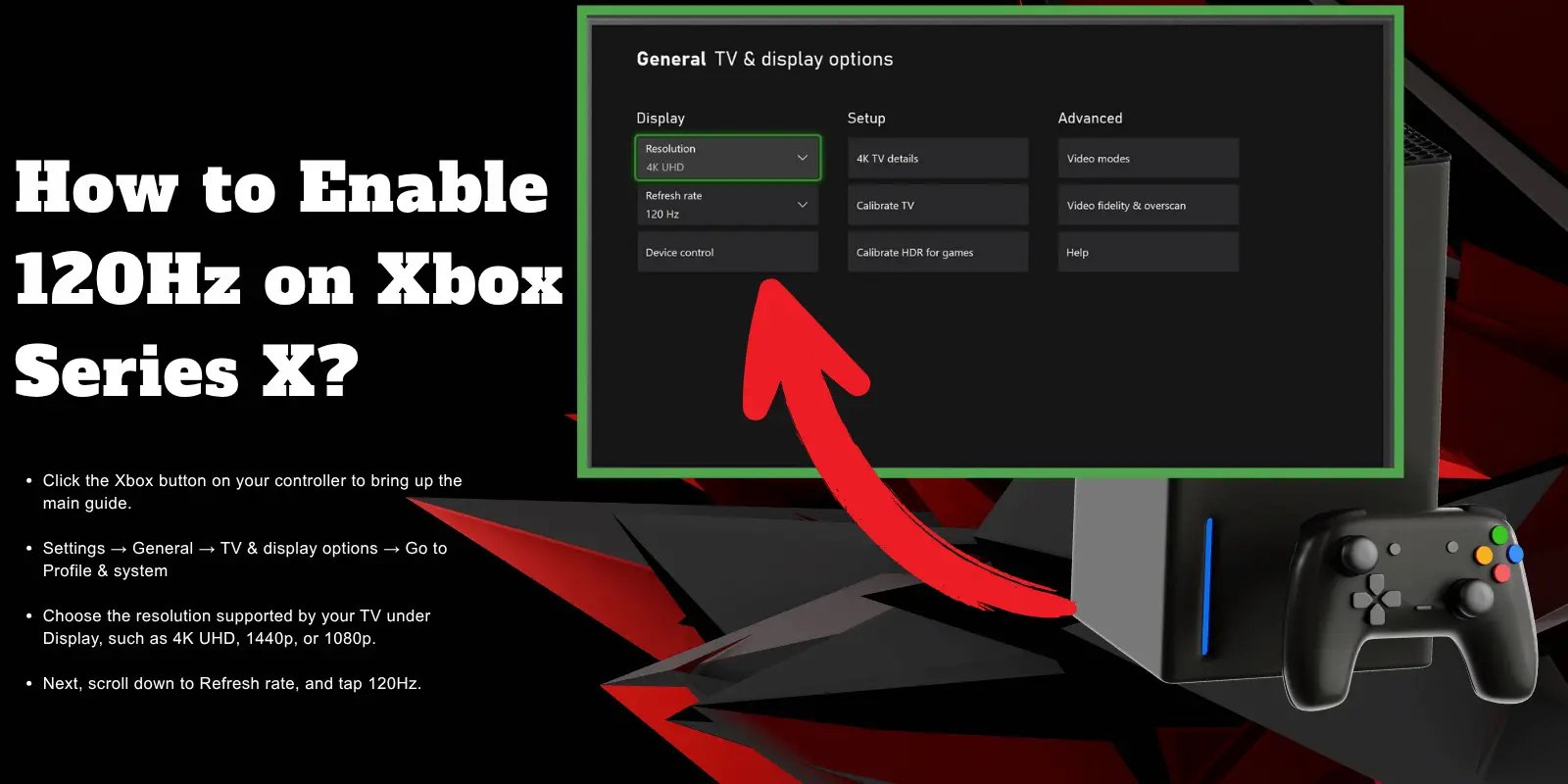
Match Resolution and Refresh Rate
After connecting, open your console’s display settings and align the output with your monitor’s specs.
For PS5 and Xbox Series X/S:
– Open Settings, then Display and Sound, then Video Output
– Set resolution to 2160p (4K) or 1440p depending on your monitor
– Set refresh rate to 60Hz, 120Hz, or 144Hz if supported
– Enable HDR if your monitor supports it
For PS4 Pro and Xbox One X, you can manually set resolution if auto-detection fails. The Nintendo Switch maxes out at 1080p at 60Hz when docked, and some monitors may not detect the signal. Try a different HDMI cable or port if this happens.
Turn On Game Mode for Lower Input Lag
Most monitors include a Game Mode or Low Input Lag Mode in their OSD menu. Turn this on to:
– Disable extra image processing
– Reduce input lag to under 5ms
– Prioritize responsiveness over color enhancement
Look for this option under Display, Image, or System Settings on your monitor.
Fine-Tune Brightness and Clarity
Monitors tend to be brighter and sharper than TVs. In well-lit rooms:
– Increase brightness to reduce glare
– Lower contrast if whites look blown out
– Use sRGB or Game presets for accurate colors
Higher pixel density means crisper text and textures, which is ideal for UI-heavy games.
Troubleshoot Common Connection Problems
No Signal on the Monitor
This is the most common issue. Causes include the wrong HDMI input, a loose cable, or an incompatible resolution.
To fix it:
– Press the input or source button on the monitor
– Reseat the HDMI cable at both ends
– Try a different HDMI port or cable
– Restart the console and monitor
If you are running HDMI 2.1 at 120Hz, temporarily drop to 60Hz to test signal stability.
Black Screen After Power On
Sometimes the monitor detects the console but shows a black screen after boot. Possible causes include HDMI-CEC handshake failure, HDCP errors, or insufficient power to an adapter.
To resolve this:
– Power cycle both devices
– Swap in a certified HDMI cable
– Make sure USB power is connected to any adapter
– Disable HDR temporarily to test
Flickering or Rolling Screen
This usually points to an unstable signal or bandwidth issue. Check the following:
– Cable quality. Use Ultra High Speed HDMI for 4K at 120Hz
– Adapter power. Plug USB power into a wall adapter if needed
– Refresh rate. Lower to 60Hz to stabilize the picture
Avoid HDMI cable runs longer than 3 meters without a signal booster.
Audio Not Working
Even with video working, audio often fails due to incorrect routing. To fix it:
– Confirm the monitor has no speakers
– Plug headphones into the controller
– Check console audio settings and set output to HDMI, Optical, or Headset
– For converter boxes, make sure RCA audio cables are connected
– Reboot the console after changing audio settings
Laptop Shows No Console Feed
If you are using a capture card:
– Confirm OBS, Elgato, or another app is running and detecting the signal
– Use a USB 3.0 or higher port
– Try a different HDMI cable between the console and capture card
For Remote Play:
– Make sure both devices sit on the same network
– Restart the router if the connection drops
– Update the console firmware and the PC app
Maximize Your Gaming Monitor Setup

Invest in Quality Cables
Do not cheap out on HDMI cables. For 4K at 120Hz and HDR, use Ultra High Speed HDMI cables certified for 48Gbps. Avoid unbranded cables that may not support full bandwidth. For HDMI to DisplayPort adapters, choose models with USB power input and strong user reviews.
Add an HDMI Switch for Multi-Device Use
If you game on both PC and console, an HDMI switch lets you toggle between devices without unplugging cables. Connect your PC to Input 1, your console to Input 2, and the output to your monitor. Switch sources with a button press for easy dual-use setups.
Position Your Monitor for Comfort
Monitors sit closer than TVs, so ergonomics matter. Place the screen at eye level, sit about 2 to 3 feet away, and tilt the monitor slightly upward if needed. A monitor arm gives you flexible positioning and reduces neck strain during long sessions.
Future-Proof Your Next Monitor Purchase
When shopping for a new monitor, prioritize the following features:
– HDMI 2.1 ports
– VRR (Variable Refresh Rate) support
– HDR10 or Dolby Vision compatibility
– 1440p or 4K resolution with 120Hz or higher refresh
These features ensure compatibility with next-gen consoles and modern PC gaming.
Frequently Asked Questions About Connecting a Gaming Console to a Monitor
Do all monitors work with gaming consoles?
Most modern monitors work with gaming consoles as long as they have an HDMI input. If your monitor only has DisplayPort, you need an active adapter. Older consoles with analog outputs require a video converter box.
Can I use a laptop as a monitor for my console?
Yes, but only with an HDMI capture card connected via USB. Laptops generally have HDMI output, not input, so a direct cable will not work. Remote Play apps also let you stream console games to a laptop over your home network.
Why is there no sound when I connect my console to a monitor?
Most monitors lack built-in speakers. You need to route audio through headphones plugged into the controller, external speakers connected to the monitor’s audio out, or an optical cable to a soundbar or DAC.
What HDMI cable do I need for PS5 or Xbox Series X?
You need an Ultra High Speed HDMI cable certified for HDMI 2.1 to unlock 4K at 120Hz with HDR. Older High Speed cables still work but cap you at lower resolutions and refresh rates.
Will an HDMI to DisplayPort adapter reduce my gaming performance?
It depends on the adapter. Active adapters with USB power can deliver 4K at 60Hz or 1440p at 120Hz on Xbox consoles. PS5 support for 1440p at 120Hz requires newer adapter models updated after October 2022.
How do I fix a no-signal error on my monitor?
Start by pressing the input or source button to pick the correct HDMI port. Reseat the cable at both ends, try a different port or cable, and restart both devices. If you are running 4K at 120Hz, drop to 60Hz to test signal stability.
Key Takeaways for Connecting Your Console to a Monitor
Connecting a gaming console to a monitor gives you sharper visuals, lower input lag, and a more responsive setup than most TVs. Use HDMI for direct connections, active adapters for DisplayPort monitors, and capture cards for laptop screens. Always configure audio separately through the controller, monitor audio out, or optical port, since most monitors lack built-in speakers. Once connected, match your console’s resolution and refresh rate to your monitor’s specs and enable Game Mode for the lowest input lag. With the right cables and settings, your monitor becomes a high-performance gaming hub ready for any console generation.


