
A flickering monitor can derail your work, ruin a gaming session, and leave you with sore eyes and a splitting headache. Screen flicker shows up as rapid flashing, intermittent blackouts, color shifts, or distorted visuals on desktops, laptops, and external displays alike. The root cause ranges from loose cables and outdated drivers to incompatible apps and failing hardware. The encouraging part is that most cases are fixable without a costly replacement.
In this guide, you will learn how to stop a computer monitor from flickering through a clear, step-by-step troubleshooting path. We will start with quick fixes you can try in minutes, then move into driver management, software conflicts, and hardware diagnostics. By the end, you will know exactly how to pinpoint the cause and apply the right fix.
Secure All Cables and Connections

Loose or damaged cables rank among the top triggers of monitor flickering. A shaky signal from a poorly seated HDMI, DisplayPort, VGA, or USB-C connection can make your screen blink or distort without warning.
Check Cable Seating and Integrity
Confirm that both ends of your video cable are firmly plugged into the computer and monitor. Gently wiggle the connectors to verify they are secure. If the flicker changes when you move the cable, it is likely damaged or loose. Swap it for a high-quality, shielded cable from a trusted brand. Avoid cheap, unshielded cables that are prone to interference.
Bypass Docking Stations and Adapters
If you use a USB-C hub, docking station, or HDMI adapter, disconnect it. Plug your monitor directly into the computer to rule out adapter failure. Many flickering issues vanish once the signal path is simplified.
Test Different Ports and Monitors
Try a different HDMI or DisplayPort on your GPU or motherboard. For desktops, make sure the cable connects to the dedicated graphics card, not the motherboard’s integrated video output (unless no dedicated GPU is installed). If possible, connect your PC to a different monitor or TV. If the flickering stops, your original monitor may be failing.
Run the Task Manager Diagnostic Test
Before diving into complex fixes, use the Task Manager Test to quickly determine whether the problem is software or hardware related.
Open Task Manager and Observe Behavior
Press Ctrl + Shift + Esc to open Task Manager. Watch how the Task Manager window behaves compared to the rest of your screen:
- If Task Manager flickers too, the issue is likely driver related.
- If Task Manager stays stable, an incompatible application is probably causing the flicker.
- If flickering happens only in one app or browser, focus on software conflicts or extensions.
- If flickering occurs even before Windows loads (such as the BIOS screen), suspect hardware failure.
This test saves time by directing you to the right fix without guesswork.
Reset and Update Display Drivers
Outdated, corrupted, or incompatible display drivers are the most common cause of monitor flickering. Fixing them often resolves the issue immediately.
Perform a Quick Driver Reset
Try this instant fix first. Press Windows + Ctrl + Shift + B. Your screen will flash black briefly as the graphics driver restarts. If the flickering stops, it was a temporary driver glitch.
Update to the Latest Driver Version
An outdated driver cannot handle modern applications or OS updates properly.
- Press Windows + X and select Device Manager.
- Expand Display adapters.
- Right-click your GPU and choose Update driver.
- Select Search automatically for updated driver software.
If Windows cannot find a newer version, visit the manufacturer’s website directly:
- NVIDIA: geforce.com/drivers
- AMD: amd.com/support
- Intel: intel.com/content/www/us/en/download-center
- Laptops: Check the OEM site (Dell, HP, Lenovo) for model-specific drivers.
Roll Back a Recently Updated Driver
If flickering started right after a Windows or driver update, the new driver may be unstable.
- In Device Manager, right-click your GPU and select Properties.
- Go to the Driver tab.
- Click Roll Back Driver and confirm Yes.
- Restart your PC.
This option only appears if a previous driver version still exists on your system.
Clean Uninstall and Reinstall Drivers
For persistent flickering, a full driver wipe is essential.
- Boot into Safe Mode by holding Shift while clicking Restart in the Start Menu.
- Open Device Manager and expand Display adapters.
- Right-click your GPU, choose Properties, then the Driver tab.
- Click Uninstall Device.
- Check the box labeled Delete the driver software for this device.
- Click Uninstall, then restart.
Windows will load a basic display driver. After reboot, install the latest driver from the manufacturer’s website.
Identify and Fix Problematic Applications
If Task Manager stays stable while other windows flicker, a specific app is likely the culprit.
Update or Remove Conflicting Software
- Go to Settings > Apps > Apps & features.
- Sort by install date to spot recently added apps.
- Update all apps, especially graphics-intensive ones like video editors and games.
- If updating does not help, uninstall one app at a time, restarting after each removal to test.
Common offenders include remote desktop tools, screen recording software, outdated antivirus programs, and third-party display utilities.
Troubleshoot Browser Flickering
If only your browser flickers, disable extensions one by one in browser settings. Clear your cache and cookies, then reset the browser to default settings. Try a different browser to isolate the issue.
Scan for Malware
Malware can hijack system resources and cause display anomalies. Run a full system scan using Windows Defender or a trusted antivirus tool. Use Malwarebytes for a second opinion scan, remove any detected threats, and reboot.
Adjust Critical Display Settings
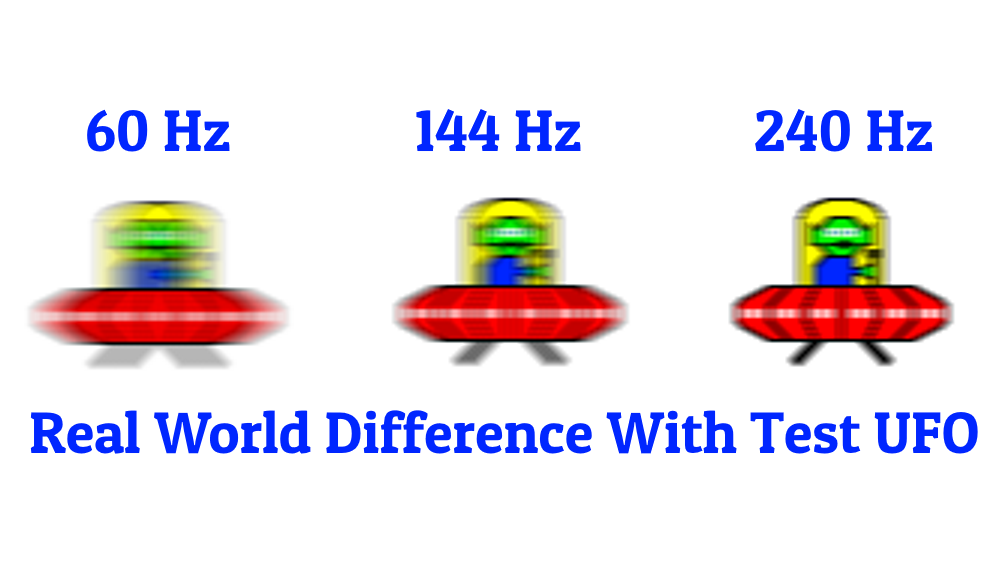
Incorrect display configurations can create flickering due to signal mismatches between your GPU and monitor.
Set the Correct Refresh Rate
A mismatched refresh rate is a frequent cause of flickering.
- Right-click the desktop and select Display settings.
- Scroll down and click Advanced display.
- Under Refresh rate, select the recommended value (usually 60 Hz).
- For gaming monitors (120Hz, 144Hz), ensure your GPU and cable support the rate. If unstable, lower it to 60Hz temporarily to test.
Use DisplayPort for high refresh rates, since HDMI may not support 144Hz at higher resolutions without compression.
Disable Hardware-Accelerated GPU Scheduling
This Windows 10 and 11 feature improves performance but can cause flickering on some systems.
- Go to Settings > System > Display.
- Click Graphics > Change default graphics settings.
- Turn off Hardware-accelerated GPU scheduling.
- Restart your computer.
Many users report immediate flicker resolution after disabling this setting.
Test for Hardware and Power Issues

If software fixes fail, the problem may be hardware related, especially if flickering occurs under load or during boot.
Check GPU and Internal Connections
For desktops, power off and unplug the PC. Open the case and ensure the GPU is fully seated in the PCIe slot. Reseat the card and confirm that all power cables (6-pin or 8-pin) are connected.
For laptops, flickering when moving the screen suggests a damaged internal ribbon cable. This requires professional repair, so do not open the laptop unless you have experience.
Test Power Supply Stability
A weak or failing PSU cannot deliver stable power under load, causing screen blackouts.
- Download and run Cinebench (free).
- Start the OpenGL test to stress the GPU.
- Watch for flickering or blackouts during the benchmark.
If flickering occurs only during the test, your PSU may be underpowered or failing. Consider upgrading to a higher-wattage, 80+ rated unit.
Monitor GPU Temperature
Overheating GPUs cause flickering and crashes. Use HWMonitor or MSI Afterburner to check GPU temps. Idle temps should stay below 50°C, and load temps should stay below 85°C. If temps exceed 90°C, clean dust from fans, improve case airflow, or repaste the GPU.
Address Special Use Cases
Some flickering scenarios require unique approaches.
Fix Laptop-Only Screen Flickering
If your laptop screen flickers but an external monitor does not, the internal display or ribbon cable is faulty. Use the external monitor as your primary display until you can get the internal screen repaired or replaced.
Resolve Gaming and High-Load Flickering
If flickering happens during games, update your game and GPU drivers. Lower in-game graphics settings, especially anti-aliasing and shadows. Cap the frame rate to match your monitor refresh rate using V-Sync or NVIDIA Control Panel. Ensure your PSU can handle the GPU’s power draw.
Troubleshoot Multiple Monitor Setups
Flickering in multi-monitor setups often stems from sync issues. Ensure all monitors use compatible resolutions and refresh rates. Use high-quality cables for each display and disable unnecessary background apps to reduce GPU load. Try disconnecting one monitor to see if the flickering stops.
Run System Maintenance and Updates
Do not overlook basic system health. Outdated OS versions and missing patches can cause display issues.
Install Windows Updates
Microsoft regularly releases fixes for display drivers and compatibility.
- Go to Settings > Windows Update.
- Click Check for updates.
- Install all available updates and restart.
Windows 10 support ends October 14, 2025, so consider upgrading to Windows 11 for continued security and driver support.
Use Built-in Troubleshooters
Windows includes automated tools to fix common problems. Go to Settings > System > Troubleshoot > Other troubleshooters, then run the Display troubleshooter and follow the prompts.
Know When to Replace Hardware
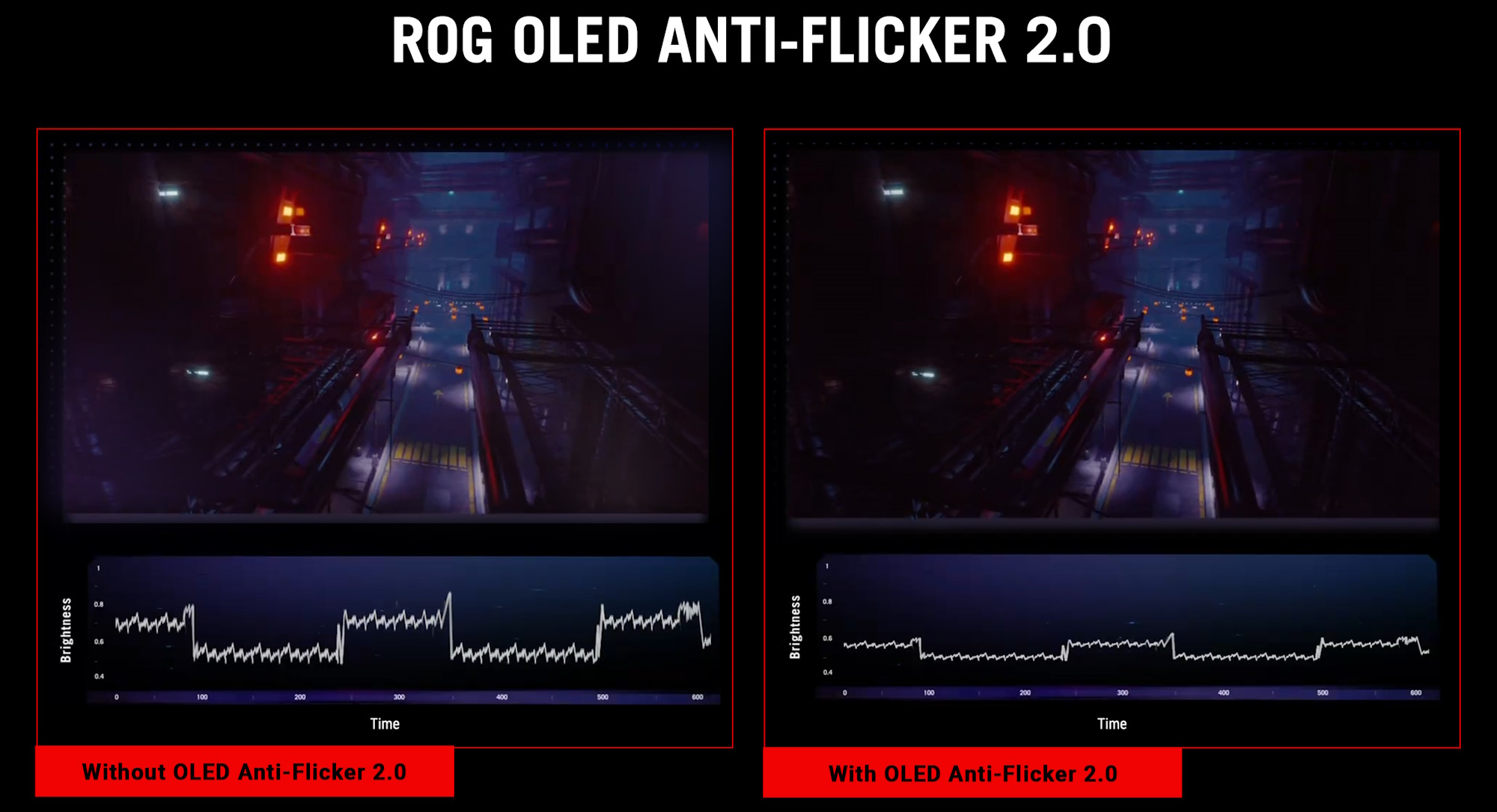
If all software and connection fixes fail, hardware replacement is likely needed.
Replace the Monitor or Cable
Replace the monitor if the flickering persists on multiple PCs, you have tested with a different cable and port, and the screen shows lines, discoloration, or dead pixels.
Replace the GPU
Replace the graphics card if flickering occurs on multiple monitors, you have ruled out drivers and cables, and the GPU shows artifacts, crashes, or overheating.
Consider Age and Usage
Monitors typically last 3 to 7 years. If your monitor is older and flickering will not resolve, replacement is often more cost-effective than repair.
Frequently Asked Questions About Monitor Flickering
Why does my monitor flicker only when playing games?
Gaming flicker usually points to outdated GPU drivers, overheating, or incompatible in-game settings. Update your drivers, monitor GPU temps with HWMonitor, lower graphics settings like anti-aliasing and shadows, and cap your frame rate to match your monitor’s refresh rate.
Can a bad HDMI cable cause screen flickering?
Yes. A loose, damaged, or poorly shielded HDMI cable can interrupt the signal between your GPU and monitor, causing intermittent flickering. Replace it with a high-quality shielded cable and confirm both ends are firmly seated.
How do I know if my flickering is caused by a driver or an app?
Open Task Manager with Ctrl + Shift + Esc. If Task Manager flickers along with the rest of your screen, the issue is driver related. If Task Manager stays stable while other windows flicker, an incompatible application is the likely cause.
Is monitor flickering bad for your eyes?
Yes. Prolonged exposure to screen flicker causes eye strain, fatigue, headaches, and even migraines. It also reduces productivity by acting as a constant visual distraction. Fix the issue promptly to protect your vision and comfort.
Will upgrading to Windows 11 fix my flickering monitor?
Not always, but it can help. Windows 11 includes updated drivers and compatibility fixes that may resolve flickering caused by outdated software. However, if the root cause is hardware related, an OS upgrade will not fix the problem.
How long do computer monitors last before they start flickering?
Most monitors last between 3 and 7 years. If your monitor is within this range and flickering persists despite troubleshooting, age-related component failure is likely. Replacement is usually more cost-effective than repair at this stage.
Key Takeaways for Stopping Monitor Flickering
Most flickering problems come down to three main causes: loose or damaged cables, outdated display drivers, and incompatible applications. Start with the Task Manager Test to quickly identify which category your issue falls into, then apply the matching fix. Quick wins like pressing Win + Ctrl + Shift + B or lowering the refresh rate to 60Hz often resolve the issue in minutes.
If software fixes do not work, move to hardware diagnostics. Test your PSU with Cinebench, check GPU temperatures with HWMonitor, and try a different cable or monitor to isolate the failing component. Your next step is to run the Task Manager Test right now and follow the diagnostic path it reveals. A flicker-free screen is within reach, and you now have the tools to get there fast.


