
You’ve just set up a sleek new monitor and are ready to start working, only to realize your keyboard isn’t responding. You plug it into the monitor’s USB port, but nothing happens. What went wrong? You’re not alone. Many users assume that plugging a keyboard directly into a monitor automatically connects it to their system, but the reality involves more nuance. The truth is, a monitor doesn’t process input devices like a keyboard on its own. It acts as a bridge only if properly configured. Whether you’re using a wired, wireless, or USB-C setup, understanding how your monitor interacts with your PC is key to getting your keyboard working seamlessly.
This guide breaks down exactly how to connect a keyboard to a monitor, whether directly through the monitor’s USB hub or via your computer. You’ll learn the difference between video and data cables, how to set up passthrough USB functionality, troubleshoot non-responsive connections, and optimize your setup for minimal clutter and maximum performance. By the end, you’ll know not just how to connect your keyboard, but why certain methods work better than others, so you can make the right choice for your setup.
Monitor USB Hub Setup

If your monitor has USB ports, you can use them to connect your keyboard. This works only if the monitor is properly linked to your computer for data, not just video.
Enable USB Passthrough on Your Monitor
Before your monitor’s USB ports work, you must activate the built-in hub. Most monitors require an upstream data connection to the PC in addition to the video cable. Without this, the USB ports remain inactive, even if the screen displays an image.
To enable passthrough:
1. Connect your monitor to the PC using HDMI, DisplayPort, or VGA.
2. Use a USB-B to USB-A cable (often included with the monitor) to link the monitor’s “USB Upstream” port to a USB-A port on your computer.
3. Power on the monitor and access its On-Screen Display (OSD) menu using the physical buttons.
4. Navigate to USB Settings and enable options like “USB Hub,” “USB Function,” or “Enable Upstream.”
Once enabled, the monitor’s downstream USB-A ports will function as extensions of your PC’s USB ports.
Connect Your Keyboard to the Monitor USB Port
With the hub active, plug your wired keyboard into any available USB-A port on the monitor. The system should recognize it instantly.
• What to look for: The keyboard’s LED (if any) should light up, and typing should register on your PC.
• Test immediately: Open a text editor and press keys to confirm responsiveness.
• Avoid front-panel ports on laptops: If your PC is a laptop, use rear or side USB ports for more stable power delivery.
Pro Tip: Some monitors label USB ports with icons. Look for a keyboard/mouse symbol. Avoid ports labeled only for firmware updates or audio output, as they may not support HID (Human Interface Device) input.
Direct PC Connection Method

When in doubt, or when your monitor lacks USB ports, plugging the keyboard directly into your computer is the most reliable approach.
Plug the Keyboard into a Computer USB Port
Locate any available USB Type-A port on your desktop or laptop (front, back, or side) and insert the keyboard’s connector.
• Ensure a firm, full connection. A loose fit can cause intermittent input.
• Prefer USB 2.0 or 3.0 ports (black or blue) over older USB 1.1 ports for better compatibility.
• Avoid unpowered USB hubs if possible, especially for mechanical or backlit keyboards that draw more power.
This method bypasses the monitor entirely and is ideal for:
• Older monitors without USB hubs
• Gaming setups requiring lowest latency
• Troubleshooting failed monitor passthrough
Verify Keyboard Recognition in Your Operating System
Modern operating systems support plug-and-play, but it’s wise to confirm detection.
On Windows:
1. Press Win + X and select Device Manager.
2. Expand Keyboards. Your device should appear without a yellow warning icon.
3. If missing, right-click and choose Scan for hardware changes.
On macOS:
1. Go to Apple Menu > System Settings > Bluetooth & accessories.
2. Your keyboard should appear under connected devices.
If the keyboard isn’t recognized, try a different USB port or restart the computer with the keyboard plugged in.
USB-C Single-Cable Solution

For modern laptops and high-end monitors, USB-C offers the cleanest, most efficient way to connect everything, including your keyboard.
Use USB-C for Video and Data
If both your computer and monitor support USB-C with DisplayPort Alt Mode and USB 3.0+ data, a single cable can:
• Transmit video and audio
• Deliver power (charge your laptop)
• Enable USB passthrough for peripherals
Steps to connect:
1. Use a USB-C to USB-C cable rated for data and video (not just charging).
2. Plug it into both the laptop and monitor.
3. Power on the monitor first, then the laptop.
The monitor should display the image and activate its USB hub automatically. No separate upstream cable is needed.
Connect the Keyboard to Monitor USB Ports
Once the USB-C link is established:
• Plug your keyboard into the monitor’s USB-A ports.
• The input will route through the single cable to your laptop.
• No additional configuration is usually required.
Note: Not all USB-C ports support video. Check your laptop’s specs. Ports marked with a DisplayPort or Thunderbolt logo are required for this setup.
Wireless and Bluetooth Options
If you want to eliminate cables entirely, wireless keyboards offer flexibility, but connection location still matters.
Pair a Bluetooth Keyboard with Your PC
Bluetooth keyboards connect directly to your computer, not the monitor.
Setup steps:
1. Turn on the keyboard and hold the pairing button until the LED flashes.
2. On your PC:
• Windows: Go to Settings > Bluetooth & devices > Add device > Bluetooth.
• macOS: Open System Settings > Bluetooth, then select the keyboard.
3. Complete pairing and test input.
Warning: Bluetooth has higher latency than wired or 2.4GHz wireless. Not ideal for fast typing or gaming.
Use a Wireless USB Dongle
Most wireless keyboards come with a USB-A dongle that plugs into the computer or monitor hub.
• Plug the dongle into your PC for best performance.
• If using a monitor hub, ensure the upstream cable is connected. Otherwise, the dongle won’t communicate with the PC.
• The connection is usually automatic within seconds.
Pro Tip: Some keyboards (e.g., Logitech) support multi-device pairing. Use software like Logi Options+ to switch between laptop, tablet, and desktop with a button press.
Troubleshoot a Non-Working Keyboard
Even with correct setup, keyboards sometimes fail. Here’s how to diagnose and fix common issues.
Check for a Missing Upstream Cable
Symptom: Keyboard lights up but doesn’t type.
Cause: The monitor’s USB hub lacks an upstream data connection.
Fix:
• Ensure the USB-B to USB-A cable is connected from monitor to PC.
• Video cables (HDMI, DisplayPort) do not carry USB data.
• If using USB-C, verify the cable supports data, not just power.
Test the Keyboard on Another Port
Symptom: Keyboard works on one port but not another.
Action:
• Try a different USB port on the PC or monitor.
• Front-panel or laptop USB ports sometimes deliver unstable power.
• Use rear motherboard ports for reliability.
Inspect for Loose or Damaged Cables
Visual cues:
• Wobbly USB connector
• Frayed or bent cable
• Intermittent LED on keyboard
Solution:
• Reseat all cables firmly.
• Replace damaged cables, especially USB-B upstream cables, which are prone to wear.
Restart and Re-pair Devices
Sometimes a simple reset resolves detection issues.
• Restart the PC with the keyboard plugged in.
• For wireless: Remove and re-pair the device.
• On Windows, run Hardware and Devices Troubleshooter (Settings > System > Troubleshoot).
Dual-Monitor Input Clarification
A common misconception is that you can control one monitor independently with a keyboard.
Input Controls the OS, Not the Screen
Fact: A keyboard always controls the entire operating system, not a single display.
• In a dual-monitor setup, the mouse and keyboard interact with the full desktop environment.
• You cannot assign a keyboard to work only on the secondary screen using standard monitor features.
Exception: Use a KVM switch or software like Microsoft PowerToys (FancyZones) to simulate multi-system control, but this requires additional hardware or configuration.
Best Practices for Reliable Connection
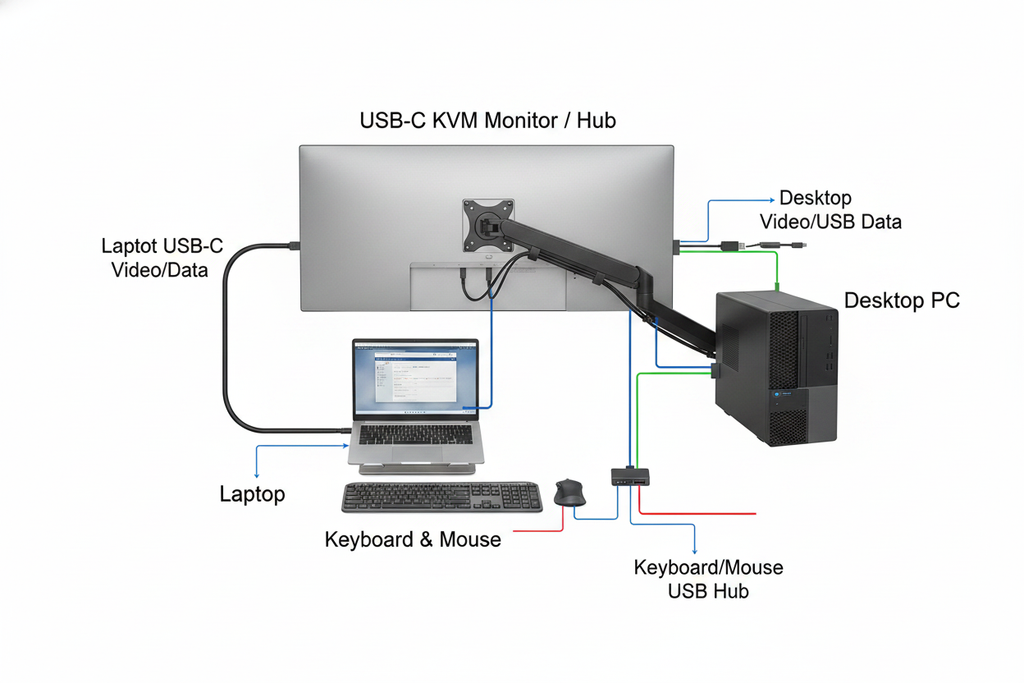
Follow these expert tips to ensure smooth, long-term performance.
Use USB-C for Minimalist Setups
For laptops with limited ports, a USB-C monitor with hub functionality acts as a dock:
• One cable handles display, power, and peripherals.
• Ideal for office workers and travelers.
• Reduces cable clutter significantly.
Avoid Monitor Hub for Gaming
Gamers should plug keyboards directly into the PC:
• Eliminates potential micro-latency from monitor passthrough.
• Ensures maximum polling rate (1000Hz) and N-key rollover performance.
• Prevents input lag during critical gameplay.
Keep Firmware and Drivers Updated
Manufacturers release updates to fix bugs and improve compatibility.
• Monitor firmware: Check the manufacturer’s website (e.g., Dell, BenQ, LG).
• Keyboard software: Use tools like Alienware Command Center, Logitech G Hub, or Corsair iCUE.
• Enable automatic updates when available.
Clean and Maintain Your Keyboard
Dust and debris cause unresponsive keys.
Maintenance routine:
• Use compressed air monthly to blow out debris.
• Wipe with a microfiber cloth dampened with isopropyl alcohol.
• Remove keycaps (if mechanical) for deep cleaning every 6 to 12 months.
Frequently Asked Questions About Connecting a Keyboard to a Monitor
Why isn’t my keyboard working when plugged into the monitor?
The most common reason is a missing upstream data cable. Monitors with USB hubs require a USB-B to USB-A connection to the PC in addition to the video cable. Without this, the USB ports receive power but cannot transmit data.
Can a monitor work as a standalone device with a keyboard?
No. A monitor does not process input devices independently. A keyboard plugged into a monitor only works if the monitor is connected to a computer that is actively routing the signal. The monitor acts as a passthrough, not a host.
Do I need special software to use a monitor’s USB hub?
Most monitors work with generic plug-and-play drivers. However, some manufacturers like Dell and Logitech offer proprietary software (Dell Display and Peripheral Manager, Logi Options+) for advanced features like battery monitoring, multi-device switching, and firmware updates.
Is USB-C better than USB-B for monitor passthrough?
USB-C is more efficient because a single cable can carry video, data, and power simultaneously. However, both your computer and monitor must support USB-C with DisplayPort Alt Mode. If not, the traditional USB-B to USB-A upstream cable is the reliable alternative.
Will using a monitor hub add input lag?
In most office or productivity use cases, the difference is imperceptible. However, competitive gamers may notice micro-latency from monitor passthrough. For the lowest latency, plug your keyboard directly into a rear motherboard USB port.
Can I control two monitors separately with different keyboards?
Standard monitor setups do not allow this. Keyboards control the entire operating system, not individual displays. To achieve independent control, you would need a KVM switch or specialized software partitioning, which goes beyond standard monitor functionality.
Key Takeaways for Connecting Your Keyboard to a Monitor

Connecting a keyboard to a monitor isn’t about the monitor itself. It’s about how the monitor routes USB data to your computer. The most important points to remember:
• Direct PC connection is always the safest option when troubleshooting or gaming.
• Monitor hubs require an upstream cable (USB-B to USB-A) or a USB-C connection that supports data.
• USB-C offers the cleanest single-cable solution for modern laptops and compatible monitors.
Your next step: identify which port types your monitor and computer support, then choose the connection method that matches your workflow. If you want minimal clutter, invest in a USB-C monitor with hub functionality. If you prioritize performance, plug your keyboard directly into the PC and reserve the monitor hub for less latency-sensitive peripherals.


