
You just unboxed a stunning OLED monitor with perfect blacks and vibrant colors, but a worry lingers in the back of your mind. That fear of permanent ghosting from a static taskbar or game HUD can overshadow even the best display experience. The reality is that learning how to save OLED monitor from burn in is far simpler than most people think.
Modern OLED panels include powerful built-in defenses that work automatically. When you combine these hardware protections with smart brightness settings and a few daily habits, your monitor can stay pristine for years. This guide walks you through every proven strategy, from configuring your operating system to choosing the right panel technology for maximum durability.
Activate Built-In Monitor Protection Features
Your OLED monitor ships with sophisticated self-defense systems running at the hardware level. These features operate independently of your PC, console, or operating system. Many users overlook them, assuming they are enabled by default, but verification is essential.
Enable Pixel Shifting Technology
Pixel shifting moves the entire image by a few pixels every few minutes, distributing wear across different physical pixels. Alienware calls this “Orbit,” while LG labels it “Pixel Move.” The shift is imperceptible during normal use but highly effective over time.
• Open your monitor’s On-Screen Display (OSD) menu
• Navigate to “OLED Care” or “Display Protection”
• Confirm pixel shifting is enabled (most models shift every 3–4 minutes)
• Avoid disabling this feature even when using auto-hiding toolbars
Run Automatic Pixel Refresh Cycles
After 8 or more hours of cumulative use, your monitor triggers an automatic pixel refresh. This black-screen process recalibrates worn pixels and typically runs for 5 to 10 minutes.
• Do not unplug or power off the monitor during this cycle
• The screen stays black while the power LED remains on
• Shut down at night and allow the cycle to complete naturally
• Firmware updates may reset this setting, so verify periodically
Turn On Logo Detection and Auto-Dimming
Advanced algorithms detect static bright elements like channel logos or game HUDs and selectively dim those areas. This reduces electrical stress on specific pixels without requiring user input.
• Look for “Logo Dimming” in your OSD settings
• Enable “Dynamic Contrast” or “Auto Brightness Control”
• These features work silently in the background during all content types
Optimize Brightness and HDR Settings
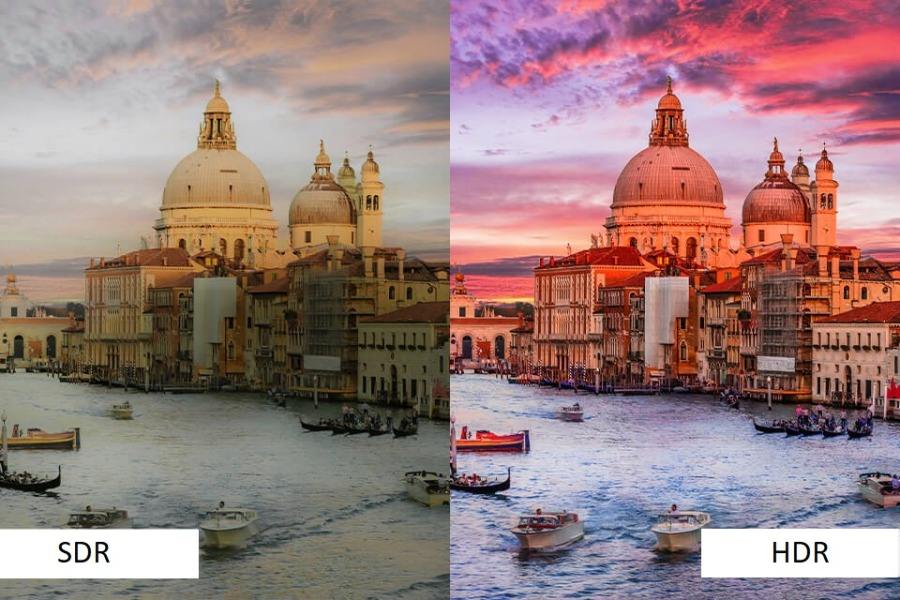
Brightness is the single most controllable factor affecting OLED lifespan. Higher luminance accelerates pixel degradation significantly. Smart brightness management preserves image quality while extending panel longevity.
Set Safe SDR Brightness Levels
For everyday desktop work, maximum brightness is both unnecessary and harmful. OLEDs excel in contrast, not raw luminance output.
• Set SDR brightness to 40–50% for office tasks
• Even at half brightness, blacks remain perfect and text stays crisp
• Adjust based on your ambient lighting to avoid eye strain
• Test comfort levels across different times of day
Use HDR Strategically
HDR boosts brightness for cinematic impact, but static HDR menus and interfaces increase burn-in risk considerably.
• Allow HDR to activate only during dynamic content like games and videos
• Avoid leaving HDR-enabled streaming apps idle on screen
• Use Windows HDR calibration to prevent excessive default brightness
• Disable HDR when working with static documents or spreadsheets
Enable Dynamic Contrast
This feature automatically lowers brightness during dark scenes, reducing strain on pixels during mixed-content viewing.
• Find it in OSD under “Auto Brightness Control” or “Dynamic Contrast”
• Benefit: prevents sustained high output during varied content
• No downside: color accuracy and response time remain unaffected
Configure Your Desktop Environment
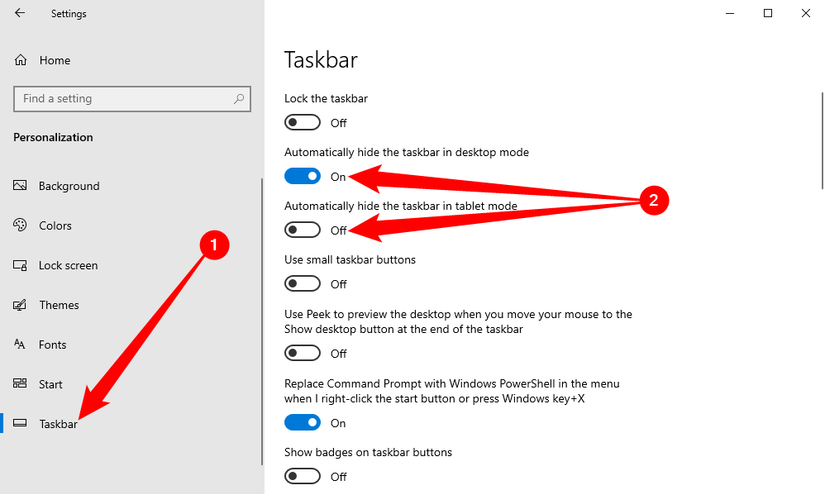
Your operating system setup plays a major role in burn-in prevention. Static elements like taskbars, browser toolbars, and dock icons are the primary culprits behind permanent image retention.
Auto-Hide the Taskbar
The taskbar represents one of the most persistent static elements on your screen. Auto-hiding it removes an entire horizontal strip of fixed pixels from daily view.
• Right-click the taskbar and select Taskbar settings
• Toggle on “Auto-hide the taskbar”
• Accept the minor delay when hovering for significant burn-in reduction
• Alternative: keep it visible only if you rely heavily on pixel shifting
Choose Dynamic or Non-Black Wallpapers
Static wallpapers, especially pure black backgrounds, create sharp contrast lines between active and inactive pixels that accelerate uneven aging.
• Avoid solid black backgrounds or high-contrast static images
• Use Wallpaper Engine or similar dynamic wallpaper tools
• Select light grey or gradient backgrounds instead
• Set up a rotating slideshow with varied content for added protection
Set Aggressive Sleep and Screen Saver Timers
Reducing idle screen time provides one of the strongest defenses against burn-in accumulation.
• Activate a screen saver after 1–3 minutes of inactivity
• Choose a black or moving pattern over static imagery
• Set monitor sleep mode to engage after 5–10 minutes
• Lock your PC (Win + L) when stepping away to force immediate screen off
Adopt Burn-In-Safe Usage Habits
Even with perfect settings, poor daily habits can undo all your protective efforts. Burn-in risk depends not just on time but on static content exposure patterns.
Vary Content Throughout the Day
Avoid leaving the same application open for hours without interruption.
• Switch between full-screen browser, code editor, and video calls
• Different pixel patterns prevent localized wear on specific areas
• Use multi-monitor setups to offload static tools to an LCD secondary display
• Rotate between applications every 60–90 minutes when possible
Manage Gaming-Specific Risks
Games with fixed HUDs including health bars, maps, and ammo counters create high-risk scenarios for OLED monitors.
• Hide HUD elements when not needed (many modern games support this)
• Take 5-minute breaks every hour during long sessions
• Alternate between games with different UI layouts
• Never leave a paused game screen unattended for extended periods
Avoid Long Pauses on Static Screens
Static content equals danger, whether it is a paused video, spreadsheet, or console menu.
• Trigger your screen saver when stepping away for more than one minute
• Console users should manually turn off the monitor when pausing games
• Minimize applications rather than leaving them visible during breaks
• Switch inputs when leaving your desk during console gaming sessions
Choose the Right OLED Panel Type
Not all OLED panels offer equal burn-in resistance. Your panel technology directly affects long-term durability. If purchasing new, prioritize QD-OLED over traditional WOLED.
QD-OLED vs. WOLED Comparison
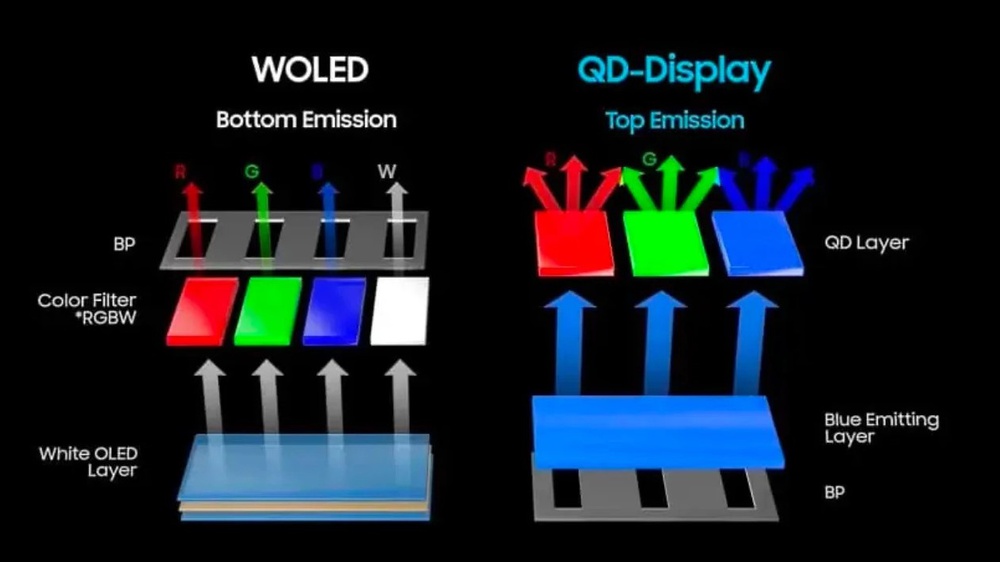
QD-OLED panels use a blue OLED layer paired with quantum dots to produce red and green light. This design runs cooler than WOLED, which uses white OLED sub-pixels with color filters. Lower operating temperatures correlate with slower organic compound degradation, giving QD-OLED superior burn-in resistance. Additionally, QD-OLED delivers wider color gamuts and higher peak brightness alongside its durability advantages.
Top Models with Strong Built-In Protection
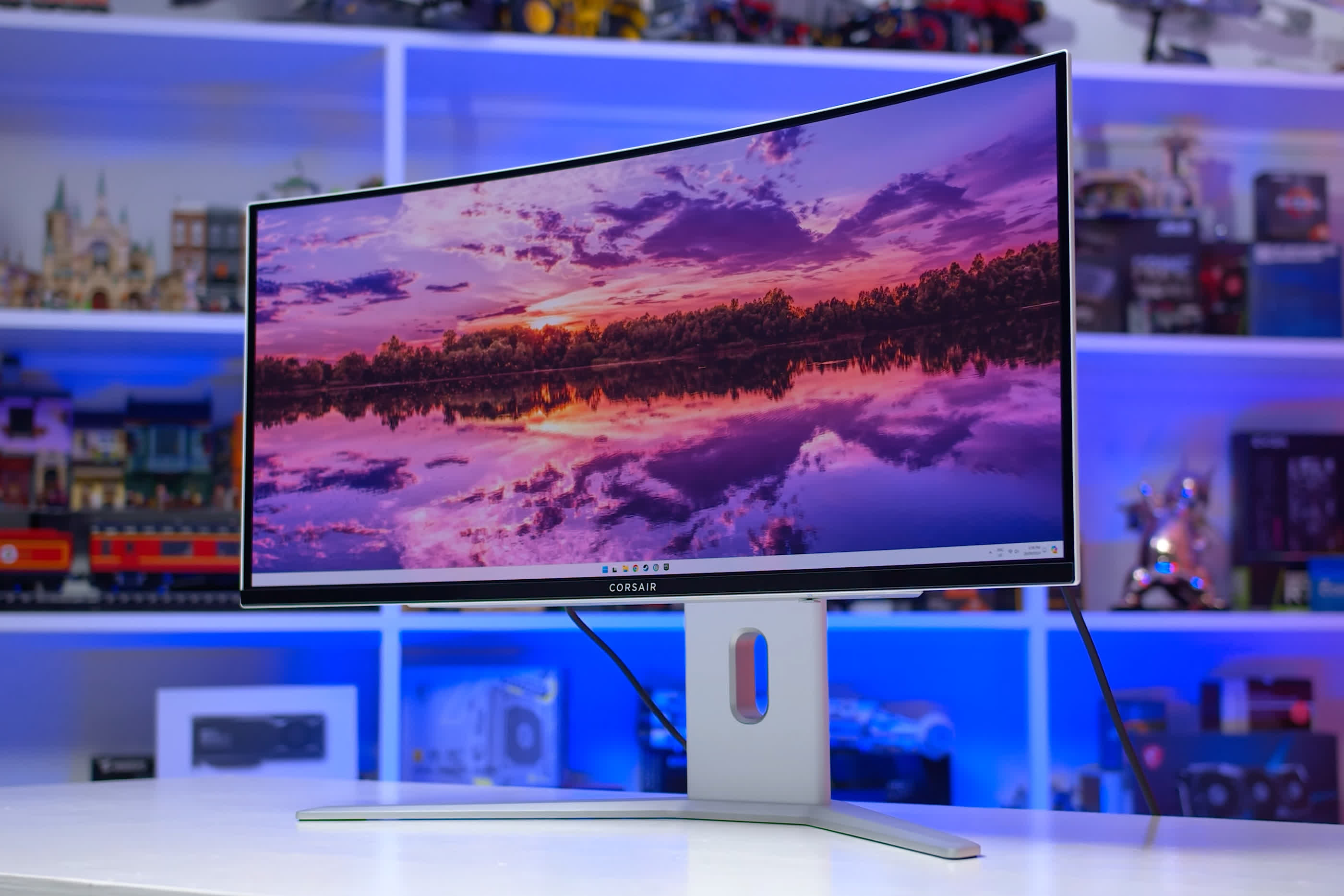
Several manufacturers have engineered their OLED monitors specifically for heavy use scenarios.
• Alienware XENEON 34WQHD240-C: includes “Orbit” pixel shift plus auto-refresh after 8 hours
• LG 32GS95UE-B: features “OLED Pixel Move” and a 6-minute cleaning cycle
• ASUS PG27AQDP: offers firmware-updatable burn-in mitigation
• ViewSonic XG2738-2K-OLED: includes “OLED Care” suite with real-time monitoring
These models suit gamers, content creators, and professionals who demand heavy daily use.
Detect and Respond to Early Burn-In Signs
Even with careful precautions, monitoring your monitor for early warning signs remains important. Catching issues early allows you to take corrective action before permanent damage occurs.
Test for Early Burn-In Monthly
Perform a simple visual inspection using this method.
- Display a full-screen white or grey image at maximum brightness
- View from a slight angle to spot ghosting as faint outlines
- Switch to a black screen and look for bright spots or dim patches
- Document any changes month over month to track progression
Differentiate Retention from Permanent Burn-In
Understanding the difference helps you respond appropriately.
• Temporary retention fades within minutes of changing content and resolves with pixel refresh
• Permanent burn-in remains visible on solid colors and cannot be fixed
• Dirty screen effect appears as cloudy patches caused by panel coating, not pixel damage
What to Do If Burn-In Appears
If you suspect permanent burn-in has developed, follow these steps.
- Confirm the issue persists across multiple inputs including PC and console
- Run a full refresh cycle using the built-in “Panel Refresh” function
- Contact manufacturer support to check warranty eligibility
- Accept that true burn-in is irreversible and focus on prevention going forward
Follow a Daily Maintenance Routine
Protecting your OLED monitor requires ongoing attention rather than one-time setup. Use this quick checklist to maintain consistent protection.
Morning and Startup Tasks
• Check for completed refresh cycle from previous heavy use
• Verify pixel shifting remains enabled after any firmware updates
• Confirm brightness settings match your recommended levels
During Active Use
• Keep brightness at or below 50% for desktop work
• Take breaks every 60–90 minutes to vary screen content
• Switch applications regularly to distribute pixel usage
Night and Shutdown Tasks
• Let the monitor power down naturally without immediate unplugging
• Allow 10 minutes for any pending pixel refresh to complete
• Ensure screen saver triggers properly if leaving the monitor on
Understand Warranty Coverage and Lifespan
Burn-in coverage varies significantly across manufacturers. Knowing your warranty terms before purchase protects your investment.
Warranty Terms Vary by Manufacturer
Some LG OLED monitors explicitly exclude burn-in from warranty coverage. Alienware, ASUS, and ViewSonic may offer limited coverage depending on the specific panel and region. Always read warranty documentation carefully, looking specifically for “image retention” or “burn-in” language before purchasing.
Real-World Lifespan Expectations
With proper care, modern OLED monitors last 5 to 7 years of daily use before visible burn-in develops. A documented case of an LG C1 TV used 8+ hours daily for Final Fantasy 14 showed only faint marks after 4 years, visible only on grey test screens. Modern OLEDs are remarkably durable, and the risk is manageable rather than inevitable.
Frequently Asked Questions About OLED Monitor Burn-In
Can OLED burn-in be reversed or fixed?
No, true permanent burn-in cannot be reversed through software or built-in refresh cycles. Temporary image retention fades on its own within minutes, but permanent pixel degradation is irreversible. Prevention through proper settings and habits remains the only effective strategy.
How long does it take for burn-in to appear on an OLED monitor?
With proper care, visible burn-in typically takes 3 to 5 years of heavy daily use to develop. Light users may never see significant burn-in during their ownership period. Modern OLED panels are far more durable than early generations, with some users reporting over 2,656 hours of use with minimal visible degradation.
Is QD-OLED really better than WOLED for burn-in resistance?
Yes, QD-OLED panels offer superior burn-in resistance compared to traditional WOLED. The quantum dot design runs cooler, reducing thermal stress on organic compounds. This temperature advantage translates directly to slower pixel degradation over time, making QD-OLED the better choice for longevity-focused buyers.
Should I hide my taskbar or keep it visible?
Auto-hiding the taskbar is generally safer for long-term static usage because it removes a persistent static element entirely. However, keeping it visible while relying on pixel shifting technology is also valid. Choose the approach that fits your workflow while ensuring other protective measures remain active.
Does HDR cause more burn-in than SDR?
HDR can increase burn-in risk when displaying static bright interfaces, but it is safe for dynamic content like games and movies. The risk comes from leaving HDR-enabled apps with static menus on screen for extended periods. Use HDR for content consumption and disable it for productivity work with static interfaces.
Do I need third-party software to prevent burn-in?
No, third-party software is largely unnecessary for modern OLED monitors. All essential protection mechanisms including pixel shifting, logo detection, and auto-dimming are embedded in monitor firmware. These hardware-based protections work regardless of your source device, including gaming consoles that lack PC-based burn-in tools.
Key Takeaways for Preventing OLED Burn-In
Learning how to save OLED monitor from burn in comes down to three core principles. First, leverage your monitor’s built-in hardware protections by enabling pixel shifting, logo dimming, and automatic refresh cycles through the OSD menu. Second, manage brightness aggressively, keeping SDR levels at 40–50% and using HDR only for dynamic content. Third, minimize static content exposure by auto-hiding taskbars, using dynamic wallpapers, and varying your screen content throughout the day.
Your next step is simple: spend 10 minutes in your monitor’s OSD menu today verifying that all protection features are enabled. Then adjust your brightness to 50% and set aggressive sleep timers. These small actions, combined with mindful daily habits, will keep your OLED monitor looking stunning for years to come.


