
You plug in a second screen, drag a window over, and everything looks blurry or lands in the wrong spot. This is one of the most common frustrations for Windows users trying to set up dual monitors or fix display issues. Learning how to change monitor display settings gives you full control over resolution, layout, scaling, and orientation so your workspace actually works for you.
This guide walks you through every essential adjustment in Windows 10 and Windows 11. You will learn how to connect monitors, pick the right resolution, scale text, rotate screens, arrange multiple displays, set a primary monitor, and troubleshoot common problems. Each step is simple, practical, and tested on real systems.
Connect Your Monitor Before Adjusting Settings
A monitor must be detected by Windows before any settings will work. Skipping this step leads to missing displays and wasted troubleshooting time.
Verify Cables and Power
Check that HDMI, DisplayPort, or USB-C cables sit firmly in both your PC and the monitor. A loose cable is the top cause of “no signal” errors and detection failures. Also confirm the monitor is powered on and set to the correct input source, such as HDMI 1 or DisplayPort.
Pair Wireless Displays in Seconds
For wireless adapters like the Microsoft Wireless Display Adapter, plug the adapter into your monitor’s HDMI port. Then press Windows Key + K on your PC and select the wireless display from the list. Make sure the adapter is in pairing mode and within range.
Update Windows and Drivers First
Outdated drivers cause resolution glitches and detection failures. Open Settings, go to Windows Update, and click Check for updates. Install any pending updates and restart your PC if prompted.
Note: Windows 10 support ends on October 14, 2025. After that date, no further security updates will be released. Upgrading to Windows 11 ensures long-term stability and compatibility.
Adjust Display Resolution for Sharp Images
:max_bytes(150000):strip_icc()/Displayresolutionannotated-c6db92620fdb4eefac48bd59260470f5.jpg)
Resolution determines how crisp text and images appear. Setting it wrong makes everything look blurry or stretched.
Pick the Recommended Resolution
- Press Start, then open Settings.
- Go to System, then Display.
- Under Display resolution, choose the option marked (Recommended).
This setting matches your monitor’s native resolution and delivers the sharpest image quality.
Avoid Visual Distortion
Running a non-native resolution may enlarge icons but creates real problems:
– Blurry text from scaling artifacts
– Black borders around the screen
– Stretched images if aspect ratio is off
Always return to the recommended resolution after testing alternatives.
Scale Text and Apps for Better Readability
Scaling changes the size of interface elements without touching resolution. It is perfect for high-DPI screens where text feels too small.
Set Scaling in Windows 11
- Open Settings > System > Display.
- Find Scale & layout.
- Choose a percentage like 125% or 150%, or stick with (Recommended).
Set Scaling in Windows 10
- Open Settings > System > Display.
- Under Change the size of text, apps, and other items, pick a scale level.
- Sign out and back in so all apps apply the new size.
Pro Tip: Some older apps look blurry after scaling changes. Right-click the app shortcut, choose Properties, then Compatibility, and check “Disable display scaling on high DPI settings.”
Rotate Screen Orientation for Vertical Workflows

Portrait mode works great for coding, reading long documents, or design work. You can switch orientations in seconds.
Choose an Orientation Mode
- Open Display settings.
- Find Display orientation (Windows 11) or Orientation (Windows 10).
- Pick Landscape, Portrait, Landscape (flipped), or Portrait (flipped).
Match Software to Physical Rotation
Critical: Changing orientation in software does not physically rotate your monitor. You must turn the screen by hand to match the setting, or you will strain your neck. Most modern monitor stands support pivot rotation.
Set Up Dual or Multiple Monitors
Two screens can double your productivity when configured correctly. Windows makes multi-monitor setup straightforward.
Identify Each Connected Monitor
- Open Settings > System > Display.
- Click Identify.
- A large number appears on each screen, matching the thumbnails in settings.
Always identify monitors before rearranging or assigning a primary display.
Detect Missing Displays
If one monitor does not appear:
1. In Display settings, scroll to Multiple displays.
2. Click Detect.
3. Windows will scan for and add any connected but unrecognized screens.
For wireless displays, click Connect instead of Detect.
Rearrange Monitor Layout for Smooth Cursor Flow

Your virtual layout must match your physical desk setup. Otherwise, your mouse jumps unexpectedly between screens.
Drag Monitors to Match Reality
- In Display settings, view the monitor thumbnails.
- Click and drag each box to reflect its real position. If Monitor 2 sits on your left, drag its box left of Monitor 1.
- Click Apply to save changes.
Test Cursor Movement
Slide your mouse across screen edges. The cursor should follow the same path your eyes take, moving left to right or top to bottom without surprise jumps.
Quick Tip: Always run Identify before rearranging so you know exactly which box represents which screen.
Make a Monitor Your Primary Display
The primary display hosts your taskbar, desktop icons, and the lock screen. Most users prefer their main monitor as primary.
Assign the Primary Display
- Right-click the desktop and choose Display settings.
- Click Identify to see monitor numbers.
- Click the monitor you want as primary (it highlights blue).
- Scroll to Multiple displays.
- Check Make this my main display.
Note: This option appears grayed out when only one monitor is connected or when the selected monitor is already primary.
What Changes When You Switch Primary
Switching the main display moves several elements instantly:
– Taskbar and system tray icons (volume, Wi-Fi, battery)
– Desktop shortcuts and files
– Lock screen and login screen
– Default launch location for new apps
No restart is needed. Changes apply the moment you click Apply.
Use Projection Modes with Win + P
The Windows Key + P shortcut opens a quick menu for switching display modes on the fly.
Open the Projection Menu
Press Windows Key + P to reveal four options:
| Mode | Function | Best For |
|---|---|---|
| PC screen only | Disables external displays | Private work or battery saving |
| Duplicate | Mirrors content across all screens | Presentations and demos |
| Extend | Combines screens into one workspace | Multitasking and productivity |
| Second screen only | Uses only external monitor | Docked laptop with closed lid |
Quick Tip: Choose Extend for the most flexible setup. You can drag windows between screens like one large desktop.
Customize Advanced Display Settings
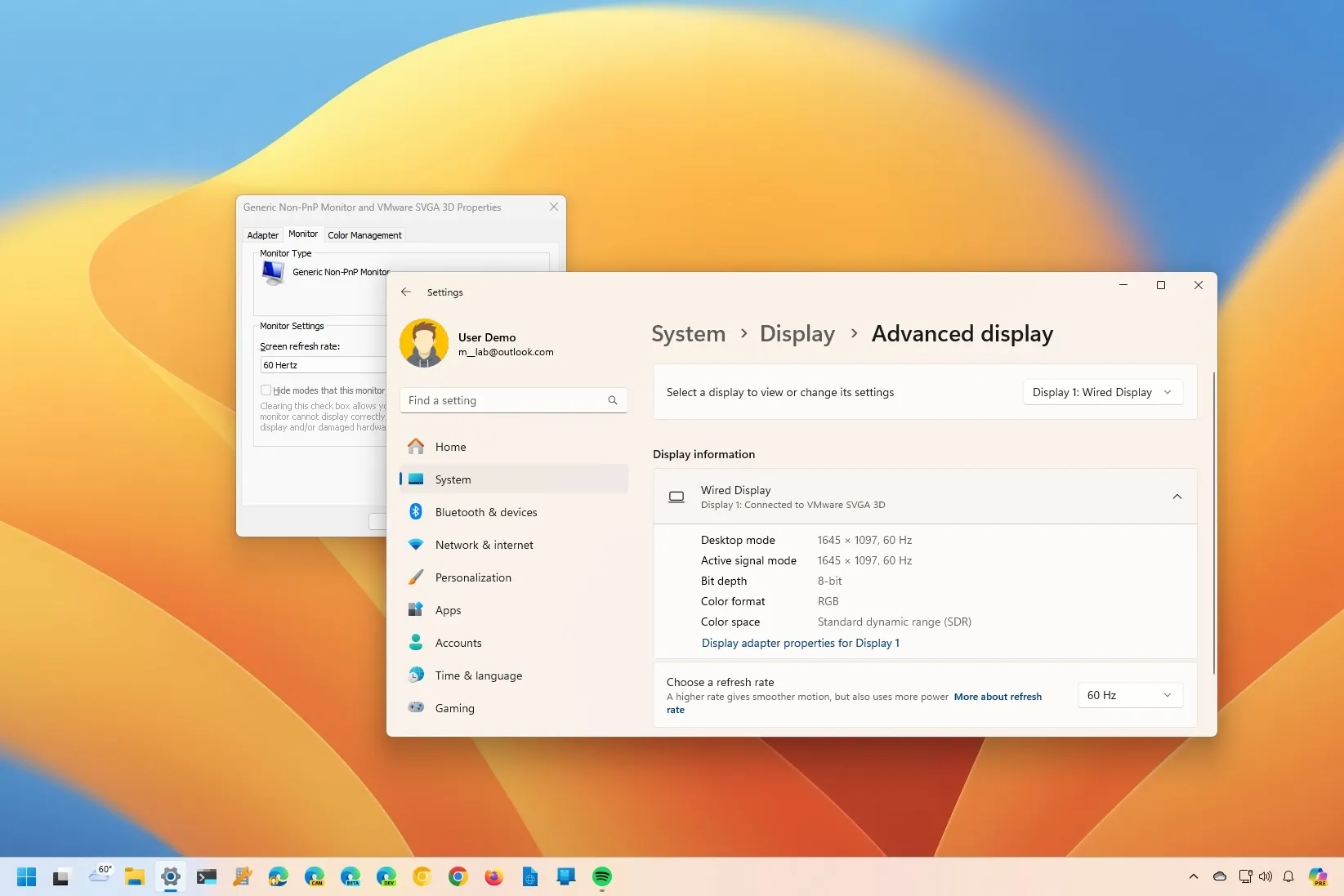
Beyond basic layout, Windows lets you fine-tune performance and visual quality.
Change Refresh Rate for Smoother Motion
Higher refresh rates like 120Hz or 144Hz reduce motion blur. This matters most for gaming and video editing.
- In Display settings, scroll to Advanced display.
- Click Choose a refresh rate.
- Pick the highest value your monitor supports.
You need a compatible monitor and cable, such as DisplayPort or HDMI 2.0 or higher.
Enable HDR on Compatible Screens
HDR delivers richer contrast and more vivid colors.
- Open Settings > System > Display.
- Under HDR, toggle Use HDR on.
- Windows automatically optimizes tone mapping.
This only works on HDR-capable monitors.
Fix Common Display Problems
Even with perfect setup, issues can pop up. Here is how to solve the most frequent ones.
Screen Resolution Keeps Changing
The likely cause is an outdated or corrupted graphics driver.
Fix:
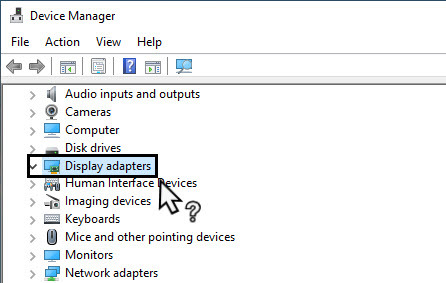
1. Open Device Manager from the Start menu.
2. Expand Display adapters.
3. Right-click your GPU and choose Update driver.
4. Select Search automatically for drivers.
5. Restart your PC.
You can also download the latest driver from NVIDIA, AMD, or Intel directly.
Monitor Not Detected After Reconnect
Run through this quick checklist:
– Is the monitor powered on?
– Are all cables firmly connected?
– Did you click Detect in Display settings?
– Try unplugging and replugging the cable.
For docking stations, reconnect power and update the firmware if possible.
“Make This My Main Display” Option Missing
This happens when:
– Only one monitor is connected
– The selected monitor is already primary
– The display is disconnected or asleep
Solution: Confirm two or more active monitors are detected, then try again.
Optimize Multi-Monitor Workflow
If you dock and undock often, a few settings keep your workspace efficient.
Remember Window Positions Automatically
- Open Settings > System > Display.
- Under Multiple displays, turn on Remember window locations based on monitor connection.
Now when you plug in your office monitor, Chrome, Word, and Slack return to their usual spots.
Prevent Lost Windows When Undocking
- In Multiple displays settings, enable Minimize windows when a monitor is disconnected.
Windows minimizes affected apps to the taskbar instead of hiding them off-screen.
Frequently Asked Questions About Changing Monitor Display Settings
What is the fastest way to change monitor display settings in Windows?
Press Windows Key + P to open the projection menu. From there, you can switch between PC screen only, Duplicate, Extend, or Second screen only in one click. For detailed settings, go to Settings > System > Display.
Why does my screen look blurry after changing resolution?
Running a non-native resolution causes scaling artifacts that soften text and images. Open Display settings and select the option marked (Recommended) to restore sharpness.
How do I fix a monitor that Windows does not detect?
Check that cables are secure and the monitor is powered on. Then open Settings > System > Display and click Detect under Multiple displays. Updating your graphics driver also helps.
Can I change monitor display orientation without rotating the screen physically?
Yes, but the software setting only changes the output signal. You must physically rotate the monitor to match the chosen orientation, or your viewing angle will be off and cause neck strain.
Will changing the primary display affect my apps and files?
Yes. Switching the primary display moves the taskbar, system tray, desktop icons, and lock screen to the new monitor. New apps will also launch on that screen by default. No restart is required.
Does Windows 10 still support display settings in 2025?
Yes, but support ends on October 14, 2025. After that date, Microsoft will not release security updates or fixes. Upgrading to Windows 11 ensures continued compatibility and protection.
Key Takeaways for Changing Monitor Display Settings
You now have a complete toolkit for managing monitor displays in Windows. Start by confirming cables and drivers are up to date, then set the recommended resolution and scaling for the clearest image. Use Identify and Detect whenever you add or reconnect a screen, and arrange monitor thumbnails to match your physical desk layout.
For multi-monitor setups, assign a primary display, enable window-position memory, and use Win + P to switch modes quickly during meetings. If problems appear, update your graphics driver first, since most display glitches trace back to outdated software.
Next step: Open Settings > System > Display right now and confirm your resolution, scaling, and monitor arrangement match the way you actually work. Ten minutes of tuning today saves hours of frustration every week.


