
You’ve just unboxed your VTech baby monitor, and the screen is blank. The cables are tangled, the buttons feel unfamiliar, and you want to start monitoring your baby without frustration. Whether you own an RM5764HD, RM7754HD, or another model, learning how to use VTech monitor systems correctly saves time and prevents setup headaches.
This guide walks you through every step, from charging and mounting to Wi-Fi pairing and app integration. You’ll learn how to navigate the parent unit, customize alerts, and troubleshoot common issues. By the end, you’ll have a fully functional monitor that keeps you connected to your baby around the clock.
Power On and Charge the Parent Unit
Before pairing or viewing anything, both units need proper power. The parent unit (handheld monitor) and baby unit (camera) have different power requirements.
Charge the Parent Unit Fully
Start every setup with a full battery charge:
– Use only the included VTech charger to prevent damage.
– Plug the adapter into a working wall outlet, then connect it to the parent unit.
– Charging takes 8 to 12 hours for a complete cycle.
– A solid battery icon means the unit is fully charged; the indicator light stays on during charging.
⚠️ Pro Tip: Keep the parent unit plugged in during stationary use. Battery mode works best for portability, not extended sessions.
Install the Battery and Power On
For first-time setup:
1. Open the battery compartment on the back of the parent unit.
2. Insert the battery, matching the polarity markings.
3. Close the cover securely.
4. Press and hold the Power button for two seconds.
5. Wait for the screen to light up and display the camera feed.
If the unit fails to turn on:
– Check that the battery sits properly in its compartment.
– Verify the charger works with another outlet.
– Confirm the power indicator lights up when plugged in.
Mount and Position the Baby Camera
Strategic camera placement ensures clear viewing and stable signal strength throughout the day.
Choose the Ideal Camera Location
Position matters for both safety and performance:
– Place the camera at least 3 feet from the crib to prevent audio feedback.
– Aim for a full, unobstructed view of the crib or primary play area.
– Avoid direct sunlight, reflective surfaces, and heat sources.
– Keep the camera away from Wi-Fi routers, microwaves, and cordless phones.
Mount on a Wall or Flat Surface
For permanent installation:
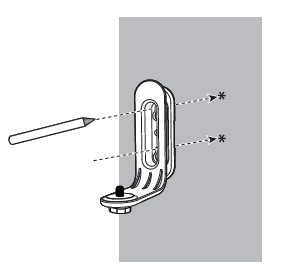
1. Use the included mounting bracket.
2. Mark two screw holes on the wall with a pencil.
3. Drill holes and insert the provided wall anchors.
4. Screw in the bracket, leaving ¼ inch of screw exposed for the camera to slide onto.
5. Slide the camera down onto the bracket until it clicks securely.
✅ Visual Cue: A properly mounted camera locks in place and allows smooth panning without wobbling.
Adjust the Viewing Angle
To fine-tune the camera position:
– Turn the locking knob counterclockwise to loosen the joint.
– Adjust the camera for the optimal angle, supporting 360-degree rotation.
– Tighten the knob clockwise to lock the position firmly.
You can use digital zoom later through the parent unit for close-up views.
Switch Between Direct and Wi-Fi Mode

VTech monitors operate in two distinct modes. Choose based on your monitoring needs.
Use Direct Mode for Local Monitoring
This default setting works right out of the box:
– Connects the camera to the parent unit via a secure private signal.
– Requires no internet connection.
– Ideal for nighttime monitoring within the home.
– Limitation: You cannot view the feed remotely from your phone.
Connect to Wi-Fi for Remote Viewing
Enable Router Mode to access the camera from anywhere:
1. On the parent unit, press Menu > Settings > Configure Wi-Fi.
2. Select your home Wi-Fi network from the list.
3. Enter the password using the on-screen keyboard.
4. Tap Done to confirm.
5. A Wi-Fi icon appears in the top-left corner when connected.
📶 Signal Check: If the connection fails, move the camera closer to the router or reduce nearby interference sources.
Pair the Mobile App to Your Monitor
Use the MyVTech Baby or MyVTech Baby Pro app to monitor from your smartphone or tablet.
Install the App and Create an Account
- Download MyVTech Baby from the App Store or Google Play.
- Open the app and tap Create Account.
- Use a strong, unique password to protect your video feed.
- Allow Location Access (“While Using”), camera, and microphone permissions when prompted.
🔐 Security Note: Never reuse passwords across accounts. Enable two-factor authentication if available for added protection.
Scan the QR Code to Pair Devices
- On the parent unit, press Menu > Settings > Connect Mobile Phone > Yes.
- On your phone, tap Add Camera in the app.
- Select Scan QR Code.
- Point your phone camera at the QR code shown on the parent unit screen.
- Tap OK to finalize the pairing.
🔄 Multiple Devices: You can pair up to 4 cameras and connect multiple phones to a single VTech account.
Navigate the Parent Unit Menu
The parent unit interface controls all core functions. Learning the icons saves time during daily use.
Read the Top-Row Status Icons
At a glance, these icons tell you everything:
– Three bars (top-left): Strong signal connection.
– One bar: Weak signal, move units closer together.
– Wi-Fi icon: Connected to your home network.
– Battery icon: Charge level; flashes when low.
– Mute icon: Audio output is currently silenced.
– Link light (green): Solid means connected; blinking signals a lost connection.
Access the Main Settings Menu
Press the center Menu/Select button, then use arrow keys to navigate options.
Adjust Screen and Sound Settings
- Brightness: Lower the setting at night to reduce light disturbance.
- Screen Timer: Choose Auto Mode so the screen activates only when sound is detected.
- Speaker Volume: Use the side buttons to increase or decrease audio.
- Mute: Tap once to silence; press Vol+ to restore sound.
Enable Lullaby and Night Light Features
- Lullaby Mode: Choose from 4 built-in tracks.
- Set Shuffle or a Timer (15 or 30 minutes).
- Tap Stop to end playback immediately.
- Night Light: Pick from red, green (two shades), or soft orange.
- Set a timer (15 minutes or custom duration).
- Enable Auto-Brightness to adjust with ambient room light.
Control the Camera Remotely

Adjust the camera without entering your baby’s room.
Pan, Tilt, and Zoom the Camera
While viewing the live feed:
– Press Left/Right/Up/Down arrows to pan and tilt the camera.
– Use Up/Down arrows to zoom in or out digitally for closer views.
🎯 Pro Tip: Zoom in during sleep to check breathing patterns. Zoom out during playtime for a full-room view.
Switch Between Multiple Cameras
If you use more than one camera:
1. Tap the View button to cycle between Single CAM and Split Mode (two cameras).
2. Press Menu > Camera Selection to choose a specific unit manually.
3. Enable Patrol Mode to auto-cycle between all cameras every 10 seconds.
This setup works well for monitoring twins or multiple rooms simultaneously.
Set Up Alerts and Detection
Get notified about motion, crying, or temperature changes in real time.
Configure Motion Detection
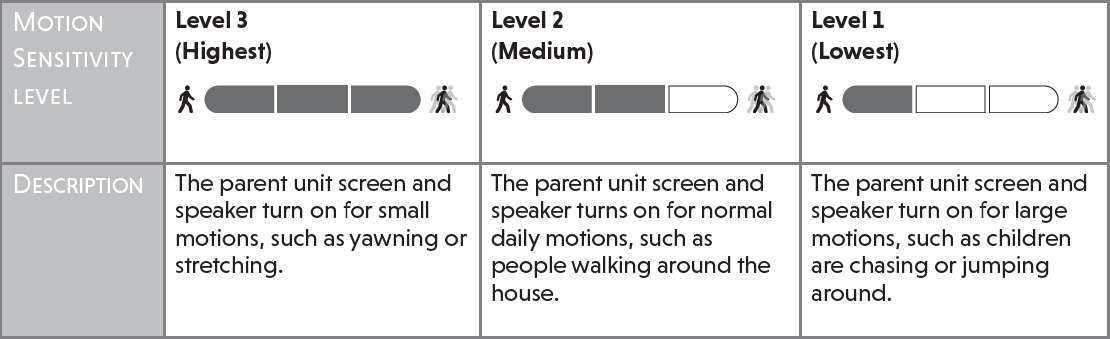
- Press Menu > Detection > Motion.
- Adjust sensitivity from Level 1 to 5.
– Higher levels detect subtle movements.
– Lower levels reduce false alerts from shadows or pets. - Save your settings.
Alerts appear on the parent unit and the mobile app when connected.
Set Temperature Alerts
- Go to Menu > Temperature.
- Toggle between Celsius and Fahrenheit.
- Set high and low thresholds (for example, alert if the room exceeds 75°F).
- Enable the alert tone for notifications.
🌡️ Best Practice: Keep the nursery between 68°F and 72°F for safe infant sleep.
Customize Audio Sensitivity
- Navigate to Menu > Sensitivity.
- Increase the level if you cannot hear soft coos or breathing.
- Decrease the level if background noise triggers constant alerts.
Troubleshoot Common Issues
Even well-configured monitors encounter occasional hiccups. Here’s how to fix them quickly.
Fix the “Waiting for Linking” Error
This message means the camera and parent unit lost their connection.
Try these solutions:
– Move units closer together (within 10 to 15 feet).
– Ensure both units are powered and antennas are fully extended.
– Keep units at least 3 feet away from Wi-Fi routers.
– Reboot both units by unplugging them for 60 seconds, then restarting.
🔄 Still not linking? Perform a full system reset using the steps below.
Resolve the “Cannot Hear Baby” Problem
Run through this checklist:
– Press Vol+ on the parent unit to raise the volume.
– Increase audio sensitivity in settings (Level 3 to 5).
– Ensure vibration is not set to “Always On,” which can mask audio cues.
– Verify the camera speaker is not blocked by any object.
If you use Multi-CAM mode, switch to Single CAM to enable the Talk feature.
Fix App Connection Failures
If the app shows “Offline”:
– Confirm the parent unit displays a Wi-Fi icon.
– Restart your home router.
– Re-scan the QR code, since pairing sometimes drops.
– Update the MyVTech Baby app and monitor firmware to the latest version.
🔄 Firmware Tip: Updates arrive through the app. Keep everything current for security and performance improvements.
Perform a System Reset
Use this procedure when the monitor freezes, fails to pair, or behaves erratically.
Hard Reset Steps
- Unplug AC adapters from both the baby and parent units.
- Remove the battery from the parent unit.
- Wait 60 seconds to ensure full power discharge.
- Reinsert the battery and plug both units back in.
- Wait up to 1 minute for automatic re-linking to complete.
After the reset, you may need to reconnect Wi-Fi and re-pair the mobile app.
Stop Beeping and Alerts
The “No Link” beep can disrupt sleep. Here’s how to silence it.
Turn Off Beep Alerts
- Press Menu > Alert Tone.
- Select No Link Alert.
- Set the option to Off.
You will still see the warning icon on screen, just without the sound.
🔕 Alternative: Lower the overall alert volume instead of disabling alerts completely.
Maintain and Optimize Performance
Keep your VTech monitor running smoothly with routine care and smart habits.
Prevent Signal Interference
- Place the monitor and camera away from metal objects, thick walls, and appliances.
- Avoid mounting near mirrors or windows, which reflect signals.
- Use only one monitor per household to prevent channel conflicts.
Clean the Equipment Safely
- Wipe the lens with a soft, dry microfiber cloth.
- Avoid alcohol, ammonia, or abrasive cleaners.
- Never use the monitor in high-humidity areas like bathrooms.
Replace the Battery When Needed
- If the parent unit dies quickly after charging, the battery may be worn out.
- Batteries typically degrade after 1 year of frequent use.
- Replace only with official VTech replacement batteries for safety.
Update Firmware Regularly
- Open the MyVTech Baby app.
- Go to Settings > Device Info.
- Check for firmware updates and install them when available.
Updates fix bugs, improve security, and occasionally add new features.
Frequently Asked Questions About VTech Baby Monitors
How long does a VTech parent unit take to charge fully?
A complete charge takes 8 to 12 hours using the included VTech charger. The battery icon stays solid when charging finishes. For consistent monitoring, keep the parent unit plugged into AC power whenever possible.
Can I use my VTech monitor without Wi-Fi?
Yes. Direct Mode connects the camera to the parent unit through a private signal without any internet connection. However, you cannot view the feed remotely from your smartphone in this mode.
How do I pair a second camera to my VTech monitor?
Navigate to Menu > Pair/Unpair Cam > Pair New Cam on the parent unit. Select an empty Baby Unit slot, then press and hold both [+] and [-] keys on the new camera for 5 seconds until the power indicator flashes red then green.
Why does my VTech monitor keep beeping at night?
The beeping usually indicates a lost connection between units. Move the parent and baby units closer together, keep them away from Wi-Fi routers, and fully extend both antennas. You can disable the “No Link Alert” under Menu > Alert Tone if needed.
Is the MyVTech Baby app free to use?
Yes, the MyVTech Baby and MyVTech Baby Pro apps are free downloads from the App Store and Google Play. You only need a VTech account and a stable home Wi-Fi connection to use remote viewing features.
How far can the VTech baby monitor reach from the camera?
Optimal signal stability occurs within 10 to 15 feet, though maximum range varies by environment. Walls, appliances, and metal objects reduce the effective range. Always keep units at least 3 feet apart to prevent audio feedback.
Key Takeaways for Mastering Your VTech Baby Monitor
Learning how to use VTech monitor systems transforms a simple camera into a reliable parenting tool. Start with a full 8 to 12 hour charge, position the camera 3 feet from the crib, and fully extend both antennas for the strongest signal. Enable Router Mode and pair the MyVTech Baby app if you want remote viewing from your phone.
Customize motion, temperature, and audio alerts to match your nursery environment. Use Auto Mode for the screen timer to preserve battery and reduce nighttime light. When troubleshooting, check distances, antenna position, and Wi-Fi interference before performing a full system reset.
Your next step is simple: charge both units tonight, mount the camera tomorrow morning, and run through the Wi-Fi pairing process. Within minutes, you’ll have a fully operational monitoring system that keeps you connected to your baby, whether you’re in the next room or across the country.


