
Seeing a padlock icon on your Dell screen means the front panel lock is active. This feature disables all physical buttons to prevent accidental changes, leaving you unable to adjust settings or change inputs.
You can fix this issue quickly by holding the Menu button for 15 seconds or performing a full power reset. This guide details the exact steps to restore control to your Dell U2711, 2410U, and other models without special tools.
Execute the 15-Second Menu Button Reset

The primary method to unlock Dell monitor controls involves a specific long-press sequence. This firmware command works on most professional Dell displays, including the U2711 and 2410U series.
Hold the Menu Button Continuously
Locate the Menu button positioned directly above the power button on your monitor bezel. Press and hold this button down firmly for exactly 15 seconds without releasing it. You will see the padlock symbol disappear once the system registers the unlock command. All physical buttons will immediately regain full functionality.
Critical Note: You must keep holding the button until the icon vanishes. Releasing early cancels the process and leaves the panel locked.
Verify Unlock Status Without OSD
You do not need to see the On-Screen Display (OSD) menu for this trick to work. The unlock function operates at a lower firmware level than the visual menu. Even if your screen shows “No Signal,” holding the button for the full duration often triggers the unlock mechanism silently.
Perform a Complete Hardware Power Cycle

If the button press alone fails, residual electricity in the monitor capacitors may be causing a glitch. A hard reset clears temporary memory errors that prevent the unlock command from executing.
Disconnect All Cables From Monitor
- Turn off your computer and the monitor completely.
- Unplug every single cable connected to the display unit.
- Remove the power cord, video cables (HDMI, DVI, DisplayPort), and any USB upstream lines.
- Leave the monitor isolated for at least 30 seconds.
Drain Residual Internal Power
Press and hold the power button on the monitor for 5 seconds while it is unplugged. This action discharges any remaining energy stored in the internal components. Skipping this step often results in the monitor retaining its locked state upon reboot.
Reconnect Cables and Retry Unlock
- Plug only the power cable back into the monitor first.
- Connect your primary video cable to the correct port.
- Turn on the monitor and wait for it to initialize.
- Power on your computer to ensure a video signal is present.
- Immediately press and hold the Menu button for 15 seconds again.
Pro Tip: Ensure you use a known-working video cable. Faulty connections can prevent the monitor from detecting a signal, which sometimes blocks the OSD from appearing even after unlocking.
Resolve Input Source Detection Conflicts
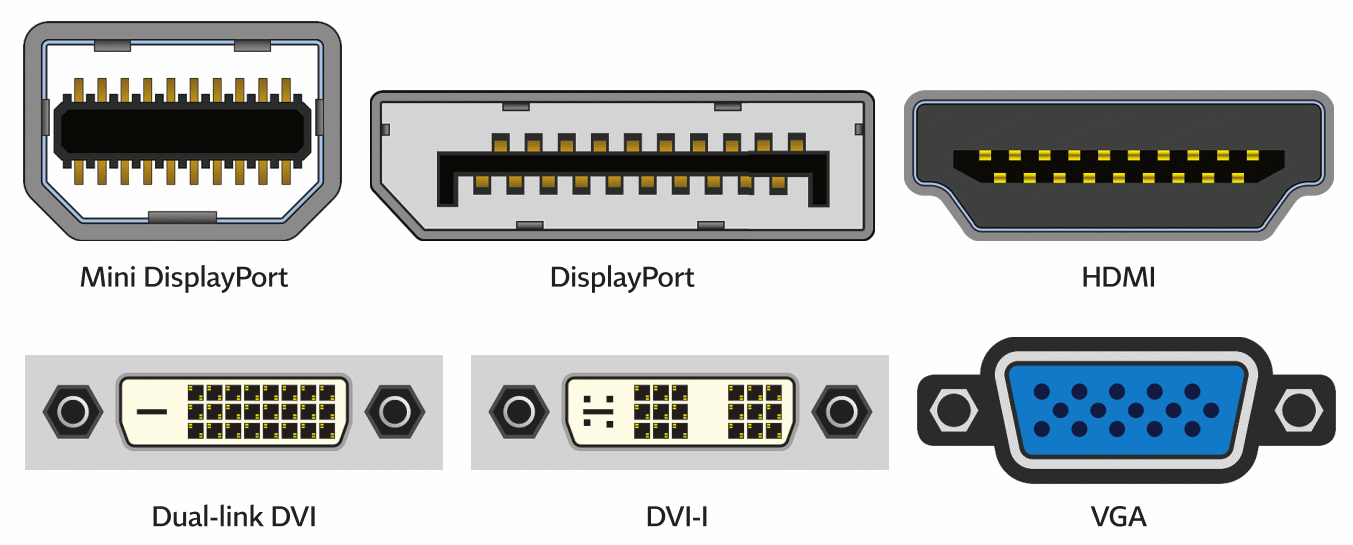
Some Dell monitors remain unresponsive if they are searching for a signal on an inactive port. The system may refuse to unlock if it believes the primary input source is missing or invalid.
Reconnect Legacy Cables Temporarily
Users of the Dell U2711 have reported success by reconnecting the specific cable type the monitor expects. If you recently switched from DVI to DisplayPort, the monitor might still prioritize the DVI input. Temporarily plug the DVI-D cable back in, even if no computer is attached to the other end. Attempt the 15-second unlock procedure while this cable is attached.
Select Correct Port for Your Device
Ensure your connection matches the active input source settings. If you are using a MacBook Air with Mini DisplayPort, verify you are using a high-quality active adapter. Passive adapters often fail to send the correct handshake signals required for the monitor to recognize the input. Try switching to a different port on your graphics card or docking station to force a fresh detection.
Troubleshoot No Signal Lockout Scenarios
A “No Signal” message can sometimes disable the OSD entirely, making it impossible to access unlock features through normal means. You must force the monitor to recognize a valid video source first.
Force Video Signal Detection
Turn on your computer or laptop before powering up the monitor. Allow the operating system to boot fully and output a stable video signal. Once the computer is running, power on the Dell monitor. This sequence helps the display detect the active signal before initializing the control panel logic.
Test With Alternative Devices
Connect a different video source, such as a gaming console or secondary laptop, using a verified cable. If the monitor detects this new signal and allows menu access, the issue lies with your original computer or cable. If the monitor remains locked despite a strong signal, the problem is likely a persistent firmware lock requiring the power cycle method.
Apply Fixes for Dell 2410U Color Issues
The Dell 2410U model shares the same locking mechanism but may exhibit color distortion after a locked reset. Users have reported yellow or green tints on the screen if the unlock process interrupts the color calibration.
Reset Color Calibration After Unlock
Follow the standard power cycle and 15-second button press steps for the 2410U. If the screen colors look abnormal after unlocking, access the OSD menu immediately. Navigate to the Display settings and select Reset to Factory Defaults. This action restores the original color profile and eliminates any tint caused by the interruption.
Confirm Full Functionality
Check that all buttons respond correctly after the color reset. The combination of a firmware unlock and a factory reset resolves nearly all control and display issues on this specific model. If the tint persists, the panel may require professional servicing, though this is rare.
Prevent Future Front Panel Lockouts

Accidental lockouts often happen when cleaning the monitor or adjusting the stand. Understanding the trigger helps you avoid repeating the mistake.
Avoid Long Presses on Menu Button
The lock activates when the Menu button is held for 15 seconds. Be mindful of this duration when cleaning the bezel or pressing buttons firmly. Educate other users in shared offices or labs about this specific shortcut to prevent accidental activation.
Utilize Input Lock Features
Some Dell models allow you to configure which buttons remain active. Check the OSD menu for an Input Lock option that disables all controls except the power button. This setting reduces the risk of accidental configuration changes while keeping the power function accessible.
Advanced Diagnostics for Persistent Locks
When standard procedures fail, external factors like power quality or cable integrity may be interfering with the monitor’s controller board.
Test Different Power Outlets
Plug the monitor into a different wall outlet or surge protector. Unstable power delivery can cause the internal controller to behave erratically, preventing it from processing the unlock command. A clean power source often resolves these subtle hardware glitches.
Verify Cable Certification
Third-party or damaged cables may fail to complete the necessary handshake with the monitor. Use original Dell cables or certified high-speed alternatives for testing. A poor connection can mimic a locked state by preventing the OSD from loading.
Final Thoughts on Unlocking Your Dell Monitor
Regaining control of your Dell monitor usually requires nothing more than patience and the correct button sequence. The most effective solution is holding the Menu button for 15 seconds after performing a complete power cycle with all cables disconnected. For stubborn cases involving specific models like the U2711, temporarily reconnecting the expected video cable type often forces the system to respond.
Always start with the simplest 15-second press before moving to complex resets. If your monitor remains unresponsive after trying every step in this guide, contact Dell Support with your service tag for potential warranty repair. Do not attempt to open the monitor casing, as the lock is software-based and internal disassembly voids your warranty.
Frequently Asked Questions About Dell Monitor Locks
How long must I hold the Menu button to unlock?
You must hold the Menu button continuously for 15 seconds. The padlock icon will disappear only after the full duration, so do not release the button early.
Why won’t my Dell monitor unlock after holding the button?
Residual power may be causing a glitch. Disconnect all cables, hold the power button for 5 seconds to drain energy, reconnect, and try the 15-second press again.
Can I unlock the monitor without a video signal?
Yes, the unlock command works at the firmware level. However, ensuring a valid video signal is present often helps the monitor recognize the input and display the confirmation.
What if my Dell 2410U screen has a yellow tint after unlocking?
This indicates a calibration error. Access the OSD menu, go to Display settings, and select Reset to Factory Defaults to restore normal colors.
Does reconnecting a DVI cable help if I use DisplayPort?
Yes. Some models like the U2711 may remain locked if they are searching for a DVI signal. Temporarily connecting the DVI cable can allow the unlock command to process.
Will resetting the monitor delete my custom settings?
A standard power cycle does not delete settings. However, selecting “Reset to Factory Defaults” in the menu will restore original brightness, contrast, and color configurations.


