
Your screen might suddenly flip upside down, or perhaps you need a vertical view for coding and reading long documents. Learning how to rotate monitor screen settings solves both accidental glitches and intentional workflow upgrades instantly.
This guide walks you through every method to fix or change your display orientation on Windows. You will discover keyboard shortcuts, settings menus, and hardware checks to ensure your setup works perfectly in portrait or landscape mode.
Verify Physical Monitor Compatibility Before Rotating
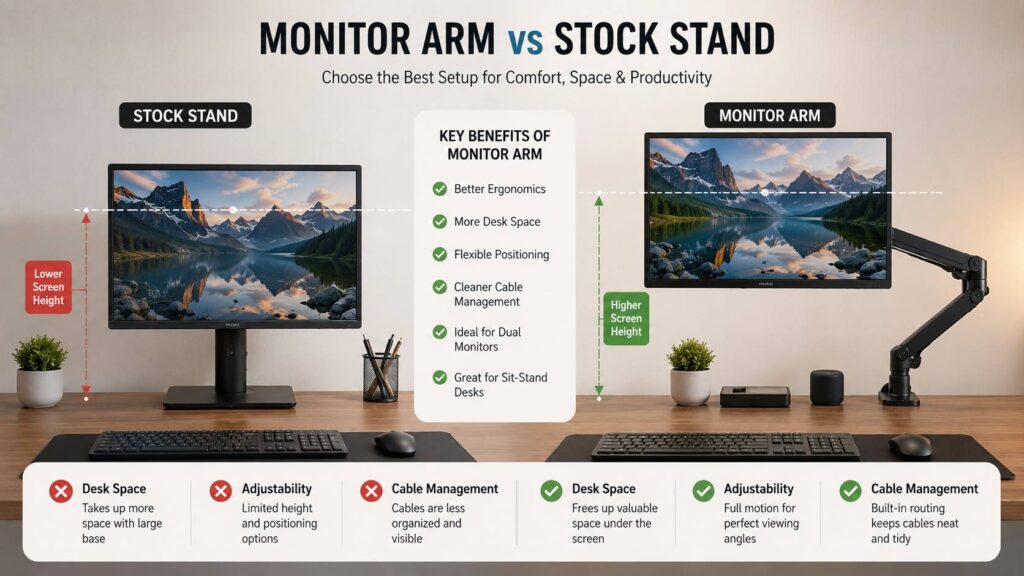
Software can flip your image, but your hardware must support the physical turn. Attempting to force a monitor that lacks swivel capability can damage the stand or cause the screen to fall.
Check Your Stand for Swivel Support
Most modern monitors allow a 90-degree turn, but budget models often lack this feature.
* Gently attempt to rotate the screen left or right at the base connection.
* Look for locking positions or detents that hold the screen at 90 degrees.
* If the movement feels stiff or impossible, do not force it.
Note: If your stand does not swivel, you likely need a VESA mount arm to achieve a true vertical setup.
Use VESA Mounts for Fixed Stands
Monitors without swivel stands often have VESA mounting holes on the back.
* Inspect the rear panel for a square pattern of screw holes.
* Purchase a monitor arm rated for your screen size and weight.
* Attach the arm to enable smooth rotation between landscape and portrait modes.
Secure Cables and Locks
Once you physically turn the monitor, ensure stability.
* Tighten all height, tilt, and swivel locks on your stand or arm.
* Check that HDMI or DisplayPort cables have enough slack to avoid strain.
* Ensure the base sits flat on your desk to prevent tipping.
Rotate Screen Using Windows Display Settings
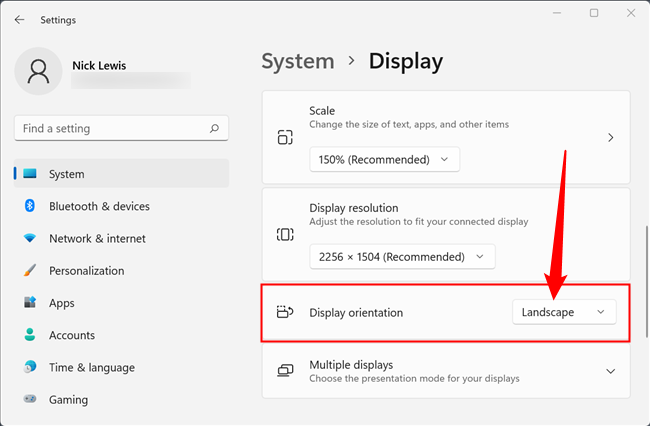
The most reliable way to change orientation works on every Windows 10 and 11 PC. This method does not require special drivers and functions even if your graphics software is missing.
Access Display Configuration Menu
You can reach the necessary controls through the desktop context menu.
1. Right-click on any empty space on your desktop background.
2. Select Display settings from the list that appears.
3. Alternatively, press Win + I to open Settings, then click System and Display.
Select Target Monitor in Multi-Display Setups
If you have more than one screen, you must choose the correct one first.
* Click the rectangle labeled “1” or “2” that matches the physical screen you want to change.
* Scroll down to the section titled Scale and layout.
* Locate the dropdown menu labeled Display orientation.
Choose Your Desired Orientation
Select the option that matches your physical setup or troubleshooting needs.
* Landscape: The standard horizontal view for most tasks.
* Portrait: Rotates the image 90 degrees clockwise for vertical viewing.
* Landscape (flipped): Turns the image upside down horizontally.
* Portrait (flipped): Rotates the image 90 degrees counter-clockwise.
Warning: A confirmation box will appear. Click Keep changes within 15 seconds, or the system will revert automatically.
Use Keyboard Shortcuts to Flip Screen Instantly

Speedy users often prefer hotkeys to change views without navigating menus. These commands work instantly if your graphics drivers support them.
Standard Rotation Key Combinations
Hold the Ctrl and Alt keys together, then press an arrow key.
* Ctrl + Alt + Up Arrow: Returns screen to normal Landscape.
* Ctrl + Alt + Right Arrow: Rotates to Portrait (90 degrees right).
* Ctrl + Alt + Left Arrow: Rotates to Portrait (flipped) (90 degrees left).
* Ctrl + Alt + Down Arrow: Flips display to Landscape (flipped).
Troubleshoot Non-Responsive Shortcuts
If pressing these keys does nothing, your driver settings may block them.
* Open your graphics control panel (Intel, NVIDIA, or AMD).
* Navigate to the Hot Keys or Shortcuts section.
* Enable rotation commands or assign new custom keys.
Pro Tip: Disable these hotkeys entirely if you frequently trigger them by accident while gaming or typing.
Adjust Graphics Control Panel Settings
Advanced users can manage display orientation through manufacturer-specific software. These tools offer deeper customization than the standard Windows menu.
Intel Graphics Command Center
Intel users can manage rotation through their dedicated utility.
1. Right-click the desktop and open Intel Graphics Settings.
2. Navigate to the Display tab.
3. Select your desired rotation angle from the dropdown list.
4. Apply the changes and confirm the new layout.
NVIDIA Control Panel Options
NVIDIA users have access to precise rotation tools within their driver software.
* Open the NVIDIA Control Panel via the desktop right-click menu.
* Go to Display and select Rotate Display.
* Choose between 0, 90, 180, or 270 degrees.
* Click Apply to finalize the change.
AMD Radeon Software Configuration
AMD cardholders can adjust orientation through the Radeon interface.
* Launch AMD Radeon Software from the system tray or desktop menu.
* Click the Display tab to view connected screens.
* Find the Orientation dropdown and select your preferred angle.
* Confirm the prompt to lock in the new orientation.
Configure Multi-Monitor Rotation Independently

Users with multiple screens can mix orientations to create a highly efficient hybrid workspace. This setup is popular among developers and traders.
Identify Each Display Correctly
Confusion often arises when selecting the wrong screen in the settings menu.
* Click the Identify button in Display Settings to see large numbers on each screen.
* Match the number on the screen to the corresponding rectangle in the settings window.
* Click the specific rectangle you intend to rotate.
Apply Portrait Mode to One Screen Only
You do not need to rotate all monitors to the same angle.
* Select the secondary monitor in the settings interface.
* Change its orientation to Portrait while leaving the primary screen in Landscape.
* Click Keep changes to apply the setting to that specific display.
Align Physical and Digital Positions
Ensure your mouse cursor moves logically between screens.
* Drag the display rectangles in the settings menu to match your physical desk layout.
* If a monitor is mounted vertically, ensure the digital top matches the physical top.
* Test cursor movement across boundaries to verify alignment.
Optimize Display Settings After Rotation

Changing to portrait mode often requires tweaks to scaling and taskbar placement for the best experience.
Adjust Scaling for Readability
Text and icons may appear too small when viewed vertically.
* Return to Scale and layout in Display Settings.
* Increase the scale to 125% or 150% for better visibility.
* This adjustment ensures code and text remain legible without squinting.
Reposition the Taskbar
The default taskbar position might feel awkward in vertical mode.
* Right-click the taskbar and select Taskbar settings.
* Change the alignment or move the bar to the top or bottom edge.
* Some users prefer auto-hiding the taskbar to maximize vertical workspace.
Utilize Window Management Tools
Maximize your new vertical real estate with smart snapping.
* Use Windows Snap (Win + Z) to arrange windows side-by-side.
* Install Microsoft PowerToys for advanced zone layouts.
* Arrange your browser and code editor to utilize the full height of the screen.
Fix Common Screen Rotation Issues
Even with correct steps, you might encounter glitches. Here is how to resolve frequent problems.
Screen Stuck in Wrong Orientation
If shortcuts fail, rely on the settings menu.
* Use Win + I to open Settings if your mouse is hard to control.
* Navigate with Tab and arrow keys to reach the orientation dropdown.
* Select Landscape to reset the view immediately.
Distorted or Stretched Image
Incorrect resolution settings often cause visual distortion.
* Check that your resolution matches the native specification of your monitor.
* Avoid custom resolutions unless absolutely necessary for specific apps.
* Update your graphics driver if the issue persists.
Mouse Cursor Misalignment
Your cursor might feel sluggish or inverted after a flip.
* Reboot your computer to reset input mapping.
* Adjust mouse sensitivity in the Bluetooth & devices menu.
* Give yourself a moment to adapt to the new coordinate system.
Prevent Accidental Screen Flips
Nothing is more frustrating than waking up to an upside-down desktop. Take steps to lock your current configuration.
Disable Rotation Hotkeys
Prevent accidental triggers by turning off keyboard shortcuts.
* Open your GPU control panel (Intel, NVIDIA, or AMD).
* Find the Hot Keys section.
* Toggle the rotation shortcuts to Off.
Enable Rotation Lock on Convertibles
Tablets and 2-in-1 laptops often rotate automatically based on position.
* Open the Action Center in the bottom right corner.
* Click Rotation Lock to keep the screen fixed.
* This prevents the gyroscope from changing your view when you move the device.
Frequently Asked Questions About Rotating Monitor Screen
Why won’t Ctrl + Alt + Arrow keys rotate my screen?
This usually means your graphics driver does not support hotkeys or they are disabled. Update your Intel, NVIDIA, or AMD drivers, or check the hotkey settings in your graphics control panel to enable them.
Can I rotate my laptop screen to portrait mode physically?
Most standard laptops cannot physically rotate because their hinges only open up and down. While you can flip the image via software, true portrait mode requires an external monitor with a swivel stand or a specialized convertible device.
How do I fix my screen if it is stuck upside down?
Press Ctrl + Alt + Up Arrow to instantly reset to normal landscape mode. If that fails, right-click the desktop, select Display settings, and change the Display orientation dropdown back to Landscape.
Is rotating my monitor bad for the screen?
No, rotating your monitor is safe as long as the hardware supports it. Ensure your stand has a swivel feature or use a VESA mount. Forcing a non-swivel stand can damage the hinge or cause the monitor to fall.
Does rotating the screen affect gaming performance?
Most modern games adapt to the new resolution, but some may not support vertical aspect ratios correctly. You might see black bars or stretched graphics. It is best to switch back to landscape mode for full-screen gaming sessions.
Key Takeaways for How to Rotate Monitor Screen

Rotating your display is a simple yet powerful way to customize your workflow for coding, reading, or troubleshooting. Remember to verify your physical stand supports vertical mounting before applying software changes to avoid hardware damage.
Use the Windows Display Settings menu for the most reliable results across all systems. For quick adjustments, master the Ctrl + Alt + Arrow shortcuts, but consider disabling them if accidental flips become a nuisance.
Take action today by checking your current monitor setup. If you lack a swivel stand, consider investing in a VESA arm to unlock the full potential of portrait mode productivity.


