
A black screen or flickering display often signals a repairable internal fault rather than a dead unit. Learning how to fix a broken monitor can save you hundreds of dollars compared to purchasing a brand new replacement.
This guide details proven methods to diagnose backlight failure, replace bulging capacitors, and upgrade older systems to safer LED lighting. You will discover exactly which symptoms indicate a successful DIY repair versus when a screen is truly beyond help.
Diagnose the Root Cause Before Disassembly
Many users mistakenly blame their graphics card when the monitor is actually at fault. Proper diagnosis prevents unnecessary part replacements and ensures you are tackling the right problem.
Test with an Alternate Device
Connect the suspect monitor to a different laptop, gaming console, or computer tower. If the display issue persists across multiple devices, the monitor itself is the source of the failure. If the image appears normal on the second device, your original computer’s video output is likely the culprit.
Inspect All Cables and Connections
Loose or damaged cables frequently mimic hardware failure. Examine HDMI, DisplayPort, and VGA connectors for bent pins or fraying wires. Swap in a known working cable and ensure the power cord is seated firmly at both the wall outlet and the monitor input.
Listen for Audio Cues and Watch LEDs
If your monitor has built-in speakers and plays sound upon startup while the screen remains black, the main board is functional. This specific symptom strongly suggests a backlight or inverter issue rather than a completely dead panel.
Perform the Flashlight Test for Backlight Failure

This simple procedure determines if your LCD panel is working while the backlight system has failed. It is the most critical step in deciding how to fix a broken monitor with a black screen.
Shine a Light Across the Screen
Power on the monitor and connect it to a video source. Hold a bright smartphone flashlight directly against the screen surface and angle it slightly to shine across the display area.
Identify Faint Desktop Images
Look closely for a dim version of your desktop, mouse cursor, or menu under the light. Seeing a faint image confirms the LCD panel works and the backlight has failed, which is a highly repairable condition. If the screen remains completely blank even under bright light, the panel or main board may be damaged beyond economical repair.
Recognize Unfixable Physical Screen Damage
Some monitor failures involve physical destruction of the LCD panel itself. These issues generally cannot be fixed with component swaps and require full panel replacement.
Detect Cracked or Shattered Glass
Visible cracks, spiderweb patterns, or lines running across the screen indicate physical breakage. No amount of internal circuit repair will restore an image on a physically broken panel.
Identify Black Splotches or Clouding
Large dark patches, especially near the edges or corners, often signal delamination or internal separation of the screen layers. This type of damage is permanent and not repairable through DIY methods.
Spot Dead Pixels and Discoloration
Persistent single-colored dots or widespread color shifts suggest defects within the liquid crystal layer. These are panel-level failures that cannot be corrected by replacing capacitors or backlights.
Safely Open Your Monitor Casing
Disassembling a monitor requires patience to avoid damaging fragile internal components or injuring yourself during the process.
Power Down and Wait
Unplug the monitor from the wall outlet completely. Wait at least ten minutes to allow internal capacitors to discharge any stored high voltage before touching internal parts.
Remove Screws and Hidden Fasteners
Use a Phillips screwdriver to remove all visible screws on the back panel. Check under rubber feet or warranty stickers for hidden screws that secure the casing.
Pry Open with Plastic Tools
Insert a plastic spudger or guitar pick into the seam between the front and back cases. Gently work around the perimeter to release plastic clips without cracking the housing.
Inspect Internal Components for Bulging Capacitors

Failed capacitors are a leading cause of power issues in older monitors that refuse to turn on or shut down randomly.
Locate the Power Supply Board
Inside the case, identify the circuit board near the power input cord. This board often sits inside a metal shield and contains the large cylindrical components known as capacitors.
Check for Dome-Shaped Tops
Examine the tops of all capacitors closely. Healthy capacitors have perfectly flat tops, while failed ones will appear domed, bulging, or even cracked at the seal.
Record Voltage and Capacitance Ratings
Write down the specific voltage, capacitance, and temperature ratings printed on the side of any bad capacitors. You must purchase exact replacements to ensure safe and proper operation.
Replace Faulty Capacitors to Restore Power
Swapping bad capacitors is a low-cost repair that often fixes monitors with power cycling issues or complete failure to turn on.
Gather Soldering Tools and Parts
You will need a soldering iron, solder wire, desoldering wick, and new capacitors matching your recorded specifications. These parts typically cost less than a dollar each.
Desolder and Remove Old Components
Heat the solder joints on the back of the board where the capacitor leads connect. Once the solder melts, gently pull the capacitor out and clean the holes with desoldering wick.
Install New Capacitors with Correct Polarity
Insert the new capacitor ensuring the gray stripe indicating the negative lead aligns exactly with the original marking. Reversing this polarity can cause the component to explode when powered.
Solder Leads and Trim Excess Wire
Apply fresh solder to secure the new leads firmly to the board. Use wire cutters to trim any excess lead length sticking up from the solder joints.
Upgrade to LED Backlight to Fix Black Screens
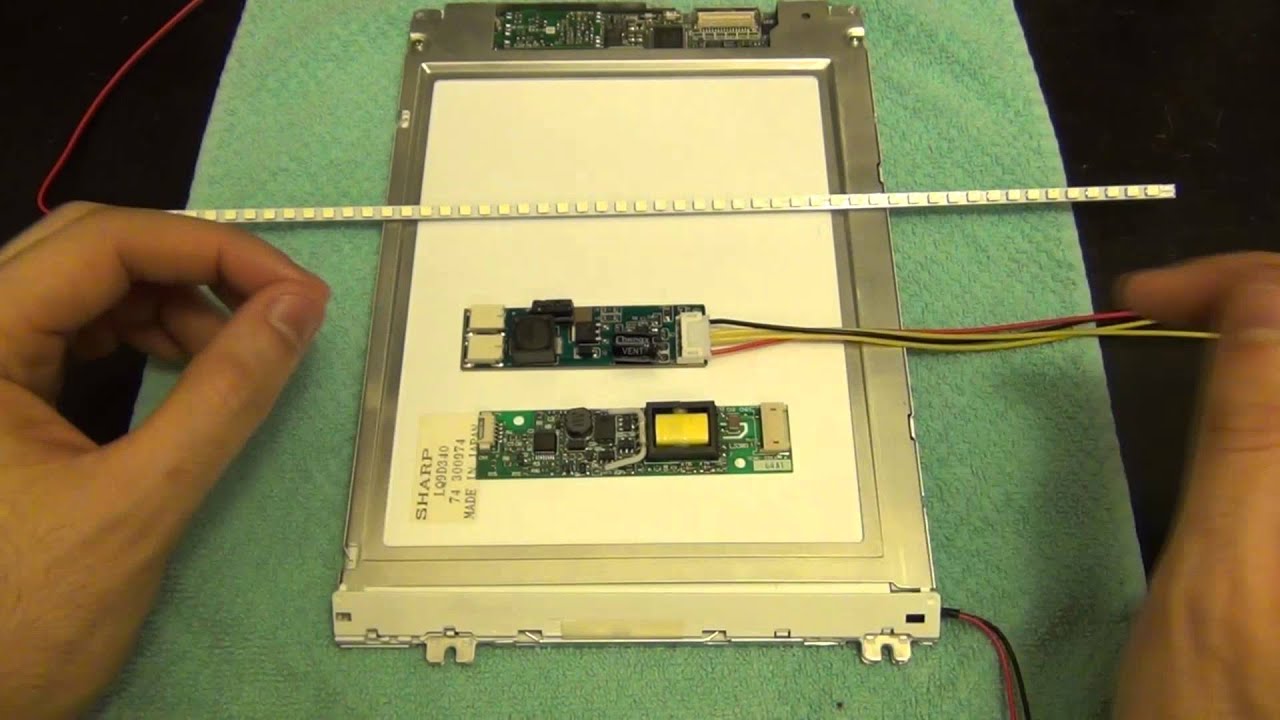
If the flashlight test revealed an image, your CCFL backlight has likely failed. Upgrading to LED strips eliminates high-voltage risks and improves efficiency.
Remove Old CCFL Tubes Carefully
Locate the thin glass tubes along the screen edges and slide them out. Wear gloves during this step because CCFL tubes contain hazardous mercury vapor.
Install 12V LED Strip Lighting
Cut a high-density 12V LED strip to fit the backlight cavity and secure it with adhesive backing. Ensure the strip covers the area evenly to prevent dark spots on the screen.
Connect to a Safe 12V Power Source
Do not connect LEDs to the old high-voltage inverter. Instead, tap into a 12V output on the main board or use an external 12V power adapter for safe operation.
Sync Power Using a Relay Module
Connect a relay module to the monitor USB port to ensure lights turn on only when the monitor powers up. Route the 12V LED power through the relay so the backlight activates automatically with the system.
Reassemble the Monitor Without Damage
Rushing the reassembly process can undo your hard work or create new problems with the display panel.
Handle the Panel by Edges Only
Never press on the screen surface during reassembly. Hold the display strictly by its frame to avoid creating permanent dead pixels from pressure.
Reconnect Flex Cables Gently
Reattach all ribbon cables for buttons, speakers, and control boards with care. Push them in straight and avoid bending or forcing delicate connectors.
Close Casing Securely
Snap the back cover shut and replace all screws to ensure a tight fit. Verify that no wires are pinched and the case sits flush without gaps.
Test the Repaired Monitor Functionality
Powering on the device for the first time after repair requires careful observation of specific visual and auditory cues.
Look for Initial White Glow
When you first press the power button, the LED backlight should emit a soft white glow before the image appears. This confirms your backlight repair or upgrade was successful.
Verify Image Stability
Watch for the full desktop image to appear within seconds and remain stable. Let the monitor run for 15 minutes to ensure there is no flickering, buzzing, or unexpected shutdowns.
Smell for Burning Odors
Sniff near the vents for any burning smell or look for smoke during the first few minutes of operation. If you detect either, unplug the unit immediately to prevent fire or further damage.
Know When Repair Is Not Economical
Understanding the limits of DIY repair helps you avoid wasting time on units that are better replaced than fixed.
Evaluate Cracked Panel Costs
Replacing an entire LCD panel often costs more than buying a new monitor. If your screen is cracked or has large black areas, replacement is the only viable option.
Consider Warranty Status
Opening the monitor casing voids any existing manufacturer warranty. Only attempt these repairs on devices that are already out of warranty coverage.
Assess Age and Value
Older monitors with multiple failing components may not be worth the investment in parts and time. Focus your efforts on units where the repair cost is significantly lower than replacement value.
Prevent Future Monitor Failures
Adopting simple habits can extend the lifespan of your repaired monitor and prevent recurrence of common issues.
Use Quality Surge Protectors
Plug your monitor into a surge protector to shield internal components from voltage spikes. Power surges are a primary cause of capacitor and power board failures.
Ensure Proper Ventilation
Keep monitor vents clear of dust and obstruction to prevent heat buildup. Overheating significantly shortens the lifespan of internal electronic components.
Power Down During Long Breaks
Turn off your monitor when not in use for extended periods. Continuous operation increases wear on capacitors and backlight systems over time.
Frequently Asked Questions About Fixing Broken Monitors
Can a cracked monitor screen be fixed?
No, a cracked screen cannot be repaired with internal component swaps. The physical damage to the LCD panel requires a full panel replacement, which usually costs more than a new monitor.
Why does my monitor have sound but no picture?
This symptom indicates the main board and panel are working, but the backlight system has failed. Perform the flashlight test to confirm backlight failure before attempting repairs.
How much does it cost to fix a broken monitor?
DIY repairs typically cost under $20 for parts like capacitors or LED strips. This contrasts sharply with professional repair services or buying a new unit, potentially saving you over $200.
Is it safe to replace monitor capacitors myself?
Yes, if you follow safety protocols like unplugging the device and waiting for discharge. However, you must match capacitor specifications exactly and observe correct polarity to avoid explosions.
What causes a monitor to flicker or turn off randomly?
Flickering or random shutdowns are often caused by bulging capacitors on the power board. Replacing these faulty components usually resolves the stability issue completely.
Can I upgrade my old monitor backlight to LED?
Yes, you can replace failed CCFL tubes with 12V LED strips. This upgrade eliminates high-voltage risks, improves brightness, and extends the overall life of the display.
Key Takeaways for Fixing Your Broken Monitor

Repairing a monitor is a cost-effective solution when the issue lies in the backlight or power supply rather than the panel itself. By performing the flashlight test and inspecting for bulging capacitors, you can diagnose most common failures and decide if a DIY fix is viable. Remember that physical screen damage like cracks or black splotches cannot be fixed with component swaps and requires panel replacement.
Start by diagnosing your specific symptom using the steps outlined above. If your monitor passes the flashlight test or shows signs of capacitor failure, gather your tools and attempt the repair to save your device from the landfill.


