
You sit down to watch a movie, join a video call, or start a gaming session, and suddenly realize your Acer monitor is producing no sound at all. Maybe the audio is so quiet you can barely hear it, even with your computer volume turned all the way up. You look around the monitor for a volume knob or dial, but there is nothing obvious in sight. The good news is that turning up the volume on an Acer monitor is simpler than it looks once you know where the controls are hidden.
The key lies in accessing the On-Screen Display (OSD) menu using the physical buttons or control knob built into your monitor. Whether your Acer model uses a button array or a rotary knob, you can raise the audio level directly through the monitor’s interface. In this guide, you will learn exactly how to turn up volume on Acer monitor models, including step-by-step instructions for the OSD menu, model-specific workflows, source device settings, and common troubleshooting fixes.
Locate Your Acer Monitor’s Physical Control Buttons

Identify Button Placement Across Models
Acer monitors do not feature external volume dials. Instead, the physical controls are discreetly integrated into the display frame. Most models place 4 to 5 small buttons at the bottom-right corner of the bezel, on the rear panel, or occasionally hidden behind the monitor face.
Look for these control types:
– A prominent Menu or Enter button, usually the largest one
– Up, Down, Left, and Right arrow buttons for navigation
– A rotary knob on certain gaming models like the Nitro XZ322QU
Pressing the main button activates the OSD menu, which is your gateway to all audio settings.
Know Your Control Type Before You Start
| Control Type | How It Works | Common Models |
|---|---|---|
| Button Array | Press Up or Down to scroll, press Enter to select | Most Acer V, K, and ED series |
| Rotary Knob | Rotate to scroll, press to confirm | Nitro XZ322QU and select Predator models |
If your monitor uses a knob, press it once to open the menu, then rotate to move through options. If your monitor uses buttons, treat them like a basic remote: highlight a setting and press Enter to enter submenus.
Open the OSD Audio Menu on Your Acer Monitor

Activate the On-Screen Display
- Press the Menu button or the main control button on your monitor.
- The OSD will appear, usually centered or near the bottom of the screen.
- Use the Down button or rotate the knob to scroll until Audio or Sound is highlighted.
When the Audio option is selected, it often changes color or highlights in red to indicate it is active and ready to edit.
Enter the Audio Submenu
Press Enter or press the knob again to open the Audio submenu. Inside, you will typically see:
– A Volume slider for adjusting audio level
– A Mute toggle for silencing output
– Occasionally a Speaker Output or Audio Source selector
You are now ready to adjust the volume directly through your monitor.
Increase Volume Using the OSD Controls
Raise the Volume Slider
- Highlight the Volume option inside the Audio menu.
- Press the Up button or rotate the knob clockwise to raise the level.
- Watch the on-screen bar move in real time as you adjust.
Most Acer monitors offer a volume range from 0 to 100. A safe starting point is 50, then adjust based on your room and content type.
Verify the Mute Setting Is Off
- Highlight the Mute option in the same Audio menu.
- Press Enter to toggle it off. The screen should display “Off” or show no checkmark.
- Muting only silences output temporarily and does not reset your volume level.
A common mistake is raising your computer volume while forgetting the monitor itself is muted in the OSD. Always check both settings when troubleshooting.
Adjust Volume on the Acer Nitro XZ322QU
Use the Rear-Mounted Control Knob
The Acer Nitro XZ322QU curved gaming monitor uses a single rotary knob located at the bottom-right corner on the back of the display. This knob handles all OSD navigation, including volume.
Follow these steps to turn up volume:
1. Press the knob to open the OSD menu.
2. Rotate until Audio is highlighted.
3. Press the knob to enter the Audio menu.
4. Rotate to highlight Volume. The option turns red when editable.
5. Turn the knob clockwise to raise the volume. The level updates live on screen.
6. Press the knob again to exit the menu.
Rotate slowly when adjusting. Fast turns can skip past the setting you want. Mastering this knob also improves your control over brightness, input selection, and gaming features.
Connect External Speakers Through the Audio Out Port
Check for a 3.5mm Audio Output Jack
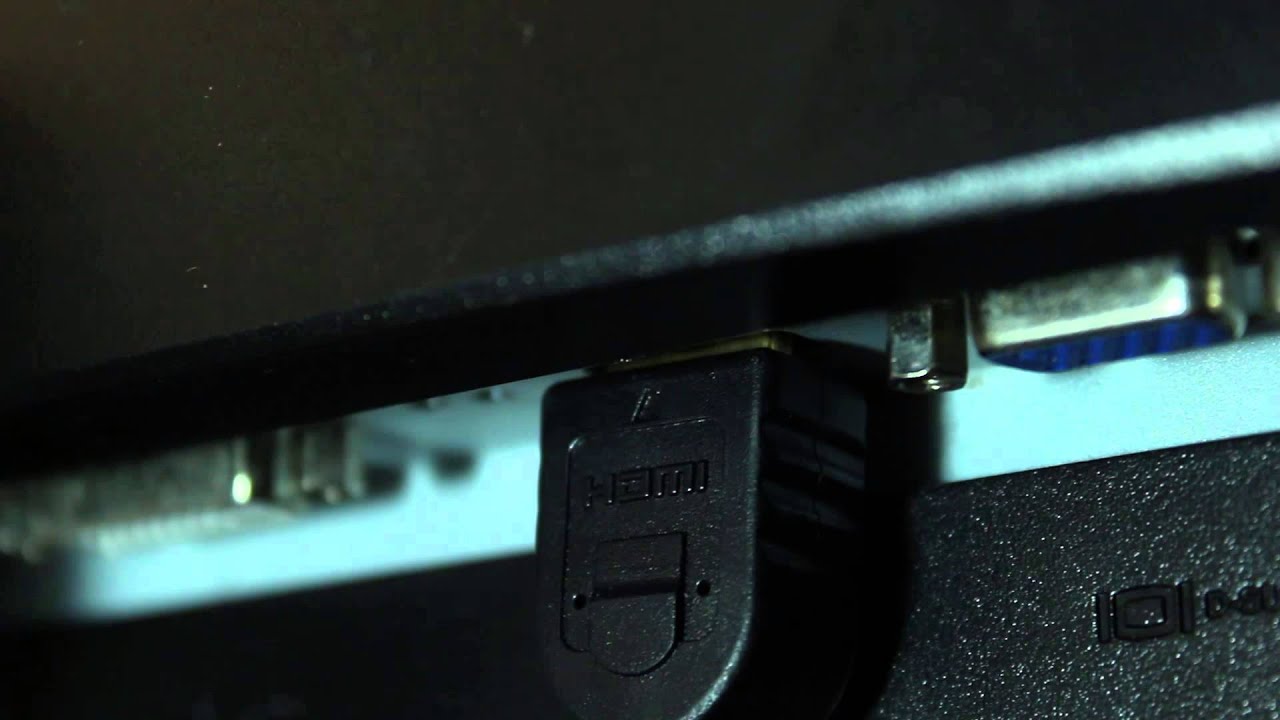
Not every Acer monitor has built-in speakers. If you hear no sound even after adjusting the OSD, inspect the back panel for a 3.5mm audio output jack. This port is typically labeled “Audio Out” or marked with a speaker icon.
If the jack is present, your monitor can pass audio to external devices. If the jack is absent, your monitor lacks audio passthrough, and you will need to connect speakers directly to your computer.
Plug In Powered Speakers or Headphones
- Grab a standard 3.5mm audio cable.
- Insert one end into the monitor’s Audio Out port.
- Insert the other end into the audio input of your powered speakers, headphones, or soundbar.
- Power on the external device.
The monitor acts as a Digital-to-Analog Converter (DAC), sending the audio signal from your PC or console to your external speakers. You can then control volume through the OSD menu or the external device’s own volume knob.
Configure Your Source Device to Send Audio
Set the Correct Output on Windows
- Click the Speaker icon in the taskbar.
- Click the small up arrow to expand output options.
- Select your Acer monitor, which may appear as “Digital Audio (HDMI)” or a similar label.
- If the monitor does not appear, right-click the speaker icon, choose Sounds, open the Playback tab, right-click your monitor, and select Set as Default Device.
Unplugging and replugging the HDMI cable can force Windows to refresh and detect the audio device.
Set the Correct Output on Mac
- Open System Settings and select Sound.
- Click the Output tab.
- Choose your Acer monitor from the device list.
- Play any audio file to confirm sound is routed correctly.
Configure Gaming Consoles Like PS5 and Xbox
- Connect the console using an HDMI cable.
- Power on the console. The monitor should auto-detect the audio signal.
- Use the monitor’s physical buttons to open the OSD and adjust volume in the Audio Settings menu.
- No drivers or extra setup are required. Console audio works plug-and-play through HDMI.
Troubleshoot Common Volume Problems on Acer Monitors

Fix No Sound After Adjusting Volume
Monitor is muted in OSD: Reopen the menu, go to Audio, and set Mute to Off.
Wrong input source selected: Open the OSD, choose Input Source, and select the HDMI or DisplayPort port matching your cable. If the screen shows “No Signal,” the input is incorrect.
Computer sending audio elsewhere: On Windows, check the system tray and confirm the output device is set to your monitor, not laptop speakers or Bluetooth.
VGA connection without audio cable: VGA carries video only. You must connect a separate 3.5mm audio cable from your PC to the monitor, or switch to HDMI or DisplayPort.
Fix Static or Weak Sound
- Replace your current cable with a high-quality, shielded 3.5mm audio cable.
- Try connecting speakers directly to your PC to test whether the monitor is the weak link.
- Inspect the cable for internal damage, which often causes static or crackling.
Fix External Speakers That Will Not Play
- Confirm the cable is fully inserted into both the monitor’s Audio Out and the speaker’s input.
- Test with different speakers or headphones to rule out hardware failure.
- Check whether your speakers require their own power source. Many passive speakers will not work without an amplifier.
Prevent Future Volume Issues on Your Acer Monitor
Set the Monitor as Default Audio Output
On Windows, navigate to Settings, then System, then Sound. Under Output, choose your Acer monitor as the default device. Windows will automatically route audio to it whenever it is connected.
Label Your HDMI and DisplayPort Inputs
If you use multiple devices, label HDMI 1 as your PC and HDMI 2 as your gaming console. This makes switching inputs faster and avoids confusion when troubleshooting audio issues.
Keep Physical Buttons Clean
Dust can cause unresponsive controls over time. Power off the monitor, then use compressed air to clean around the buttons or knob. Avoid liquids and abrasive cloths that can damage the surface.
Frequently Asked Questions About Turning Up Volume on Acer Monitors
Why is there no sound coming from my Acer monitor?
Your monitor may be muted in the OSD, or your computer may be sending audio to the wrong output device. Check both the monitor’s Audio menu and your system’s sound settings to confirm the correct output is selected.
How do I access the volume settings on an Acer monitor?
Press the Menu button or main control button on your monitor to open the OSD. Navigate to the Audio section using the arrow buttons or control knob, then highlight Volume and adjust the slider.
Do all Acer monitors have built-in speakers?
No. Many Acer monitors do not include built-in speakers. Check the back panel for a 3.5mm audio jack or speaker grilles. If neither is present, you will need external speakers or headphones connected to your computer.
Can I turn up volume on my Acer monitor without buttons?
If your monitor’s physical buttons are broken, you can adjust volume through your computer’s operating system instead. Set the Acer monitor as the default output device and raise the system volume. However, the OSD remains the only way to control the monitor’s internal audio passthrough level.
Why does my Acer monitor play sound through HDMI but not DisplayPort?
Both HDMI and DisplayPort carry audio signals, but your input source setting in the OSD must match the active cable. Open the OSD, go to Input Source, and select the correct port. Also confirm your computer’s output settings match the active connection.
How do I unmute my Acer monitor?
Open the OSD by pressing the Menu button, navigate to the Audio section, highlight Mute, and press Enter to toggle it off. The screen should display “Off” or remove the checkmark next to Mute.
Key Takeaways for Turning Up Volume on Your Acer Monitor

Turning up the volume on an Acer monitor comes down to navigating the OSD menu using the physical buttons or control knob. The process works across most Acer models: open the menu, select Audio, and raise the Volume slider. Always verify that Mute is disabled and that your input source matches the cable you are using.
If your monitor lacks built-in speakers, use the 3.5mm Audio Out port to connect powered speakers or headphones. The monitor acts as a passthrough device, sending the audio signal from your PC or console to your external audio gear.
For the best experience, set your Acer monitor as the default audio output in your operating system. This prevents routing issues and ensures consistent sound every time you power on your display. With these steps mastered, you will never deal with silent videos or missed audio cues again.


