
Owning an OLED monitor means enjoying perfect blacks, infinite contrast, and colors that traditional LCDs simply cannot reproduce. But that visual excellence demands responsibility. Learning how to care for OLED monitor properly protects your investment from burn-in, vertical banding, and coating damage that no repair service can undo.
This guide gives you proven OLED monitor care techniques covering brightness calibration, safe cleaning methods, burn-in prevention, and power management. You will learn how to configure settings for daily desktop use, handle movies and games without risking image retention, and avoid the common mistakes that silently shorten your display’s life.
Optimize Brightness and HDR Settings for Maximum Longevity

Brightness management is the single most important factor in extending your OLED monitor’s lifespan. Misconfigured settings force blue sub-pixels to work harder, accelerating degradation at a rate roughly 40% faster than red or green pixels.
Select the Right Color Temperature
Set your monitor to Warm 2, D65, or Cinema mode calibrated to 6500K. Cooler temperatures (9000K or higher) demand near-maximum output from blue sub-pixels while suppressing red and green channels. This imbalance increases current load by 15 to 20% and generates excess heat that shortens panel life. Warm color modes balance the luminous ratio across all three sub-pixels, reducing thermal stress and slowing organic material decay.
Apply Different Brightness Logic for SDR and HDR
SDR and HDR content require opposite brightness strategies because of how each signal is mastered.
For SDR content (desktop apps, web browsing, office work), set OLED Pixel Brightness between 30% and 60%. SDR content is typically mastered at 100 to 120 nits, so running at 100% brightness overdrives pixels and creates unnecessary heat. For HDR content (movies, games, streaming), set brightness to 100%. HDR relies on metadata to control peak brightness, and highlights flash briefly rather than sustaining full power.
Use the Windows SDR Brightness Slider
If you prefer keeping HDR enabled at all times, navigate to Windows Display Settings and find the HDR/SDR brightness slider. Lower this slider to a value between 5 and 10, which caps desktop brightness at approximately 100 nits while preserving HDR readiness for media playback. This approach reduces pixel wear during everyday use without sacrificing image quality when you launch a game or stream a movie.
Prevent Burn-In with Smart Daily Habits
Burn-in occurs when static elements like taskbars, news logos, or game HUDs age pixels unevenly over hundreds of hours. It is not a manufacturing defect. It is a preventable consequence of usage patterns.
Enable Pixel Shift and Orbiting
All modern OLED monitors include a hardware-level pixel shifting feature that moves the image subtly every 60 to 120 seconds. The shift range on 4K panels typically spans 2 to 16 pixels, using an overscan buffer so no black bars appear at the edges. Confirm this feature is enabled in your monitor’s OSD menu. The movement is imperceptible during normal use but distributes thermal load across thousands of micro-locations, preventing heat buildup in fixed areas.
Activate Logo and Taskbar Dimming
Software suites like ASUS OLED Care automatically detect static on-screen elements and dim them to reduce localized aging. These tools identify channel logos, news tickers, and the Windows taskbar, then reduce brightness around those regions by 10 to 25% depending on the setting level. Boundary detection also shifts pixels near black bars to prevent reverse burn-in when watching widescreen content.
Limit Static Content Exposure
Avoid leaving fixed UI elements on screen for more than one hour at a time. Pause games or videos when stepping away. Enable dark mode in applications to keep the Average Picture Level below 20%. During dark movie scenes where pixel change rates are low, move the mouse occasionally to reset the Auto Static Brightness Limiter timer and prevent unwanted dimming.
Use Proximity Sensors When Available
High-end models like the ASUS ROG Swift OLED PG27UCDM include Neo Proximity Sensors that detect when you leave your desk. The sensor switches the display to a black image immediately, eliminating burn-in risk from unattended static content. Customize the detection distance to match your workspace and let the monitor protect itself.
Configure Power and Standby Habits Correctly
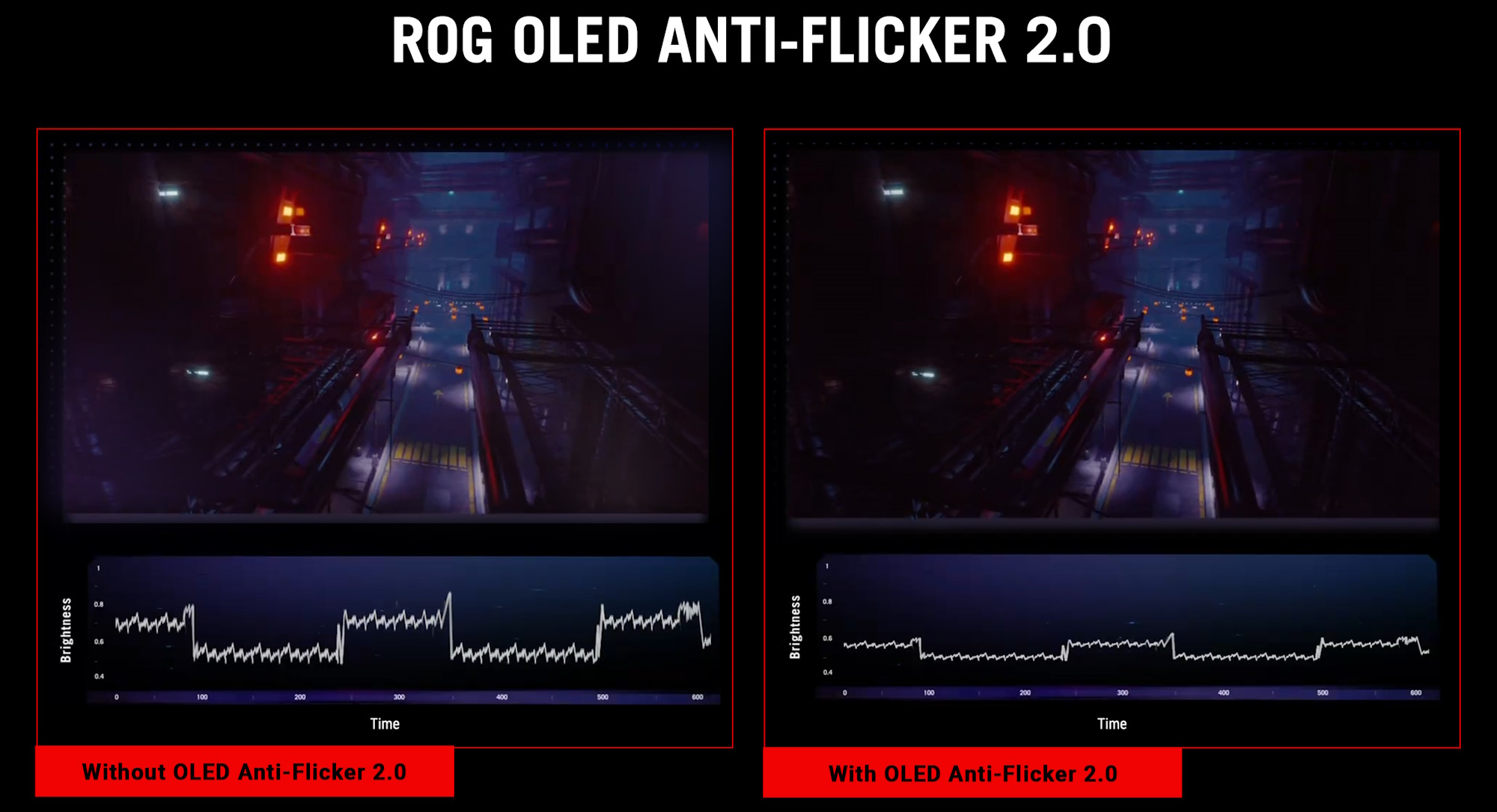
How you power down your OLED monitor matters as much as how you use it. Improper shutdown habits can corrupt compensation data and cause permanent artifacts.
Never Unplug Immediately After Shutdown
OLED monitors run automatic maintenance cycles after the screen goes black. The short cycle (RS Compensation) takes 5 to 10 minutes and corrects TFT voltage drift. The long cycle (JB Compensation) runs for approximately 60 minutes after every 2000+ hours of use and resets brightness baselines. Cutting power during these cycles interrupts voltage compensation writes to the EEPROM, leading to vertical banding or the Dirty Screen Effect.
Wait for the Relay Click
High-end OLED monitors contain internal power relays. When you turn off the display, the screen goes black, but the relay does not disengage immediately. Approximately 5 to 10 minutes later, a metallic click signals that maintenance is complete and high-voltage circuits have disconnected. Only unplug after hearing this click. If your monitor lacks a relay, watch for a fading LED or check whether USB ports remain powered, both indicators that maintenance is still running.
Know When Unplugging Is Safe
Unplug your monitor only during severe thunderstorms when no whole-house surge protector is installed, or when storing the device for more than 14 days. In storage situations, wait 15 minutes after shutdown before disconnecting to ensure the maintenance cycle finishes.
Clean the Screen Safely Without Damaging Coatings
OLED screens feature delicate anti-reflective coatings that alkaline cleaners and pressure can permanently destroy. One aggressive wipe can cause damage no warranty covers.
Cool the Screen Before Cleaning
Heat makes the coating vulnerable to friction damage. Wait 10 minutes if you used the monitor for under 30 minutes. Wait 20 to 30 minutes after sessions exceeding two hours. For continuous high-brightness use, wait over 30 minutes. The surface temperature must drop below 25°C. Verify by holding the back of your hand about 1cm from the screen. If you feel warmth, wait longer.
Power Off and Discharge Static
Unplug the monitor completely before cleaning. Touch a grounded metal object like your PC case to discharge any static charge from your body. This prevents dust from clinging to the cloth during wiping.
Select the Right Microfiber Cloth
Choose a cloth meeting these specifications:
- 70% polyester and 30% polyamide blend
- 300 to 400 GSM density
- Edgeless or ultrasonic-cut edges
- Plush or terry texture
Fold a 40cm by 40cm cloth into a 10cm square to create eight independent cleaning surfaces and buffer finger pressure. Avoid 100% cotton, 100% polyester, waffle weave, or suede textures.
Use Only Distilled Water
Tap water contains dissolved minerals that leave residue. Spray 2 to 3 mists of distilled water onto a cloth corner. Never spray directly onto the screen. The cloth should feel slightly damp, never wet.
Follow the Three-Stage Cleaning Process
Stage 1 (Dry Wipe): Remove dust and hair with zero pressure using a lawnmower Z-pattern and 10% overlap between strokes. Use gentle, straight-line motions. Avoid circular wiping, which pushes particles to the edges and creates swirl marks.
Stage 2 (Spot Clean): Dampen the cloth corner and press on the stain for 3 to 5 seconds to soften residue. Wipe in tiny circles smaller than 2cm in diameter. Target only stained areas.
Stage 3 (Flash Dry): Before water evaporates naturally, wipe with a dry section of the cloth to absorb remaining moisture. This prevents ring-shaped streaks caused by surface tension depositing impurities at droplet edges.
Manage Aspect Ratios and Black Bars to Prevent Reverse Burn-In
Watching 2.35:1 movies or 4:3 content creates differential aging between active pixels and pixels under black bars. Over hundreds of hours, the black bar regions appear brighter than the center when displaying solid colors.
Apply Three Mitigation Strategies
Use the monitor’s 4-way zoom feature to stretch the image vertically and fill the screen. For every 4 to 5 hours of widescreen movie watching, play 1 to 2 hours of 16:9 full-screen content to ensure edge pixels participate in aging. During widescreen viewing, lower OLED Pixel Brightness by 10 to 20 units to slow aging in the active area and narrow the lifespan gap with inactive regions.
Understand Maintenance Cycles and Let Them Complete
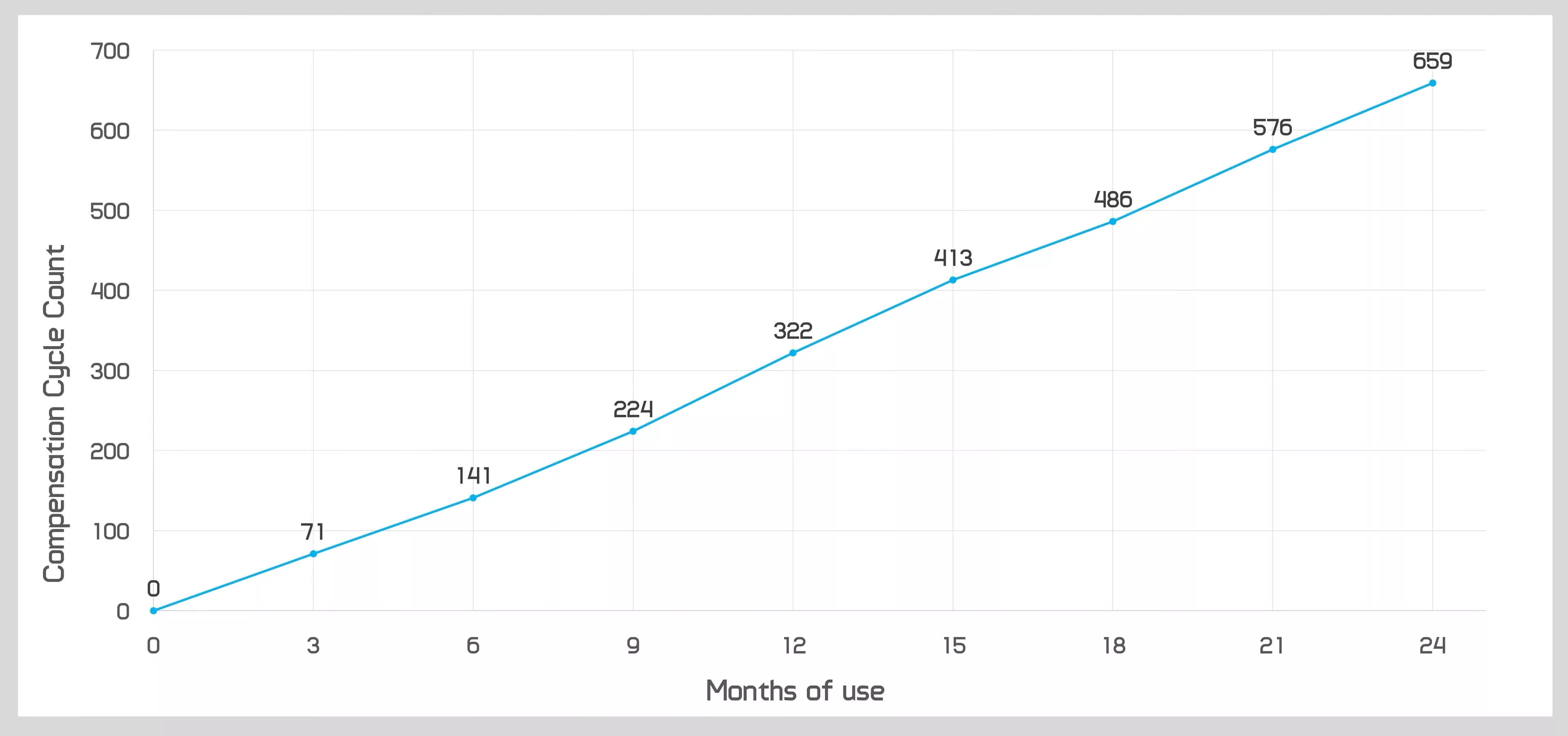
Your monitor self-corrects over time through two distinct compensation routines.
Short Cycle (RS Compensation)
This cycle triggers after 4+ hours of cumulative use and lasts 5 to 10 minutes after shutdown. It detects voltage hysteresis in the TFT backplane and corrects short-term image retention by adjusting sensing voltages.
Long Cycle (JB Compensation)
This cycle triggers after approximately 2000 hours of use and takes about 60 minutes. It detects brightness decay in organic materials and adjusts the global voltage baseline to mask uneven aging.
Never interrupt either cycle. Allow the relay click or LED indicator to confirm completion before disconnecting power.
Troubleshoot Common OLED Issues
Vertical Banding
Dark vertical stripes on dark gray backgrounds indicate interrupted short-cycle compensation. Allow 3 to 5 full shutdown cycles to run uninterrupted, and the monitor will rewrite its voltage compensation table.
Mura (Dirty Screen Effect)
Center brightness appearing higher than edges suggests uneven aging from heat accumulation or skipped maintenance. Ensure proper ventilation, enable pixel shift, and allow long-cycle compensation to run.
Swirl Marks
Visible circular patterns indicate that cleaning pushed dust across the coating. Prevent future marks with linear wiping motions. Severe swirl marks may require professional polishing.
Frequently Asked Questions About OLED Monitor Care
How long does an OLED monitor last with proper care?
With correct settings (warm color temperature, managed SDR brightness, enabled protection features), an OLED monitor delivers 3 to 4 years of trouble-free use. Some users report 8 years of operation with only minor, barely noticeable burn-in when following recommended care practices.
Can burn-in be reversed on an OLED monitor?
Short-term image retention often disappears after the short compensation cycle completes. Permanent burn-in from years of static content cannot be reversed, though the long-cycle compensation can mask mild unevenness by remapping the gamma curve.
Is it safe to leave my OLED monitor on all day?
Extended sessions are safe if you enable pixel shift, use dark mode, keep brightness at 30 to 60% for SDR content, and avoid static UI elements. For multi-hour idle periods, use proximity sensors or configure a 5-minute screen timeout to prevent unnecessary wear.
Should I disable HDR to extend my OLED monitor’s lifespan?
Disabling HDR is unnecessary. Instead, keep HDR enabled for media playback and use the Windows SDR brightness slider set to 5 or 10 to cap desktop brightness at approximately 100 nits. This approach preserves HDR quality while reducing wear during everyday tasks.
What cleaning products are safe for OLED screens?
Only distilled water applied to a proper microfiber cloth is safe. Alkaline glass cleaners destroy anti-reflective coatings within seconds. Chemical solvents, alcohol, and ammonia-based products cause permanent delamination.
How do I know when maintenance cycles are complete?
Listen for a metallic relay click 5 to 10 minutes after shutdown, indicating high-voltage circuits have disengaged. Alternatively, observe whether USB ports remain powered or watch for a fading LED indicator. Only unplug after these signs appear.
Key Takeaways for Protecting Your OLED Monitor Investment
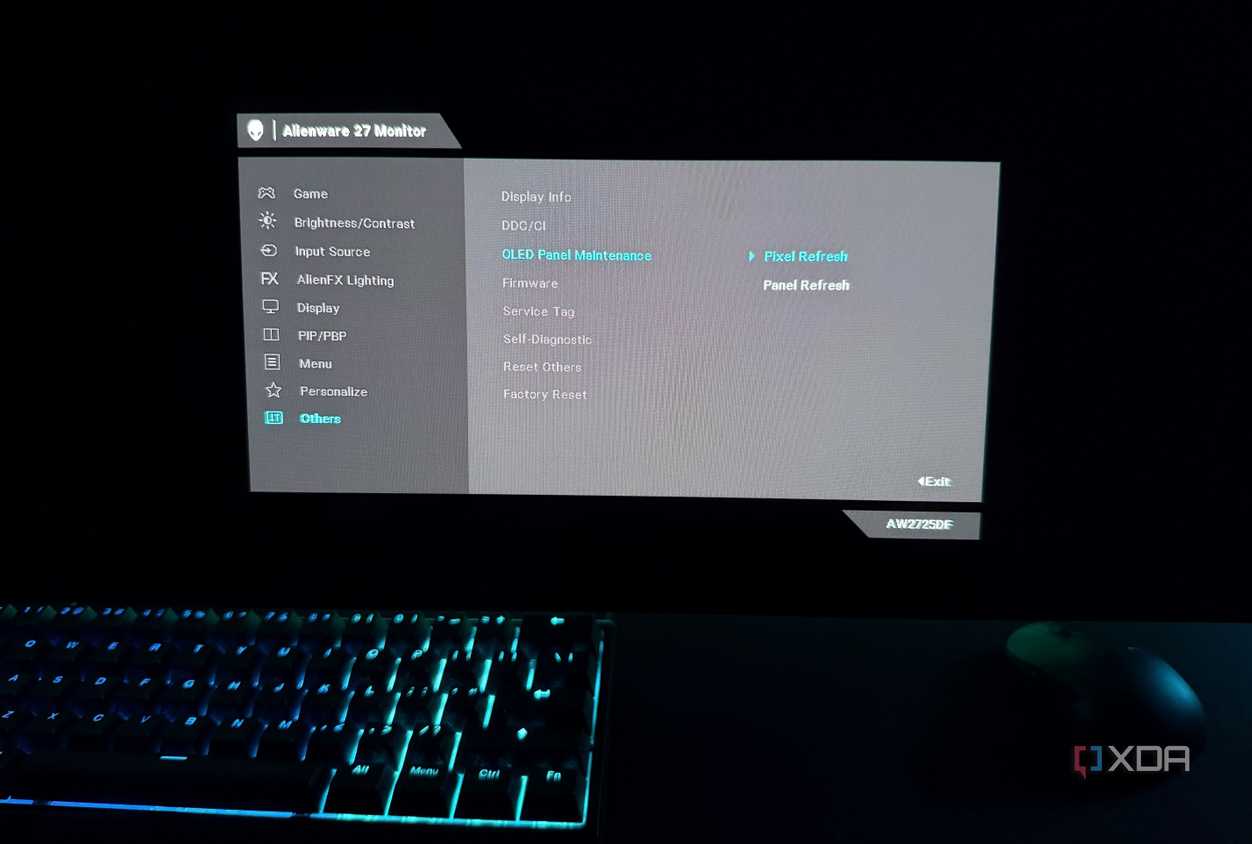
An OLED monitor rewards careful ownership with years of stunning image quality. The three most impactful habits are managing brightness intelligently (30 to 60% for SDR, 100% for HDR), enabling all built-in protection features (pixel shift, logo dimming, taskbar detection), and allowing maintenance cycles to complete before disconnecting power.
Your next step: spend 10 minutes today configuring your monitor’s color temperature to Warm 2 or D65, enabling pixel shift in the OSD, and setting up the Windows SDR brightness slider. These three changes alone dramatically extend panel life without any sacrifice in visual quality.


