
Your monitor probably looks worse than it should. Factory settings are tuned for bright retail showrooms, not your living room or office, which means the picture you see daily is oversaturated, too blue, or oddly dim. Learning how to make your monitor look better is not just about aesthetics. It directly affects your eye comfort, gaming performance, and how accurately you see photos, videos, and design work. A few precise adjustments can transform a dull, blurry screen into something that genuinely impresses.
This guide walks you through every step, from choosing the right cable to fine-tuning gamma and enabling VRR. You will learn which settings to avoid, how to calibrate without expensive tools, and how to adapt your display to your room and usage. By the end, you will have a sharper, more color-accurate screen tailored specifically to how you actually use it.
Start with the Right Connection
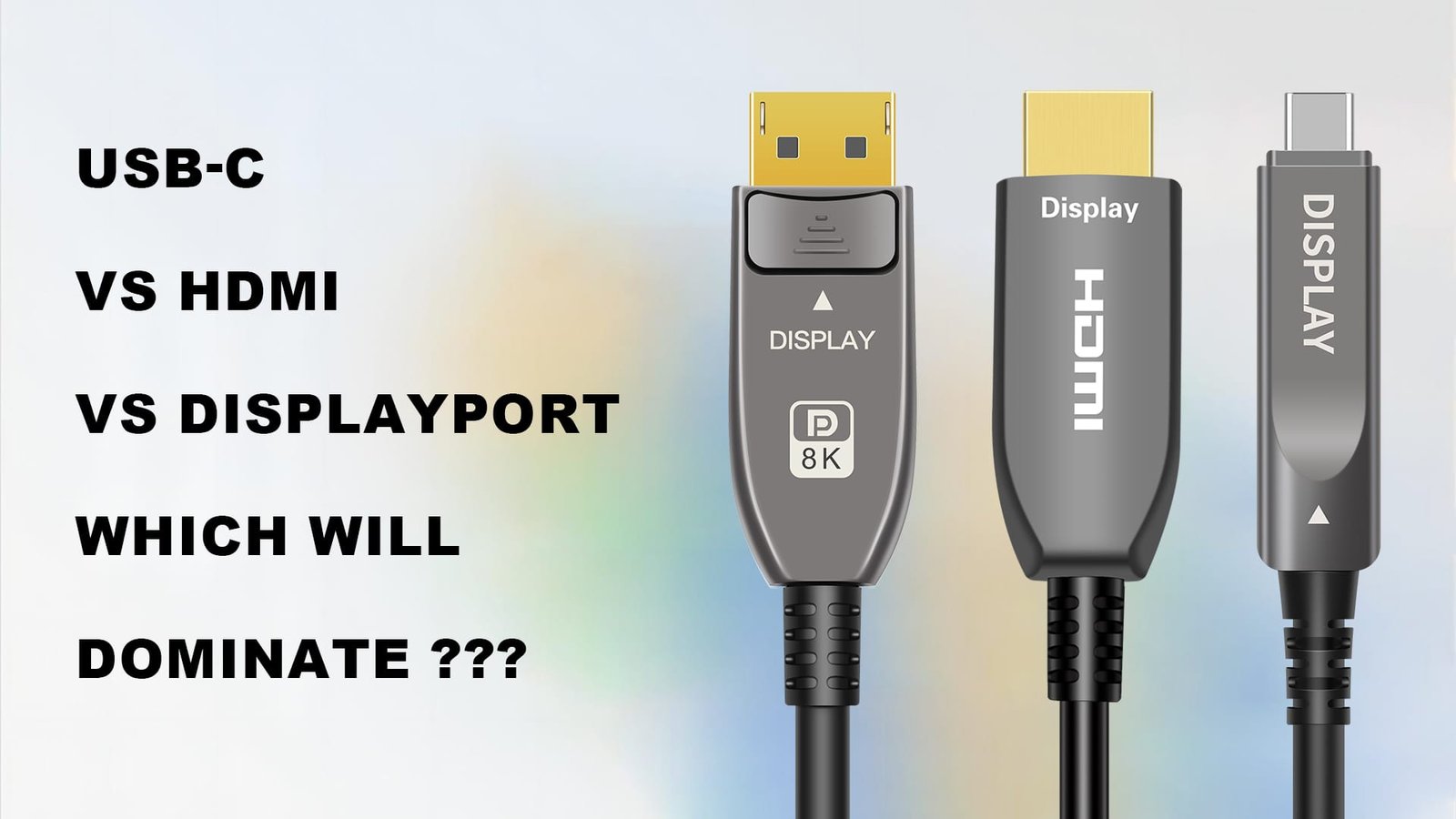
Your cable choice directly controls the maximum resolution, refresh rate, and color depth your monitor can display. Picking the wrong one can silently bottleneck everything else.
Use DisplayPort When Possible
For PC users, DisplayPort delivers the best performance. It supports higher refresh rates like 144Hz and 240Hz at 1440p or 4K, deeper color depth, and adaptive sync technologies such as G-Sync and FreeSync. Always prioritize DisplayPort over HDMI unless your GPU or monitor lacks the port entirely.
Know HDMI’s Real Limits
HDMI is acceptable, but only when DisplayPort is not an option. Standard HDMI 1.4 or 2.0 may limit 4K to 60Hz or block HDR entirely. HDMI 2.1 changes the picture by enabling 4K at 120Hz, but only if both your source device and monitor explicitly support it. Never assume your cable or port is HDMI 2.1 without checking the specs.
Verify Cable Quality
Even with the right port, a low-quality cable can ruin your experience. Use certified high-speed cables rated for HDMI 2.0 or higher, or DisplayPort 1.4 or higher. Cheap cables often cause flickering, signal drops, or reduced resolution. A $10 cable from a reputable brand is almost always worth it.
Try USB-C with DisplayPort Alt-Mode
Many modern laptops output video through USB-C. If your device supports DisplayPort Alt-Mode, the signal quality can match or exceed HDMI. Always confirm your specific laptop supports video output over USB-C before relying on it for high refresh rates or 4K.
Reset Your Monitor to Factory Defaults
Before touching any image settings, wipe the slate clean. Factory presets often include aggressive processing that hurts real-world image quality.
Why a Reset Comes First
Monitors ship with modes designed to stand out under fluorescent store lighting. These include oversharpening, boosted saturation, and crushed blacks. None of these help you at home. A factory reset removes all of them and gives you a neutral starting point.
How to Perform the Reset
- Press the menu button on your monitor to open the On-SScreen Display.
- Navigate to the Settings or System menu.
- Select Factory Reset, Initialize, or Reset to Default.
- Confirm the choice and wait for the monitor to reboot.
After the reset, manually reconfigure your input source and language. Skipping this step means every calibration effort fights against hidden processing that you cannot see.
Choose the Best Picture Mode
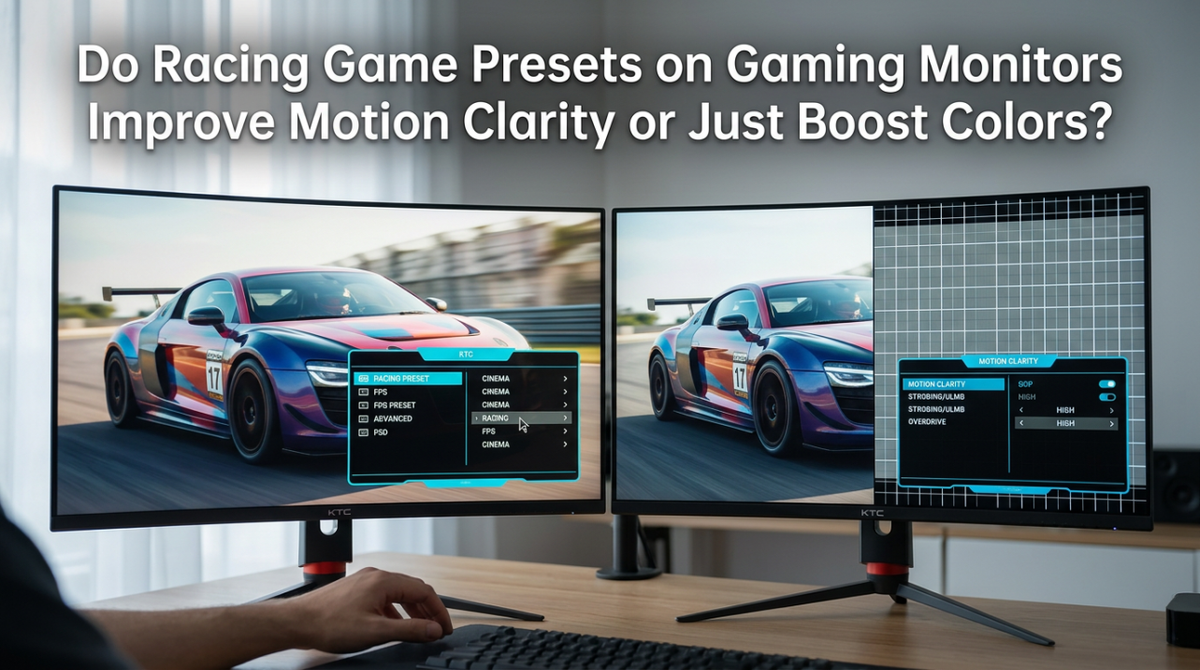
Not all picture presets are created equal. Some help, but most hurt accuracy.
Pick Custom or User Mode
Stick to User, Custom, or numbered Gamer modes. These give you full manual control over brightness, contrast, and color. Avoid preset labels like Vivid, Dynamic, or generic HDR modes for everyday use. They oversaturate colors and crush shadow detail.
The ASUS Racing Mode Exception
On ASUS monitors, the preset called Racing Mode is often the most color-accurate option available, despite the name. Use it as your starting point before making further adjustments.
Use sRGB Mode for Content Creation
If you edit photos, design websites, or work with color-critical material, enable sRGB mode. It clamps the color gamut to the web standard and prevents oversaturation. Be aware that this mode often locks brightness and contrast controls and may dim the screen noticeably.
Avoid HDR Presets for Standard Content
Never leave your monitor in HDR mode while browsing the web or using office apps. It washes out colors and reduces contrast. Only enable HDR when watching HDR movies or playing HDR-enabled games.
Calibrate Brightness and Contrast
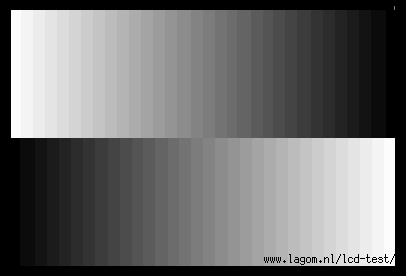
These two settings have the biggest impact on your daily experience. Get them right before anything else.
Set Brightness for Your Room
Brightness controls the backlight intensity, not the image data itself. Match it to your environment:
- Dark room: Set brightness between 20 and 30, or lower.
- Bright room: Raise it to 50 to 70 to fight glare.
- Target luminance: Aim for 250 to 350 nits for gaming in normal indoor light.
You can also use manufacturer software like Dell Display Manager or ASUS Splendid to adjust brightness from your desktop instead of digging through the OSD menu every time.
Adjust Contrast to Prevent Clipping
Contrast controls how bright your whites get. Too high and bright details merge into pure white, which is called clipping. Too low and the image looks flat and dull.
Test method: Open a white gradient image or a spreadsheet with fine gridlines. Increase contrast until the last few bright steps are faintly visible but not blown out. The default setting is often correct, so only adjust if whites look obviously wrong.
Fine-Tune Black Level and Gamma

These settings control shadow detail and midtone balance. Both are easy to get wrong.
Fix Crushed or Washed-Out Blacks
Black Level goes by different names depending on your brand, including Shadow Boost, Dark Stabilizer, and Black Equalizer. It controls how dark scenes appear.
Use a near-black gradient test:
- Too low: Shadow details vanish into pure black.
- Too high: Blacks turn gray and the image loses contrast.
- Just right: All gradient steps are visible, with the darkest ones still appearing black.
In competitive FPS games, raising this slightly helps you spot enemies hiding in shadows, though it sacrifices realism.
Set Gamma to 2.2
Gamma controls midtone brightness. The standard value for accurate SDR content is 2.2.
- Lower gamma (1.8): Brightens midtones, which helps in dark rooms.
- Higher gamma (2.4 to 2.6): Darkens midtones and boosts perceived contrast in bright light.
Adjust only if the image feels too dark or too washed out. Drastic changes distort the mood and color of everything you view.
Optimize Color Accuracy
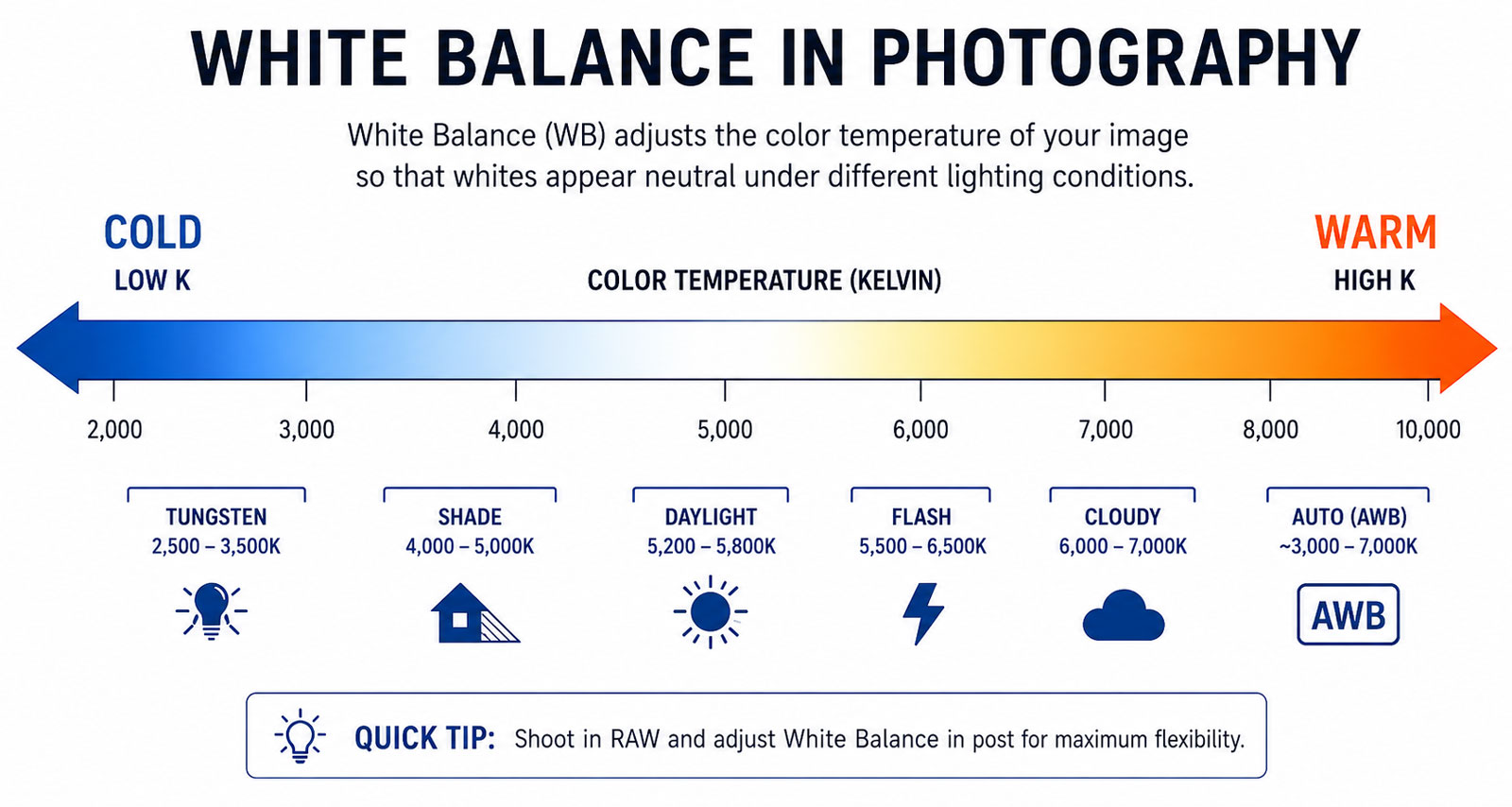
Natural colors start with the correct white point and balanced channels.
Set Color Temperature to 6500K
The industry standard for daylight-balanced content is 6500K, often labeled Neutral, Normal, or Warm depending on your monitor.
- Too cool (above 7200K): Adds a blue tint that feels crisp but is inaccurate.
- Too warm (below 6500K): Adds a yellow tint that is easier on the eyes but less faithful to the source.
Adjust until whites look truly neutral, with no obvious blue or yellow cast.
Use RGB Sliders Carefully
Fine-tune white balance using the Red, Green, and Blue gain controls.
- Never adjust any slider by more than ±10 unless you own a colorimeter.
- To reduce a yellow tint, lower Red and Green slightly instead of just cranking up Blue.
- If you need large adjustments, your picture mode is probably wrong.
Leave Hue and Saturation sliders at their defaults unless you are doing professional calibration with proper hardware.
Sharpen the Image Without Artifacts
Sharpness enhances edges, but too much creates ugly halos around text and objects.
Find the Sweet Spot
- Set sharpness to maximum.
- Look for white halos around text, icons, or high-contrast edges.
- Reduce the setting until halos disappear but edges still look crisp.
The default sharpness setting is usually optimal. Over-sharpening is one of the most common mistakes people make.
Use GPU Sharpening Instead
If the image still feels soft after monitor calibration, use GPU-level sharpening for cleaner results:
- AMD: Enable Radeon Image Sharpening and set it to 70 to 80%.
- NVIDIA: Use DLSS Sharpening or the Image Scaling sharpness slider.
GPU sharpening avoids the double-processing artifacts that monitor-level sharpness often creates.
Boost Motion Clarity for Gaming
Reduce blur and tearing by maximizing refresh rate and tuning response time.
Maximize Refresh Rate in Your OS
Higher refresh rates make motion smoother and reduce input lag.
- Windows: Go to Settings, then System, then Display, then Advanced Display Settings, and select 144Hz, 240Hz, or your monitor’s maximum.
- macOS: Open System Settings, then Displays, then set Refresh Rate to the highest option.
Calibrate Overdrive Carefully
Overdrive, also called Response Time, forces pixels to switch faster. Too low causes ghosting. Too high causes bright halos called overshoot.
Test at testufo.com/ghosting:
- Increase the setting until ghosting disappears.
- Back off slightly if you see bright halos trailing moving objects.
- OLED monitors do not need this setting because their pixels switch nearly instantly.
Enable G-Sync or FreeSync
Variable Refresh Rate eliminates screen tearing without the input lag of traditional V-Sync.
Steps to enable:
- In your monitor OSD, turn on Adaptive Sync, FreeSync, or G-Sync Compatible.
- In your GPU control panel, enable G-Sync for NVIDIA or FreeSync for AMD.
Keep your in-game frame rate within the monitor’s VRR range, such as 48 to 144Hz, for the smoothest experience.
Use HDR and Local Dimming Wisely
High Dynamic Range can look stunning or terrible depending on how you use it.
Only Enable HDR for HDR Content
Running your desktop or SDR games in HDR mode causes washed-out colors and poor contrast. Enable HDR only when watching HDR movies on Netflix or Disney+, or playing HDR-enabled games. Use the keyboard shortcut Win + Alt + B to toggle HDR quickly in Windows.
Test Local Dimming Quality
Local dimming improves black levels by dimming backlight zones in dark scenes. Quality varies wildly between monitors.
- Good implementations boost contrast significantly without visible artifacts.
- Poor implementations cause blooming, which means halos around bright objects on dark backgrounds.
If blooming distracts you, disable local dimming. It is usually forced on when HDR is active.
Apply GPU-Level Enhancements
Once your monitor settings are dialed in, use your GPU for final polish.
Add Slight Saturation via GPU
After calibration, the image can feel slightly flat. Instead of switching to a Vivid mode, add a small saturation boost through your graphics driver:
- NVIDIA: Raise Color Vibrance by +10 to +20.
- AMD: Use the Custom Color slider.
This gives a natural-feeling boost without oversaturating skin tones or skies.
Enable Image Sharpening
GPU sharpening enhances clarity in games and text. It is especially useful on 4K monitors that render lower-resolution content. AMD Radeon Image Sharpening at 70 to 80% works well, as does NVIDIA DLSS Sharpening.
Adapt to Your Environment
The best settings depend on where and how you use your monitor.
Control Ambient Light
Reflections and glare destroy contrast no matter how good your calibration is. Use curtains or blinds to block direct sunlight, and position your monitor perpendicular to windows. Anti-glare screen filters help in extreme cases.
Follow the 20-20-20 Rule
Reduce eye strain by looking at something 20 feet away for 20 seconds every 20 minutes. This simple habit prevents fatigue during long sessions.
Set Correct Display Scaling
In Windows or macOS, set display scaling to 100% for 1080p or 1440p monitors. Higher scaling values like 125% or 150% can blur text if applications do not handle scaling well.
Fix Common Display Problems
Quick fixes for the most frequent issues.
Image Looks Blurry
The cause is usually wrong resolution or scaling. Set your display to its native resolution and confirm Windows scaling is at 100%.
Colors Look Washed Out
Your GPU output may be set to Limited range (16 to 235) instead of Full range (0 to 255). Change the RGB range to Full in your GPU control panel.
Ghosting or Trailing
Your overdrive setting is too low. Increase the Response Time or Overdrive setting until the trail disappears.
Halos Around Objects
Your overdrive setting is too high. Reduce it until the halos vanish.
Screen Tearing
VRR is disabled or your frame rate is outside the supported range. Enable G-Sync or FreeSync and cap your FPS just below your monitor’s maximum refresh rate.
Flickering
The cause is usually a bad cable or a conflict between BFI and VRR. Replace the cable with a certified high-speed model and disable BFI if you are using VRR.
Recommended Baseline Settings
Use this table as your starting point for a balanced setup.
| Setting | Recommended Value |
|---|---|
| Connection | DisplayPort |
| Picture Mode | User, Custom, or Racing (ASUS) |
| Brightness | 20 to 30 in dark rooms, 50 to 70 in bright rooms |
| Contrast | Default, adjusted only to prevent clipping |
| Black Level | Calibrated via gradient test |
| Gamma | 2.2 |
| Color Temperature | 6500K or Neutral |
| Sharpness | Default with no visible halos |
| Overdrive | Balanced, no ghosting or halos |
| VRR | Enabled (G-Sync or FreeSync) |
| HDR | Off, except for HDR content |
| GPU Tweaks | RIS at 70 to 80%, Vibrance +10 |
Frequently Asked Questions About Making Your Monitor Look Better
What is the most important setting to adjust first?
Brightness has the biggest immediate impact because it affects eye comfort and perceived contrast. Match it to your room lighting before touching anything else. A brightness setting that is too high in a dark room causes eye strain, while one that is too low in a bright room washes out the image.
Should I use sRGB mode for gaming?
Generally no. sRGB mode clamps colors to a smaller gamut and often locks brightness controls, which limits your ability to calibrate for your specific environment. Use it only for content creation where color accuracy matters more than vibrancy.
How do I know if my HDMI cable supports 4K at 120Hz?
Check the cable packaging or listing for HDMI 2.1 certification. Standard HDMI 2.0 cables cannot carry 4K at 120Hz. The same rule applies to DisplayPort cables, which need to be rated 1.4 or higher for high refresh 4K.
Is HDR worth enabling on my monitor?
Only if your monitor has good local dimming and you regularly watch HDR content. On budget monitors, HDR often looks worse than SDR because it washes out colors and adds halos. Test it with a known HDR movie before deciding.
Do I need a colorimeter to calibrate my monitor?
No. The settings in this guide get you 90% of the way to excellent image quality without any tools. A colorimeter is only necessary if you do professional photo or video editing where exact color accuracy matters for client work.
Why does my monitor look blurry even at native resolution?
The most common causes are incorrect Windows scaling, a low-quality cable, or sharpness settings that are too low. Check your display scaling first, then verify your cable is certified for your monitor’s resolution and refresh rate.
Final Thoughts on Improving Your Monitor
Improving your monitor is not about maxing every setting. It is about finding the right balance for your eyes, your room, and your work. Start with a clean factory reset, choose the best cable, and work through the settings one at a time. Avoid flashy presets like Vivid or Dynamic, and never leave HDR on for standard content.
Your environment matters as much as your settings. Control ambient light, sit at the right distance, and recalibrate if you move your desk or change rooms. With the adjustments in this guide, you can transform any decent monitor from a generic factory display into a sharp, accurate screen that genuinely fits how you use it.


