
Neck stiffness, cluttered desk space, and awkward viewing angles are common frustrations for anyone spending long hours at a computer. Learning how to set up a monitor mount correctly solves all three problems at once, elevating your screen to eye level while reclaiming valuable workspace. Whether you work from home, game competitively, or edit videos professionally, the right mount transforms both comfort and productivity.
This guide covers every stage of the process, from checking VESA compatibility and assembling hardware to final calibration and ergonomic positioning. You will learn how to install clamp, grommet, and wall mounts safely, avoid common pitfalls, and fine-tune your setup for lasting stability. Follow these steps and you will have a secure, sleek, and fully functional monitor mount installed in under 15 minutes.
Check Monitor and Desk Compatibility Before Buying
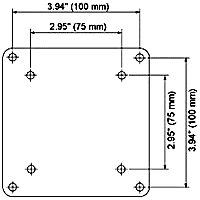
Confirming your monitor and desk can support a mount prevents wasted money and frustrating returns.
Verify the VESA Pattern Match
Most monitors use a 75×75 mm or 100×100 mm VESA pattern, which refers to the square layout of screw holes on the back panel. Flip your monitor over and measure the distance between the centers of the top and bottom holes. If it matches one of these two sizes, standard mounts will work. If not, order a VESA adapter from the monitor manufacturer.
Pro Tip: Some monitors hide the VESA plate behind removable covers or require detaching the factory stand first to expose the mounting holes.
Match Weight and Size Limits
Monitor arms typically support 13.2 to 19.8 lbs and screens ranging from 13 to 32 inches. Always choose a mount rated above your monitor’s weight. If your display weighs 12 lbs, pick a 20 lb-capacity arm for extra stability and safety margin.
Check monitor thickness as well. Most arms accommodate up to 3.54 inches, so ultra-slim or curved models may require spacers for a proper fit.
Assess Desk Type and Strength
Clamp-style mounts work best on desks 0.75 to 2.75 inches thick with a solid edge. Avoid hollow particleboard unless you reinforce it with a support plate.
Grommet mounts need a 0.75 to 1 inch pre-drilled hole in your desk. Wall mounts require locating wood studs or masonry anchors, and you should never rely on drywall alone to hold a monitor’s weight.
Gather the Right Tools and Hardware
Using proper tools prevents stripped screws, unstable installation, and damaged equipment.
Essential Tools Checklist
- Phillips #1 and #2 screwdrivers for securing VESA plates and monitor screws
- Allen wrench (hex key) usually included, used for arm joints and set screws
- Level critical for dual-monitor alignment and preventing unwanted tilt
- Drill with appropriate bits needed for grommet or wall mounting (masonry bit for concrete)
- Stud finder mandatory for wall mounts on drywall
- Measuring tape and pencil for precise placement and marking drill points
Safety First: Monitor arms often contain spring-loaded or gas-lift mechanisms. Keep your face clear during assembly to avoid injury from sudden movement.
Know What Comes in the Box
Standard kits include upper and lower arm segments, a base plate with rubber pads, a C-clamp or grommet hardware, a VESA mounting bracket, a cable management cover, and assorted screws, washers, spacers, and Allen keys.
Double-check all parts against the included manual before starting. Missing spacers can damage your monitor or create an unsafe fit.
Install the Mount Base Correctly
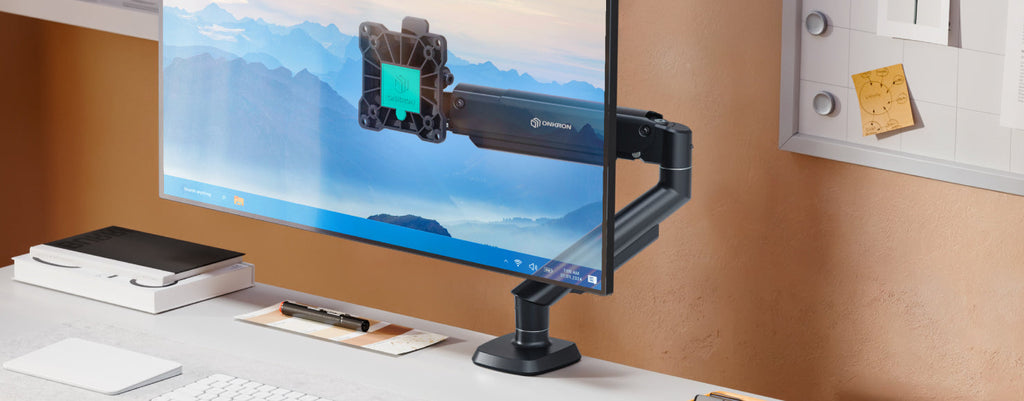
Choose the correct base method based on your desk or wall type for maximum stability.
Clamp to the Desk Edge
- Attach protective pads to the base’s underside to prevent scratches on your desk surface.
- Align the bracket using top holes for thick desks (over 1.5 inches) or bottom holes for thinner surfaces.
- Position the clamp on the desk edge, ensuring full contact with the protective pads.
- Tighten the central knob clockwise until firm, with no wobble but no crushed desk material.
- Insert the lower arm into the base stud, add a plastic washer if specified, then secure with the set screw.
Warning: Over-tightening can crack wood or plastic edges. Stop turning when resistance becomes firm.
Drill for a Grommet Mount
- Mark the center point where you want the arm to sit on your desk.
- Drill a 0.75 to 1 inch hole, which is also ideal for routing cables through the desk.
- Insert grommet hardware from below, then thread the arm base through the hole.
- Secure with nuts and washers, tightening to the manufacturer’s torque specifications.
Tip: Use a vacuum while drilling to reduce dust. Cover nearby electronics to protect them from debris.
Mount to the Wall Safely
- Locate vertical studs with a stud finder and mark both edges clearly.
- Transfer bracket hole spacing to the wall, centered precisely on a stud.
- Drill pilot holes into wood studs, or use masonry bits for concrete or brick walls.
- Insert anchors if no stud is available (toggle bolts for drywall, concrete anchors for masonry).
- Hold the bracket level and screw in securely. Recheck alignment before attaching the arm.
Never skip the level. A tilted base leads to uneven screen positioning and constant frustration later.
Assemble the Arm and Attach Your Monitor
Now connect the arm components and prepare your display for mounting.
Connect Upper and Lower Arms
If the arm is modular, slide the upper arm into the lower arm and align any “base” stickers or laser marks. Tighten set screws with the included Allen wrench until movement is smooth with no binding or grinding.
Remove the Monitor Stand
- Lay the monitor face-down on a soft surface such as a towel or foam pad.
- Unscrew the two bottom screws fully and set them aside.
- Back out the top two screws halfway, which helps the stand slide off smoothly.
- Lift the stand away carefully without forcing it.
Caution: Some models click off with a release button, while others slide straight down. Never force the stand.
Attach the VESA Plate
- Hold the VESA bracket horizontally and align it with the four holes on the monitor back.
- Insert screws diagonally in this order: top-left, bottom-right, top-right, bottom-left.
- Use spacers if screws protrude into the monitor housing.
- Place washers between the bracket and monitor if included in the kit.
Key Move: Diagonal tightening prevents warping and ensures even pressure across the plate.
Lock the Monitor to the Arm
- Lift the arm gently, since gas springs are pre-tensioned and can move unexpectedly.
- Align the VESA plate with the arm’s hook or slot.
- Engage the locking mechanism slowly and listen for a click or snug fit.
- Secure with retention screws using a Phillips driver to lock everything in place.
Adjust Tension and Calibrate Position

Proper tension settings determine whether your monitor stays exactly where you want it.
Set Base and Pivot Tension
- Base pivot tension controls overall arm stability and side-to-side movement.
- Mid-joint tension adjusts vertical movement smoothness.
- Use the Allen key to turn tension screws clockwise for tighter or counterclockwise for looser.
Test and Fine-Tune the Setup
- Raise the monitor to your preferred working height and release it gently.
- If it drops, increase tension at the affected joint.
- If it rises on its own, decrease tension until it holds steady.
- The goal is a monitor that stays put at any position with no drift or wobble.
Pro Adjustment: Sit in your chair and look straight ahead. The top of the screen should sit at or slightly below eye level for optimal neck posture.
Route Cables Neatly and Safely
Clean cable management boosts safety, prevents disconnections, and creates a professional look.
Use Internal Channels
- Unscrew the back panel of the arm to access the cable channel.
- Feed power, HDMI, DisplayPort, and USB cables through the channel.
- Reattach the panel once cables are routed properly.
Benefit: Hidden wires resist accidental tugs and reduce tripping hazards around your desk.
Apply External Covers
- Clip cables into the external cover along the arm, starting from the base and running upward.
- Leave a service loop behind the monitor, which means extra slack for future adjustments.
- Secure loose ends with adhesive clips or zip ties anchored to the desk leg or wall.
Avoid stretching cords taut, since this can disconnect ports or damage cables over time.
Optimize Ergonomic Positioning

Finalize your setup to protect your posture and maximize comfort during long sessions.
Set the Right Viewing Distance
Place the screen 24 to 40 inches away, roughly an arm’s length from your eyes. Larger monitors need more space to view comfortably without head movement.
Position Screen Height by User Height
- 5’0″ user: 24″ screen with top at eye level
- 5’5″ user: 27″ screen with top at or slightly below eye level
- 6’0″ or taller: 32″ or larger screen with top slightly below eye level
Adjust your chair height first, then fine-tune the monitor position for the perfect alignment.
Tilt and Align Properly
Set a 10 to 20 degree backward tilt to reduce glare and align with your natural line of sight. Use a level across the top edge of the screen to confirm it sits perfectly horizontal.
Fix Common Monitor Mount Issues

Even a perfect installation can develop problems over time, but most are easy to solve.
Stop Monitor Wobbling
Cause: Loose clamp, weak desk, or under-tightened arm joints.
Fix: Retighten all screws and bolts. Add a wood support board under thin desks. Upgrade to a sturdier mount if the problem persists.
Prevent Sagging Over Time
Cause: Insufficient tension for your monitor’s weight.
Fix: Increase gas spring tension using the Allen wrench. Rebalance the arm if you have changed monitors recently.
Eliminate Uneven Dual-Monitor Alignment
Cause: One arm sits higher than the other.
Fix: Use a bubble level across both screens and adjust each arm until they sit perfectly flush.
Avoid Cable Disconnections
Cause: Wires pulled too tight during arm movement.
Fix: Re-route cables with a service loop and clip them mid-arm to relieve strain on the ports.
Maintain and Future-Proof Your Setup
Keep your monitor mount working smoothly for years with simple routine care.
Monthly Maintenance Tips
- Inspect screws and bolts and retighten any that feel loose.
- Wipe down the arm with a dry cloth to remove dust and debris.
- Check cables for fraying and replace damaged ones immediately.
- Test arm motion to confirm it moves smoothly without jerking or sticking.
Plan for Future Upgrades
Choose mounts labeled “articulating” or “full-motion” since they support tilt, swivel, rotation, and height adjustments. These adapt easily to new monitors or dual-screen configurations as your needs evolve.
Smart Buy: A gas-spring arm in the $45 to $70 range pays for itself through improved comfort and productivity gains within months.
Frequently Asked Questions About Setting Up a Monitor Mount
What VESA pattern do I need for a monitor mount?
Most monitors use either a 75×75 mm or 100×100 mm VESA pattern. Measure the distance between the centers of the four mounting holes on the back of your display. If your monitor does not match either standard, purchase a VESA adapter plate from the manufacturer.
How much weight can a monitor arm hold?
Most single monitor arms support between 13.2 and 19.8 lbs. Always choose a mount rated above your monitor’s actual weight for added safety and stability. For example, use a 20 lb-capacity arm for a 12 lb monitor.
Can I mount a monitor without drilling holes in my desk?
Yes, by using a clamp-style mount that attaches to the desk edge. Clamps work on desks 0.75 to 2.75 inches thick without any drilling required. Just ensure your desk has a solid edge and avoid hollow particleboard without reinforcement.
How long does it take to install a monitor mount?
A standard single-monitor setup takes under 15 minutes with basic tools. Wall mounts and dual-monitor configurations take longer due to stud finding, drilling, and alignment steps. Most users complete the full installation in 20 to 30 minutes.
Do I need a stud finder for a wall-mounted monitor?
Yes, a stud finder is essential for drywall installations. Mounting directly into drywall without studs will fail and can damage your monitor. For concrete or brick walls, use masonry drill bits and concrete anchors rated for your monitor’s weight.
How do I stop my monitor arm from sagging?
Sagging happens when tension is too low for your monitor’s weight. Use the included Allen wrench to tighten the gas spring or pivot screws clockwise. Test by raising the monitor and releasing it; it should hold position without drifting downward.
Key Takeaways for Setting Up Your Monitor Mount
Setting up a monitor mount successfully comes down to three essentials: verifying VESA compatibility and weight limits before buying, using the correct installation method for your desk or wall type, and adjusting tension until the monitor holds position perfectly. Skipping any of these steps leads to wobbling, sagging, or unsafe installations.
Your next step is to gather your monitor’s weight, VESA pattern, and desk thickness, then choose a mount that exceeds those specifications. With the right preparation and the steps outlined above, you will enjoy a clutter-free, ergonomic workspace that supports your health and productivity for years to come.


