
Dust, fingerprints, and smudges build up on every screen, no matter how careful you are. Wiping with the wrong cloth or cleaner can leave scratches, streaks, or even strip protective coatings. Learning how to clean monitor with microfiber the right way keeps your display sharp and extends its lifespan.
This guide covers the exact prep steps, safe cleaning solutions, and screen-specific tips you need. You’ll also learn what mistakes to avoid and how often to clean based on your usage.
Power Down and Prepare
Turn Off and Unplug Monitor
Always shut down and unplug your monitor before cleaning. A black screen reveals dust and smudges far more clearly than a powered-on display. More importantly, cleaning an active screen risks electric shock and can interfere with internal circuitry.
Even quick dust removal deserves this step. Skipping it puts both you and your hardware at risk.
Wait for Screen to Cool
Monitors retain heat after use, especially around the bezel and back panel. Cleaning a warm screen causes moisture to evaporate too fast, leaving streaks or residue behind. Let the display sit for 10 to 15 minutes after powering off.
A cool screen ensures damp wiping works effectively and leaves a streak-free finish.
Set Up a Safe Workspace
Pick a clean, dry area away from direct sunlight and dust sources. Bright light can hide smudges, making missed spots harder to spot. Avoid open windows or active vents during the process.
If cleaning a laptop face-down, lay a soft towel underneath to prevent pressure damage to the lid or screen.
Choose the Right Microfiber Cloth
Use Lint-Free, Clean Cloths Only
Not every microfiber cloth suits electronics. Choose a lint-free, electronics-grade cloth designed for screens. These trap dust and oils without leaving fibers behind. Avoid old rags or worn cloths, even if labeled microfiber, because they may carry embedded dirt or fabric softener residue.
Pro tip: Keep two cloths on hand. Use one dry for dust and one slightly damp for smudges.
Fold for Fresh Cleaning Surfaces
Fold the cloth into quarters to create multiple clean sections. As one side collects grime, flip to a fresh area. This prevents redepositing dirt and ensures consistent results across the screen.
Never wipe with a visibly dirty cloth, even for fast touch-ups.
Replace Worn or Dirty Cloths
Microfiber loses effectiveness over time. If your cloth feels stiff, leaves lint, or stops removing smudges cleanly, swap it out. Wash reusable cloths with mild detergent and skip fabric softener, which clogs fibers and leaves a hazy film.
Air dry only. Heat can damage the weave and reduce cleaning power.
What to Never Use on Your Screen
Avoid Paper Towels and Tissues
Paper products like tissues, napkins, and paper towels contain wood fibers that act like fine sandpaper on delicate screens. Even gentle pressure causes micro-scratches that degrade image quality over time. These materials also shed lint, forcing you to wipe more and risk more damage.
Myth busted: “Gentle paper towel use is fine.”
Reality: All paper-based materials scratch. Always reach for microfiber.
Skip Harsh Chemicals
Household cleaners like Windex, Clorox wipes, and hand sanitizer strip anti-reflective, anti-glare, and oleophobic coatings. Ammonia, alcohol, and disinfectants cause permanent fogging, shiny spots, or reduced touch sensitivity.
Safe vs. unsafe:
• Distilled water or electronics-safe sprays
• Windex, rubbing alcohol, vinegar on sensitive screens, or eyeglass cleaner
Don’t Spray Directly on Screen
Spraying liquid onto the monitor risks seepage into the edges, damaging internal components. Always apply cleaning solution to the cloth, not the screen. This controls moisture and prevents over-saturation.
Clean With Just Microfiber (Dry Method)

Remove Dust with Light Pressure
For routine dust removal, use a dry microfiber cloth. Wipe in straight lines from top to bottom or in small circular motions. Apply minimal pressure and let the cloth lift particles rather than grind them in. Excessive force can damage pixels, especially on OLED or touchscreen displays.
Visual cue: Dust often gathers near the top edge and corners of the screen.
Shake or Flip Cloth Frequently
As the cloth collects dust, shake it out over a trash can or switch to a clean section. A dusty cloth smears grime instead of lifting it. In high-dust environments, keep multiple cloths ready or use disposable dry wipes.
Ideal for Daily Maintenance
Dry wiping takes seconds and prevents buildup. Make it a habit after shutting down your computer. Regular dry cleaning reduces the need for wet methods, extending screen life and limiting chemical exposure.
Damp Cleaning for Smudges and Fingerprints

Use Only Slightly Damp Cloth
For fingerprints or oily smudges, lightly dampen a corner of the microfiber cloth. Use distilled water or a 50/50 mix of distilled water and white vinegar if your screen type allows it. The cloth should feel damp, not wet. If you can wring water out, it is too saturated.
Rule of thumb: One or two sprays on the cloth is enough for most screens.
Apply Safe Cleaning Solutions
Stick to these approved liquids:
• Distilled water (safest for all screens)
• 50% distilled water plus 50% white vinegar (for tough grime, avoid on matte or OLED)
• Electronics-safe cleaners like Screen Mom or products labeled LCD or LED safe
• Pre-moistened screen wipes (single-use, no dripping)
Always spray the solution onto the cloth, never the screen.
Wipe in Circular Motions
Gently wipe the screen in small, overlapping circles. This prevents streaks and ensures even cleaning. Focus on smudged areas first, then do a full pass. Avoid back-and-forth scrubbing, which leaves visible lines.
Pro tip: Work in sections on large monitors. Start top left, then top right, bottom left, and bottom right.
Buff with Dry Cloth Immediately
After damp wiping, follow up with a dry microfiber cloth to remove moisture. This prevents water spots and speeds drying. Use a clean section for a final buff until the screen shines streak-free.
Wait until fully dry before powering the monitor back on.
Monitor-Specific Cleaning Tips
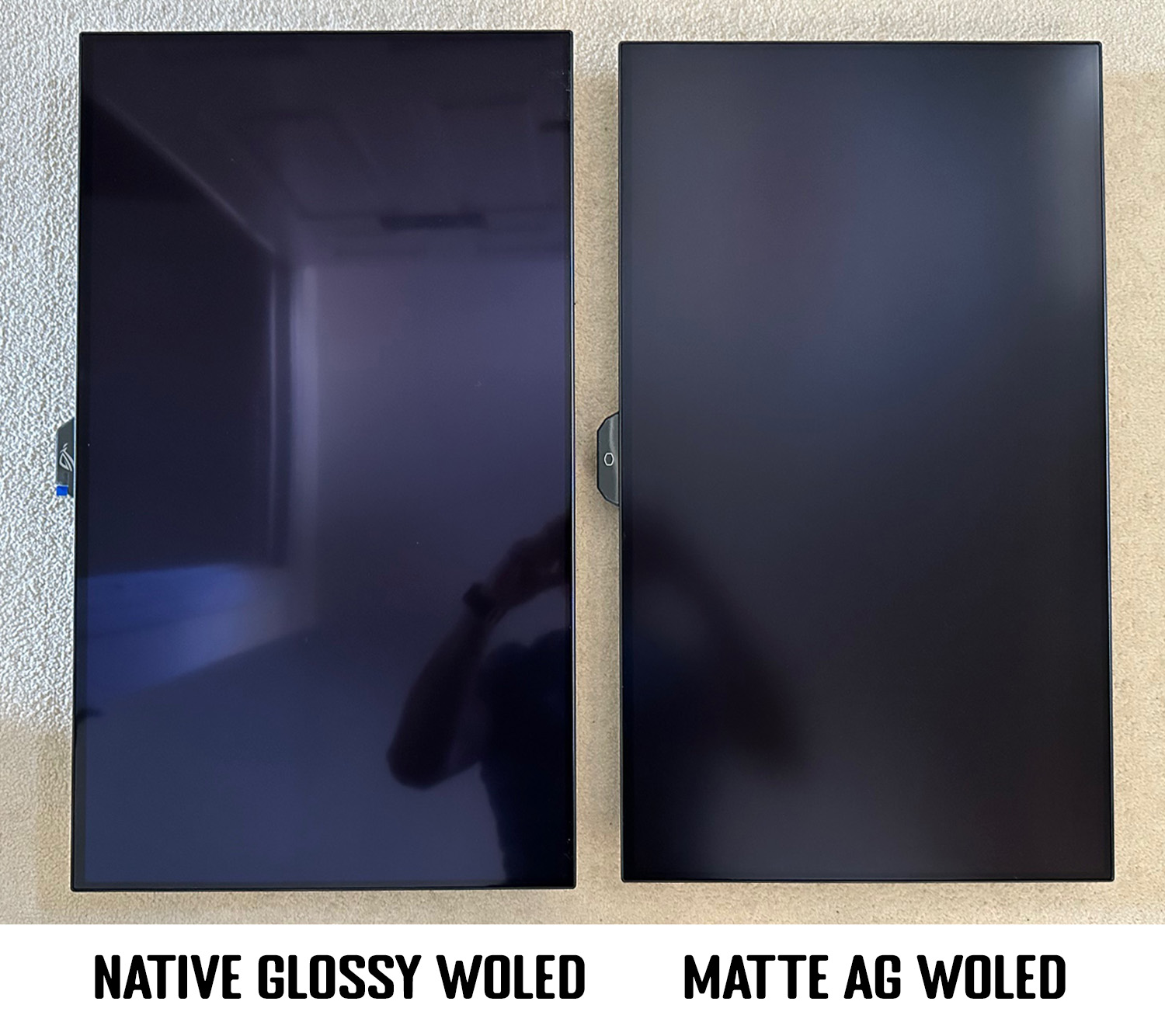
OLED and QD-OLED Screens
These high-end displays have ultra-sensitive coatings. Use only a dry microfiber cloth or one barely dampened with distilled water. Avoid vinegar, alcohol, and commercial cleaners unless explicitly approved by the manufacturer. Never press hard, since OLED pixels are pressure-sensitive.
Damage sign: Permanent clouding or color bleed after cleaning indicates chemical damage.
Matte and Anti-Glare Screens
The textured surface traps oils but can be ruined by solvents. Use distilled water only. Alcohol and vinegar dissolve the matte coating and create shiny patches. Wipe gently without circular scrubbing. If buildup persists, consider applying a screen protector.
Test first: Try a small corner before cleaning the full screen.
Glossy Screens
Glossy screens show every fingerprint but tolerate mild cleaning better. Safe options include distilled water, electronics-safe sprays, or diluted vinegar. Use circular motions and a thorough dry buff to avoid streaks. Expect to clean more often because smudges show easily.
Touchscreen Monitors
Clean touchscreens more frequently because of constant finger contact. Use distilled water or touchscreen-safe wipes. Be extra gentle to avoid wearing out touch sensors. Keep moisture away from the bezel, since liquid ingress can disable touch functionality.
Dry time: Let the screen sit for at least 10 minutes before use.
Clean Vents, Bezels, and Buttons
Clear Dust from Vents
Use compressed air to blow dust from monitor vents. Hold the can upright and at least 6 inches away. Short bursts prevent propellant leakage, which can damage electronics. Follow with a soft brush or dry microfiber cloth to wipe exterior vents.
Never use compressed air on the screen itself. The pressure can damage pixels.
Wipe Bezels and Back Panel
Dampen a microfiber cloth with water or a mild soap solution. Wipe plastic or metal bezels gently. For stubborn grime, use a cotton swab slightly dampened with water. Avoid excess moisture near seams or buttons.
Clean Power Buttons and Crevices
Use a cotton swab with a tiny amount of water or electronics cleaner. Gently wipe around buttons and corners where oils accumulate. Do not soak the swab, since moisture can seep inside and cause malfunction. Dry immediately with a cloth.
Fix Common Cleaning Mistakes
Remove Streaks Quickly
Streaks come from dirty cloths or too much moisture. Fix them by powering off the monitor and wiping with a clean, dry microfiber cloth in circular motions. If needed, use a second dry cloth for a final polish. Make sure your cloth is free of old cleaner residue.
Prevention: Always use clean cloths and minimal liquid.
Handle Liquid Spills Immediately
If liquid spills on the screen, follow these steps:
1. Power off and unplug immediately.
2. Blot, do not wipe, excess moisture with a dry cloth.
3. Let air dry for at least 24 hours.
4. Do not turn on the monitor until fully dry.
5. If liquid entered the casing, seek professional repair.
Never use a hairdryer. Heat can warp internal components.
Prevent Dust Buildup
Reduce cleaning frequency with these habits:
• Use a monitor cover when not in use
• Keep your workspace dust-free
• Avoid eating near the screen
• Store laptops in protective cases
• Place monitors away from vents or windows
Bonus: Cover your laptop keyboard with a microfiber cloth before closing the lid to prevent transfer.
Follow a Smart Cleaning Schedule
Clean Every Two Weeks (Standard Use)
For most home offices, clean every two weeks with a dry microfiber cloth. Do a damp clean only when smudges appear. Regular dry dusting keeps the screen clear and reduces wear from deep cleaning.
High-Use or Shared Screens: Clean Weekly
In shared offices, classrooms, or high-touch environments, clean before or after each use. Pre-moistened screen wipes offer speed and hygiene. This prevents users from spreading germs or oils between sessions.
Touchscreens: Clean Daily
Due to constant contact, touchscreens need daily dry wiping and weekly damp cleaning. Keep a microfiber cloth at your desk for quick touch-ups throughout the day.
Frequently Asked Questions About Cleaning Monitors with Microfiber
Can I use any microfiber cloth to clean my monitor?
No. Use only lint-free, electronics-grade microfiber cloths. Old or worn cloths may contain embedded debris or fabric softener residue that scratches the screen or leaves a hazy film. Replace cloths that feel stiff, leave lint, or no longer clean effectively.
Is it safe to use vinegar on all monitor screens?
No. Vinegar works on glossy and standard LCD screens but damages matte, anti-glare, and OLED coatings. For sensitive displays, stick to distilled water only or a cleaner explicitly approved by the manufacturer.
How often should I clean my monitor with a microfiber cloth?
For standard home use, dry dust every two weeks. Damp clean only when smudges appear. High-use or shared screens need weekly cleaning, while touchscreens benefit from daily dry wiping and weekly damp cleaning.
What should I do if liquid spills on my monitor?
Power off and unplug the monitor immediately. Blot excess moisture with a dry cloth without wiping. Let the unit air dry for at least 24 hours before turning it back on. If liquid entered the casing, consult a professional repair service.
Can I use isopropyl alcohol to disinfect my screen?
No. Isopropyl alcohol degrades anti-glare, anti-reflective, and oleophobic coatings. This leads to permanent fogging, cracking, or fading, especially on matte and high-end displays. Use distilled water or electronics-safe cleaners instead.
Why does my screen still have streaks after cleaning?
Streaks usually come from too much moisture or a dirty cloth. Power off the monitor and buff the screen with a clean, dry microfiber cloth in circular motions. Use a second dry cloth for a final polish if needed.
Key Takeaways for Cleaning Your Monitor with Microfiber
Learning how to clean monitor with microfiber protects your investment and keeps your display looking sharp. Always power down and unplug before starting, use lint-free cloths, and avoid harsh chemicals like ammonia or alcohol. Match your cleaning method to your screen type, especially for OLED or matte finishes.
Make dry dusting a routine habit and reach for damp cleaning only when smudges demand it. With the right tools and a consistent schedule, your monitor will stay streak-free and protected for years. For added defense, consider a screen protector to minimize cleaning needs and shield against scratches.


