
You’ve just unboxed a beautiful new monitor and want to turn your iPad into a serious workstation. Whether you edit video, write code, or manage spreadsheets, learning how to stream iPad to monitor unlocks a level of productivity most users never tap. The catch? Not every iPad handles external displays the same way. M-series chip iPads deliver true desktop-style multitasking, while older models only mirror your screen.
In this guide, you’ll learn exactly how to connect any iPad to an external monitor using cables, hubs, or adapters. We cover hardware compatibility, step-by-step setup, extended versus mirrored display modes, and pro tips for keyboard shortcuts and troubleshooting. By the end, you’ll build a clean, high-performance workspace that rivals a traditional laptop.
Check iPad Compatibility First
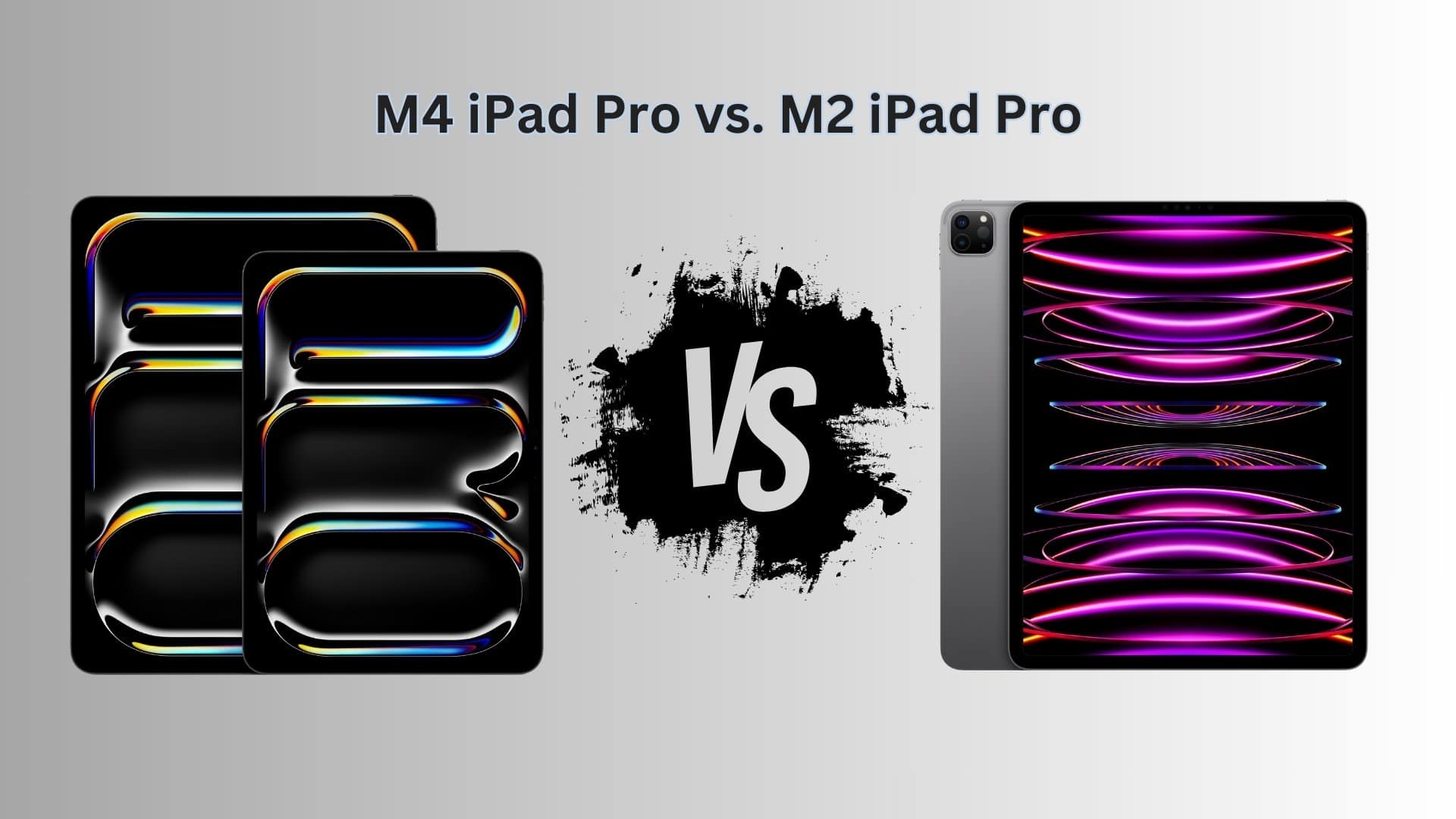
Before buying cables or docks, confirm what your iPad supports. The processor inside determines everything about your streaming experience.
M-Series iPads Support Extended Display
iPads with M1, M2, or later chips run Extended Display mode through Stage Manager. This turns your monitor into a true second screen where apps operate independently. Supported models include:
- iPad Pro (M1, M2, M4, M5 chips)
- iPad Air (M1, M2 chips)
You need iPadOS 16 or later, ideally iPadOS 18 or newer, for full functionality. These devices behave like mini desktops. You drag windows, resize apps, and use the external screen as your main workspace.
A-Series iPads Only Mirror
All iPads with A-series chips, including iPad (10th and 11th gen), iPad Mini, and older Air or Pro models, only mirror the screen. The monitor shows an exact copy of your iPad. No independent windows. No Stage Manager on the external screen.
Important: No software trick bypasses this hardware limitation. If you want desktop-style multitasking, you need an M-series iPad.
Choose the Right Connection Method

Your setup depends on your iPad’s port and your monitor’s input. Pick the method that matches your speed, charging, and peripheral needs.
Use Direct USB-C for Best Performance
If your monitor has a USB-C input with DisplayPort support, like the Apple Studio Display or high-end PC monitors, use a single USB-C to USB-C cable.
Benefits:
– Carries video, audio, and data in one cable
– Charges your iPad simultaneously through Power Delivery
– Supports up to 4K at 60Hz
– Minimal cable clutter
Setup:
1. Plug USB-C cable from monitor to iPad
2. Switch monitor input to USB-C
3. Wait for automatic detection
This works perfectly with iPad Pro and iPad Air (4th gen and later). No extra adapters needed.
Connect via USB-C Hub for HDMI Monitors
Most monitors use HDMI. For these, a USB-C hub or dock is essential.
What You Need:
– USB-C hub with HDMI output (supports 4K at 60Hz)
– HDMI cable
– Power adapter for charging
Why Use a Hub:
– Converts USB-C signal to HDMI
– Provides Power Delivery to keep iPad charged
– Adds USB-A ports for keyboard, mouse, and drives
Setup:
1. Connect HDMI cable from hub to monitor
2. Plug hub into iPad via USB-C
3. Connect iPad charger to hub’s PD port
4. Switch monitor to correct HDMI input
Pro Tip: Choose a hub with at least 4K at 60Hz support. Cheap hubs may drop resolution or cause flickering.
Use Lightning Adapters for Older iPads
Lightning iPads require special adapters for any external display.
Hardware Options:
– Lightning to HDMI Adapter (digital AV)
– Lightning to VGA Adapter (for legacy projectors)
Power Note: These adapters don’t charge well during use. Plug your iPad charger into the adapter’s second Lightning port to avoid battery drain.
Limitation: Only supports mirroring, even on iPadOS 18. No extended desktop capability.
Set Up Extended or Mirrored Display
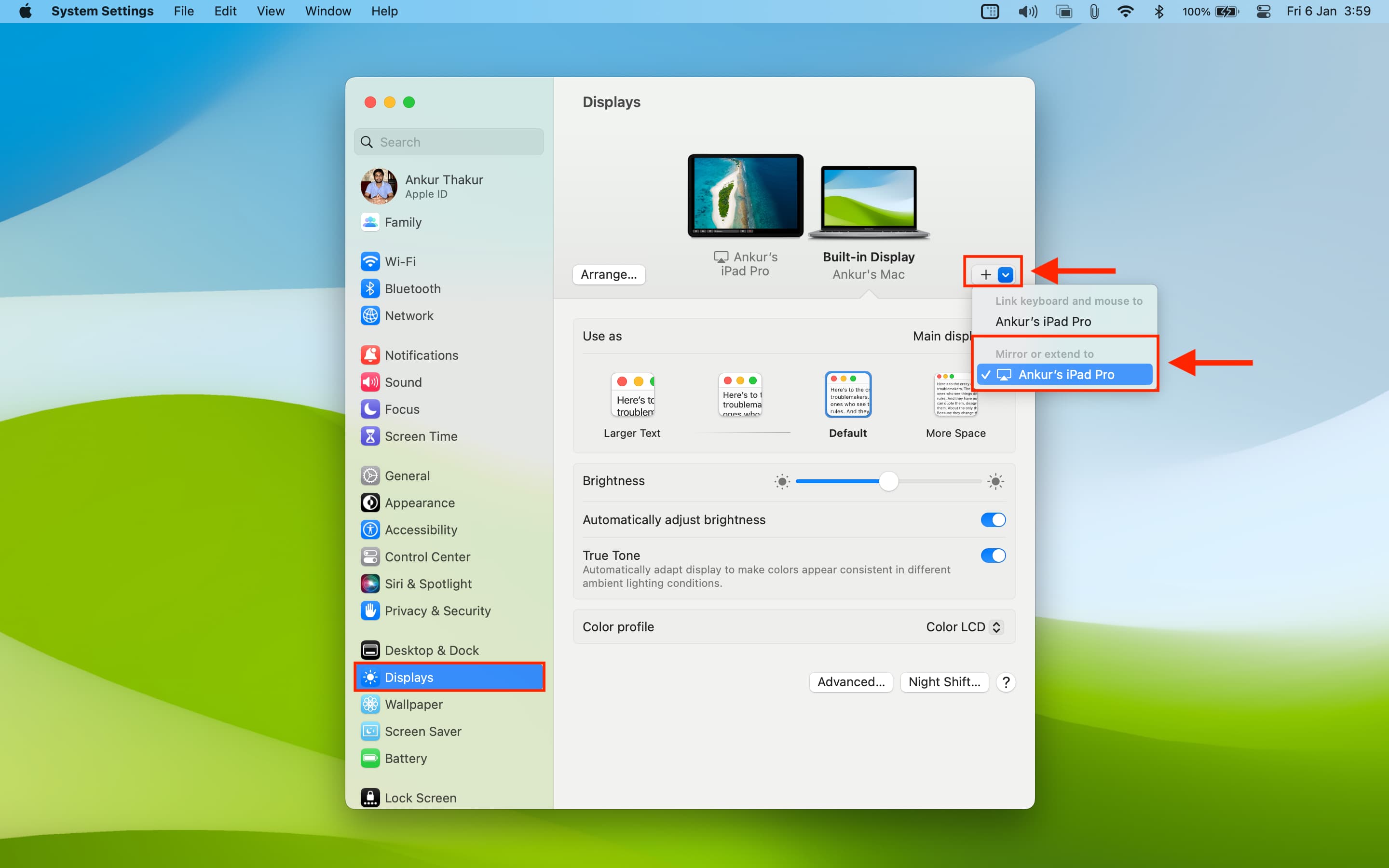
Once connected, configure the display mode in iPadOS settings.
Select Mirroring for A-Series iPads
Go to Settings > Display & Brightness > External Display.
Choose Mirror Display. The monitor shows an exact duplicate of your iPad screen.
Best for:
– Presentations
– Watching videos
– Simple screen sharing
No setup beyond this. Everything syncs automatically.
Enable Extended Display on M-Series iPads
For true multitasking, switch to Extended Display.
Steps:
1. Open Settings > Display & Brightness
2. Tap Extended Display
3. Stage Manager activates on the external screen
Now you can:
– Drag apps from iPad to monitor
– Run different apps on each screen
– Resize and reposition windows freely
Note: Extended mode requires Stage Manager. Enable it in Control Center or Settings > Multitasking.
Fix Cursor Movement Between Screens
If your mouse cursor gets stuck or jumps unexpectedly, fix the screen arrangement.
Match Physical Layout in Settings
Go to Settings > Display & Brightness > Arrangement.
You’ll see two boxes: one for iPad, one for monitor. Drag the iPad icon to reflect its real position, such as below or beside the monitor.
Why It Matters:
– Cursor moves smoothly across screens
– Prevents hitting a wall when switching displays
– Matches natural hand-eye coordination
Example: If your iPad sits below the monitor, place the iPad icon beneath the monitor in settings.
Optimize Stage Manager for External Use
Stage Manager powers the extended display experience. Tune it for maximum efficiency.
Customize the Recent Apps Panel
By default, a sidebar shows recently used apps on the external screen.
Adjust it under Settings > General > Multitasking & Gestures > External Display > Recent Apps.
Choose:
– Always Show: Keeps apps visible
– Hide in Full Screen: Clean look when focused
Drag the mouse to the left edge to reveal the panel.
Use Windowed Apps Mode
Ensure Windowed Apps is enabled at Settings > General > Multitasking & Gestures > Windowed Apps.
This allows apps to run in resizable windows instead of full-screen mode.
Limit: Up to four apps can be active in Stage Manager at once. A fifth app pushes the first out.
Handle Ultrawide and 4K Monitors

Not all monitors fit perfectly. Here’s how to manage aspect ratios.
Standard 16:9 Monitors Fill Completely
Most HD, 1440p, or 4K monitors use 16:9. iPadOS outputs at 16:9, so the image fills the screen with no black bars.
Result: Crisp text and sharp visuals. Ideal for photo editing, coding, and general productivity.
Ultrawide Monitors Show Black Bars
Ultrawide screens (21:9 or 32:9) don’t match iPadOS’s 16:9 output.
Default Behavior:
– Image appears centered
– Black bars on both sides
– No distortion
Option: Force Stretch With Caution
Use your monitor’s scaling settings to stretch the image to fill the screen.
Downside: Slight distortion. Avoid this for color-critical work like photo or video editing.
Recommendation: Stick with 16:9 monitors for best results. Ultrawides work but waste screen real estate.
Connect Keyboard and Mouse
Turn your iPad into a desktop with external input devices.
Pair Bluetooth Peripherals
Go to Settings > Bluetooth and put your keyboard or mouse in pairing mode.
Works with:
– Magic Keyboard
– Magic Mouse
– Logitech, Keychron, and other Bluetooth models
Plug in Wired Devices via Hub
If your hub has USB-A ports, plug in wired keyboards or mice.
Advantages:
– No battery concerns
– Lower input lag
– Reliable connection
Both methods work seamlessly with Stage Manager.
Master iPad Keyboard Shortcuts
Speed up workflow with essential shortcuts, especially on external displays.
Core Stage Manager Shortcuts
| Shortcut | Function |
|---|---|
| Command + Spacebar | Open Spotlight search |
| Shift + Click app | Open new window beside current |
| Control + Command + \ | Move active app between iPad and monitor |
| Command + Tab | Switch between apps |
| Globe (Fn) + A | Show Dock |
| Globe + Up Arrow | Open App Exposé |
Note: No built-in shortcut exists for resizing windows. Drag edges manually.
Mouse Tips
- Click and drag window title bars to move apps
- Hover near screen edges to trigger gestures
- Use trackpad gestures like pinch and swipe if connected
Troubleshoot Common Issues
Even the best setup can glitch. Fix problems fast.
Monitor Not Detected
Try these steps:
1. Unplug and reconnect the cable
2. Restart the monitor (unplug from wall for 10 seconds)
3. Check if the hub needs external power and plug in the charger
4. Ensure iPadOS is updated at Settings > General > Software Update
No Sound on Monitor
iPadOS routes audio to the external display by default, but sometimes it doesn’t switch.
Fix:
1. Open Control Center
2. Tap the audio output icon (top-right)
3. Select your monitor or speakers
If no sound appears, check monitor volume or try external speakers via hub.
Cursor Won’t Move to Monitor
This likely indicates an arrangement issue.
Go to Settings > Display & Brightness > Arrangement and reposition the iPad icon to match physical layout.
Also ensure:
– Mirror Display is off (for M-series)
– Stage Manager is enabled
iPad Draining Battery
Even with a hub, some setups don’t charge properly.
Solutions:
– Use a hub with Power Delivery (PD)
– Plug iPad charger into the hub’s charging port
– Avoid daisy-chaining multiple power-hungry devices
Build an Ergonomic Workspace
A great setup goes beyond tech. Comfort matters too.
Use a Stand for Better Viewing
Keep your iPad at eye level or within easy reach.
Recommended:
– Cookie Stand: Magnetic, adjustable angle, includes charging pass-through
– Moth Dynamic Folio: Multiple modes for writing, viewing, and reading
– Simple kickstands: Affordable and portable
Pro Tip: Store your Apple Pencil on a magnetic holder nearby to prevent loss and keep it charged.
Position iPad Below or Beside Monitor
Two common layouts work well:
– Below (laptop style): Best for touch and Pencil use
– To the side: Ideal for reference material or notes
Place the iPad where you’ll interact with it most.
Manage Cables with a Hub
A single USB-C hub reduces clutter:
– One cable connects to iPad
– All peripherals plug into hub
– Charger connects to hub
Clean setup means focused work.
Know the Limitations
Even M-series iPads have constraints.
Max Refresh Rate Caps at 60Hz
Even if your iPad has 120Hz ProMotion, external output caps at 60Hz on most monitors.
No current iPad pushes 120Hz to an external display.
Can’t Share External Screen in Video Calls
In video calls like FaceTime, Zoom, or Teams, you can only share your iPad’s internal screen.
You cannot share only the extended desktop, even if it shows different content.
Workaround: Use the external monitor for reference and share the iPad screen with notes or presentation.
No Keyboard Shortcut for Window Resizing
You must drag window edges manually. No Command + = or similar shortcut exists.
Apple may add this in future iPadOS updates.
Recommended Gear for 2025

Build a reliable, high-performance setup with these picks.
Best Hubs
- Anker 677 USB-C Hub (4K at 60Hz): Reliable, compact, PD charging
- Satechi 4-Port Hub: Extra USB-A, SD card slot, sleek design
- Apple USB-C Digital AV Multiport Adapter: Simple HDMI plus charging
Top Monitors
- Budget: Dell P2423D (24″ 1080p, USB-C)
- Mid-Range: LG 27UP850 (27″ 4K, HDR, USB-C)
- Premium: Apple Studio Display (single-cable simplicity, 5K)
Ideal for Pros
Apple Studio Display or Pro Display XDR connects via Thunderbolt cable, charges iPad fully, and delivers perfect color accuracy for editors.
Frequently Asked Questions About Streaming iPad to Monitor
Can all iPads extend to a monitor?
No. Only iPads with M-series chips (M1, M2, M4, M5) support Extended Display mode. A-series iPads can only mirror the screen, showing an exact duplicate without independent app windows.
Do I need a special adapter for iPad Pro?
iPad Pro (3rd gen and later) has a USB-C port that connects directly to USB-C monitors or through a USB-C hub for HDMI displays. No special adapter is needed for these models.
Will my iPad charge while connected to a monitor?
Yes, if you use a USB-C connection with Power Delivery or a hub with a PD port. Plug your iPad charger into the hub’s charging port to keep the battery topped up during use.
Why is there no sound on my external monitor?
iPadOS may still route audio to the iPad speakers. Open Control Center, tap the audio output icon, and select your monitor or external speakers to switch the sound destination.
Can I use my iPad as a second screen for my Mac?
Yes, with Sidecar. Your Mac treats your iPad as an extended display wirelessly or via USB-C. This works alongside the method described above for connecting iPad to an external monitor.
What is the maximum resolution I can stream from iPad?
iPad supports up to 4K at 60Hz output through USB-C connections. The actual resolution depends on your monitor’s capability and whether your hub or cable supports the required bandwidth.
Key Takeaways for Streaming Your iPad to a Monitor
Learning how to stream iPad to monitor transforms your tablet into a dynamic workstation. M-series iPads deliver near-Mac experiences through Extended Display and Stage Manager, while A-series models still add value for presentations and media through mirroring.
Start by checking your iPad’s chip to know which connection method fits your needs. Use a direct USB-C cable for the cleanest setup, or invest in a quality hub for HDMI monitors and peripheral support. Stick with 16:9 monitors to avoid black bars, and always enable Power Delivery to keep your iPad charged during long sessions.
Your next step: gather your iPad, monitor, and the right cable or hub, then follow the setup checklist in this guide. Within minutes, you’ll have a clutter-free dual-screen workspace ready for serious productivity.


