
A cluttered desk slows you down. If your monitor sits on a factory stand, you lose valuable surface area, strain your neck, and deal with constant wobble. Learning how to hang a monitor the right way transforms your setup into a streamlined, ergonomic workstation that looks and feels professional.
This guide covers every step of the process. You will learn how to verify compatibility, choose the right mount, install it securely, and fine-tune your screen for comfort. Whether you use a single display or multiple monitors, these instructions help you avoid common mistakes and build a setup that lasts.
Verify VESA and Weight Compatibility
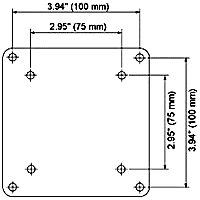
Before buying any mount, confirm your monitor supports standard mounting. Skipping this step leads to frustration, wasted money, or worse, a damaged screen.
Check Your Monitor’s VESA Pattern
Flip your monitor over and locate the four threaded holes on the back. Measure the distance between them horizontally and vertically. Most modern displays use either 75×75 mm or 100×100 mm patterns. Larger screens, especially TVs used as monitors, may use 200×200 mm or bigger configurations.
If you see no holes at all, your monitor is not VESA-ready. Third-party options exist but carry serious drawbacks:
- Clip-on brackets attach to the monitor edges but often look bulky and lack stability.
- Adhesive mounts require gluing hardware to the casing. Avoid these, as adhesives degrade plastic over time and can cause sudden failure.
Always search your specific monitor model online to confirm official VESA support before purchasing a mount.
Match Monitor Weight to Mount Capacity
Every mount has a strict weight limit. Exceeding this limit risks sagging, drifting, or catastrophic collapse. Choose a mount rated for at least 20 percent more than your monitor’s actual weight.
Heavy OLED panels and older LCD screens often exceed 20 pounds. Lightweight monitors under 10 pounds may float upward uncontrollably if the spring tension cannot adjust low enough. Also check width limits, especially for dual-monitor arms. Wide screens may overlap or fail to fit side by side on a single bracket.
Assess Desk or Wall Structural Strength
Your mount is only as strong as the surface it attaches to. Even the best arm fails on a weak desk or poorly anchored wall.
Evaluate Desk Suitability for Clamps
C-clamps and grommet mounts rely on desk integrity. Soft wood, laminate, or thin surfaces can crack or crush under clamp pressure. Test your desk by typing firmly. If the surface wobbles, the mounted screen will shake too.
For weak desks, place a support board (thick wood or metal plate) under the clamp to spread pressure and prevent damage. Mounting on the far left or right edge of the desk often provides better clearance and reduces wall interference when pulling the arm back.
Confirm Wall Studs for Secure Mounting
Wall-mounted arms must anchor into wooden studs, typically spaced 16 inches apart. Use a stud finder to locate solid support behind drywall. Never rely on drywall anchors alone for heavy loads. Only use toggle bolts or Molly bolts if studs are not aligned with your bracket.
For concrete or brick walls, use masonry drill bits and concrete anchors. Avoid ceiling mounts unless professionally installed. They pose serious safety risks if improperly secured.
Choose the Right Mount Type
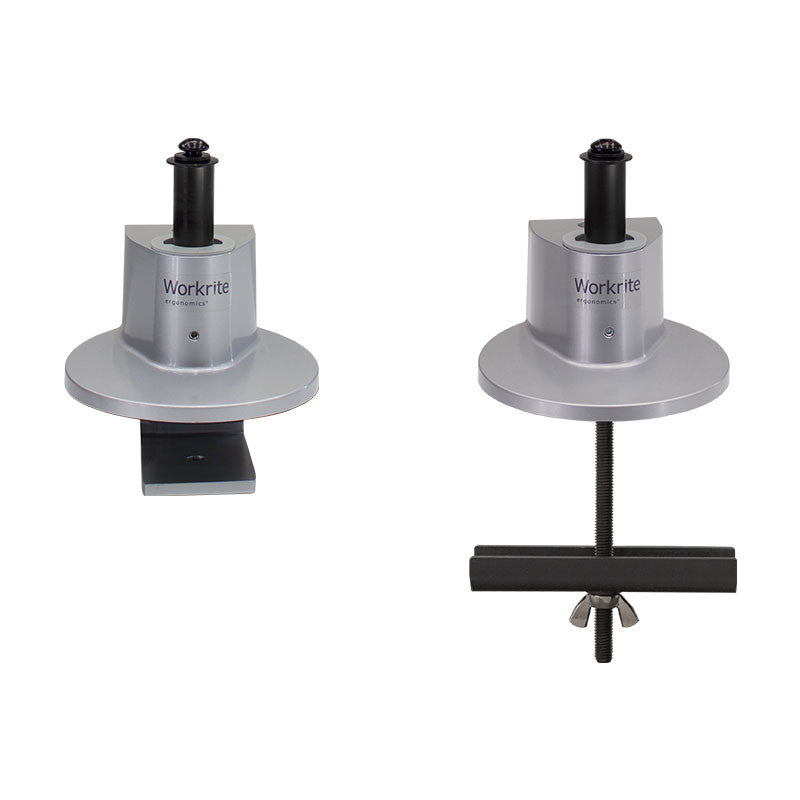
The right mount depends on your desk, space, and usage habits. Each type offers trade-offs between flexibility, stability, and appearance.
Compare Desk, Wall, and Freestanding Options
- C-Clamp: Best for renters and flexible setups. No drilling required and easy to reposition. Risk: can damage soft desk edges.
- Grommet: Best for permanent, clean installations. Maximum stability and hides cables well. Risk: requires a desk hole and cannot be moved easily.
- Wall Mount: Best for space-saving setups with heavy monitors. Rock-solid stability and frees the entire desk. Risk: needs stud access and is hard to relocate.
- Freestanding: Best for temporary setups or no-install needs. Portable with no tools required. Risk: takes desk space and tips easily.
For most users, C-clamps offer the best balance of ease and flexibility. Wall mounts win for ergonomic precision and space savings, while grommets suit executive desks where appearance matters most.
Select Based on Adjustment Mechanism
How smoothly your monitor moves depends on the arm’s internal design. Choose based on how often you adjust your screen throughout the day.
- Manual (Screw-Locked): Adjust by loosening screws, then retightening. Cheap and secure when locked, but inconvenient for frequent changes.
- Spring-Assisted: Counterbalance system lets you lift and lower with one hand. Affordable with smooth motion, but requires tension calibration and may drift if misadjusted.
- Gas-Assisted (Pneumatic): Uses gas cylinders for effortless movement. Silky-smooth grab-and-go feel, but costs more and carries a small risk of long-term gas leaks.
Gamers and creative professionals benefit most from gas-assisted arms for quick positioning. Casual users can save money with spring-assisted models.
Prepare Tools and Safety Gear
Having the right tools prevents mistakes and ensures a secure installation. Missing tools mid-project can lead to stripped screws or improper alignment.
Essential Tools by Mount Type
- Screwdriver set (Phillips #1 and #2): For VESA plate and mount screws.
- Hex key (Allen wrench): Usually included with the mount. Use the short end for better torque.
- Level: Critical for dual monitors to ensure perfect alignment.
- Measuring tape: Verify spacing, height, and stud distances.
- Pencil: Mark drill points on walls or desks.
- Stud finder: Mandatory for wall mounts on drywall.
- Drill with appropriate bits: Wood, masonry, or drywall depending on your surface.
For desk mounts, rubber base pads protect surfaces from scratches. For heavy monitors, recruit a second person to help prevent drops during installation.
Safety Precautions During Setup
Monitor arms are pre-loaded with spring tension. Keep hands and face clear when releasing transport locks. When drilling into walls, avoid hidden wiring. If unsure, consult an electrician before proceeding. For monitors over 20 pounds, always use the two-person rule to prevent injury.
Install the Mount: Step by Step
Follow this structured process to ensure stability, alignment, and long-term safety.
Attach the Base to Desk or Wall
For C-Clamp Mounts:
- Position the clamp at the rear edge of the desk.
- Place rubber pads under the base to protect the surface.
- Align the base plate flush with the desk edge.
- Tighten the clamp screw firmly using the short end of the Allen key.
- On some models, turn the plate counterclockwise to lock it in place.
For Grommet Mounts:
- Drill a hole (typically 50 to 80 mm) if none exists.
- Insert the post through the hole and secure with the locking nut underneath.
For Wall Mounts:
- Use a stud finder to locate two adjacent studs.
- Mark the bracket hole positions with a pencil.
- Drill pilot holes into the studs.
- Secure the bracket with heavy-duty wood screws.
- Use a level to confirm the bracket is perfectly horizontal.
Assemble and Attach the Arm
- Align the arm with the base plate.
- Insert screws by hand first to prevent cross-threading.
- Tighten screws in a diagonal pattern for even pressure.
- Adjust spring tension according to the monitor’s weight using the manufacturer chart.
- Slowly release any transport lock. The arm may move suddenly.
Mount the Monitor to the VESA Plate
- Lay the monitor face-down on a soft microfiber cloth.
- Align the VESA plate with the 75×75 mm or 100×100 mm holes.
- Use short screws to avoid piercing internal components.
- Insert spacers only if needed for clearance.
- Tighten screws in a diagonal sequence to keep the plate flat.
- Ensure the monitor sits level before final tightening.
Hang the Monitor on the Arm
- Carefully lift the monitor and hook the VESA plate onto the arm’s bracket.
- Engage the locking mechanism or safety screws to prevent accidental detachment.
- The first two connection points are the hardest. Once aligned, the rest click into place easily.
Optimize Ergonomic Positioning

A properly hung monitor should reduce strain, not cause it. Fine-tune your position for comfort and long-term health.
Set Correct Height and Distance
Position your screen 20 to 30 inches from your face, roughly an arm’s length. The top of the monitor should sit at or slightly below eye level. Apply a slight backward tilt of 10 to 20 degrees to minimize glare and support a neutral neck posture.
Align Multiple Monitors Correctly
Place your primary monitor centered directly in front of you. Angle secondary screens slightly inward (15 to 30 degrees) to reduce neck rotation. Keep all monitors at the same height and use a level to verify alignment. Minimize spacing between screens to reduce bezel disruption, but avoid overlap.
Manage Cables for a Clean Setup

Poor cable management ruins the clean look of a mounted monitor and risks accidental disconnection.
Use Integrated and External Routing
Most arms include internal channels, but these are often too small for all cables. Bundle power, HDMI, USB, and audio cables using neoprene sleeves or braided wraps. Run cables through desk grommet holes for the cleanest appearance. For wall mounts, leave a service loop (extra slack) behind the monitor to allow future adjustments.
Prevent Cable Strain
Standard cables are often too short for mounted setups. Add 2 to 3 extra feet of cable length, especially for standing desks, floor-mounted PC towers, and swivel or extendable arms. Without slack, repeated adjustments can pull connectors loose over time.
Troubleshoot Common Mounting Issues
Even a well-installed mount can develop problems. Diagnose and fix these issues quickly.
Fix Monitor Wobble or Drift
Loose clamps, weak desks, or improper tension cause wobble. Retighten all screws on the clamp, base, and VESA plate. Add a support board under the desk if needed. Adjust spring tension until the monitor holds position without floating or sagging.
Correct Uneven or Misaligned Screens
Improper leveling during setup causes misalignment. Use a bubble level across the top bezels and re-tighten VESA screws in diagonal order. Check dual-arm spacing, as some brackets shift over time.
Prevent Wall Interference
Arms that hit the wall when pulled back create frustration. Move the mount to the desk edge, switch to a shorter-arm model, or use a deeper desk with a single-post arm that has minimal extension.
Maintain and Inspect Over Time
A mounted monitor is not “install and forget.” Regular checks ensure long-term safety and performance.
Perform Monthly Inspections
Check for loose screws, especially after the first month as materials settle. Inspect cables for fraying at bend points near joints. Clean dust from arm channels and pivot points to maintain smooth motion. Verify tension and re-adjust if the monitor no longer holds position.
Know Warranty and Support Options
Keep your purchase receipt and installation photos. Many brands offer 3 to 5 year warranties covering mechanical defects. Contact support if wobble persists despite tightening. Defective arms may need replacement under warranty.
Frequently Asked Questions About Hanging a Monitor
Can any monitor be hung on a mount?
No. Your monitor must have VESA-compatible mounting holes on the back, typically in 75×75 mm or 100×100 mm patterns. Monitors without these holes cannot safely accept standard mounts. Third-party clip-on or adhesive brackets exist but carry significant stability and damage risks.
How much weight can a monitor arm hold?
Weight capacity varies by model. Most desk-mounted arms support between 15 and 30 pounds, while heavy-duty models handle more. Always choose a mount rated for at least 20 percent above your monitor’s actual weight to ensure safe, stable operation.
Do I need to drill into my desk for a monitor mount?
Not necessarily. C-clamps attach without drilling and work well for most setups. Grommet mounts require a hole but offer superior stability. If you cannot drill, a freestanding stand is a no-install alternative, though it takes up desk space.
How high should I hang my monitor?
The top of your screen should sit at or slightly below eye level. This position encourages a neutral neck posture and reduces strain during long sessions. For taller users with larger screens, position the top 2 to 4 inches below eye level for optimal comfort.
Will mounting my monitor damage my desk?
C-clamps can dent soft wood, laminate, or thin surfaces if applied directly. To prevent damage, place rubber pads under the clamp base or add a support board to distribute pressure. Grommet mounts avoid edge pressure but require drilling a hole.
How do I stop my mounted monitor from wobbling?
Tighten all screws on the clamp, base, and VESA plate. Reinforce weak desks with a support board. Adjust spring tension to match your monitor’s weight. If wobble persists, your desk may be too flimsy, or the mount may be undersized for your screen.
Key Takeaways for Hanging Your Monitor Safely
Learning how to hang a monitor properly comes down to three essentials. First, always verify VESA compatibility and weight limits before purchasing any mount. Second, match the mount type to your desk or wall structure and choose an adjustment mechanism that fits your daily workflow. Third, follow each installation step carefully, use the right tools, and fine-tune your screen for ergonomic comfort.
Your next step is simple. Measure your monitor’s VESA pattern and weight today, then choose a mount that exceeds those specifications by at least 20 percent. With the right preparation, your mounted monitor will stay stable, adjustable, and glare-free for years to come.


