
When your primary monitor freezes mid-game or during a full-screen app crash, pressing Ctrl + Shift + Esc often launches Task Manager on the very screen you cannot reach. This frustrating loop leaves you powerless to end the unresponsive process. The good news is that Windows includes built-in shortcuts and window management features that let you open Task Manager on a second monitor quickly, even when your system is partially frozen.
Below, you’ll find every proven method to move Task Manager to your secondary display, including keyboard shortcuts that work without a mouse, drag-and-drop techniques, and long-term fixes to prevent the problem from recurring. These solutions apply to Windows 10 and Windows 11 setups, and they require no third-party software.
Force Move Task Manager with Shift + Win + Arrow
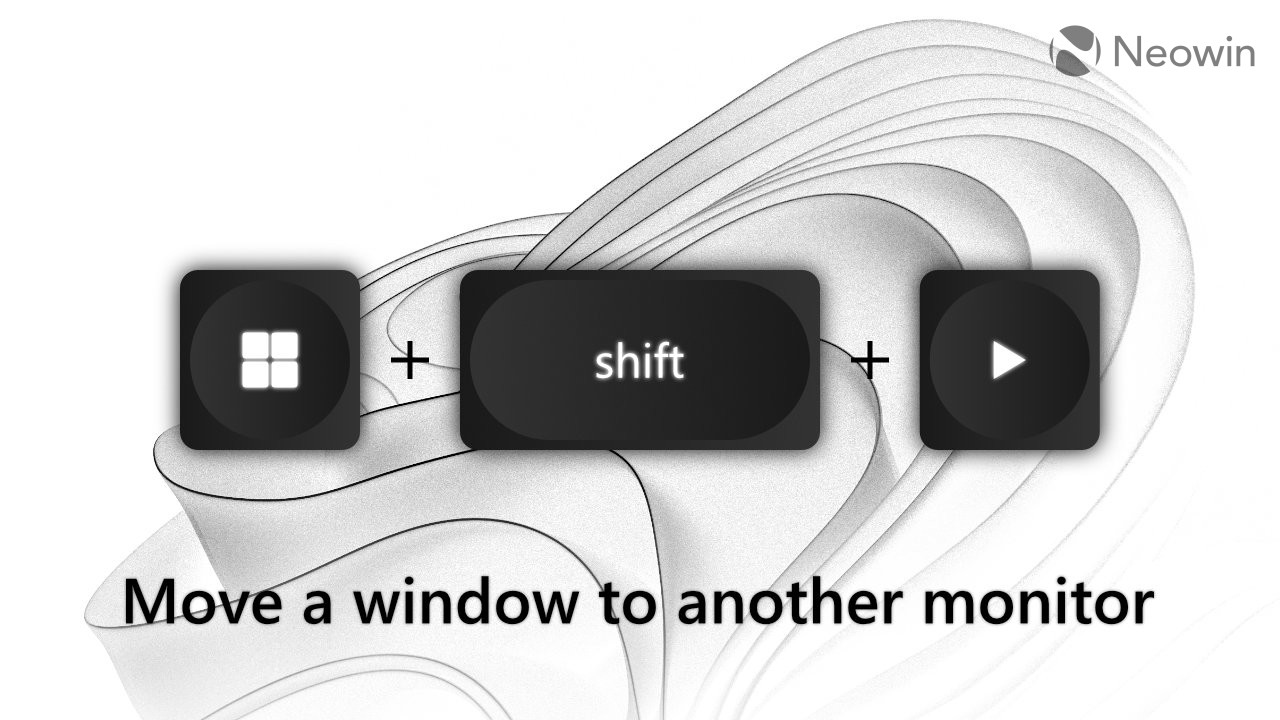
This keyboard combination is the most reliable way to relocate Task Manager to your second monitor, especially when the primary screen is completely unresponsive.
Why This Shortcut Works
The Shift + Win + Left/Right Arrow command forces any active window, including invisible ones, to jump between monitors. It bypasses visual blockers and works even if the target display is powered off or the window is hidden behind a crash. Unlike standard snapping, this shortcut does not require mouse input or a visible window.
Step-by-Step Instructions
- Launch Task Manager by pressing
Ctrl+Shift+Esc. Even if nothing appears on screen, the process is likely running on the frozen display. - Immediately press
Shift+Win+Right ArroworLeft Arrow, depending on which direction your second monitor sits. - Check your second monitor for the Task Manager window. It should now be fully visible and accessible.
- End the frozen task to restore system control.
Pro Tip: Press the shortcut repeatedly to cycle through multiple monitors in setups with three or more displays.
Matching the Shortcut to Your Monitor Layout
Windows numbers displays logically from left to right. If Monitor 2 sits to the right of Monitor 1, use Shift + Win + Right Arrow. If it sits to the left, use the left arrow key.
To confirm your layout:
– Press Win + P and select “Extend” or “Duplicate.”
– Open Settings > System > Display to view numbered monitor positions.
Reposition Task Manager Using Win + Arrow Keys
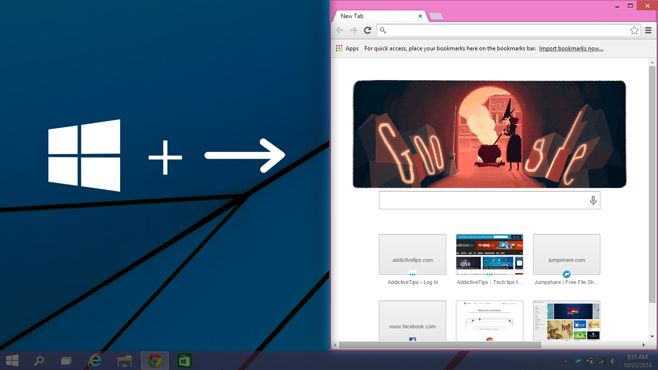
When your system is responsive and Task Manager is visible, standard snapping shortcuts offer a quick repositioning method.
How Win + Arrow Moves Windows
This shortcut first docks the window to one side of the current screen, then shifts it to the adjacent monitor with repeated presses. It works best when both displays are powered on and the window is selectable.
Steps to Move Between Monitors
- Open Task Manager with
Ctrl+Shift+Esc. - Press
Win+Left Arrowto snap the window to the left half of the current screen. - Press
Win+Left Arrowagain to push the docked window to the adjacent monitor. - Repeat as needed for setups with multiple displays.
When This Method Fails
- Frozen full-screen apps that retain focus priority block movement.
- The target monitor is disconnected or powered off.
- Task Manager is not the active window in the foreground.
In these situations, fall back to Shift + Win + Arrow for guaranteed results.
Drag Task Manager to Your Second Monitor
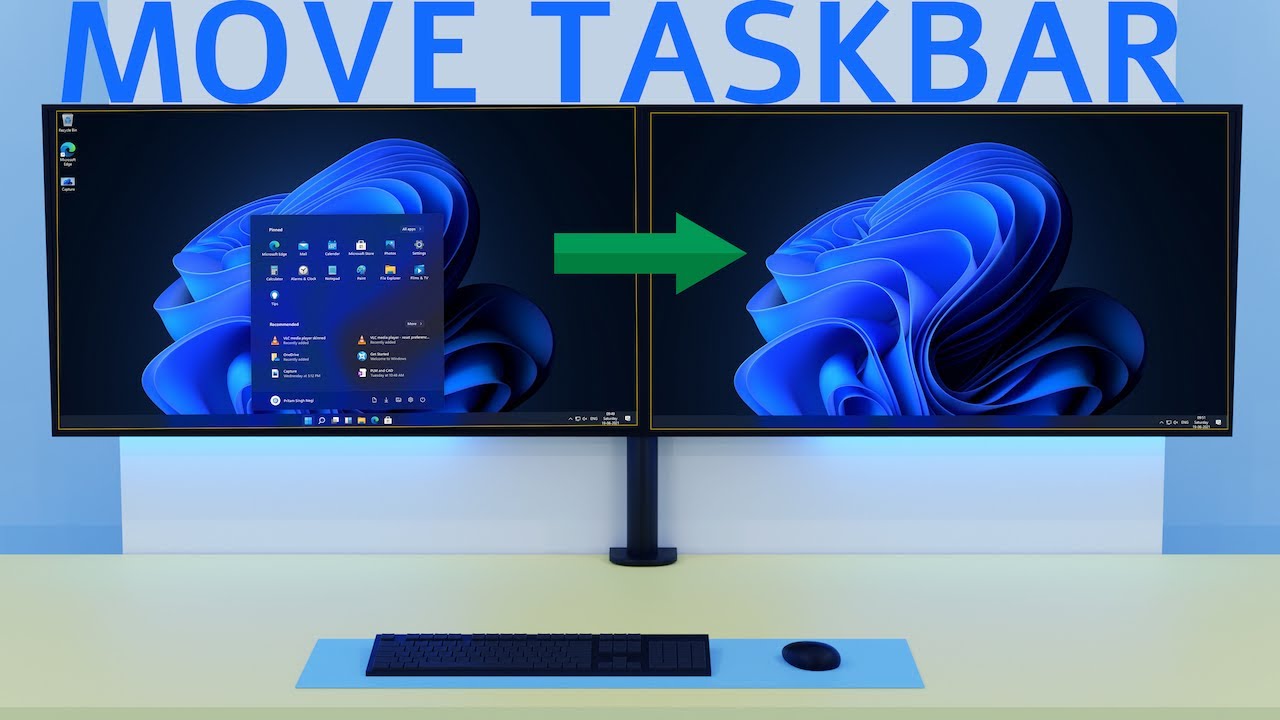
When your mouse works and both displays are active, manual dragging is the simplest approach.
How to Drag the Window
- Open Task Manager using
Ctrl+Shift+Esc. - Click and hold the title bar at the top of the window.
- Drag the cursor across the screen edge onto the second monitor.
- Release the mouse button once the window reaches the desired position.
Visual Cues to Watch For
- A faint outline previews where the window will land.
- The cursor may briefly disappear at screen boundaries. Keep dragging.
- If the window resists movement, press
Alt+Space, thenM, and use arrow keys to nudge it into place.
Fix Task Manager Opening on the Wrong Monitor

Some users notice Task Manager consistently launches on the incorrect display, even after manually moving it. Here is how to reset and lock the correct behavior.
Why Task Manager Opens on the Wrong Screen
Windows stores the last known window position in session memory. If you closed Task Manager on Monitor 2 previously, it reopens at those exact coordinates, regardless of which monitor is designated as primary.
Steps to Reset the Default Position
- Open Task Manager.
- Move it to your preferred monitor using
Shift+Win+Arrowor by dragging. - Maximize the window, then restore it to normal size.
- Close Task Manager by clicking the X or pressing
Alt+F4. - Reboot your computer and test the result.
Repeat if needed: Some systems require two or three consistent closures on the correct monitor before the change sticks permanently.
Assign the Correct Primary Display in Windows
Even when you want Task Manager on Monitor 2, ensuring Windows recognizes your intended main display improves overall consistency.
How to Set the Main Display
- Right-click the desktop and choose Display settings.
- Review the numbered boxes representing each monitor.
- Click the monitor you want to designate as primary.
- Check the box labeled “Make this my main display.”
- Scroll down and click Apply to save the change.
Impact on Task Manager Behavior
While Task Manager does not always follow the primary monitor rule, setting the correct main display improves predictability, especially after driver updates or operating system upgrades.
Rescue Task Manager from an Offscreen or Disconnected Monitor
When your second monitor is turned off or unplugged, Task Manager may launch into empty coordinate space and become invisible.
How to Retrieve Hidden Windows
Use the force-move shortcut to pull it back:
1. Press Ctrl + Shift + Esc to open Task Manager, even if you cannot see it.
2. Press Shift + Win + Right Arrow or Left Arrow to force the window onto the active screen.
This command forces rendering on the current display chain, making offscreen windows reappear instantly. It works even if the monitor was disconnected mid-session.
Use Process Explorer as a Reliable Alternative
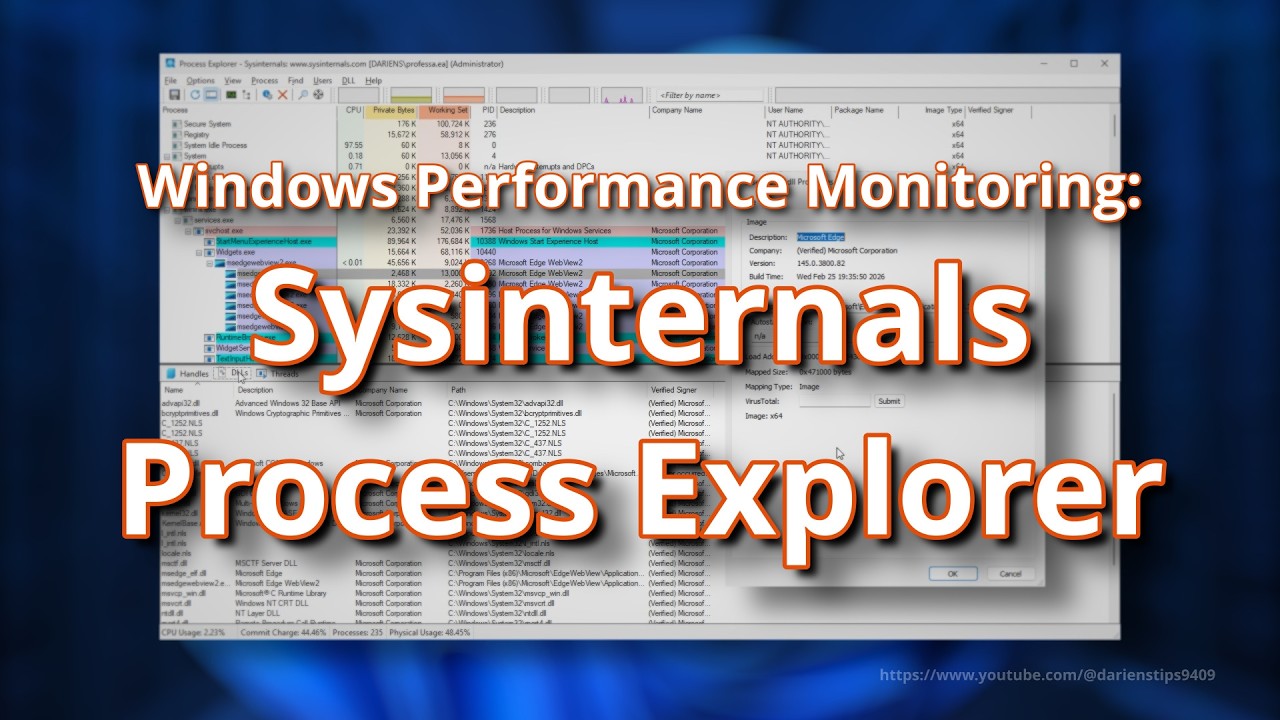
When Task Manager refuses to respond or move, Process Explorer from Microsoft offers a more robust solution.
Why Process Explorer Works Better
- More reliable during crash scenarios.
- Improved window movement behavior.
- Can replace Task Manager as the default process viewer.
How to Set It Up
- Download Process Explorer from the official Microsoft Sysinternals page.
- Right-click the executable and select Run as administrator.
- Use
Shift+Win+Arrowto move it freely between monitors. - Kill frozen processes by right-clicking and choosing Kill Process Tree.
Note: Process Explorer requires a quick download, but power users find it invaluable for difficult recovery situations.
Avoid Common Mistakes When Moving Task Manager
Even experienced users encounter pitfalls when trying to reposition Task Manager on a second monitor.
Mistake 1: Relying on Ctrl + Win + Z
Some online forums suggest Ctrl + Win + Z moves windows between monitors. Testing confirms this shortcut has no native Windows support for window movement. It may trigger gaming software macros, but it does not perform OS-level moves. Stick with Shift + Win + Arrow for reliable results.
Mistake 2: Forgetting to Make Task Manager Active
The move shortcut only works when Task Manager is the active window. If another application retains focus:
– Press Alt + Tab to cycle to Task Manager.
– Or close the offending app by pressing Ctrl + Shift + Esc and selecting End Task.
Mistake 3: Ignoring Outdated Graphics Drivers
Old GPU drivers can corrupt display layout data, causing windows to misbehave across monitors. Update your drivers through:
– NVIDIA GeForce Experience
– AMD Adrenalin Software
– Intel Driver and Support Assistant
Restart your computer after updating and retest the Task Manager behavior.
Prevent Future Task Manager Placement Issues
Proactive habits keep Task Manager accessible before crashes occur.
Pre-Launch Before Full-Screen Apps
Before starting a game or video:
1. Open Task Manager with Ctrl + Shift + Esc.
2. Move it to your secondary monitor using Shift + Win + Right Arrow.
3. Minimize the window or leave it visible.
Now, if the game crashes, Task Manager is already positioned on a working screen.
Verify Display Order in Settings
Open Display Settings and drag the monitor icons to match your physical layout. If Monitor 2 sits on the right, it should be labeled “2” and positioned to the right of “1.” Misaligned virtual layouts confuse window positioning and cause Task Manager to open in unexpected locations.
Quick Reference: Best Methods for Each Situation
| Goal | Recommended Method |
|---|---|
| Move Task Manager during a frozen screen | Shift + Win + Arrow |
| Reposition a visible window | Drag or Win + Arrow |
| Fix persistent wrong monitor behavior | Move, maximize, close on correct screen |
| Retrieve Task Manager from offscreen | Shift + Win + Arrow |
| Replace unreliable Task Manager | Use Process Explorer |
| Prevent future issues | Pre-launch on second monitor |
Frequently Asked Questions About Opening Task Manager on a Second Monitor
What is the fastest shortcut to move Task Manager to another monitor?
Press Shift + Win + Right Arrow or Left Arrow immediately after opening Task Manager with Ctrl + Shift + Esc. This forces the window to jump to the adjacent monitor, even if it is invisible or the primary screen is frozen.
Why does Task Manager keep opening on the wrong monitor?
Windows remembers the exact pixel coordinates where you last closed Task Manager. If you closed it on Monitor 2, it reopens at those coordinates next time. Move it to your preferred display, maximize and restore it, then close it properly to reset the saved position.
Can I open Task Manager on Monitor 2 without using the mouse?
Yes. Open Task Manager with Ctrl + Shift + Esc, then press Shift + Win + Right Arrow (or Left Arrow) to move it to the secondary monitor. This method works entirely from the keyboard, even when the mouse is trapped on a frozen screen.
Does Ctrl + Win + Z actually move windows between monitors?
No. This shortcut has no native Windows support for window movement. User reports and testing confirm it does not relocate Task Manager or other windows between displays. Use Shift + Win + Arrow instead for reliable results.
How do I get Task Manager back when my second monitor is off?
Press Ctrl + Shift + Esc to launch Task Manager, then press Shift + Win + Right Arrow or Left Arrow. This forces the hidden window to render on the currently active display, rescuing it from the coordinate space of the powered-off monitor.
Is there a setting to make Task Manager always open on Monitor 2?
Windows does not include a native setting for this. The closest workaround involves consistently closing Task Manager on your preferred monitor after moving it there. Some third-party tools offer dropdown menus for choosing the launch monitor, but native Windows functionality relies on the last-known position.
Key Takeaways for Opening Task Manager on a Second Monitor
The Shift + Win + Right/Left Arrow shortcut remains the definitive solution for moving Task Manager to a working monitor, especially when the primary screen is frozen or unresponsive. Combine this technique with proper display settings, updated graphics drivers, and the habit of pre-launching Task Manager before full-screen applications to maintain full system control.
Save this guide for future reference. The next time your screen locks up during a critical task, these methods will help you regain control in seconds without reaching for a mouse or installing additional software.


