
You just pulled your Sansui monitor out of the box, or maybe you’re reviving an older one from a closet, and now you’re stuck on the very first step. Pressing buttons randomly gets you nowhere, the screen stays black, and you start wondering whether the unit is even working. Many Sansui displays have subtle controls or non-standard layouts that confuse first-time users, especially compared to mainstream brands. Learning how to turn on Sansui monitor models correctly saves you time, frustration, and unnecessary repair costs.
This guide walks you through every stage of startup, from locating hidden buttons to diagnosing a blank screen. You’ll learn how to verify power delivery, recognize indicator light signals, connect the right input source, and fix common issues across both vintage and modern Sansui displays.
Find the Power Button on Your Sansui Monitor

Before anything else, you need to locate the actual control that powers your display. Sansui designs vary widely, so the button may not be where you expect.
Check the Front Bezel First
Most Sansui monitors place the power control along the bottom edge or side of the front frame. Look for a small recessed button marked with the universal power symbol (⏻). Press it briefly with your fingertip, or use a pen tip if the button is too small to engage by hand. Some models respond to a quick tap, while others need a 1 to 2 second hold.
Pro Tip: When no symbol is visible, press each button gently until one produces a faint click or causes an indicator light to respond.
Inspect the Sides and Rear Panel
Compact or industrial Sansui units sometimes hide the power control on the right side, left side, or back panel near the power cord entry. These placements are common in older computer displays and surveillance monitors.
- Shine a flashlight into tight corners.
- Trace the power cable path since it often ends near the switch.
Identify a Toggle Switch Instead of a Button
Certain Sansui models rely on a mechanical rocker or slide switch rather than a push button. These switches usually carry “I/O” labels, where “I” means on and “O” means off. Slide the switch firmly toward “I” to activate the unit.
⚠️ Warning: Never force a stuck switch. Check for debris or physical damage before applying more pressure.
Confirm the Power Supply Connection
A correctly pressed button does nothing without stable power reaching the monitor. Connection problems cause most startup failures.
Plug Into a Live Wall Outlet
Always confirm the outlet is functional before troubleshooting the monitor itself.
- Test the socket with a lamp or phone charger.
- Avoid overloaded power strips that may have tripped internally.
A direct wall connection works best during initial setup.
Examine the Power Cable Carefully
Sansui monitors typically accept standard IEC C7 (figure-eight) or C13 power cords.
- Look for frays, kinks, or bent prongs.
- Confirm both ends sit fully inserted in their ports.
- Swap in a known-good cable if you have one available.
Note: Some specialized models use proprietary adapters. Verify voltage and polarity before substituting any cable.
Check DC Adapters on Portable Models
Smaller Sansui monitors designed for cameras or gaming consoles often run on DC power through an external adapter.
- Match the adapter output to the specs printed on the monitor (such as 12V⎓).
- Make sure the barrel connector seats snugly without wobble.
Connect a Working Video Source
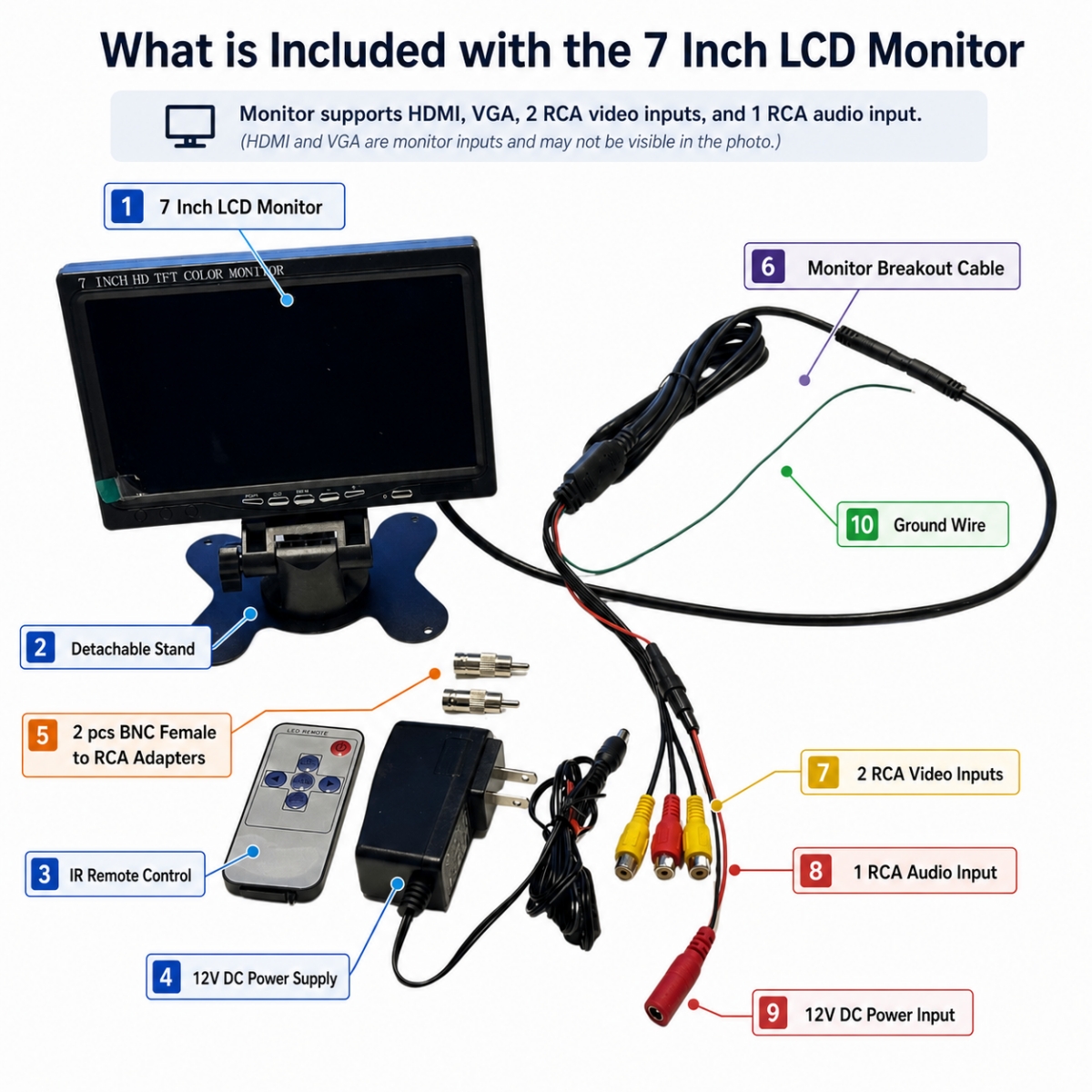
Even a powered Sansui monitor shows nothing without an active signal feeding it. Blank screens often trace back to missing input rather than power failure.
Attach a Compatible Device
Choose a connection your monitor supports and plug in a powered source device.
- HDMI for newer models
- VGA for legacy computer setups
- Composite (yellow RCA) for older media players
- BNC or S-Video for security camera systems
Select the Correct Input Channel
Many Sansui displays include an input or source button that cycles through available channels.
- Press the button repeatedly to scroll through options.
- Look for on-screen labels like HDMI, PC, or AV1.
- If no menu appears, confirm the monitor is actually receiving power first.
✅ Quick Fix: Power on the source device first, then switch on the monitor. This sequence helps the display detect the signal faster.
Understand the Power Indicator Light
The small LED on your Sansui monitor reveals exactly what state the unit is in. Reading this light correctly speeds up diagnosis.
No Light Means No Power
If the indicator stays completely dark, the monitor is not receiving electricity.
- Recheck the cable and outlet.
- Try a different power cord.
- Inspect the fuse if your model has one accessible.
Solid Red or Orange Signals Standby
A steady dim glow means the unit has power but remains off. Press the power button to wake the display.
Some Sansui models automatically enter standby after roughly 5 minutes without signal input.
Green or Blue Means Active Operation
A bright green or blue light confirms the monitor is on and either showing video or waiting for input. If pressing the power button turns the light off, the internal circuit works and you should reseat your cables.
Diagnose a Blank Screen Issue

Your Sansui monitor powers on, the LED lights up, but the screen stays black. Several common causes exist, and most are easy to test.
Listen for Startup Cues
Older CRT and large LCD Sansui monitors often emit a faint high-pitched hum or click when powering up. Silence may suggest an internal power supply failure.
Test with Multiple Source Devices
Rule out the connected equipment by trying different inputs.
- Laptop through HDMI or VGA
- DVD player through RCA outputs
- Security camera or camcorder through BNC
If no device produces a picture, the monitor itself likely needs attention.
Look for a Faint Backlight
Sometimes the screen appears black but actually displays a very dim image.
- Shine a flashlight at an angle across the panel.
- Search for ghost menus or text outlines.
This symptom usually points to a failed backlight or inverter board, not a power issue.
Reset Your Sansui Monitor to Default Settings
Corrupted configuration data can prevent normal startup or signal recognition. A factory reset often clears the problem.
Perform a Manual Reset
The exact button combination depends on your model, but common sequences include:
- Hold Menu and Power together for 10 seconds.
- Press Input, Menu, and Select at the same time.
- Release when the screen flashes or reboots.
Reinitialize the Monitor After Reset
Once the reset completes, follow these steps:
- Unplug the monitor for 60 seconds.
- Reconnect the power cable.
- Power on and reconfigure your preferred input source.
This simple process resolves many “black screen after power-on” complaints.
Handle Vintage Sansui Models Safely

Many Sansui monitors still in use today are decades old. They are durable but require special care.
Recognize CRT vs. LCD Differences
- CRT models are heavy and deep, often taking 5 to 10 seconds to fully power up. Watch for a faint glow inside the tube.
- LCD models start almost instantly and run much cooler.
Older CRTs may include separate brightness and contrast dials. Turn these clockwise if the screen appears blank.
Watch for Aging Capacitors
Decades-old power boards often suffer from capacitor failure, which causes:
- Inability to power on
- Intermittent startup
- Popping noises or a burning smell
⚠️ Do not open the case unless you are trained. CRT displays store dangerous voltages even when unplugged. Always consult a qualified technician for internal repairs.
Prevent Future Startup Problems
A few simple habits keep your Sansui monitor running reliably for years.
Use a Quality Surge Protector
Voltage spikes damage internal power circuits quickly.
- Choose a protector with status indicator lights.
- Replace it every 2 to 3 years or after any major electrical surge.
Power Down the Right Way
Always use the power button to shut off the monitor before unplugging it. This reduces stress on internal components and prevents boot errors over time.
Keep Buttons and Ports Clean
Dust buildup blocks button contact and corrupts signal connections.
- Wipe around the power button with isopropyl alcohol and a cotton swab.
- Clean input ports gently using compressed air.
Frequently Asked Questions About Sansui Monitors
Where is the power button on a Sansui monitor?
Most Sansui monitors place the power button along the bottom or side edge of the front bezel. Some compact or vintage models hide the button on the rear panel or side near the power cord. Look for the universal power symbol (⏻) or an “I/O” toggle switch.
Why won’t my Sansui monitor turn on?
The most common causes include a loose power cable, a dead outlet, a failed power cord, or a tripped surge protector. Test the outlet with another device and try a replacement cable before assuming internal damage.
What does a red light on a Sansui monitor mean?
A solid red or orange light usually indicates standby mode. The monitor is receiving power but is not actively displaying a signal. Press the power button to wake the display.
How do I fix a Sansui monitor with no display?
Confirm the monitor is actually powered by checking the indicator light. Then verify the input source is connected, powered on, and set to the correct channel. Try a factory reset if the screen remains blank.
Can I use any power cord with a Sansui monitor?
Most Sansui monitors accept standard IEC C7 or C13 cables. Always match the voltage and amperage ratings printed on the rear label. Avoid using adapters not designed for your specific model.
Are old Sansui CRT monitors safe to use?
CRT monitors work fine but store high voltages internally even when unplugged. Avoid opening the case and have any internal repairs handled by a trained technician.
Key Takeaways for Turning On Your Sansui Monitor
Getting your Sansui monitor running comes down to three essentials: locating the correct power control, ensuring clean power delivery, and feeding the display a valid signal. Most startup problems trace back to simple connection issues rather than hardware failure, and a quick check of cables, outlets, and indicator lights solves the majority of cases.
Start by inspecting the front bezel, sides, and rear panel for the power button or switch. Confirm the outlet, cable, and adapter are all functioning properly. Connect a known-good source device and select the matching input channel. If the screen stays dark, use the indicator light and flashlight test to pinpoint the issue before assuming internal damage.
For vintage models, handle CRT units with extra caution and avoid opening the case without proper training. Regular cleaning and surge protection keep your Sansui monitor reliable for years of dependable use.


