
You’re setting up an older desktop, troubleshooting a display issue, or preparing for a presentation, and you need to connect a VGA cable to your monitor. While HDMI and DisplayPort dominate modern setups, VGA ports remain common in offices, classrooms, and legacy systems. Knowing how to connect a VGA cable properly ensures a stable signal and a clear picture.
This guide walks you through every step of connecting a VGA cable to a monitor, from identifying ports to fixing common signal problems. Whether you use a desktop PC, laptop, or projector, you’ll learn how to make the connection work quickly and correctly.
Identify VGA Ports on Your Devices

Recognize the 15-Pin D-Sub Connector
The VGA port is a blue trapezoidal socket with three rows of five pins, totaling 15 pins. It’s often labeled “VGA,” “Monitor,” or marked with a small monitor icon. On desktops, you’ll typically find it on the back panel. On laptops or projectors, it usually sits on the side.
If the port has two small screws on either side, you have confirmed a VGA connection. HDMI and DisplayPort ports lack these threaded screws.
Confirm Source and Display Compatibility
Check that both your computer and monitor support VGA. Most older monitors and many business projectors include this port. Newer laptops often lack a native VGA port and require an adapter such as USB-C to VGA or HDMI to VGA.
Gather the Right Cables and Adapters
Use a Standard Male-to-Male VGA Cable
Most VGA cables feature male connectors on both ends with pins exposed. Plug one end into your computer and the other into your monitor.
Choose a cable with ferrite cores (the bulges near each end) to reduce electromagnetic interference and improve signal quality.
Prepare Adapters for Non-VGA Devices
If your laptop lacks a VGA port, match the adapter to your output type:
– MacBook (older models): Use a Mini DisplayPort to VGA adapter
– Modern laptop (USB-C or Thunderbolt): Use a USB-C to VGA adapter
– HDMI-only PC: Use an active HDMI to VGA converter
Passive HDMI-to-VGA cables fail because they cannot convert digital signals to analog. Always use an active converter for this purpose.
Connect the VGA Cable Step by Step

Plug In and Secure the Cable
- Align the 15-pin connector with the port on your monitor and computer.
- Gently push the connector until it seats fully. Do not force it.
- Tighten the side screws on both ends to lock the connection.
Loose cables cause flickering, signal drops, or distorted images. Securing the screws prevents these issues.
Power On and Select the Correct Input
- Turn on the monitor first.
- Press the Input or Source button and select “VGA” or “PC.”
- Power on the computer.
VGA carries video signals only. For audio, connect a 3.5mm audio cable from your computer’s headphone jack to the monitor or external speakers.
Switch Display Mode on a Laptop

Use Function Keys to Extend or Duplicate
After connecting, press Fn plus F4, F5, F7, or F8 (varies by brand) to toggle display modes:
– Duplicate: Same screen on both displays
– Extend: Use the monitor as extra workspace
– Second Screen Only: Laptop screen turns off
Common brand shortcuts include Dell (Fn + F8), Lenovo (Fn + F7), HP (Fn + F4), and ASUS (Fn + F8). Check your laptop manual if you’re unsure.
Match Resolution to Your Monitor’s Native Specs

Avoid Blurry or Stretched Images
VGA transmits analog signals that degrade when resolution does not match the monitor’s native setting.
On Windows:
1. Right-click the desktop and select Display settings
2. Scroll down to Display resolution
3. Choose the resolution marked (Recommended)
For most older VGA monitors, set the resolution to 1024×768 or 1280×1024 for best results.
On macOS (with adapter):
1. Open System Settings and select Displays
2. Hold Option and click Scaled to reveal additional resolutions
3. Pick one matching your monitor’s specifications
Mismatched resolution causes blurry text, overscan, and image distortion. Always align these settings.
Troubleshoot No Signal or Flickering
Fix Common VGA Connection Issues
No signal on monitor:
– Confirm the monitor is powered on
– Verify the input source is set to VGA
– Inspect cable pins for bending or corrosion
– Test the port with another computer or monitor
Flickering or rolling screen:
– Tighten screws on both cable ends
– Use a shorter cable (under 6 feet) to reduce signal loss
– Clean pins with isopropyl alcohol and a cotton swab
Distorted or blurry image:
– Adjust horizontal and vertical sync via the monitor menu
– Reduce resolution to 1024×768
– Keep the cable away from power cords to avoid interference
Boot Into VGA Mode for Driver Repairs
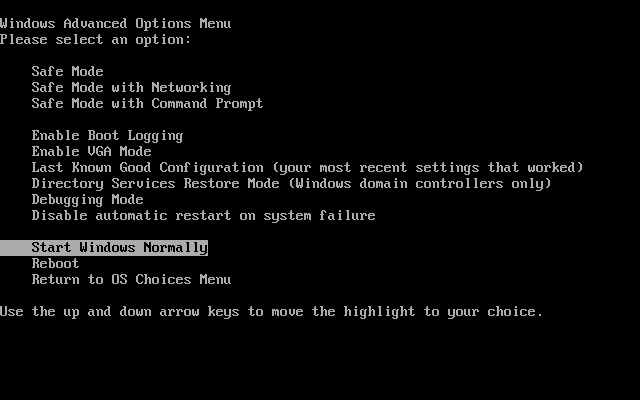
Use VGA Mode When Windows Fails to Start
When Windows cannot boot due to faulty graphics drivers, boot into VGA Mode to troubleshoot:
- Restart your PC
- Press F8 repeatedly after the BIOS screen appears (hold for 7 to 10 seconds)
- Select Enable VGA Mode from the Advanced Options menu
- Log in with administrator privileges
- Open Device Manager
- Right-click your graphics card and select Uninstall device
- Restart to reinstall the default driver
This mode forces output to 640×480 pixels and loads only basic video drivers, allowing safe troubleshooting.
Convert VGA to HDMI When Needed
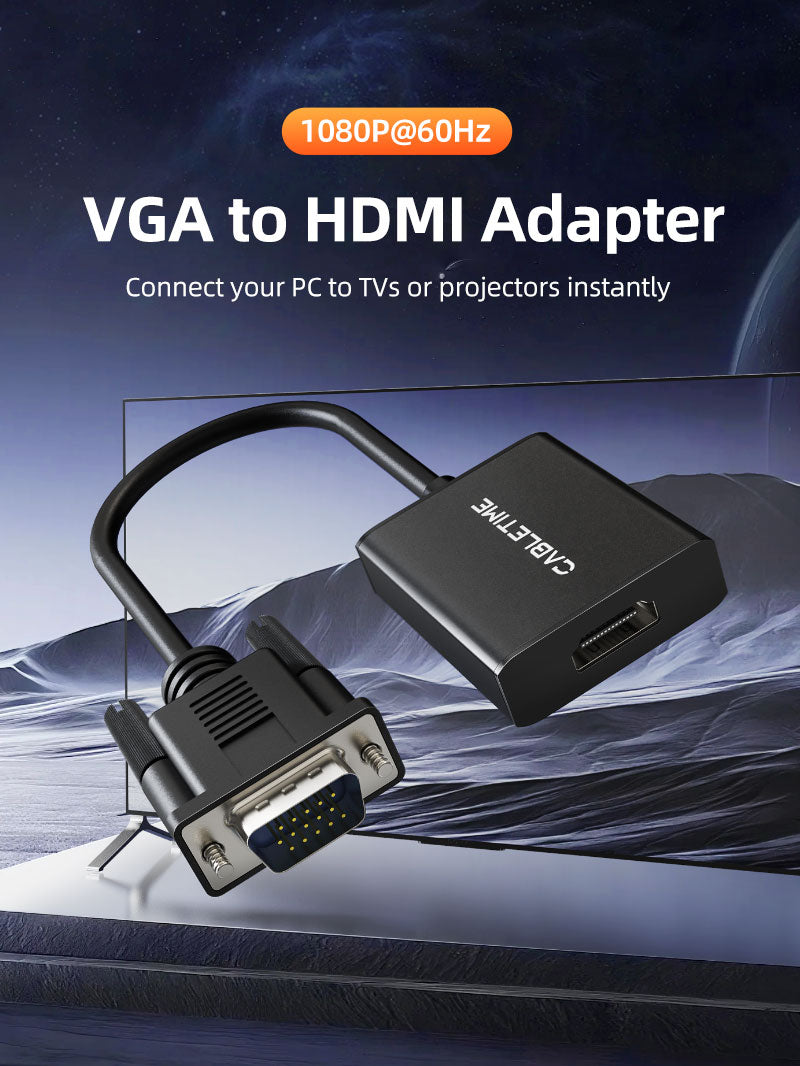
Connect a VGA PC to an HDMI Monitor
To connect a computer with only VGA output to a modern HDMI display, use an active VGA to HDMI converter plus a 3.5mm audio cable.
- Connect the VGA cable from your PC to the converter
- Plug the audio cable from your PC’s headphone jack into the converter
- Connect an HDMI cable from the converter to the monitor
- Power the converter (some models need USB power)
- Set the monitor to the correct HDMI input
Maximum resolution is typically capped at 1920×1080, and audio must be routed separately.
Maintain and Extend VGA Performance
Prevent Signal Degradation Over Time
Clean connectors regularly:
Use compressed air or alcohol wipes to remove dust from ports and cable ends.
Use high-quality cables:
Look for foil and braid shielding, gold-plated pins, and ferrite chokes for better durability.
Avoid long cable runs:
Analog signals weaken over distance. For runs over 15 feet, use a VGA booster or switch to a digital connection like DVI or HDMI with a converter.
Replace VGA cables every 3 to 5 years if used daily to maintain optimal performance.
Frequently Asked Questions About Connecting a VGA Cable to a Monitor
What does VGA stand for?
VGA stands for Video Graphics Adapter or Video Graphics Array. IBM released this standard in 1987, and it became the dominant PC video interface for years.
Can VGA carry audio?
No. VGA transmits analog video signals only. To hear sound, you need a separate 3.5mm audio cable connected from your computer’s headphone jack to your monitor or speakers.
Why is my VGA signal fuzzy or distorted?
Fuzzy or distorted images usually result from resolution mismatch between your computer and monitor. Set your output resolution to match the monitor’s native resolution for a crisp picture.
How do I switch my laptop screen to a VGA monitor?
Press the Function (Fn) key combined with F4, F5, F7, or F8 (varies by manufacturer). This toggles between Duplicate, Extend, and Second Screen Only modes.
What is VGA Mode in Windows?
VGA Mode is a diagnostic state that loads only basic video drivers at 640×480 resolution. You access it by pressing F8 during boot. Use it to uninstall corrupt graphics drivers when Windows fails to start normally.
Can I connect VGA to HDMI directly?
No. VGA (analog) and HDMI (digital) use incompatible signals. You need an active VGA to HDMI converter to bridge the two standards, plus a separate audio cable for sound.
Key Takeaways for Connecting a VGA Cable to a Monitor
Connecting a VGA cable to a monitor comes down to a few reliable steps: identify the blue 15-pin port, use a quality male-to-male cable, tighten the screws, and select the correct input source. Match your resolution to the monitor’s native specs and route audio separately since VGA carries video only.
When troubleshooting, check for loose screws, bent pins, and incorrect input settings first. If your laptop lacks a VGA port, use the right adapter for your output type. For modern displays, an active converter bridges VGA to HDMI without losing signal quality.
Now you have a complete toolkit to connect a VGA cable to a monitor in any setup, from legacy desktops to modern projectors.


