
You finish a long gaming session or workday and reach for the power button, but your ASUS monitor stays bright. You tap a few buttons hoping something works, asking yourself how to turn off ASUS monitor without breaking it. This frustration is common. Many ASUS displays hide their controls behind minimalist designs, touch panels, or single joysticks that leave new users guessing.
The good news is that powering down any ASUS monitor is straightforward once you understand the layout. Whether you own a ROG Swift gaming display, a ProArt creative panel, or a compact VE-series screen, this guide covers every shutdown method. You will learn physical button shortcuts, operating system tricks, and energy-saving settings that protect your hardware for years to come.
Locate the Physical Controls on Your ASUS Monitor

Before you can shut anything down, you need to find the right button. ASUS hides controls in different spots depending on the model, so knowing where to look saves time and prevents accidental menu triggers.
Find the Button Cluster by Series
ASUS places its power controls in three common locations:
– ROG Swift gaming models: Bottom right rear corner
– ProArt and PA professional series: Center rear, often a five-way joystick
– VP and VE everyday models: Bottom edge or back panel
Run your fingers along the back edge while the screen is on. You will feel a small joystick, a circular pad, or a row of tiny buttons. Look for the universal power symbol (⏻) or a menu icon (≡) printed nearby.
Identify the Correct Power Button
Among the controls, one is dedicated to power. It carries the standard power symbol or a circle with a vertical line. Pressing this button once triggers the shutdown sequence on most modern ASUS displays.
If a single press does nothing, hold the button for two to three seconds. Some entry-level models require a longer press to register the command. Avoid tapping rapidly, since this often opens the OSD menu instead.
Pro Tip: Watch the small LED near the bezel after pressing the button. A blue or white light means the monitor is active. A complete dark state confirms a full shutdown.
Power Down Using the Physical Button
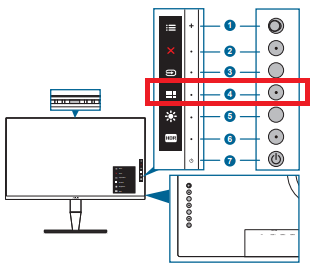
The most reliable way to turn off any ASUS monitor is through the hardware button itself. This method works with any input source, operating system, or connected device.
Single Press Versus Long Press
Different ASUS models respond to different press durations:
– Single quick press: Shuts down most modern displays instantly
– Long press of two to three seconds: Required on compact or older models
Start with a single tap. If the screen stays lit, try a longer hold. Never mash the button repeatedly, as this can lock the OSD or trigger unwanted menu options.
Confirm a Successful Shutdown
A properly powered-off monitor shows clear signs:
– The display goes completely black
– The status LED turns off entirely
– No faint glow or backlight bleed remains
If the LED glows amber or red, the monitor is in standby rather than fully off. Standby uses minimal power but is not a complete shutdown.
Warning: Wait at least five to ten seconds after powering down before unplugging the cable. This allows internal circuits to discharge safely.
Turn Off Your ASUS Monitor Through the Operating System
You cannot control the monitor directly through software, but your computer can send a signal that puts the display to sleep. This effectively turns the screen off without touching any buttons.
Windows Shortcuts to Power Down the Display
Windows offers several keyboard shortcuts that dim or shut off your monitor:
– Press Alt + F4 on the desktop, then choose Sleep or Shut down
– Press Win + L to lock the PC and dim the screen
– Press Win + X, then select Shut down or sign out
For automatic shutoff, configure your power settings:
- Open Settings and navigate to System > Power and sleep
- Set the screen timeout to five to fifteen minutes on battery
- Set the plugged-in timeout to ten to thirty minutes
- Save your changes
Your ASUS monitor will now power down automatically during inactivity.
macOS Methods to Sleep the Display
Mac users can turn off any connected ASUS monitor with simple shortcuts:
– Press Control + Shift + Power on newer MacBooks
– Press Control + Shift + Eject on older models
– Close the lid if using the monitor as a secondary display
You can also set a sleep timer through System Settings > Displays. The Mac sends a DDC/CI signal that tells the monitor to sleep, which is functionally identical to pressing the power button.
Fix a Monitor That Will Not Turn Off
Sometimes pressing the power button does nothing. The screen stays bright, or it restarts immediately. Here is how to diagnose and resolve the issue.
Check for Input Signal Conflicts
Connected devices can keep your monitor awake by sending constant signals. Gaming consoles, streaming boxes, and always-on PCs are common culprits.
Try these steps:
1. Disconnect all HDMI, DisplayPort, and USB cables
2. Press the power button again
3. If the monitor turns off, reconnect each device one at a time
4. Identify which device is sending the wake signal
Note: HDMI-CEC enabled devices may wake your monitor automatically even after shutdown.
Disable Wake Signals From Your Computer
If your PC keeps waking the monitor, disable wake permissions in Windows:
- Open Device Manager
- Expand Network adapters
- Right-click your network card and select Properties
- Open the Power Management tab
- Uncheck Allow this device to wake the computer
Repeat the process for USB controllers and keyboard or mouse entries if needed.
Perform a Hard Reset on the Monitor
If the display still refuses to shut down, perform a hard reset:
- Press the power button to attempt shutdown
- Unplug the power cable from the wall
- Wait at least thirty seconds to drain residual charge
- Plug the cable back in and power on
This clears temporary firmware glitches and resets the OSD memory.
Prevent Accidental Wake-Ups After Shutdown

Even after a successful shutdown, your ASUS monitor may turn back on by itself. This usually comes from connected devices or power-saving features that work against you.
Disable HDMI-CEC Settings
Some ASUS monitors support HDMI-CEC under different names. Disabling this feature stops connected devices from waking the display.
Follow these steps:
1. Press the Menu button on your monitor
2. Navigate to System Setup > HDMI Function
3. Set HDMI-CEC to Off
4. Save and exit the menu
Use a Smart Power Strip for Full Control
A smart power strip lets you cut electricity to the monitor and all peripherals with one switch. This eliminates standby current and prevents ghost wake-ups from any source.
Bonus: Smart strips also reduce energy costs and protect against voltage spikes during storms.
Activate Built-In Power-Saving Modes
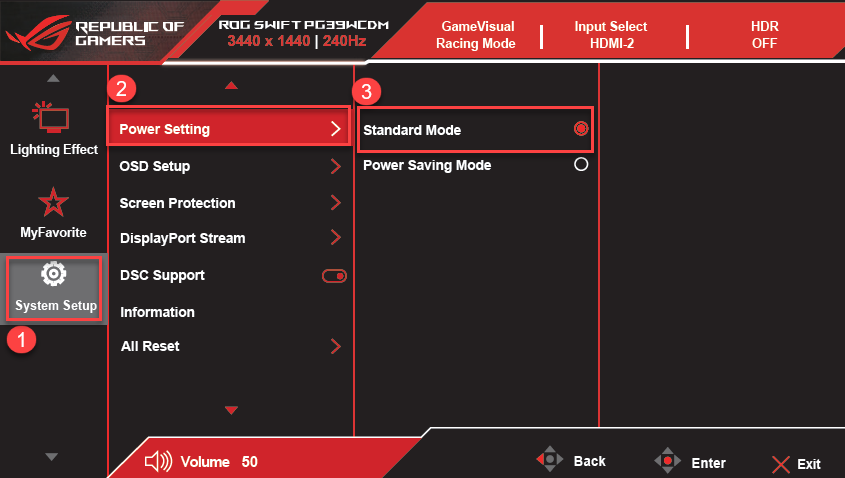
ASUS includes several energy-saving features that reduce power use even when you do not fully shut down the display.
Enable Eco Mode for Lower Consumption
Eco Mode reduces brightness and backlight intensity, cutting power use by up to thirty percent.
To activate Eco Mode:
1. Press the Menu button
2. Navigate to Display > Brightness > Eco Mode
3. Select On
4. Exit the menu
This setting works best during long sessions or bright environments.
Set an Auto-Off Timer
Many ASUS models include an automatic shutdown timer that powers off the display after a set period of inactivity.
Configure the timer with these steps:
1. Open the OSD Menu
2. Navigate to System Setup > Power > Auto-Off Timer
3. Choose a duration of ten, thirty, or sixty minutes
4. Save your selection
Your monitor will now shut itself off if you forget to do it manually.
Maintain Your Monitor After Shutdown
Good shutdown habits extend the life of your ASUS display. A few simple practices keep the panel clean and the internal components healthy.
Wait Before Powering Back On
After turning off the monitor, wait at least ten to fifteen seconds before turning it on again. This prevents electrical stress on the backlight and power supply.
Clean the Screen Safely
Once the display is off, clean it with proper materials:
– Use a soft microfiber cloth
– Dampen lightly with a 50/50 mix of water and white vinegar
– Wipe gently in circular motions
Never spray liquid directly onto the screen, since moisture can seep into the bezels and damage internal circuits.
Cover the Monitor During Long Breaks
If you leave the monitor unused for several days, drape a soft cloth over it. This prevents dust buildup and protects the panel from indirect sunlight.
Frequently Asked Questions About Turning Off an ASUS Monitor
Why does my ASUS monitor not turn off when I press the button?
Some ASUS models require a long press of two to three seconds instead of a quick tap. If neither works, check for connected devices sending wake signals or perform a hard reset by unplugging the power cable for thirty seconds.
Can I turn off my ASUS monitor without using the button?
Yes. Windows and macOS both offer shortcuts that put the display to sleep. You can also configure automatic shutoff timers in your operating system or activate the Auto-Off Timer inside the monitor OSD menu.
Is it bad to leave my ASUS monitor in standby mode?
Standby uses very little power, but it is not a full shutdown. For long breaks, unplug the monitor or use a smart power strip to cut all current and extend the lifespan of internal components.
How do I know if my ASUS monitor is fully off?
The status LED near the bezel turns off completely when the monitor is fully powered down. A glowing amber or red light means the display is in standby rather than fully off.
Does turning off the ASUS monitor often damage it?
No. Frequent shutdowns do not harm modern ASUS monitors. In fact, powering down when not in use reduces wear on the backlight and saves energy over time.
What should I do if my monitor turns on by itself?
Disable HDMI-CEC in the OSD menu and turn off wake permissions for network and USB devices in Device Manager. A smart power strip can also prevent automatic restarts.
Key Takeaways for Powering Down Your ASUS Monitor

Turning off an ASUS monitor comes down to three reliable methods. The physical power button delivers a complete shutdown when used correctly. Operating system shortcuts offer a quick software-based alternative. Built-in timers and Eco Mode handle the process automatically during inactivity.
Start by locating the power button on your specific model, then test both single and long presses. Configure your computer’s power settings for automatic shutoff, and disable HDMI-CEC to prevent unwanted wake-ups. With these habits in place, your ASUS monitor will stay responsive, energy-efficient, and ready for years of reliable use.


