
You’re sitting down to work, coffee in hand, ready to power up your Mac, only to find the screen dark. Is it the computer? The monitor? Or just a simple connection issue? You’re not alone. Whether you’re using a sleek MacBook, an all-in-one iMac, or a Mac Mini hooked up to an external display, knowing how to turn on Mac monitor systems correctly can save time and frustration. This guide breaks down exactly what to do, step by step, across every Mac model.
The key to solving most startup issues lies in understanding the difference between powering on the Mac itself and activating the monitor or display. On MacBooks and iMacs, the screen is built in, so turning on the computer powers the display. But with Mac Minis, Mac Studios, or Mac Pros, you need both the Mac and the external monitor powered and properly connected. Let me get you back up and running.
Locate Your Mac’s Power Button
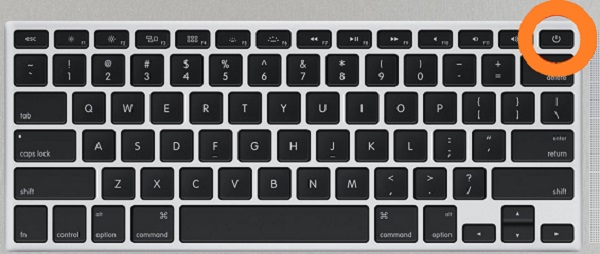
Before you can turn on any Mac, you need to know where the physical power button is. Apple places it differently across models, sometimes in plain sight, sometimes hidden on the back. Here’s where to find it.
MacBook: Top-Right Keyboard Key
On all MacBook Air and MacBook Pro models, the power button is built into the keyboard’s top-right corner.
- On newer models with Touch ID, it’s a blank square with no icon. This key also acts as your fingerprint sensor.
- Press it firmly once to turn on the Mac.
- Many models auto-boot when you open the lid, so just lifting the screen may be enough.
Pro Tip: If your MacBook doesn’t respond, plug it in. A completely drained battery below 10% may prevent startup.
iMac: Back Corner Button
The iMac’s power button sits on the back, in the bottom-left corner when facing the screen.
- It’s a small, recessed, circular button with a power symbol.
- You’ll need to reach around the side or bottom to press it.
- No auto-boot feature exists here. A manual press is required every time.
Common Mistake: Users often mistake the glowing Apple logo for a power indicator. It only lights up after the Mac boots, not when the button is pressed.
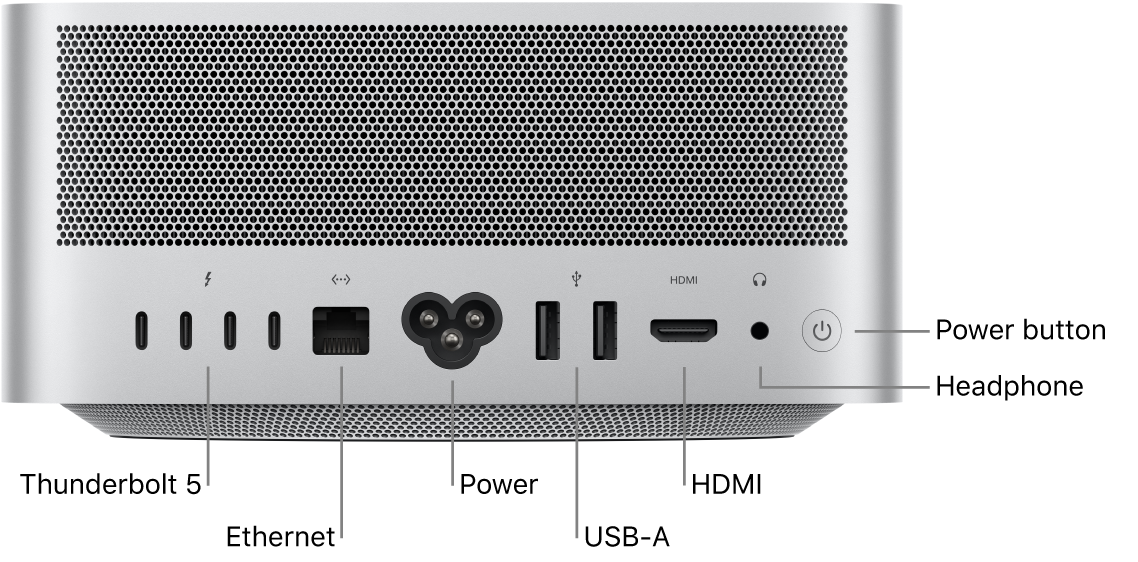
Mac Studio: Rear Left Power Key
The Mac Studio’s power button is on the back left side, right next to the headphone jack.
- It’s a circular button with a clear power symbol.
- Easy to access when the unit sits on a desk.
- May be hard to reach in tight setups.
Mac Pro: Varies by Model Year
The Mac Pro has had three major designs, each with a different power location.
- Pre-2012 Tower: Front, above the USB ports.
- 2013 Cylinder: Back, above the power cable input.
- 2019 and Later Tower: Top, between the two handles, designed for quick access.
Quick Check: If you’re in a studio or server room, the top-mounted 2019+ button makes remote reboots easier.
Mac Mini: Back Panel Power Dot
The Mac Mini’s power button is a small, color-matched circle on the back, to the left of the power cable port.
- It’s subtle. Look for the white power symbol.
- Since the Mac Mini has no screen, you’ll need an external monitor connected to see anything.
Remember: The Mac Mini must be plugged in and powered on before the monitor will receive a signal.
Connect and Power External Monitors
When people ask how to turn on Mac monitor setups, they often mean an external display like a Dell, LG, or Apple Studio Display. These don’t turn on with the Mac. They have their own power and must be set up correctly.
Plug In and Connect Properly
Follow this order to avoid signal issues:
- Power the monitor by plugging the display into a wall outlet and pressing its own power button, usually on the back or bottom.
- Connect the video cable using Thunderbolt, HDMI, or DisplayPort to link the monitor to your Mac.
– MacBook Pro users should use Thunderbolt 3 or 4 (USB-C) with native support.
– Mac Mini users should check ports, since some models require adapters. - Wait for detection. The Mac should auto-detect the display within seconds, and your desktop will appear instantly.
Adapter Alert: If using USB-C to HDMI, ensure the adapter supports video output. Cheap cables often fail.
Daisy-Chain Apple Displays
Apple Studio Display and Pro Display XDR support daisy-chaining for multi-screen setups.
- Connect the first display to your Mac via Thunderbolt.
- Use the downstream Thunderbolt port on the back of that display to link the second.
- Both will power up and be detected automatically with no extra cables to the Mac.
Limit: Not all Macs support daisy-chaining. M1 and M2 Macs may require both displays connected directly.
Set Input Source Manually
Some third-party monitors don’t auto-switch to the correct input.
- Use the monitor’s physical buttons to open the OSD (On-Screen Display) menu.
- Navigate to Input Source and select HDMI, DisplayPort, or Thunderbolt.
- If stuck on “No Signal,” this step often fixes it.
Fix External Monitor Not Detected
Your Mac is on, but the external monitor stays black. Don’t panic. Most issues are simple connection problems.
Check Power and Cable Seating
- Is the monitor plugged in? Try a different outlet.
- Is the video cable fully inserted at both ends? Unplug and reconnect firmly.
- Wiggle the cable. If the screen flickers, the connection is loose.
Visual Cue: Look for a glowing port on the Mac. Thunderbolt ports light up when active.
Test with Another Cable or Port
Faulty cables are the number one cause of “no signal” errors.
- Swap in a known-working Thunderbolt or HDMI cable.
- Try a different port on your Mac, especially if one seems damaged.
Restart Mac with Display Connected
Sometimes macOS fails to detect displays during boot.
- Shut down your Mac completely.
- Ensure the external monitor is on and connected.
- Power on the Mac. This forces early detection.
Success Tip: Use this method when connecting a new monitor for the first time.
Troubleshoot Black Screen on Startup
Your Mac powers on, but the screen stays black. This isn’t a monitor issue. It’s a system boot failure.
Force Restart Your Mac
If the screen is black but fans are running:
- Press and hold the power button for 10 seconds.
- Wait 3 seconds.
- Press the power button again to restart.
This clears temporary glitches and resets the boot process.
Why It Works: This simulates an SMC reset on Apple Silicon Macs.
Charge Before Powering On
MacBooks and Macs with internal batteries won’t boot below 10% charge.
- Plug in the charger.
- Wait 5 to 10 minutes for the battery to gain charge.
- Try turning it on again.
Battery Tip: If the MagSafe light doesn’t glow, try a different charger or cable.
Reset SMC on Intel Macs
For Intel-based Macs that won’t power on:
- Shut down the Mac.
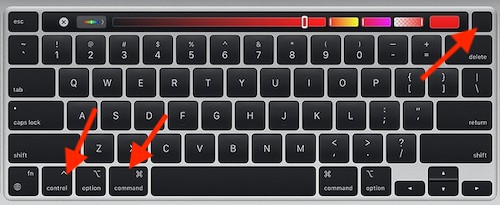
- Press Shift + Control + Option (left side) + Power button.
- Hold all four for 10 seconds.
- Release and press power to restart.
Note: This doesn’t apply to Apple Silicon Macs (M1, M2, M3). They reset SMC automatically.
Configure Display Settings After Boot

Once your monitor is on, fine-tune it for better performance and comfort.
Adjust Resolution and Scaling
Go to Apple menu > System Settings > Displays.
- Choose Default for display for best clarity.
- Use Scaled options to make text larger or fit more content.
- On 4K or 5K monitors, pick a resolution that balances sharpness and usability.
Pro Tip: “More Space” means smaller text and more apps visible. “Larger Text” means easier reading.
Arrange Multiple Displays
With two or more monitors:
- Drag the white menu bar in the display settings to choose your main screen.
- Drag display thumbnails to match their physical layout on your desk.
- This ensures your mouse moves naturally between screens.
Use Monitor’s Built-In Controls
Third-party monitors from Dell, HP, or Samsung often have better color and brightness controls than macOS.
- Use the physical buttons to adjust brightness and contrast.
- Switch color profiles like sRGB or HDR.
- Enable low-blue-light modes for eye comfort.
Why It Matters: macOS can’t control all features of non-Apple displays.
Prevent Future Power Issues
Avoid startup problems before they happen with simple maintenance habits.
Schedule Automatic Startup
Need your Mac on at 8 a.m. every day? Set it to turn on automatically.
- Go to System Settings > Battery (or Energy Saver).
- Click Schedule.
- Set Power On for specific days and times.
Use Case: Perfect for file backups, remote access, or home servers.
Keep macOS and Firmware Updated
Apple releases updates that fix boot bugs and improve display compatibility.
- Go to System Settings > General > Software Update.
- Install all available updates.
- Restart when prompted.
Security Note: Updates also patch vulnerabilities that could slow or disable your system.
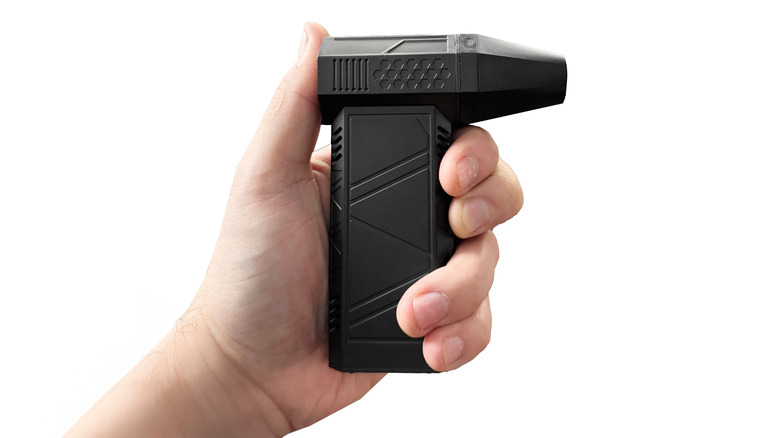
Clean Dust from Ports
Dust in Thunderbolt or HDMI ports can block connections.
- Power off your Mac.
- Use a dry, soft brush or compressed air to clean ports.
- Never use metal objects. Damage is irreversible.
Pro Move: Blow gently into the port. Sometimes that’s enough.
Frequently Asked Questions About Turning On a Mac Monitor
Where is the power button on a MacBook Pro?
The power button sits in the top-right corner of the keyboard. On Touch ID models, it appears as a blank square without a printed icon. Pressing it once turns on the Mac, and on many models, simply opening the lid also triggers an auto-boot.
How do I turn on an external monitor connected to my Mac?
First, plug the monitor into a wall outlet and press its own power button. Then connect it to your Mac using Thunderbolt, HDMI, or DisplayPort. The Mac should auto-detect the display within seconds, and your desktop will appear.
Why is my Mac screen black but the power is on?
A black screen on startup usually points to a boot failure. Try holding the power button for 10 seconds to force a restart. If your MacBook battery is below 10%, plug it in and wait a few minutes before trying again.
How do I reset the SMC on an Intel Mac?
Shut down the Mac, then hold Shift + Control + Option (left side) + Power button for 10 seconds. Release all keys and press the power button to restart. This doesn’t work on Apple Silicon Macs, which reset SMC automatically.
Can I schedule my Mac to turn on automatically?
Yes. Go to System Settings > Battery (or Energy Saver) and click Schedule. Set the Power On time for specific days. This works well for backups, remote access, or running a home server.
Why does my external monitor say “No Signal”?
This usually means the wrong input source is selected. Open the monitor’s OSD menu using its physical buttons and switch to the correct input (HDMI, DisplayPort, or Thunderbolt). Also check that the cable is fully seated at both ends.
Key Takeaways for Turning On Your Mac Monitor
Turning on your Mac monitor comes down to knowing where the power button lives and how your display connects. On MacBooks and iMacs, the built-in screen powers up with the computer. On Mac Minis, Mac Studios, and Mac Pros, you must power the external monitor separately and connect it with the right cable.
When something goes wrong, start with the basics. Check the power source, reseat the cables, and confirm the input source on the monitor. For black screen issues, try a force restart or charge the battery above 10%. For Intel Macs that won’t respond, an SMC reset often does the trick.
Your next step is simple. Bookmark this guide so you can reference the exact power button location for your Mac model whenever you need it. With these tips in hand, you’ll never face a dark screen without a clear path forward.


