
You press the power button on your HP monitor, expecting the familiar HP logo to flash across the screen. Instead, nothing happens. No light, no display, no response. This frustrating scenario affects countless HP monitor owners, particularly those using models like the HP 24fw paired with HP Pavilion desktops. The good news is that learning how to turn on HP monitor units rarely requires expensive repairs; most issues trace back to simple fixes you can handle in minutes.
This guide walks you through every step to diagnose and resolve power and signal problems. From checking basic cables to identifying when a replacement is necessary, you’ll gain the confidence to restore your display quickly and avoid unnecessary service calls.
Check Power Connection First
Before exploring complex fixes, confirm the basics. A faulty power connection causes more “dead monitor” symptoms than any other issue.
Verify Outlet and Power Cable
Plug the monitor directly into a working wall outlet. Test the outlet with a lamp or phone charger to confirm it delivers power. Bypass surge protectors or power strips during testing, since these can fail silently. Inspect the entire power cable for cuts, kinks, or fraying. Even small internal breaks can interrupt electricity flow without visible damage.
Press and Hold the Power Button
Many HP monitors use touch-sensitive buttons hidden beneath the bezel. Press firmly and hold for two to three seconds. If the button feels loose or unresponsive, try pressing it several times. Some models produce a faint click or beep when activated.
Read the Power Indicator Light
The LED provides critical clues about your monitor’s state:
- No light at all: Power is not reaching the monitor
- Solid white or blue: Monitor is on but may lack a signal
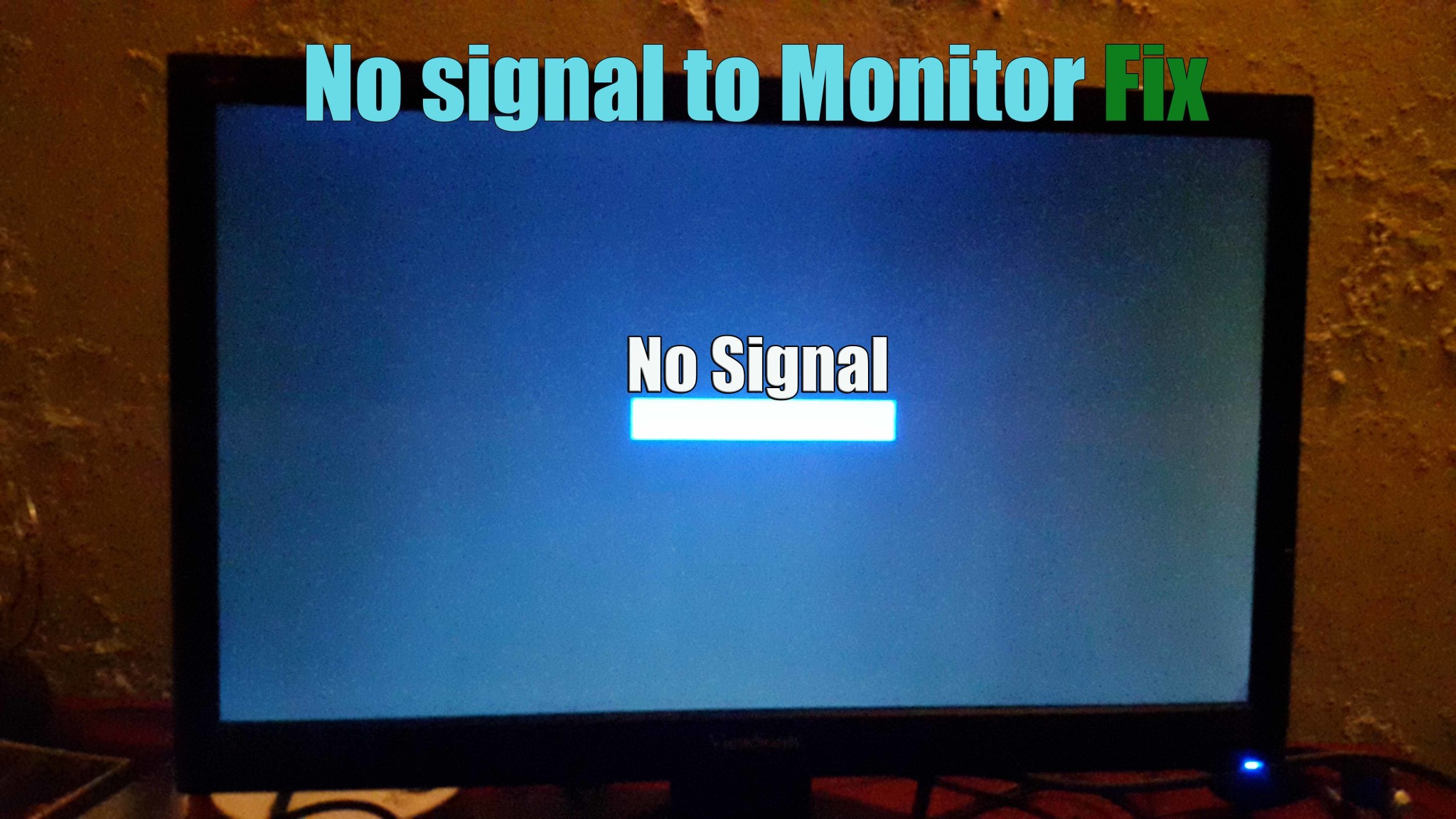
- Blinking light: Often signals “No Signal” or sleep mode
- Orange or amber: Standby mode, powered but inactive
If you see no light, focus on the power supply. If the light glows but the screen stays black, move to signal and input troubleshooting.
Resolve No Signal Problems
Even when your HP monitor powers on, a blank screen typically means it isn’t receiving video input from your computer.
Toggle Display Mode with Windows + P
Your PC might be configured to show content only on the built-in screen, ignoring the external monitor. Press Windows + P to open the Project menu. Cycle through these options:
- Duplicate
- Extend
- Second screen only
Choose Duplicate or Second screen only and check whether the display appears.
Test with a Different Device
Connect your HP monitor to a laptop, gaming console, or streaming device using the same cable. If the image appears, your original PC is the problem. Connect your PC to a TV or alternate monitor. If nothing displays there either, your computer’s graphics output is faulty.
Select the Correct Input Source

HP monitors don’t auto-detect which port you’re using. You must manually choose the right input source.
Use the Input Button to Change Sources
Find the Input or Source button on your monitor, usually located at the bottom or side. Press it to open the source selection menu. Common options include:
- HDMI 1
- HDMI 2
- DisplayPort
- VGA
Select the option matching your cable. For example, if you’re using HDMI 1, ensure that input is active in the menu.
Pro Tip: If the On-Screen Display menu doesn’t appear when pressing the Input button, your monitor may have a hardware failure. Skip to the unresponsive buttons section for next steps.
Inspect and Replace Video Cables
A damaged or loose video cable is a leading cause of display failure, even when the monitor powers on normally.
Reseat All Video Connections
Unplug the video cable from both the monitor and the PC. Wait ten seconds, then reconnect each end firmly. Listen for a click when securing DisplayPort or HDMI connectors.
Swap in a Known Working Cable
Replace your current cable with one that works on another device. Internal wires can break without any visible signs on the exterior.
Plug Into the Correct PC Port
If your computer has a dedicated graphics card, connect the monitor to the GPU ports rather than the motherboard outputs. Plugging into the motherboard while a GPU is installed results in no signal. Users without a dedicated GPU should use the video ports near the USB and audio jacks on the back of the PC.
Adjust Brightness and Reset Settings

Sometimes the monitor is on, but the brightness is set to zero, making the screen appear completely black.
Increase Brightness via the OSD Menu
Press the Menu button on your HP monitor to access the On-Screen Display. Navigate to Image then Brightness and raise the level. Check the Contrast and Backlight settings as well.
Perform a Factory Reset
Corrupted settings can prevent normal startup. Follow these steps:
- Press the Menu button
- Select System Setup or Settings
- Choose Restore Factory Defaults
- Confirm and restart
This clears custom configurations that might block the display from functioning.
Troubleshoot Unresponsive Monitor Buttons

When your HP monitor powers on but buttons do nothing and no menu appears, you’re facing a serious failure mode.
What Unresponsive Buttons Indicate
Watch for these warning signs:
- No On-Screen Display menu appears when pressing any button
- The power button cannot turn off the monitor
- The Input button has no effect
This behavior, especially when combined with a black screen and missing HP logo, strongly suggests internal hardware failure.
Confirm by Testing Multiple Devices
To verify the diagnosis:
- Connect the HP monitor to a different working PC or laptop
- Use a confirmed working cable
- Try multiple input types including HDMI and DisplayPort
If the monitor stays unresponsive across all tests, the unit itself is defective.
Critical Indicator: A monitor showing no manufacturer logo, no “No Signal” message, and unresponsive buttons is likely a faulty unit. This issue appears frequently in HP 24fw models.
Diagnose Computer-Side Problems
When the monitor works with other devices, your PC may be the source of trouble.
Boot Into Safe Mode
Restart your computer and enter Safe Mode by pressing F8 or holding Shift while clicking Restart. If the display works in Safe Mode, corrupted graphics drivers are the likely cause.
Update or Reinstall Graphics Drivers
Follow these steps:
- Press Windows + X then select Device Manager
- Expand Display adapters
- Right-click your GPU, whether Intel, NVIDIA, or AMD
- Select Update driver then choose automatic search
- If that fails, select Uninstall device and restart
Windows will reinstall the driver automatically. For best results, download the latest driver directly from your GPU manufacturer’s website.
Reseat the Graphics Card
Desktop users can try this advanced fix:
- Power off and unplug the PC
- Open the case
- Remove the GPU and reinsert it firmly into the PCIe slot
- Reconnect power cables to the GPU
- Power on and test the display
Perform a Power Cycle Reset
This straightforward fix resolves many electronic lockups and is worth trying before more invasive steps.
How to Power Cycle an HP Monitor
- Turn off the monitor using the power button
- Unplug the power cord from the back of the monitor
- Remove the power cable from the wall outlet
- Hold the power button for 15 seconds to discharge residual power
- Wait 60 seconds
- Reconnect the power cable to the monitor
- Plug the cable back into the wall
- Press the power button to turn on the unit
This clears temporary faults in the monitor’s internal circuitry and often restores normal function.
Know When to Request a Replacement
Despite your best efforts, some HP monitors cannot be repaired. Unresponsive controls combined with total signal failure typically signal the end of the unit’s life.
Signs Your HP Monitor Is Faulty
Watch for these definitive indicators:
- No display at all, including no logo or error message
- Power light on but buttons unresponsive
- Fails on multiple computers and cables
- Works perfectly on a different monitor
These symptoms confirm hardware-level failure in the mainboard, backlight, or controller.
What to Do Next
- Contact HP Support immediately
- Provide your model number such as HP 24fw and the serial number
- Describe the issue clearly: “Monitor powers on but screen is black, On-Screen Display unresponsive”
- Request warranty replacement rather than attempting internal repairs
HP typically replaces units with these symptoms instead of repairing them.
Prevent Future Power Issues
Avoid recurring problems by adopting these best practices.
Use High-Quality Cables
Invest in certified HDMI or DisplayPort cables from reputable brands. Cheap, thin cables degrade quickly and cause intermittent failures.
Keep Drivers Updated
Set up automatic GPU driver updates through your manufacturer’s software:
- NVIDIA GeForce Experience
- AMD Radeon Software
- Intel Driver and Support Assistant
Avoid Sleep Mode Lockups
Some monitors fail to wake from sleep properly. To prevent this:
- Open Control Panel then Power Options
- Change plan settings and set “Put the computer to sleep” to Never or a longer duration
- Disable fast startup under Choose what power buttons do
Frequently Asked Questions About HP Monitor Power Issues
Why is my HP monitor power light on but the screen is black?
A glowing power light with a black screen usually means the monitor is receiving electricity but no video signal. Check your cable connections, confirm the correct input source is selected, and try pressing Windows + P to toggle display modes. If the On-Screen Display menu also fails to appear, the monitor likely has internal hardware damage.
How do I force my HP monitor to turn on?
Start by holding the power button for 15 seconds while the monitor is unplugged to discharge residual power. Then reconnect the power cable and press the power button. If this power cycle doesn’t work, verify the outlet works, inspect cables for damage, and try a different video source.
What does a blinking light on my HP monitor mean?
A blinking power light typically indicates the monitor is in sleep mode or receiving no signal. Press any button on the monitor to wake it. If the blinking continues, check that your video cable is securely connected at both ends and that the correct input source is selected.
Can a bad HDMI cable prevent an HP monitor from turning on?
Yes, a damaged HDMI cable can block video signal even when the monitor powers on normally. The power LED may illuminate while the screen stays completely black. Try a different HDMI cable or switch to DisplayPort to determine whether the cable is the culprit.
How do I reset my HP monitor to factory settings?
Press the Menu button on your monitor, navigate to System Setup or Settings, then select Restore Factory Defaults. Confirm your selection and allow the monitor to restart. This clears corrupted settings that may prevent normal operation.
When should I replace my HP monitor instead of repairing it?
Replace your monitor when it shows no display at all, has unresponsive buttons, fails across multiple computers and cables, yet works fine when you test your PC with a different display. These symptoms indicate hardware failure that repair cannot reliably fix, making warranty replacement the best option.
Key Takeaways for Turning On Your HP Monitor
Learning how to turn on HP monitor units comes down to systematic troubleshooting. Start with the simplest checks: verify power connections, inspect cables, and confirm the correct input source. Most “dead monitor” symptoms stem from loose cables, wrong input settings, or PC display configuration issues rather than actual hardware failure.
When standard troubleshooting fails, perform a power cycle reset and test the monitor with another device to isolate whether the problem is the monitor or your computer. If buttons become unresponsive and no On-Screen Display appears, contact HP Support immediately for warranty replacement rather than attempting risky internal repairs.
Your next step is to work through the checklist in this guide, starting with power verification and progressing through each diagnostic stage. With patience and the right sequence, you’ll restore your display quickly and save both time and money.


