
Your Mac monitor screen collects fingerprints, dust, and smudges every single day, especially if you touch it often or work in a busy space. A dirty display looks unpleasant and can strain your eyes during long sessions. The good news: learning how to clean Mac monitor screen the right way is quick, simple, and protects your device for years.
This guide covers the exact tools, step-by-step methods, and critical mistakes to avoid. Whether you own a MacBook Pro, MacBook Air, iMac, or external Apple display, you’ll discover safe techniques that preserve the screen’s anti-reflective coating. You’ll also learn what to do if moisture enters your device and how to keep your display spotless long-term.
Power Off and Unplug Your Mac Before Cleaning
Taking a few safety steps first prevents accidental damage during the cleaning process.
Shut Down Completely
Always turn off your Mac fully before touching the screen. Cleaning a powered-on or sleeping device increases the risk of electrical issues and accidental input. For MacBook models, close the lid after shutdown to prevent activation. For iMacs or external monitors, switch off the display at the source before unplugging.
Disconnect All Cables
Unplug the power adapter and remove any connected accessories. Detaching cables keeps moisture away from ports and reduces the chance of short circuits. Wait a moment after shutdown to let internal components cool before you begin wiping.
Choose the Right Cloth for Your Mac Monitor Screen

The material you use matters just as much as the cleaning solution.
Why Microfiber Works Best
A soft, lint-free microfiber cloth is the safest option for any Mac monitor screen. The kind sold for eyeglasses or camera lenses works perfectly. These cloths lift dust and oils without scratching delicate coatings or leaving fibers behind.
Cloths to Avoid
Skip paper towels, tissues, napkins, or rough fabrics entirely. These materials feel soft but contain fibers that scratch anti-glare surfaces over time. They also leave lint deposits that make the screen look worse than before.
Dry Wipe Method for Daily Cleaning
Start with the gentlest approach before adding any moisture.
Remove Dust and Light Smudges
Use a completely dry microfiber cloth to wipe the screen using straight horizontal or vertical strokes. Circular motions can trap tiny grit particles and cause micro-scratches with repeated use. Work from top to bottom with minimal pressure to lift loose debris and light fingerprints.
Pro tip: If the screen feels gritty, blow off loose dust first with a bulb blower or a gentle burst of compressed air held at a safe distance.
Buff in Straight Lines
Dry buffing restores clarity and works well for routine maintenance. Most smudges disappear with consistent, gentle wiping and no liquid at all. A quality microfiber cloth lasts for years when washed regularly with mild detergent and air-dried.
Damp Cloth Method for Stubborn Smudges
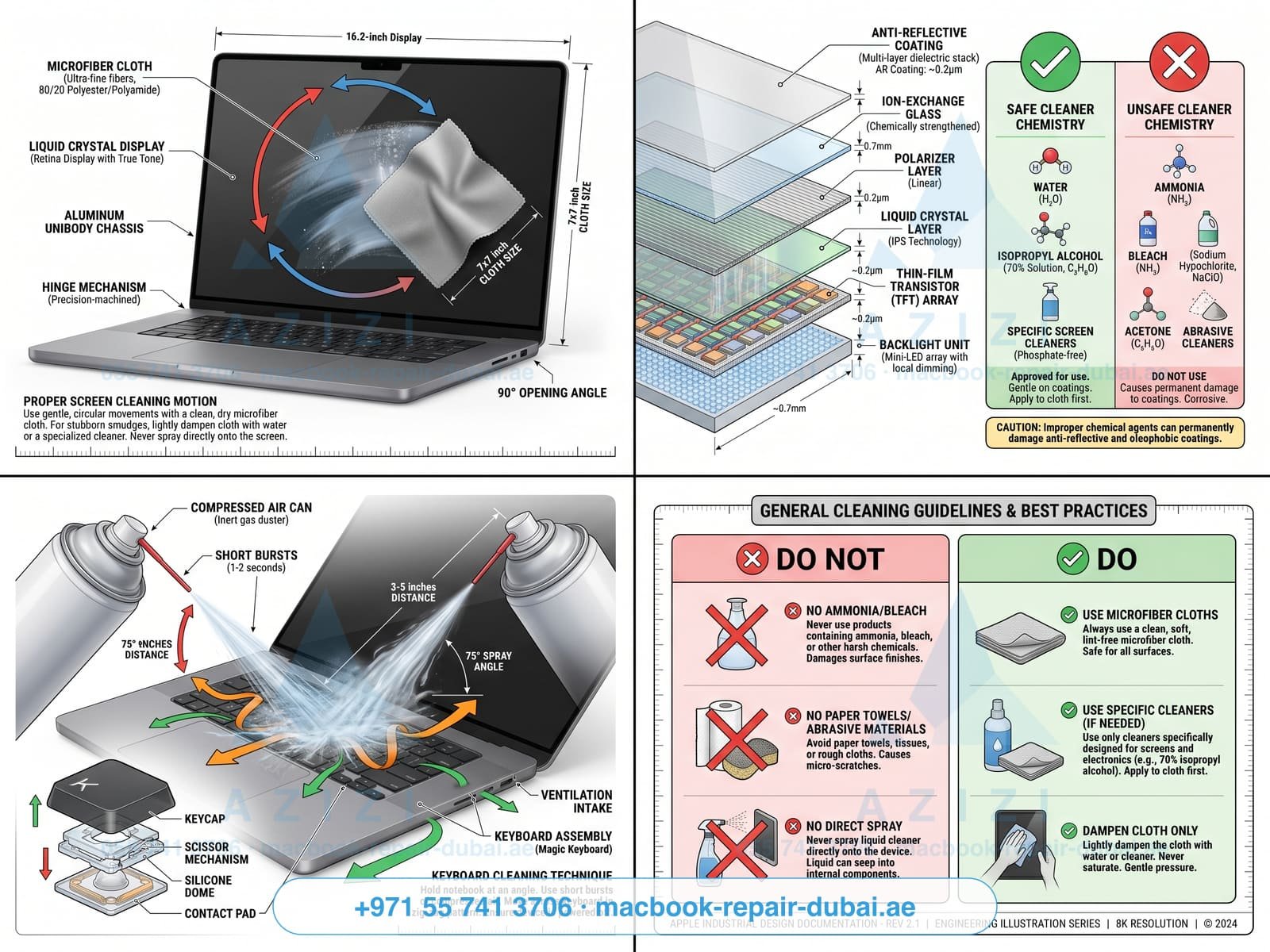
When dry wiping leaves marks behind, add a small amount of water.
Moisten With Water Only
Dampen a corner of your microfiber cloth with distilled or filtered water. Wring it out thoroughly so the cloth feels barely moist, not wet. You should not be able to squeeze any visible liquid from the fabric. Tap water contains minerals that may leave streaks, so filtered water gives better results.
Wipe and Dry Immediately
Gently wipe the screen using side-to-side strokes without pressing hard. After one pass, switch to a dry section of the cloth or grab a second dry cloth to remove moisture right away. This prevents streaks and stops liquid from seeping into the screen edges.
Warning: Keep water away from the bezel and corners where it can slip into the device.
Use LCD Cleaner for Deep Cleaning

For tougher buildup, a screen-safe solution works best.
Pick a Safe Screen Cleanser
Choose a cleaner specifically labeled for LCD, plasma, or electronics screens. These formulas are alcohol-free and non-abrasive. Avoid window cleaners, disinfectants, or multipurpose sprays. Check the ingredients list and skip anything containing ammonia, acetone, or hydrogen peroxide.
Apply to Cloth, Never to Screen
Spray one or two small bursts onto your microfiber cloth. The cloth should feel slightly damp, never dripping. Never spray the solution directly onto the display, since liquid can seep into seams and damage internal parts. Use one section of the cloth for cleaning and a dry section for buffing.
Clean and Buff in One Motion
Wipe the screen gently in straight lines, overlapping each stroke slightly for full coverage. Follow immediately with the dry portion of the cloth to prevent residue. This method removes oils, haze, and stubborn smudges without harming protective coatings.
Try Pre-Moistened Electronics Wipes
Wipes offer a convenient option for quick cleanups.
Select Wipes Designed for Screens
Use wipes made specifically for electronics, LCD screens, or lenses. Avoid disinfectant wipes like Clorox or Lysol, even when they seem gentle. These products often contain alcohol or citric acid that gradually damages screen coatings.
Wipe Gently and Let Dry
Use one wipe for the entire screen and never fold or reuse it. Wipe from top to bottom with light, even pressure. Let the display air dry completely before closing the lid or powering the device back on. Do not rub aggressively.
Expert note: Store opened wipes in a sealed bag to prevent them from drying out between uses.
Clean Different Mac Displays Correctly
:max_bytes(150000):strip_icc()/cleanmacbookscreen2-495717a84b1a45da879113f9aa56bc64.JPG)
Each Mac model requires slight adjustments to your cleaning routine.
MacBook Pro and Air Screens
Lay the MacBook flat with the screen open and facing up, allowing the keyboard to stick up in the air. This position prevents moisture from running into the keyboard or hinge area. Clean only the display and avoid getting liquid near the camera housing or speaker grilles.
iMac and Studio Display
Power off and unplug the iMac before cleaning. Tilt the screen slightly downward if your stand allows it, which reduces glare during wiping. Support the back of the device while cleaning to avoid strain on the stand. Keep moisture away from the camera and base connections.
External Apple Monitors
Follow the same steps used for an iMac. Make sure Thunderbolt and power cables are fully disconnected before you start. Wait until the screen dries completely before reconnecting anything and powering back on.
Products That Damage Your Mac Monitor Screen
Some common household items cause permanent harm to displays.
Skip Paper Towels and Tissues
These materials feel soft but scratch the anti-glare coating with repeated use. They also leave lint and fibers that build up over time and make the screen look hazy.
Avoid Ammonia and Alcohol Cleaners
Products like Windex, rubbing alcohol, or hand sanitizer strip protective layers and cause clouding or discoloration. One user reported a permanently cloudy screen after using ammonia, which required a costly replacement.
Never Use Aerosol Sprays
Even products labeled as safe can force liquid into seams and ports when sprayed near the device. Always apply cleaner to a cloth first, never into the air around your Mac.
What to Do If Liquid Gets Inside Your Mac
Acting fast can save your device from permanent damage.
Power Down Right Away
If you notice moisture under the screen or inside the device, shut down your Mac immediately. Unplug all cables and accessories. Do not attempt to use the computer until it has dried completely.
Dry the Device Thoroughly
Wipe off visible moisture with a dry microfiber cloth. Place the Mac in a warm, dry room away from direct sunlight or heaters. Let it sit undisturbed for at least 72 hours to allow internal moisture to evaporate fully.
Contact an Authorized Service Provider
After drying, if the screen shows spots, flickers, or refuses to turn on, reach out to an Apple Authorized Service Provider. Liquid damage is not covered by warranty, but early intervention may save the display from total failure.
Prevent Smudges With Simple Habits
A few small habits keep your Mac monitor screen cleaner for longer.
Wash Hands Before Use
Oils from fingers cause most visible smudges. Clean hands mean fewer marks and less frequent cleaning sessions throughout the week.
Add a Screen Protector
Apply a matte or anti-glare screen protector to MacBook or iMac displays. It shields the original surface from scratches and can be replaced easily when worn out.
Clean on a Weekly Schedule
Schedule a quick dry wipe once a week and a damp clean once a month. Consistent maintenance prevents buildup and keeps the display looking sharp year-round.
Frequently Asked Questions About Cleaning Mac Monitor Screens
Can I use Windex to clean my Mac monitor screen?
No. Windex contains ammonia, which strips the anti-reflective coating on Mac displays and causes permanent clouding or discoloration. Use only water or a cleaner specifically designed for LCD screens.
How often should I clean my Mac monitor screen?
A quick dry wipe once a week handles everyday dust and fingerprints. A deeper damp clean once a month removes oils and stubborn smudges without overusing moisture on the display.
Can eyeglass cleaner damage a Mac monitor screen?
Some eyeglass cleaners contain alcohol or ammonia that harms screen coatings. Check the ingredients first and compare them to a standard LCD cleaner before using any eyeglass product on your Mac.
What if my Mac monitor screen looks cloudy after cleaning?
Cloudiness usually means a harsh chemical stripped the protective coating. Unfortunately, this damage is permanent. Visit a repair shop outside Apple support to discuss screen replacement options.
Is it safe to use disinfectant wipes on a Mac monitor screen?
No. Disinfectant wipes like Clorox or Lysol contain alcohol or citric acid that gradually damages screen coatings. Use wipes made specifically for electronics or LCD screens instead.
What should I do if water gets inside my MacBook?
Power off the device immediately and unplug everything. Dry visible moisture with a towel, then place the MacBook in a warm, dry area for at least 72 hours. Do not power it on until completely dry, and contact an Apple Authorized Service Provider if problems persist.
Key Takeaways for Cleaning Your Mac Monitor Screen
Learning how to clean Mac monitor screen properly protects your investment and keeps your display looking new. Always start with a dry microfiber cloth, add water only when needed, and avoid harsh chemicals like ammonia or alcohol. Power off your device before cleaning, never spray liquid directly on the screen, and act fast if moisture enters the device.
Make screen care part of your weekly routine. A few minutes of gentle maintenance prevents buildup, reduces eye strain, and extends the life of your Mac’s display. Pick up a quality microfiber cloth today and give your screen the care it deserves.


