
You’ve set up your new ViewSonic monitor, connected all the cables, and pressed every visible button, yet the screen stays dark. The frustration is real, especially when you can’t even locate the power control. Unlike most monitors with front-facing buttons, ViewSonic hides its power button on the back or side-rear panel for a cleaner design. This placement confuses many first-time users who spend minutes searching the front bezel.
This guide reveals exactly where to find the power button on any ViewSonic monitor, how to press it correctly, and what to do if the display still won’t respond. You’ll learn the verified button locations from real ViewSonic owners, how to interpret LED indicator lights, and quick fixes for the most common startup problems.
Find the Power Button on Your ViewSonic Monitor
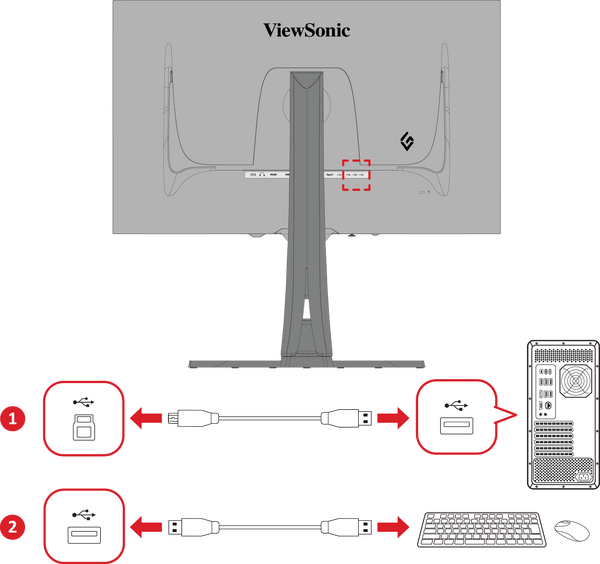
ViewSonic places the power button on the rear panel rather than the front. This design choice keeps the front bezel sleek but creates a learning curve for new users.
Back-Right Side Placement (Most Common)
According to verified ViewSonic owners, the power button sits on the back-right side of the display, about halfway up from the bottom. Reach behind your monitor and run your fingers along the right edge near the center. You’ll feel a small, tactile button labeled with the universal power symbol. Press it once firmly to power on the unit.
Back-Left Side Placement (Some Models)
Not all ViewSonic monitors follow the same layout. Confirmed users report that certain models place the power button on the back-left side instead. If you don’t find anything on the right edge, check the left side using the same method. Both placements are legitimate across different ViewSonic series.
Locate the Button Cluster
The power button usually sits alongside other controls like Menu, Input, or Brightness. These buttons are small, round, and grouped together on the rear panel. The power button is typically the one marked with the ⏻ symbol or positioned at the edge of the cluster. Official ViewSonic support confirms that power and menu buttons are located on the back of the display alongside the right-hand side.
Power On the Monitor Correctly
Once you’ve found the button, follow these steps to turn on your ViewSonic monitor without issues.
Press the Button Once
A single press should activate the monitor. Most models respond instantly with a brief LED flash or a soft click sound. Avoid holding the button down unless nothing happens after the first press.
Hold for 2–3 Seconds If Needed
Some ViewSonic monitors require a longer press to register input, especially after being unplugged or in standby mode. If a quick press does nothing, press and hold the power button for 2–3 seconds before releasing.
Check the Power LED
After pressing, look for an LED indicator near the button or along the bottom front edge. A solid blue, white, or green light confirms the monitor is on. A red or amber glow usually signals standby mode. No light at all points to a power delivery problem rather than a button malfunction.
Troubleshoot a Monitor That Won’t Power On
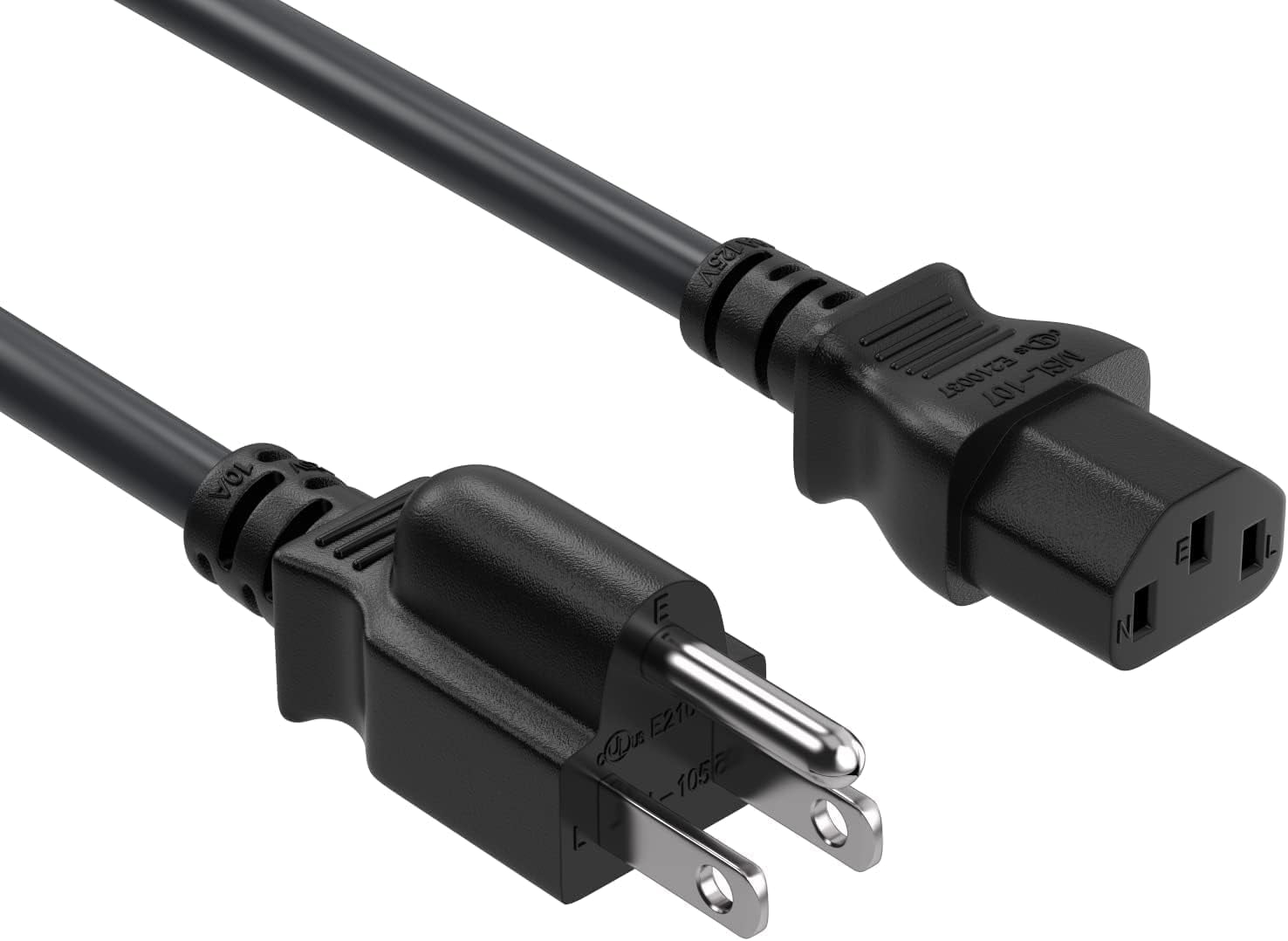
Even after locating the correct button, your ViewSonic monitor might stay dark. Here’s how to diagnose the issue step by step.
Verify the Power Cable Connection
A loose or disconnected power cable is the top reason a monitor fails to turn on. Check both ends of the cable to confirm a secure fit. Try a different wall outlet if the current one might be dead or switched off.
Inspect the Power Adapter
Many ViewSonic monitors use an external power brick rather than a built-in supply. Look for visible damage like burn marks, swelling, or frayed wires. A failed adapter cannot deliver power to the display, no matter how many times you press the button.
Bypass Power Strips and Surge Protectors
Plug the monitor directly into a wall outlet to rule out a faulty power strip. Surge protectors can fail silently and block electricity without showing obvious signs of damage. If the monitor powers on when connected directly to the wall, replace the surge protector.
Fix a Blank Screen After the Monitor Powers On
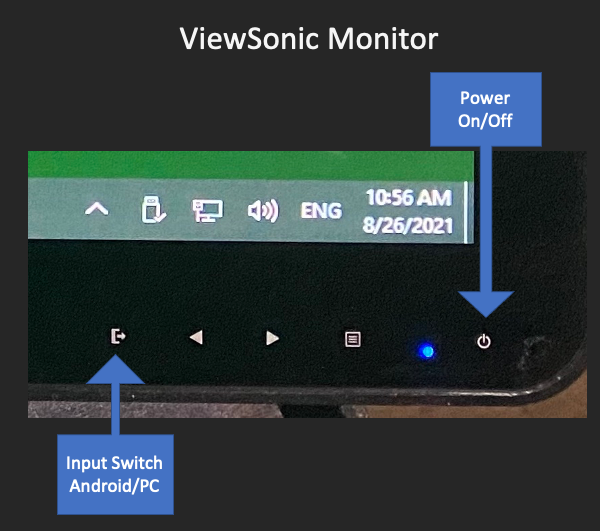
Sometimes the LED lights up but the screen stays black. This signals a connection problem rather than a power failure.
Select the Correct Input Source
Press the Input or Source button on the rear panel to cycle through available connections like HDMI, DisplayPort, or VGA. The selected input must match the cable you’re using. A mismatch causes a blank screen even when the monitor is fully powered.
Confirm the Computer Is Sending a Signal
Ensure your PC, laptop, or gaming console is fully awake and outputting video. Restart the connected device to refresh the signal. Sleep mode or a loose cable often mimics a monitor failure.
Try a Different Cable or Port
Swap your HDMI or DisplayPort cable with a known-working one. Test alternate ports on both the monitor and your computer. A single faulty port can prevent the display from receiving any signal.
Understand ViewSonic LED Indicator Codes

The small LED on your monitor communicates its current status through color and behavior. Learning these codes speeds up troubleshooting.
Solid Blue or White Light
This indicates the monitor is on and receiving power. If the screen remains blank with this light showing, the issue lies with the input signal, not the power button.
Blinking Red or Amber Light
A flashing red or amber LED usually means the monitor is in standby mode or experiencing power instability. Check all cable connections and try a different outlet.
No Light at All
Complete darkness from the LED suggests no electricity is reaching the monitor. Test the power cable, adapter, and wall outlet before assuming internal hardware damage.
Prevent Future Power Button Issues
Simple maintenance habits keep your ViewSonic monitor responsive for years.
Power Down Before Unplugging
Always turn off the monitor using the power button before disconnecting cables. Sudden power cuts can stress internal components over time.
Keep the Button Area Clean
Dust buildup around the rear buttons can cause sticking or unresponsiveness. Wipe the area with a dry cloth every few months to maintain reliable contact.
Use a Surge Protector
Plug your monitor into a quality surge protector to guard against voltage spikes. This small investment prevents costly damage from electrical storms or grid fluctuations.
When to Contact ViewSonic Support
If you’ve verified all cables, tested multiple outlets, located the correct button, and still see no response, the issue may be internal hardware failure. Contact ViewSonic Customer Support with your model number and proof of purchase. Many power-related defects fall under the standard warranty period.
Frequently Asked Questions About Turning On a ViewSonic Monitor
Where exactly is the power button on a ViewSonic monitor?
The power button is located on the back of the display, typically on the right-hand side about halfway up from the bottom. Some models place it on the back-left side instead. ViewSonic’s official support confirms this rear placement alongside the menu controls.
Why won’t my ViewSonic monitor turn on even when I press the button?
Common causes include a loose power cable, a dead wall outlet, or a failed power adapter. Test the outlet with another device and swap the cable if possible. If the LED indicator shows no light at all, the problem is power delivery rather than the button itself.
How long should I hold the power button on a ViewSonic monitor?
Press the button once for a normal startup. If nothing happens, hold the button for 2–3 seconds before releasing. Avoid holding longer than 5 seconds, as this may trigger a reset on some models.
What does a blinking red light mean on my ViewSonic monitor?
A blinking red or amber LED typically signals standby mode or unstable power. Check that all cables are secure and the wall outlet is functioning. If the blinking continues after troubleshooting, contact ViewSonic support for further diagnosis.
Can I turn on a ViewSonic monitor without the power button?
No alternative power-on method exists for standard ViewSonic monitors. The rear button is the only way to activate the display. If the button is physically broken, professional repair or warranty service is required.
Do all ViewSonic monitors have the power button in the same place?
No. While most models place the button on the back-right side, verified users report some units use the back-left side instead. Always check both rear edges if you cannot locate the control immediately.
Key Takeaways for Powering On Your ViewSonic Monitor
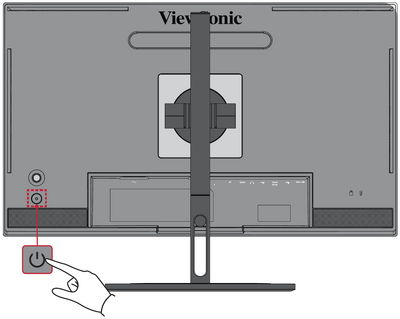
The hidden rear placement of the power button trips up most new ViewSonic owners. Remember these core points: the button sits on the back panel (usually the right side halfway up), a single press starts most models, and a solid LED confirms successful power. If the screen stays dark, work through cables, outlets, and adapters before assuming hardware failure.
Your next step is simple. Reach behind your monitor right now, locate the button using this guide, and press it once. If the display lights up, you’re ready to enjoy your ViewSonic monitor. If not, revisit the troubleshooting sections to identify the exact issue and apply the right fix.


