
You sit down to focus on an important task, but your second monitor keeps pulling your attention with notifications, chats, or an open browser. Or perhaps you want to disconnect your laptop quickly without unplugging cables. Whatever the situation, learning how to turn off second monitor setups is a simple skill that saves time and boosts productivity for any Windows user.
The best part: you don’t need to unplug anything or restart your computer. Windows includes several built-in methods to disable your secondary display in seconds, whether you run Windows 10 or 11, with NVIDIA, AMD, or Intel graphics. These approaches are safe, instant, and easy to reverse when you need dual screens again.
Use Windows Display Settings for Universal Control
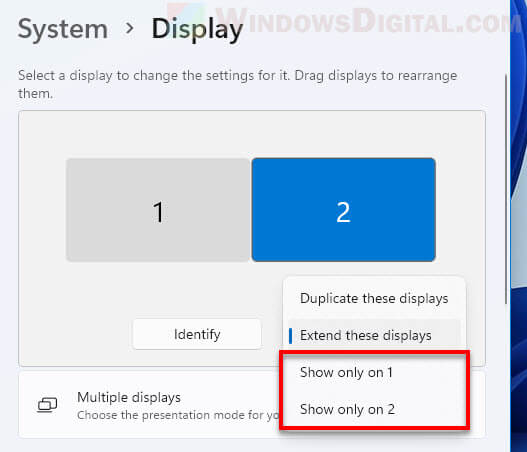
This approach works on every Windows system, regardless of your graphics hardware or GPU brand.
Choose “Show Only on 1” or “Show Only on 2”
- Press Win + I to open Settings.
- Navigate to System, then select Display.
- Scroll to the Multiple displays dropdown menu.
- Pick one of these options:
• Show only on 1 keeps your primary monitor active
• Show only on 2 turns off the first screen and uses only the second
The second monitor goes black immediately after selection. Click Keep changes when prompted to confirm.
Pro Tip: To figure out which monitor is “1” or “2,” click the monitor thumbnails in Display Settings and choose Identify. A large number appears on each screen, making it easy to tell them apart.
This method works best for users who want full control without memorizing shortcuts or installing extra tools.
Press Windows + P for the Fastest Toggle

When speed matters, this keyboard shortcut delivers the quickest way to switch display modes.
Select “PC Screen Only”
- Press Windows + P on your keyboard.
-
A sidebar opens with four display options:
• PC screen only disables the second monitor
• Second screen only turns off the primary display
• Extend activates both monitors independently
• Duplicate mirrors the same image on both screens -
Use arrow keys or click PC screen only, then press Enter.
Your second monitor powers down instantly with no confirmation prompt required.
Why This Works: The shortcut takes less than two seconds and functions even while running fullscreen apps or games.
Reach for this method before screen sharing in meetings or when switching to laptop-only mode quickly.
Disable Through NVIDIA Control Panel

NVIDIA GPU users get more detailed display management through their dedicated control panel.
Uncheck the Monitor in Layout View
- Right-click anywhere on your desktop.
- Choose NVIDIA Control Panel from the context menu.
- Head to Display, then select Set up multiple displays.
- A visual layout shows your connected monitors.
- Uncheck the box beside the second monitor.
- Click Apply to save your changes.
The unselected monitor shuts off immediately after applying the setting.
Note: This approach only works with NVIDIA graphics cards. AMD users should open Radeon Software, while Intel users need the Intel Graphics Command Center for similar functionality.
This path suits users who prefer centralized GPU control panels and want visual confirmation of their display setup.
Force a Display Detection Refresh
Sometimes Windows fails to apply display changes correctly. A quick refresh often fixes these glitches.
Click “Detect” in Display Settings
- Right-click the desktop and select Display settings.
- Under the monitor diagram, click the Detect button.
- Windows scans for connected displays and reapplies your current configuration.
If the second monitor still refuses to turn off, try resetting the graphics driver next.
Reset Your Graphics Driver
- Press and hold Windows + Ctrl + Shift + B.
- Release after one second.
- The screen flashes briefly, signaling the GPU driver has restarted.
This action doesn’t shut down your PC but forces the graphics subsystem to reinitialize, often fixing unresponsive display issues.
Warning: Open apps may flicker or pause momentarily. Save your work before running this reset.
Use this fix when your monitor stays on despite correct settings being applied.
Troubleshoot When the Monitor Won’t Turn Off
Even with correct steps, the second monitor sometimes stays active. Try these solutions.
Wait a Few Seconds Before Retrying
Display changes can take 3 to 5 seconds to apply. Don’t assume the method failed—give it a moment before trying again.
Check Cable Connections
Loose HDMI, DisplayPort, or USB-C cables cause communication errors between your PC and monitor.
• Unplug and replug both ends of the cable
• Try a different port on your PC or monitor
Verify the Monitor Input Source
Many monitors accept multiple inputs like HDMI 1, HDMI 2, or DisplayPort.
• Press the Input or Source button on your monitor
• Manually select the correct port matching your cable
• Ensure the selected input matches the connection type you’re using
Update Your Graphics Drivers
Outdated drivers prevent proper display control on many systems.
- Press Win + X and select Device Manager.
- Expand the Display adapters section.
- Right-click your GPU and choose Update driver.
- Select Search automatically for drivers.
Alternatively, download the latest driver directly from NVIDIA, AMD, or Intel’s official website.
Restart Your PC
A reboot clears temporary glitches and reapplies display settings from scratch. After restart, check whether the second monitor stays off as intended.
Re-enable Dual Monitor Mode
When you’re ready to use both screens again, reactivating them takes just as little effort.
Use Windows + P to Restore Both Screens
- Press Windows + P again.
- Select Extend to use both monitors independently.
- Or choose Duplicate to mirror your desktop across both screens.
Your second monitor wakes up and syncs within seconds.
Restore Through Display Settings
- Open Settings, then go to System > Display.
- In the Multiple displays dropdown, select:
• Extend these displays
• Or Duplicate these displays
Both options fully restore dual-screen functionality.
Expert Tip: Enable Remember window locations in Display Settings on Windows 11 so apps return to their original monitor after reconnection.
Confirm Your Active Display Settings
After disabling the second monitor, verify everything works as expected.
Identify the Active Monitor
In Display settings, the active monitor shows several key indicators:
• It appears as “1” or “2” in the layout diagram
• It allows resolution and scale adjustments
• It responds to cursor movement
The disabled monitor appears grayed out and unresponsive to input.
Adjust Layout and Scaling on the Active Display
Now that you’re using one screen, consider these adjustments:
• Increase text size through the Scale option if needed
• Change orientation between portrait and landscape
• Set refresh rate for smoother visuals during use
These settings apply only to the currently active display.
When Disabling a Second Monitor Makes Sense
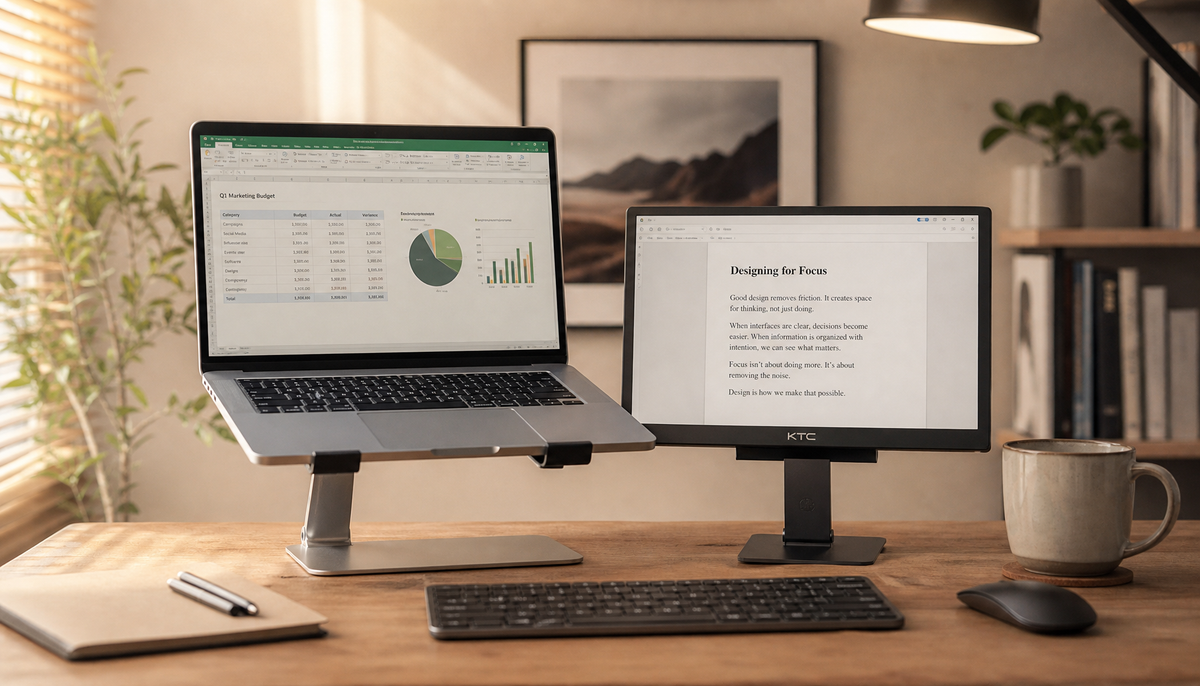
Switching to single-display mode serves real productivity and performance goals beyond simple convenience.
Focus on One Task at a Time
Eliminate distractions from email, chat, or social media open on the second screen. This approach works great for deep work sessions requiring sustained attention.
Troubleshoot Display Issues
Isolate problems by disabling the second monitor. If the secondary screen shows flickering or no signal, turning it off helps determine whether the issue lies with the cable, GPU, or monitor itself.
Conserve Laptop Battery Life
Running two screens increases GPU load and drains battery faster. Disable the external monitor when working unplugged to extend runtime.
Protect Privacy During Screen Sharing
Before joining a Zoom or Teams call, disable the second monitor to avoid accidentally exposing private content to meeting participants.
Reduce GPU Load for Better Performance
Gamers and video editors can free up graphics resources by disabling secondary displays, improving performance on the main screen during intensive tasks.
Quick Comparison of All Methods
| Method | Speed | Reversible | Hardware Required |
|---|---|---|---|
| Windows + P | Fastest | Yes | None |
| Display Settings | Medium | Yes | None |
| NVIDIA Control Panel | Medium | Yes | NVIDIA GPU |
| AMD Radeon Software | Medium | Yes | AMD GPU |
| Intel Graphics Center | Medium | Yes | Intel iGPU |
All methods are safe, non-destructive, and take less than 30 seconds to complete.
Final Recommendation: Use Windows + P > PC screen only when speed matters most. Use Display Settings when you need precision and full control.
Frequently Asked Questions About Turning Off a Second Monitor
Does turning off a second monitor affect performance?
Disabling your second monitor can slightly improve performance, especially on laptops. Running two displays increases GPU load, so switching to single display mode frees up graphics resources for your primary screen.
Will my apps move when I turn off the second monitor?
Most apps stay on your primary display automatically. In Windows 11, you can enable Remember window locations so apps return to their original monitor when you reconnect the second screen.
Can I turn off the second monitor with a keyboard shortcut?
Yes. Press Windows + P to open the Project menu, then select PC screen only. This is the fastest way to disable your second monitor without opening Settings.
Why won’t my second monitor turn off after following these steps?
Try waiting a few seconds, checking cable connections, verifying the correct input source, updating graphics drivers, or restarting your PC. These steps resolve most stubborn display issues.
Is it safe to disable a second monitor repeatedly?
Absolutely. All these methods are reversible and non-destructive. You can toggle between single and dual monitor setups as often as needed without harming your hardware or software.
Do I need special software to turn off a second monitor?
No special software is required. Windows includes built-in tools like Display Settings and the Windows + P shortcut. NVIDIA, AMD, and Intel users can also use their respective GPU control panels.
Key Takeaways for Turning Off Your Second Monitor
Learning how to turn off second monitor setups gives you instant control over your workspace. The Windows + P shortcut delivers the fastest results, while Display Settings offers more precision. GPU-specific control panels from NVIDIA, AMD, and Intel provide extra options for users who prefer dedicated software.
Start by trying the Windows + P shortcut for immediate results. If you need more control, explore Display Settings or your GPU’s control panel. Save the troubleshooting tips for situations where the monitor refuses to turn off, and you’ll handle any display configuration challenge with confidence.


