
You might wonder how long does a monitor last after noticing your screen looks dimmer or colors seem washed out. Most displays function well for 5 to 10 years before significant degradation affects your daily work or gaming experience.
This guide details exact lifespans for LED OLED and LCD panels while highlighting specific failure signs like burn-in or backlight dimming. You will learn practical maintenance habits that extend panel life by 30 percent and discover when upgrading makes more financial sense than repairing an aging unit.
Average Lifespan Expectations by Display Technology
Different panel technologies age at vastly different rates due to their unique internal structures. Knowing your specific display type helps you predict potential failure points and plan for future replacements effectively.
LED and LCD Panel Durability
LED-backlit LCD monitors represent the current industry standard for general use. These panels typically offer a lifespan between 50,000 and 100,000 hours of operation.
* Theoretical usage suggests a single unit could last 17 to 34 years at 8 hours daily.
* Real-world replacement usually occurs after 5 to 10 years due to feature obsolescence.
* Gradual brightness loss is the primary indicator of aging in these units.
OLED Degradation Timelines
OLED panels provide superior contrast but use organic materials that degrade faster than inorganic LEDs. Users often notice visible wear within 3 to 5 years of regular use.
* Static elements like taskbars cause uneven aging known as burn-in.
* Color balance shifts as organic compounds deteriorate at different rates.
* Manufacturers rate these for 20,000 to 40,000 hours before significant luminance drop.
TN and IPS Panel Longevity
Twisted Nematic (TN) panels often show color fading after 30,000 to 50,000 hours of use. In-Plane Switching (IPS) panels generally outlast TN variants with better color retention over time.
* TN panels suffer from reduced vibrancy and contrast after 5 to 7 years.
* IPS displays often provide 8 or more years of reliable service in mixed environments.
* Both types eventually experience backlight dimming as the primary failure mode.
Critical Factors That Shorten Monitor Life
Environmental conditions and usage habits play a larger role in longevity than manufacturing quality alone. Ignoring these stressors can cut your monitor lifespan in half regardless of the panel type.
Impact of Continuous Operation
Running a display 24 hours a day creates constant thermal stress on internal components. A monitor used non-stop reaches its hour limit in roughly 5.7 years compared to over a decade with normal use.
* Enable automatic sleep modes after 15 minutes of inactivity.
* Turn off the display during long breaks to reduce heat buildup.
* Avoid leaving static images on screen for extended periods.
Effects of High Brightness Settings
Operating at maximum brightness generates excessive heat that accelerates LED and organic material decay. Reducing your brightness setting by 30 percent can extend panel life by up to 30 percent.
* Lower brightness reduces thermal stress on the backlight system.
* Eye strain decreases significantly with moderate luminance levels.
* Energy consumption drops alongside the risk of premature failure.
Heat and Ventilation Issues
Dust accumulation blocks ventilation ports and traps heat inside the monitor casing. High internal temperatures damage capacitors and accelerate the chemical breakdown of display materials.
* Clean air vents monthly using compressed air to remove dust bunnies.
* Ensure at least two inches of clearance behind the monitor for airflow.
* Avoid placing displays near direct sunlight or heating sources.
Signs Your Monitor Is Failing
Early detection of hardware issues allows you to backup data and plan a replacement before total black screen failure occurs. Watch for these specific visual anomalies.
Dead or Stuck Pixels
A dead pixel remains black while a stuck pixel stays red green or blue permanently. While a few isolated pixels are normal an increasing count indicates widespread panel degradation.
* Use pixel fixing software for minor stuck pixel issues.
* Check your warranty policy as some brands cover excessive dead pixels.
* Replace the unit if dead pixels spread across the viewing area.
Screen Dimming and Backlight Failure
Aging backlights lose their ability to reach previous brightness levels even at maximum settings. This gradual dimming forces users to squint and indicates the end of the display useful life.
* Compare your screen side-by-side with a newer monitor model.
* Look for uneven lighting or dark spots near the edges.
* Accept that backlight replacement is rarely cost-effective for older units.
Color Shift and Burn-in Artifacts
Colors may appear washed out yellow or green as the panel ages and filters degrade. Burn-in manifests as permanent ghost images of logos or menus on OLED and some LCD screens.
* Display a solid color test image to check for uniformity.
* Note any permanent shadows from window borders or toolbars.
* Understand that burn-in is irreversible and requires panel replacement.
Flickering and Intermittent Blackouts
Random flickering or sudden signal loss often points to failing power boards or loose internal connections. These stability issues usually worsen over time until the monitor fails completely.
* Swap cables and test with a different computer to rule out source issues.
* Listen for buzzing sounds that accompany visual flickering.
* Prepare for immediate replacement if flickering becomes frequent.
When to Replace vs Repair Your Monitor
Deciding between repair and replacement depends heavily on the specific component failure and the age of your device. Most panel-level issues justify buying a new unit immediately.
Cost-Effective Repair Scenarios
Minor internal faults like blown capacitors or loose power ports can sometimes be fixed cheaply. These repairs make sense for high-end professional displays or vintage units with sentimental value.
* Power board replacements often cost between 20 and 50 dollars.
* Resoldering loose HDMI ports can restore connectivity instantly.
* DIY capacitor replacement is viable for those with electronics skills.
Non-Repairable Panel Failures
Damage to the actual display panel including burn-in severe bleed or widespread dead pixels is economically unviable to fix. Replacement panels often cost 70 to 100 percent of a new monitor price.
* Burn-in cannot be reversed through software or hardware fixes.
* Severe backlight bleed affects the entire viewing experience permanently.
* Widespread color inaccuracy indicates irreversible chemical degradation.
Technological Obsolescence Triggers
Your monitor might be functionally dead due to outdated ports or low resolution despite working hardware. Upgrading ensures compatibility with modern graphics cards and media standards.
* Lack of HDMI 2.0 or DisplayPort limits high refresh rate gaming.
* 1080p resolution feels pixelated on screens larger than 24 inches today.
* Missing adaptive sync technologies cause screen tearing in games.
Proven Maintenance Tips to Extend Monitor Life
Simple operational habits can quantitatively extend the functional lifespan of your display hardware. These strategies reduce thermal stress and slow down chemical degradation processes.
Automate Sleep and Power Settings
Configuring your operating system to enter sleep mode automatically prevents unnecessary wear. This single habit can add 1 to 2 years to your monitor total lifespan.
* Set the display to turn off after 10 minutes of inactivity.
* Use screensavers that display black images for OLED panels.
* Manually power down during lunch breaks or long meetings.
Optimize Brightness for Environment
Matching screen brightness to ambient room lighting reduces strain on the backlight system. Running at 70 to 80 percent brightness is often sufficient for most office environments.
* Use ambient light sensors if your monitor supports automatic adjustment.
* Lower brightness settings in dimly lit rooms to save energy.
* Calibrate colors regularly to maintain accuracy without maxing intensity.
Regular Cleaning and Dust Management
Dust acts as an insulator that traps heat and accelerates component aging. Keeping vents and surfaces clean ensures optimal thermal performance year after year.
* Wipe screens gently with a microfiber cloth and safe cleaner.
* Blow out ventilation grilles with compressed air every month.
* Avoid using paper towels or harsh chemicals that damage coatings.
Brand Reliability and Lifespan Comparison
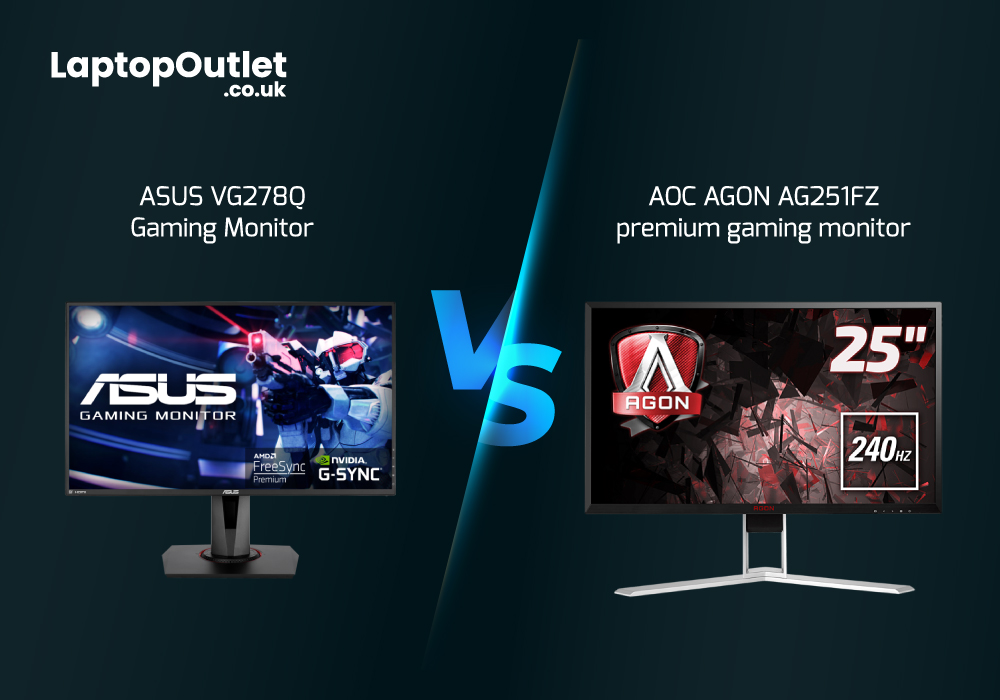
User reports indicate distinct differences in durability across major manufacturers. Premium brands often utilize higher quality capacitors and better shielding for longer service life.
| Brand | Average Lifespan | Key Strengths | Common Weaknesses |
|---|---|---|---|
| ASUS | 6 – 9 Years | Robust gaming build quality | Backlight bleed over time |
| Dell | 5 – 8 Years | Excellent color accuracy | Gradual screen dimming |
| LG | 4 – 7 Years | Crisp visual clarity | OLED burn-in risks |
| AOC | 4 – 6 Years | Budget-friendly pricing | Lower overall build quality |
- Premium models generally offer better long-term value despite higher upfront costs.
- Gaming-specific lines often feature enhanced cooling for durability.
- Budget tiers may compromise on component quality to achieve lower prices.
Economic Benefits of Early Upgrades
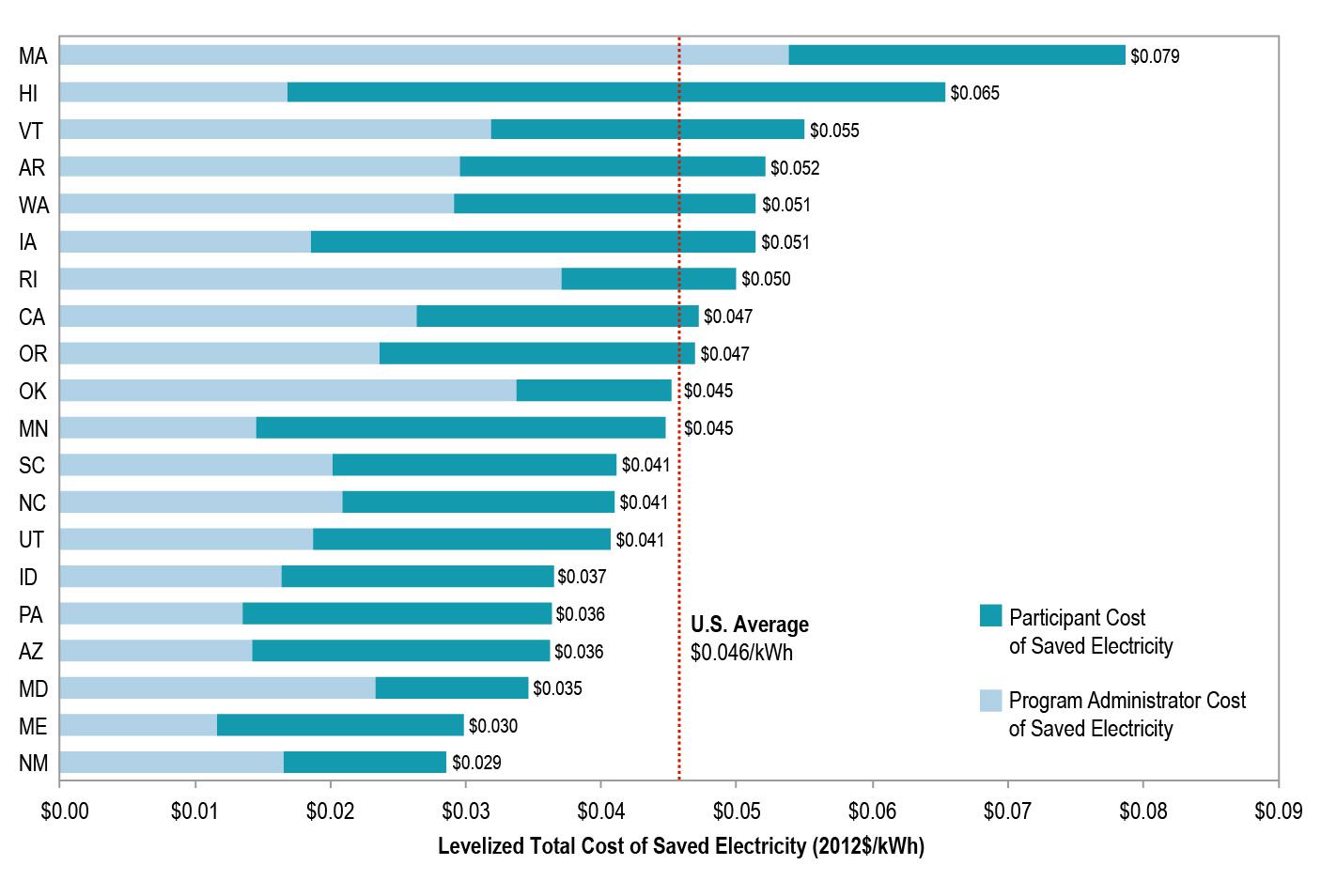
Waiting for total failure often results in emergency purchases at full price. Proactive upgrading allows you to capitalize on sales and resale value while enjoying modern features.
Energy Efficiency Savings
Newer monitors consume significantly less electricity than decade-old models. A modern 27-inch 4K IPS panel might use half the power of an old 1080p unit.
* Annual energy savings can reach 20 to 30 dollars per unit.
* Lower heat output reduces cooling costs in your workspace.
* Eco-friendly modes further reduce consumption during idle times.
Resale Value Recovery
Selling a working but aging monitor can offset the cost of a new purchase. Once a display fails completely its value drops to zero instantly.
* List functional units on marketplaces before signs of failure appear.
* Highlight remaining warranty or low usage hours in listings.
* Use proceeds to subsidize a upgrade to higher resolution or refresh rates.
Avoiding Emergency Replacement Stress
Sudden monitor death during critical work or gaming sessions causes unnecessary disruption. Planning your upgrade cycle ensures you always have a reliable display ready.
* Schedule replacements during major sales events like Black Friday.
* Research models in advance to avoid impulse buying mistakes.
* Maintain a backup display if your workflow cannot tolerate downtime.
Frequently Asked Questions About Monitor Lifespan
What is the average lifespan of a computer monitor?
Most monitors last between 5 to 10 years under normal usage conditions of 8 hours daily. LED and LCD panels typically reach 50,000 to 100,000 hours before significant dimming occurs.
Do OLED monitors last as long as LED monitors?
No, OLED monitors generally have a shorter functional lifespan of 3 to 5 years due to burn-in risks. The organic materials degrade faster than the inorganic LEDs found in standard LCD panels.
What are the first signs a monitor is dying?
Early warning signs include screen dimming color shifts dead pixels and flickering images. You may also notice permanent ghost images or uneven backlight distribution appearing on the display.
Can leaving a monitor on 24/7 damage it?
Yes, continuous operation significantly accelerates backlight degradation and increases thermal stress on components. Using sleep modes and turning off the display when not in use extends lifespan by 10 to 15 percent.
Is it worth repairing an old monitor with a broken screen?
Rarely, as panel replacement costs often equal 70 to 100 percent of a new monitor price. Repair is only viable for minor issues like power board failures or loose ports on high-end models.
How does brightness affect monitor longevity?
Running at maximum brightness generates excess heat that speeds up material degradation. Reducing brightness by 30 percent can extend your monitor usable life by up to 30 percent.
Key Takeaways for Maximizing Monitor Lifespan
Most monitors provide reliable service for 5 to 10 years but their useful life often ends sooner due to technological obsolescence. LED and IPS panels offer the best balance of longevity and performance while OLED users must manage burn-in risks carefully.
Implement simple habits like lowering brightness cleaning vents and using sleep modes to extend your hardware life by up to 30 percent. Watch for dimming color shifts and flickering as clear signals to plan your next upgrade before total failure disrupts your workflow.


