
You press the button, and nothing happens. The screen stays on, or worse, a menu pops up instead of shutting down. This is one of the most common frustrations MSI monitor owners face, especially with modern models like the MAG 274QRF QD E2 where a quick tap only opens the on-screen menu. The truth is, MSI monitors require a 5-second hold on the power button to fully power down, and most users simply don’t hold it long enough.
This guide walks you through every reliable method to turn off your MSI monitor. You’ll learn the correct button technique, OSD power settings, remote control via Dragon Center, and how to troubleshoot when the monitor refuses to shut off or keeps powering down unexpectedly.
Use the Power Button Correctly
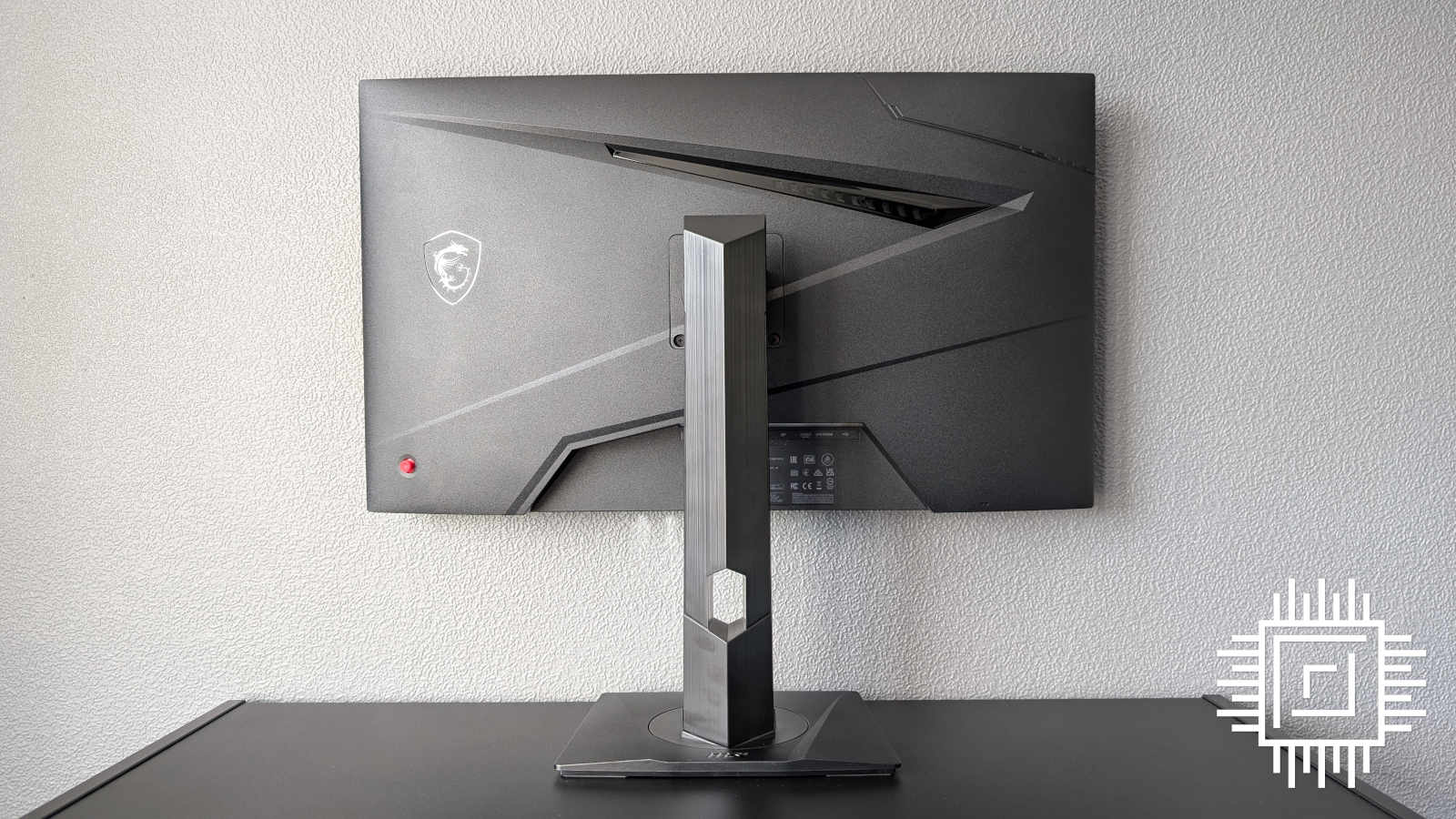
The quickest path to turning off your MSI monitor is the physical button, but technique matters more than most people realize.
Hold the Button for 5 Seconds
- Press and hold the power or navigation button for 5 full seconds to fully shut down the display.
- On some models, a 3-second hold may work, but 5 seconds is the reliable standard across recent MSI monitors.
- This method works even when your PC is frozen, unresponsive, or completely disconnected.
Find the Button Location
- Located on the back bottom edge or underside of the monitor near the bezel.
- Often doubles as a joystick controller for navigating the OSD menu.
- May glow red or white in standby mode to signal the power state.
Avoid the Quick-Press Mistake
- A short tap only opens the OSD, not the power menu.
- Many users assume the button is broken when they actually just didn’t hold long enough.
- No on-screen confirmation appears; the display simply goes black when powered off.
Access OSD Power Options
For smarter, automated control, the On-Screen Display menu gives you powerful shutdown options beyond the physical button.
Open the OSD Menu
- Press the joystick or power button once to bring up the OSD.
- Swipe or press in different directions to navigate.
- Exit by holding the button or selecting the “Back” or “Exit” option.
Set the Auto-Off Timer
- Navigate to System > Power > Auto-Off Timer.
- Choose a delay between 1 and 60 minutes of inactivity before automatic shutdown.
- Perfect for saving energy during breaks or overnight sessions.
Enable Zero-Power Mode
- Available on select models under Power > Zero-Power Mode.
- Drops standby consumption to nearly 0 watts.
- Best for long-term shutdowns like vacations or extended absences.
Schedule Automatic Power Cycles
- Go to System > Schedule to set daily on and off times.
- Example: Power on at 9 AM and off at 10 PM every weekday.
- Ideal for consistent work routines or streaming schedules.
Activate Signal Wake-Up
- Enable Power-On via Signal Detection in the OSD settings.
- The monitor wakes automatically when your PC sends a video signal.
- Eliminates the need to press the button after every computer boot.
Use MSI Dragon Center Remotely
If you want hands-off control, MSI Dragon Center software lets you manage your monitor’s power state from your PC or phone.
Control Power from Your Computer
- Open MSI Dragon Center on your connected PC.
- Find your monitor under Device Control.
- Click Turn Off Display without ever touching the monitor.
Schedule Custom Shutdowns
- Set personalized power schedules, like turning off at midnight.
- Sync shutdowns with gaming sessions or work hours.
- Works even when your PC remains powered on.
Voice Commands Through Smart Home
- Link Dragon Center with Amazon Alexa or Google Home.
- Say commands like “Alexa, turn off my MSI monitor.”
- Requires Dragon Center v2.0 or later, plus CEC-compatible HDMI or USB-C connection.
Keep Software Updated
- Older Dragon Center versions lack full power control features.
- Always install the latest firmware and app updates from MSI’s official site.
- Firmware updates can unlock new power-saving features on older displays.
Fix a Monitor That Won’t Turn Off
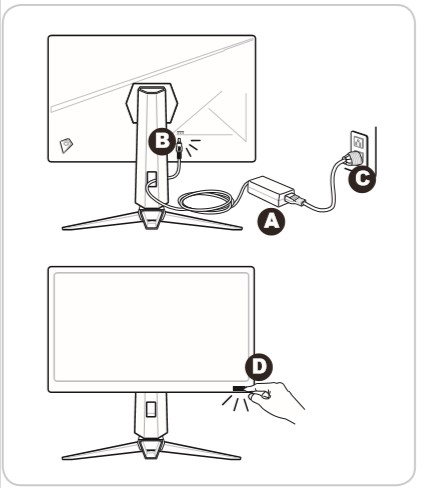
When the power button seems unresponsive, the issue is almost always user technique rather than hardware failure.
Problem: Quick Press Does Nothing
- Cause: A short press only opens the OSD menu.
- Fix: Hold the button straight in for 5 full seconds without swiping.
- Direction does not matter; pressure and duration do.
Problem: Button Is Completely Unresponsive
- Check for debris or physical damage around the joystick area.
- Clean gently with compressed air.
- Try Dragon Center remote shutdown or unplug the monitor as a last resort.
Problem: Monitor Powers Back On Immediately
- Cause: Signal detection is enabled and your PC is still active.
- Fix: Disable Power-On via Signal in the OSD settings.
- Shut down your PC completely before turning off the monitor.
Diagnose Unexpected Shutdowns

If your MSI monitor turns off randomly, work through this checklist in order to isolate the cause.
Check Cable Connections
- Inspect HDMI, DisplayPort, or USB-C cables for visible damage.
- Reseat both ends firmly in their ports.
- Swap in a known-good cable to rule out wiring faults.
Verify the Correct Input Source
- Press the Input button on the monitor to cycle through sources.
- Match the selected input to your PC’s actual output port.
- Wrong input means no signal, which triggers automatic shutdown.
Reset to Factory Settings
- Corrupted settings can cause erratic shutdown behavior.
- Steps:
1. Open the OSD with a single press.
2. Navigate to Settings > Reset > Factory Reset.
3. Confirm the reset and restart the monitor.
Update Graphics Drivers
- Outdated GPU drivers often cause display instability.
- Update through NVIDIA GeForce Experience, AMD Radeon Software, or Intel Driver Support.
- For a clean install, uninstall via Device Manager and reinstall the latest version.
Adjust Windows Power Settings
- Windows may be forcing the monitor to sleep too quickly.
- Fix:
1. Open Control Panel > Power Options.
2. Click Change plan settings.
3. Set Turn off the display to Never.
4. Set Put the computer to sleep to Never or a longer interval.
Disable Screen Saver
- Some screen savers trigger unwanted power events.
- Right-click the desktop and select Personalize > Lock screen > Screen saver settings.
- Choose None and click OK.
Test the Power Supply Board
- If all else fails, the hardware may be failing.
- Warning signs include:
- Monitor turning on then off after about 10 seconds
- Flickering backlight
- Buzzing sounds from behind the screen
- Repair requires professional service; do not open the monitor yourself.
Optimize Energy Efficiency

MSI monitors are designed for low power consumption, and a few settings can maximize your savings.
Enable Sleep Mode
- Activates automatically after periods of inactivity.
- Draws under 0.5 watts in standby.
- Wakes instantly with mouse or keyboard movement.
Use Dynamic Power Scaling
- Automatically adjusts brightness based on displayed content.
- Darker scenes consume less power.
- Found under Display > Brightness Settings.
Leverage Energy Star Features
- Certified models meet Energy Star 3.0 standards.
- Includes automatic dimming and eco-friendly modes.
- Reduces long-term electricity costs noticeably.
When to Contact MSI Support
If your monitor still won’t turn off or keeps shutting down randomly, it may be defective.
Check Your Warranty
- Visit the MSI Support website and enter your serial number.
- Most monitors include a 3-year limited warranty.
Report Detailed Information
- List every troubleshooting step you have already tried.
- Include cable types, PC specs, GPU model, driver versions, and monitor firmware.
- Detailed reports speed up diagnosis significantly.
Request Repair or Replacement
- MSI may offer free repair, on-site service, or a replacement unit.
- Keep original packaging in case a return is needed.
Future of MSI Monitor Power Control
MSI is developing smarter, hands-free power management for upcoming models.
AI-Powered On and Off
- Eye-tracking or gesture control will wake or sleep the display.
- Example: Looking away for 30 seconds triggers automatic shutdown.
Predictive Scheduling
- AI learns your daily routine and powers on before you arrive.
- Syncs with calendar events or login times.
Self-Powered Displays
- Research into quantum dot solar cells could harvest ambient light.
- May reduce or eliminate external power requirements.
Smart Home Sync
- Future monitors will link with smart lights, thermostats, and security cameras.
- Example: Monitor turns off when your alarm system arms.
Security Warnings
- Connected monitors face hacking risks.
- Always update firmware, use strong network passwords, and disable remote access when unused.
Frequently Asked Questions About Turning Off an MSI Monitor
Why does my MSI monitor not turn off when I press the button?
A quick press only opens the OSD menu on most modern MSI monitors. You need to hold the power or navigation button for 5 seconds to fully power down the display.
Where is the power button on an MSI monitor?
The power button is usually on the back bottom edge or underside of the monitor near the bezel. On many models, it doubles as a joystick for menu navigation.
Can I turn off my MSI monitor without using the button?
Yes. You can use MSI Dragon Center v2.0 or later to turn off the display remotely from your PC or smartphone. Voice commands through Alexa or Google Home also work when properly configured.
Why does my MSI monitor keep turning off by itself?
Common causes include loose or damaged cables, wrong input source selection, outdated graphics drivers, Windows power settings, or a failing power supply board. Work through the diagnostic checklist to find the cause.
How do I set my MSI monitor to turn off automatically?
Open the OSD menu and navigate to System > Power > Auto-Off Timer. Choose a delay between 1 and 60 minutes of inactivity before the monitor shuts down automatically.
Does MSI monitor have a sleep mode?
Yes. Sleep mode activates after inactivity and draws under 0.5 watts. The monitor wakes instantly when you move the mouse or press a key.
Key Takeaways for Turning Off Your MSI Monitor
The most important thing to remember is that MSI monitors require a 5-second hold on the power button, not a quick tap. This single fix resolves the majority of “monitor won’t turn off” complaints. For automation, use the OSD’s Auto-Off Timer or Scheduled Power features to handle shutdowns without lifting a finger.
If your monitor keeps shutting off unexpectedly, work through the diagnostic steps in order: check cables, verify input source, reset to factory settings, update drivers, adjust Windows power settings, and finally inspect for hardware failure. With the right technique and settings, turning off your MSI monitor becomes fast, reliable, and energy-efficient for any setup.


