
Plugging a cable into the wrong port often causes blank screens or poor image quality on your desktop. You need to know how to connect monitor to CPU correctly to avoid these frustrating display issues.
This guide explains how to identify your graphics ports, choose the right video cable, and configure your screen settings for maximum clarity. Follow these steps to ensure your computer detects your display immediately.
Identify Your Graphics Output Source

You must determine if your computer uses a dedicated graphics card or integrated graphics before connecting any cables. This decision dictates which ports on the back of your case will actually work.
Use Dedicated GPU Ports for Best Performance
If your system has a dedicated graphics card, always connect your monitor to the horizontal ports located lower on the back panel. These ports provide the power needed for gaming, video editing, and high-resolution displays. Connecting to the motherboard instead may result in no signal or significantly reduced performance.
Default to Motherboard for Integrated Systems
Systems without a dedicated card rely on integrated graphics built into the CPU. Use the vertical ports near the USB and audio jacks at the top of the back panel. These are suitable for office work and web browsing but may struggle with demanding graphical tasks.
Match Monitor and CPU Ports Correctly
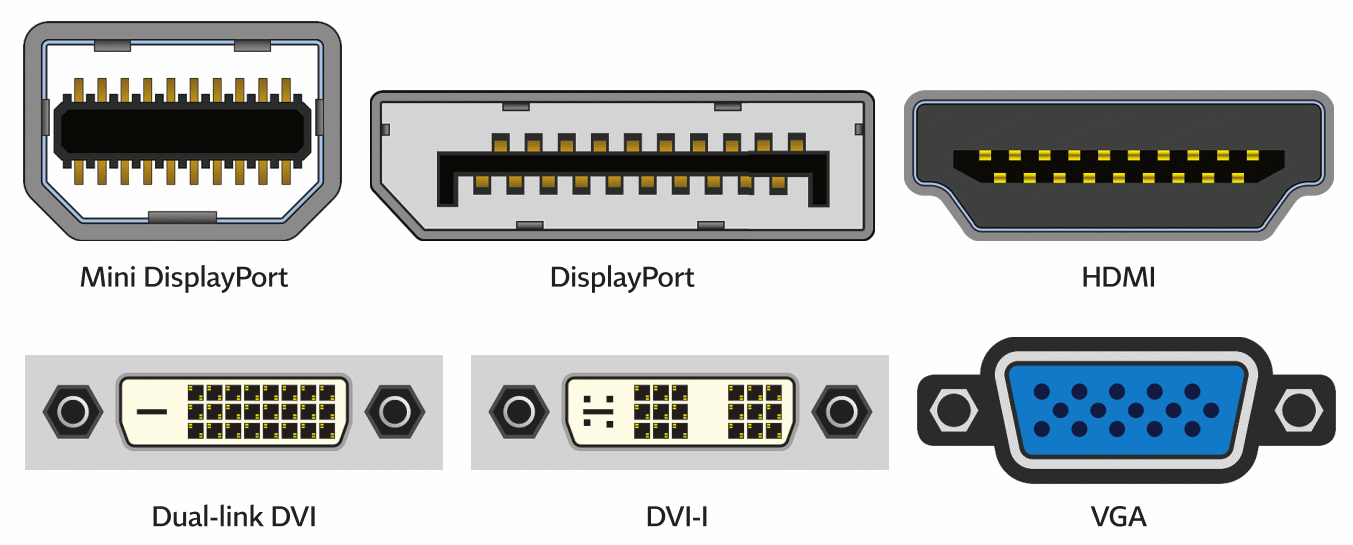
Successful connection requires matching the physical shape of the ports on your computer to those on your monitor. Each interface has a unique design to prevent incorrect insertion.
Compare Video Port Types
Inspect the back of your devices to find matching shapes like HDMI, DisplayPort, DVI, or VGA. The physical layout of pins and slots ensures you cannot force the wrong cable type into a port without an adapter.
Prioritize Digital Over Analog Connections
Always choose digital connections like HDMI or DisplayPort over analog VGA options. Digital cables deliver sharper images, support higher resolutions, and eliminate the signal interference common with older analog standards.
Choose the Right Video Cable

Your choice of cable directly impacts image clarity, maximum resolution, and refresh rate capabilities. Select the option that best fits your hardware specifications.
HDMI for General Use
HDMI carries both high-definition video and audio in a single cable. It is the standard choice for most home offices and media centers supporting 1080p and 4K displays. Ensure you use HDMI 2.0 or higher for 4K content at 60Hz.
DisplayPort for High Performance
DisplayPort offers higher bandwidth than HDMI, making it ideal for high-refresh gaming and multi-monitor setups. Look for the small latch on the connector that locks it securely into the port. This is the preferred choice for 144Hz gaming or 8K resolution.
DVI for Older Digital Displays
DVI supports digital video signals up to 2560×1600 but does not transmit audio. You will need a separate audio cable if your monitor has speakers and you use this connection. Secure the connector with the side screws to prevent signal loss.
Avoid VGA When Possible
VGA uses analog signals that max out at 1080p with noticeable quality loss. This older standard is prone to interference and should only be used as a last resort for legacy hardware.
Use USB-C for Modern Devices
USB-C ports with DisplayPort Alt Mode allow video, data, and power transmission over one cable. Verify your specific port supports video output by checking your device manual. A single USB-C to HDMI cable can drive high-resolution external displays efficiently.
Gather Necessary Equipment
Preparation prevents frustration and ensures you have everything needed before starting the physical setup.
Required Items Checklist
- Monitor with power cable
- CPU with graphics capability
- Matching video cable (HDMI, DisplayPort, etc.)
- Power outlet or surge protector
- Adapters if ports do not match
- Audio cable for DVI or VGA connections
- USB cable for monitor hub features
Verify Cable Compatibility
Ensure your cable meets the technical requirements for your desired resolution. For example, 4K at 60Hz requires HDMI 2.0 or DisplayPort 1.2. Using the cable included with your monitor is often the safest bet for compatibility.
Connect Monitor to CPU Step by Step
Follow this logical sequence to physically link your devices without causing electrical issues.
Power Off Both Devices
Turn off the computer and monitor completely before handling any cables. This prevents potential electrical surges and ensures the system detects the new connection cleanly upon startup.
Plug in the Video Cable
- Insert one end of the cable into the GPU output port or motherboard.
- Connect the other end to the matching input port on the monitor.
- Push HDMI or DisplayPort connectors until they click.
- Tighten the side screws on VGA or DVI cables in a crisscross pattern.
Attach Power and Audio
- Plug the monitor power cord into a wall outlet or surge protector.
- Connect a 3.5mm audio cable from the PC to the monitor if using DVI or VGA.
- Attach the upstream USB cable if you plan to use the monitor USB hub.
Power On in Correct Order
- Turn on the monitor first to let it initialize.
- Power on the computer second.
- Wait up to 30 seconds for the operating system to detect the display.
Select Correct Input Source
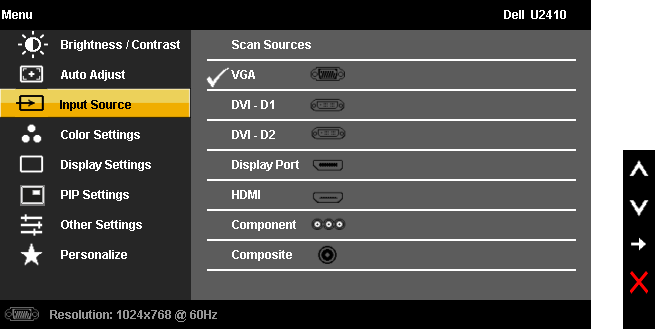
A black screen often means the monitor is looking at the wrong input port rather than a hardware failure.
Switch Input Manually
- Press the Input or Source button on your monitor controls.
- Navigate the on-screen menu to find the list of available inputs.
- Select the specific port you used such as HDMI 1 or DisplayPort.
- Confirm your selection to see the desktop appear.
Configure Display Settings in OS
Optimize your visual experience by adjusting settings within your operating system after detection.
Windows Display Setup
- Press Windows + I to open Settings and go to System > Display.
- Click Detect if your monitor does not appear automatically.
- Drag the numbered icons to match your physical monitor arrangement.
- Select Extend to use multiple screens as one large workspace.
- Set the resolution to the Recommended option for best clarity.
macOS Display Configuration
- Open System Settings and select Displays.
- Click Arrangement to align your virtual screens with your desk setup.
- Adjust resolution and refresh rate under Display Settings.
- Enable Night Shift if you prefer warmer colors in the evening.
Quick Display Toggle Shortcut
Press Windows + P to instantly switch between duplicate, extend, or single screen modes. This shortcut is perfect for presentations or quickly changing your workspace layout.
Set Up Multiple Monitors

Expand your productivity by connecting additional screens using available ports on your graphics card.
Connect Additional Monitors
Use remaining ports on your dedicated GPU to add more displays. Avoid mixing motherboard and GPU outputs as this can cause configuration errors. Configure each screen individually in your OS display settings.
Enable Daisy Chaining
Connect the first monitor to your PC and then link a second monitor to the first using DisplayPort. This requires monitors that support Multi-Stream Transport (MST). It reduces cable clutter and saves ports on your graphics card.
Manage Mixed Resolutions
You can run monitors with different native resolutions side by side effectively. Adjust the scale and layout for each screen individually in Windows Display Settings. This ensures text and icons look correct on both high and low-resolution screens.
Troubleshoot No Signal Issues
Diagnose and fix common problems if your screen remains blank after connection.
Verify Input Source Selection
The most frequent error is having the monitor set to the wrong input channel. Cycle through all available inputs using the monitor menu buttons to find the active signal.
Check Physical Connections
Reseat both ends of your video cable to ensure a tight fit. Tighten screws on VGA or DVI connectors and try a different port on your graphics card if available.
Confirm GPU Connection
Ensure your cable is plugged into the dedicated graphics card and not the motherboard. The system disables motherboard video ports when it detects a dedicated GPU.
Test Hardware Separately
Connect your monitor to a different computer to isolate the issue. Try a different video cable to rule out a defective cord as the cause of the problem.
Update Graphics Drivers
Download and install the latest drivers from the NVIDIA, AMD, or Intel website. Outdated drivers often prevent proper detection of new displays or limit resolution options.
Fix Audio and Quality Problems
Address sound issues and image artifacts to ensure a complete multimedia experience.
Restore Missing Audio
Right-click the volume icon and select Sound settings to manage output devices. Choose your monitor from the list if you are using HDMI or DisplayPort. Remember that DVI and VGA require a separate audio cable.
Eliminate Flickering or Blurry Image
Replace cheap cables with certified high-speed versions to stop flickering. Keep analog VGA cables away from power cords to reduce electromagnetic interference. Set your refresh rate to match your monitor specifications.
Optimize for Long-Term Use
Maintain your setup for reliability and prevent future connectivity issues.
Secure Cable Management
Use zip ties or clips to prevent tension on the connectors. Avoid sharp bends in your cables which can break internal wires over time.
Clean and Inspect Ports Regularly
Use compressed air to remove dust from ports that can cause connection failures. Inspect pins for bending before forcing a cable into a port.
Keep Firmware Updated
Check your monitor manufacturer website for firmware updates. These updates often improve compatibility with newer graphics cards and standards.
Frequently Asked Questions About Connecting Monitors
Why is my monitor showing no signal?
Your monitor is likely set to the wrong input source or the cable is loose. Press the Input button on your monitor to select the correct port and ensure the cable is firmly seated at both ends.
Can I connect a monitor to the motherboard if I have a graphics card?
No, you should not connect to the motherboard if a dedicated graphics card is installed. The system disables motherboard video ports in this configuration, so you must use the ports on the GPU.
What is the best cable for 4K gaming?
DisplayPort 1.4 or HDMI 2.1 are the best choices for 4K gaming. These cables support the high bandwidth required for 4K resolution at high refresh rates like 120Hz or 144Hz.
How do I make my second monitor the main screen?
Go to Display Settings in your operating system and select the second monitor icon. Check the box labeled “Make this my main display” to move the taskbar and start menu.
Why is there video but no sound from my monitor?
Your computer may be sending audio to the wrong output device. Go to Sound Settings and set your monitor as the default playback device if using HDMI or DisplayPort.
Can I use a VGA to HDMI adapter?
You can use an adapter, but you need an active converter because VGA is analog and HDMI is digital. Passive cables will not work, and you will still need a separate audio cable for sound.
Key Takeaways for Connecting Your Monitor to CPU
Connecting your display correctly ensures you get the full performance and visual quality your hardware offers. Always plug into your dedicated graphics card, choose digital cables like HDMI or DisplayPort, and configure your OS settings for the best experience.
Take action now by checking your current setup against these guidelines. Verify your cable types and port connections to eliminate display issues and enjoy a seamless computing experience.


