
You’re staring at your monitor, and everything feels too big. Text, icons, and apps take up too much space. You want to fit more on your screen without squinting. This guide shows you exactly how to shrink on-screen content using resolution, scaling, and advanced display tools. Whether you use Windows 11, a 4K TV as a monitor, or manage dual screens, you will find practical solutions here.
The key is understanding two settings: resolution and scaling (DPI). Higher resolution makes everything smaller and sharper. Lower scaling (like 100%) shrinks UI elements. Most people adjust only one, but to truly minimize screen content, you often need both. This article walks through every method, from basic Windows settings to pro-level tools like Custom Resolution Utility (CRU), and troubleshoots common issues like blurry text or greyed-out options.
Set Highest Display Resolution for a Smaller Screen
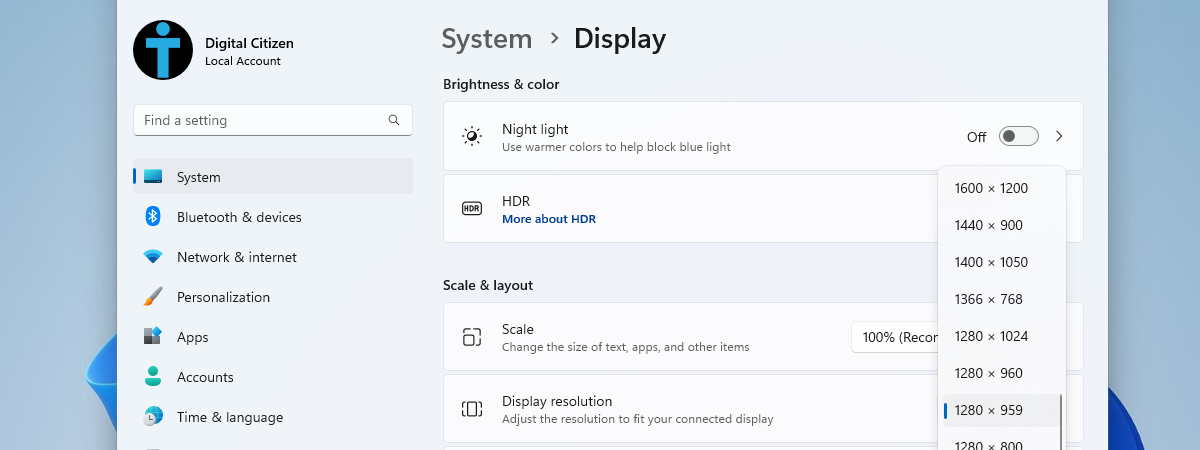
Maximizing resolution is the most effective way to make screen content appear smaller. More pixels mean smaller elements. Your monitor has a native resolution, which is the optimal pixel count. Matching this setting ensures clarity while shrinking everything on screen.
Choose Recommended Resolution in Windows
The “Recommended” resolution in Windows is almost always the native resolution of your monitor. Selecting it gives you the sharpest, smallest display possible.
For Windows 11 or Windows 10:
1. Right-click the desktop and select Display settings.
2. Under Display resolution, click the dropdown.
3. Select the option marked (Recommended).
4. Click Keep changes when prompted.
For Windows 7 or 8:
1. Right-click the desktop and choose Screen resolution.
2. Drag the resolution slider to the top or select the highest value.
3. Click Apply then Keep changes.
Pro Tip: If the image looks blurry or centered with black borders, you are likely below native resolution. Always prioritize the “Recommended” setting unless using advanced scaling.
Reduce Display Scaling (DPI) to Shrink UI Elements
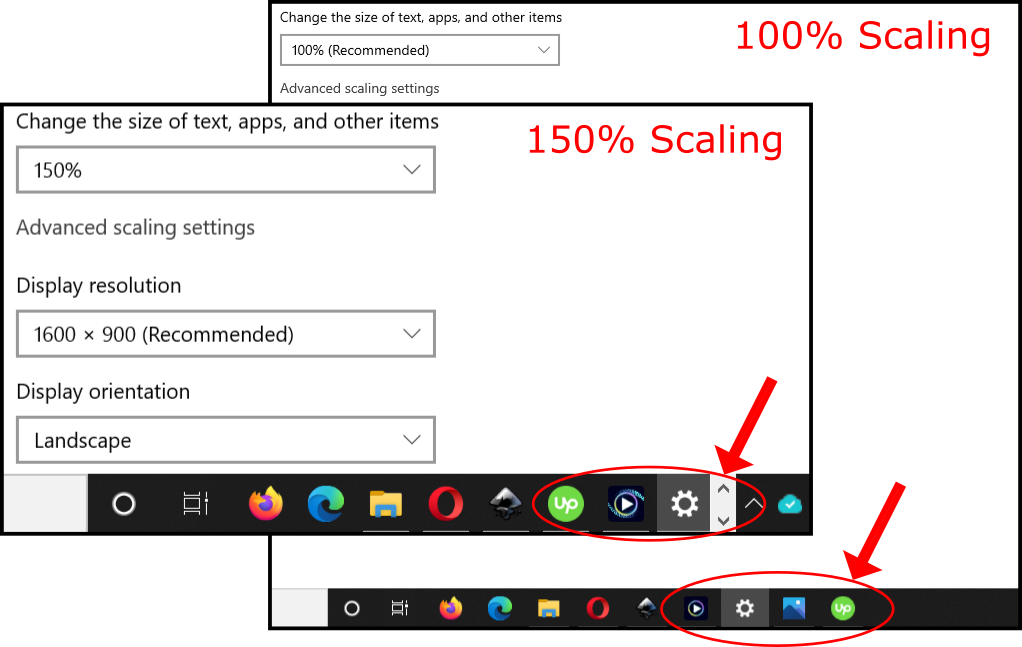
Even at maximum resolution, some screens (especially 4K or high-PPI laptops) show oversized UI elements. That is DPI scaling at work. Reducing it shrinks everything: the taskbar, text, and windows.
Lower the Scaling Percentage
Scaling defaults to 125%, 150%, or higher on high-resolution displays. Dropping to 100% makes a dramatic difference in screen real estate.
Steps for Windows 11 or 10:
1. Go to Settings then System then Display.
2. Under Scale & layout, click the scaling dropdown.
3. Select 100% (or 75% if available).
4. Log out and back in for the full effect.
Warning: Some apps may appear blurry at 100% if they do not support DPI scaling. Fix this per app using the method below.
Fix Blurry Apps After Changing Scaling
Legacy or poorly optimized apps can look fuzzy when scaling changes. Override their DPI behavior to restore clarity.
Fix Per Application:
1. Right-click the app shortcut or .exe file and choose Properties.
2. Go to the Compatibility tab and click Change high DPI settings.
3. Check Override high DPI scaling behavior.
4. Select System from the dropdown.
5. Click OK and restart the app.
This forces Windows (not the app) to handle scaling, which reduces blur.
Use Custom Scaling with Black Borders
Sometimes you want the entire desktop “zoomed out” with black borders, similar to playing an old game in windowed mode. Standard Windows scaling will not do this. You need advanced tools for this level of control.
Force a Smaller Viewport with CRU
Custom Resolution Utility (CRU) lets you define a resolution (like 3840×2160) but limit the visible area (like 3100×1750), creating black borders around a smaller desktop.
How to Use CRU:
1. Download and run CRU (no installation needed).
2. Click Detailed resolution options.
3. Select your refresh rate and resolution (such as 3840×2160 at 60Hz).
4. Adjust Horizontal blanking and Vertical blanking to reduce the active area.
5. Click OK then Restart.
6. In Windows Display settings, select the new custom mode.
Expert Note: CRU edits your monitor’s EDID. If the screen goes black, reboot and the old mode will restore.
Try NVIDIA DSR for a Zoomed-Out View
If you have an NVIDIA GPU, Dynamic Super Resolution (DSR) renders at a higher resolution and downscales. You can reverse this to simulate a smaller desktop.
Enable DSR:
1. Open NVIDIA Control Panel.
2. Go to Manage 3D Settings then DSR – Factors.
3. Check Enable DSR and select a factor (such as 0.6x).
4. Click Apply.
Now, when you select a lower resolution in Windows, it will appear sharper and more compact.
If Options Are Greyed Out: Disable HDR, DSC, and lower the refresh rate in monitor settings. These features lock scaling controls.
Adjust Your Monitor On-Screen Display (OSD)
Your monitor’s internal settings can override Windows. If content looks stretched or has black borders, check the OSD menu using the physical buttons on your display.
Set the Correct Aspect Ratio
Look for these settings in your monitor’s menu:
– Aspect Ratio set to Just Scan or 1:1
– Screen Fit set to Full (stretches image) or Normal (no stretch)
Just Scan shows pixels exactly as sent, which is ideal for precise scaling. Full stretches a lower-resolution signal to fill the screen, causing distortion.
Best Practice: Use Just Scan when using custom resolutions or black borders.
Fix HDMI Extenders and Splitters
Using an HDMI splitter or extender? It may limit your maximum resolution and prevent you from making your monitor screen smaller effectively.
Match Resolution to the Lowest Monitor
Splitters output one signal to multiple displays. The resolution is capped by the lowest-supported monitor in the chain.
Example: You have a 4K and a 1080p monitor on a splitter. Maximum output equals 1080p.
Fix:
1. In Display settings, set resolution to 1920×1080.
2. Or use DisplayPort daisy-chaining or USB-C hubs with DisplayPort Alt Mode for independent resolutions.
Verify the Active Signal Resolution
What Windows reports versus what is actually transmitted can differ, especially with extenders.
Check Active Signal:
1. Go to Settings then System then Display then Advanced display.
2. Click Display adapter properties.
3. Click List All Modes.
4. Confirm the selected mode matches your monitor’s native specs.
If the image is blurry, force the correct resolution here.
Configure Dual Monitors Correctly
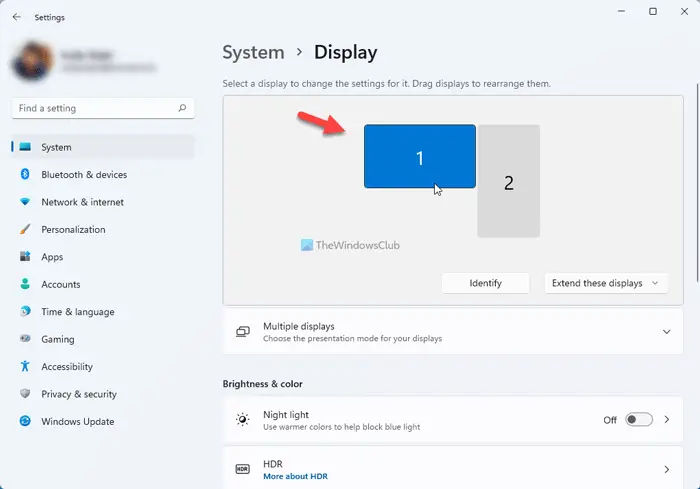
In multi-monitor setups, each screen needs individual settings to display content at the right size.
Identify and Adjust Each Monitor
- Press Win + P and select Extend (not Duplicate).
- In Display settings, click Identify to see which monitor is which.
- Click each monitor icon and:
– Set Resolution to its native (Recommended) value.
– Set Scale independently (such as 100% on 4K and 125% on 1080p).
Avoid Duplicate Mode: It forces both screens to the lowest common resolution, making high-resolution monitors display blurry, small content.
Troubleshoot Common Display Issues
Even with correct settings, problems arise. Here is how to fix them quickly.
Fix Blurry Text or Icons
Cause: Wrong resolution or scaling conflict.
Solutions:
– Set resolution to Recommended.
– Set scaling to 100%.
– Run ClearType Text Tuner by searching “Adjust ClearType text” in Start and following the wizard.
Image Centered with Black Borders
Cause: Output resolution is below native resolution, and the monitor is set to 1:1.
Fix:
– Increase resolution to native.
– Or, in the monitor OSD, set Aspect Ratio to Full to stretch the image.
Stretched or Distorted Image
Cause: Aspect mismatch (such as a 4:3 signal on a 16:9 screen).
Fix:
– Set resolution to a widescreen standard like 1920×1080 or 2560×1440.
– In the monitor OSD, set Aspect Ratio to 16:9 or Wide.
Optimize for 4K TVs Used as Monitors

Using a 55-inch Samsung TV as a PC monitor? UI elements often look huge due to lower pixel density compared to dedicated monitors.
Reduce Scaling on a 4K TV
- Set PC output to 3840×2160 at 60Hz.
- In Windows, set Scale to 100% (or 50% if available via PowerToys).
- Disable TV enhancements such as:
– Auto Motion Plus
– Super Resolution
– Game Mode (sometimes helps, sometimes hurts)
TV Zoom Settings Locked? Use CRU to create a custom mode with black borders, simulating a smaller screen.
Update Graphics Drivers
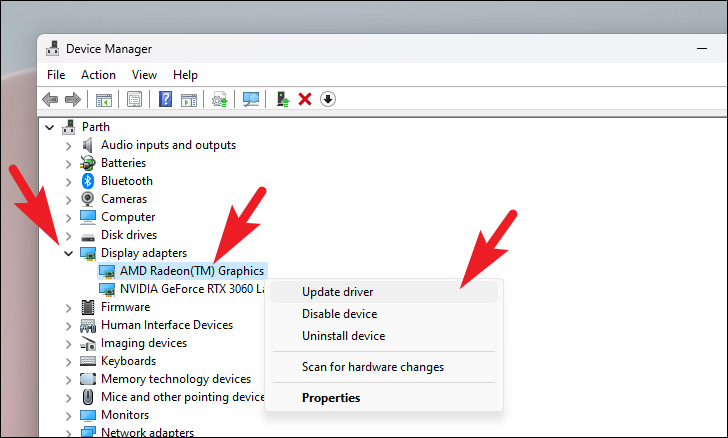
Outdated drivers can hide resolution options or break scaling features.
Update GPU Drivers
For Windows:
1. Press Win + X and select Device Manager.
2. Expand Display adapters.
3. Right-click your GPU and choose Update driver then Search automatically.
For NVIDIA, AMD, or Intel:
– Use GeForce Experience, AMD Software, or Intel Driver & Support Assistant for the latest versions.
Note: Windows 10 support ends October 14, 2025. After that date, no new driver updates will arrive. Upgrade to Windows 11 for future compatibility.
Use Advanced Tools for Granular Control
When Windows settings are not enough, third-party tools offer deeper control over screen sizing.
Microsoft PowerToys Display Scaling
PowerToys includes experimental per-monitor DPI control and FancyZones for custom layouts.
Install PowerToys:
1. Download from Microsoft GitHub.
2. Enable Keyboard Manager and FancyZones.
3. Use Display Settings in PowerToys for fine-tuned scaling.
DisplayFusion for Multi-Monitor Scaling
DisplayFusion lets you:
– Apply different scaling per monitor.
– Create virtual desktops with black borders.
– Customize taskbars and hotkeys.
This tool is ideal for complex setups with mixed-resolution displays.
Frequently Asked Questions About Making Monitor Screen Smaller
What is the fastest way to make my monitor screen smaller?
Set the resolution to the “Recommended” value in Windows Display Settings. This maximizes pixel count and shrinks all on-screen elements immediately. For additional shrinking, reduce the scaling percentage to 100% under Scale & layout.
Why does my screen look blurry after changing resolution?
Blurriness usually means you selected a non-native resolution. Your monitor is stretching a lower pixel count to fill the screen. Return to the “Recommended” resolution or set your monitor OSD to “Just Scan” for pixel-perfect clarity.
Can I make my 4K TV screen smaller without losing quality?
Yes. Use Custom Resolution Utility (CRU) to define a custom resolution with reduced active area. This creates black borders around a smaller desktop view while maintaining signal quality and sharpness.
Why are scaling options greyed out in NVIDIA Control Panel?
Options grey out when HDR, DSC, or high refresh rates are active. Disable these features in your monitor settings and lower the refresh rate temporarily to unlock scaling controls.
Does reducing scaling make text harder to read?
It can on high-resolution displays because text becomes physically smaller. If text becomes uncomfortable, increase scaling back to 125% or use the ClearType Text Tuner to sharpen fonts at your preferred size.
Will these methods work on Windows 7 and 8?
Yes. The resolution steps work on Windows 7 and 8 through the Screen Resolution control panel. However, advanced DPI scaling options and tools like CRU work best on Windows 10 and 11.
Key Takeaways for Making Your Monitor Screen Smaller
You now have every tool needed to shrink your screen content effectively. Start by setting resolution to “Recommended” to maximize pixels and minimize element size. Then reduce scaling to 100% or lower to shrink UI elements globally. If apps appear blurry after scaling changes, override DPI settings per program using the Compatibility tab.
For advanced control, use CRU or NVIDIA DSR to create a zoomed-out view with black borders. Always check your monitor OSD and set it to “Just Scan” for pixel-perfect display. Update your drivers regularly and configure multi-monitor setups in Extend mode to avoid resolution conflicts.
Final Tip: Test changes one at a time to identify what works best. A combination of high resolution and low scaling gives the most screen real estate. If you use a 4K TV or high-DPI display, CRU is your secret weapon. Bookmark this guide and return to it every time you set up a new monitor.


