
A flickering screen, washed-out colors, or a stubborn input lag can make even a premium monitor feel broken. Often, the fix lives inside the display itself: the firmware. Learning how to update monitor firmware gives you a direct path to resolve glitches, unlock new features like HDR tuning or VRR compatibility, and extend the life of your hardware without sending it in for service.
Because this process rewrites the low-level software stored in your monitor’s memory, it carries real risk. A power blip or the wrong file can render the panel useless. This guide walks you through the exact procedures for ASUS, MSI, Dell, and Lenovo monitors, including the tools, cables, and recovery steps you need to flash safely.
ASUS ROG Monitor Firmware Update via PC
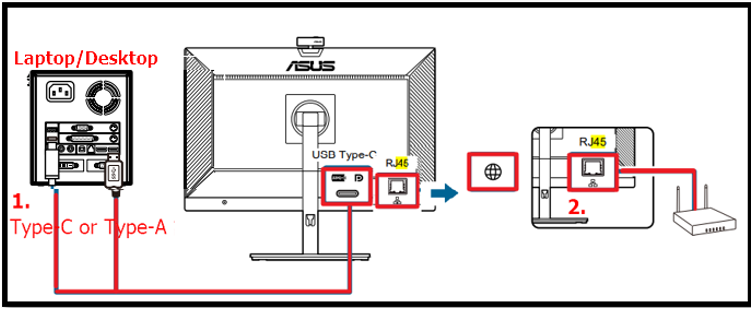
ASUS ROG Swift and high-end OLED models use a direct PC connection through the official VLI FW Update Tool. This method requires Windows 10 or 11, an original USB Type-A to Type-B cable, and an active HDMI or DisplayPort video signal.
Gather Tools and Download Files
Before you begin, confirm you have the right hardware and software:
- Windows 10 or 11 PC
- Original USB Type-A to Type-B cable (included with the monitor)
- HDMI or DisplayPort cable
- ASUS VLI FW Update Tool (version v0.0.8202211182 or newer)
Visit the ASUS Download Center and enter your exact model number, such as PG42UQ. Open the Drivers and Utilities section, then click the BIOS and Firmware tab. Download both the firmware file and the update tool. Some models include a document named [Model] FW USB update SOP; follow it strictly if present, since it overrides general instructions.
Connect the Monitor to Your PC
Power on the monitor, then make these connections:
- Plug an HDMI or DisplayPort cable between your PC and the monitor for video.
- Connect the USB Type-B end into the monitor’s upstream port.
- Connect the USB Type-A end into a direct port on your PC (avoid hubs).
Run the VLI FW Update Tool
Install and launch the ASUS VLI FW Update Tool. Wait for the Device Connect status to appear. If you see “Device Disconnect,” check your USB cable and confirm you are using the original, data-capable one.
Click Open File, select the downloaded .bin firmware, then click FW Update. The screen may flicker or go black during the process; this is normal. Do not power off either device.
Finalize the ROG Firmware Flash
The update takes 10 to 15 minutes. When finished, the monitor restarts automatically. Open the OSD menu and run the Factory Reset option to clear legacy settings. Then navigate to System > Information to confirm the new firmware version matches the release notes.
ASUS ProArt Monitor Firmware Update via USB Flash Drive
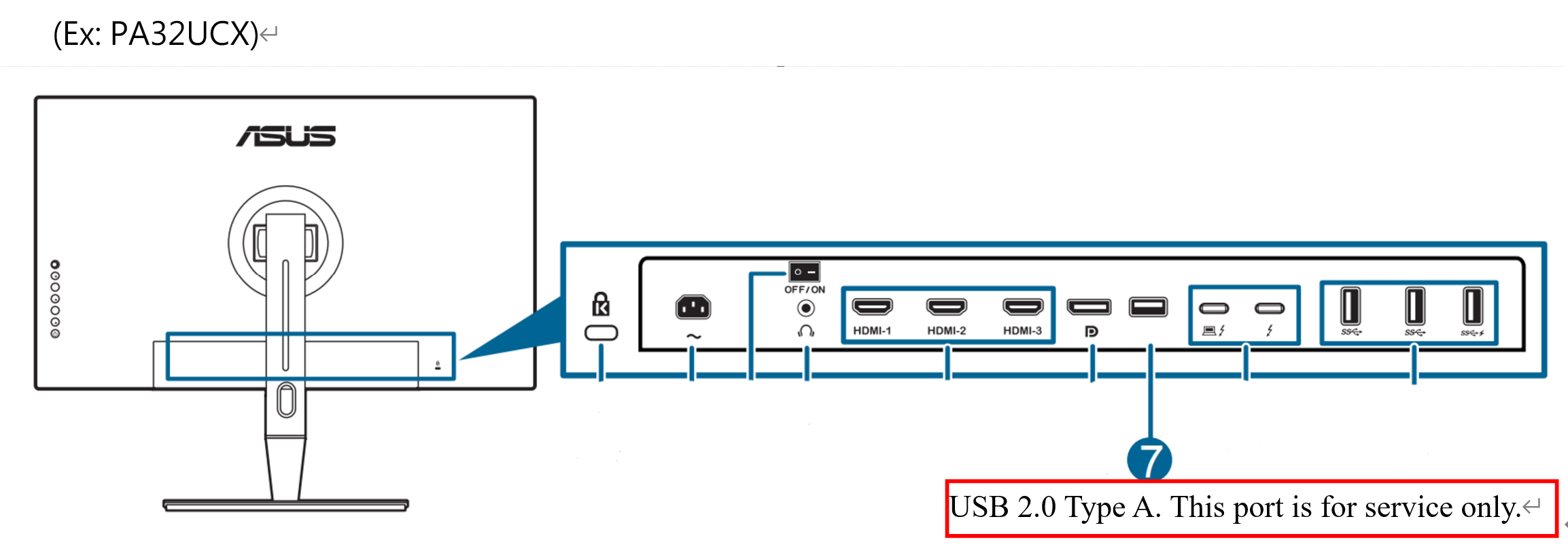
ASUS ProArt displays like the PA32UCX and PA32UCX-K use a standalone USB flash drive method. No PC connection is required, which makes this approach simpler once the drive is prepared.
Prepare the USB Flash Drive
Use a flash drive with at least 100MB of free space. Format it to FAT32, then download the correct .bin firmware from the ASUS Download Center under Drivers and Utilities > BIOS and Firmware. Copy the file directly to the root of the drive. Do not place it inside any folders.
Trigger the Update from the Monitor
Insert the USB drive into the monitor’s USB Type-A upstream port, which may be labeled “Service” on some models. Press and hold Shortcut Key 1 and Shortcut Key 2 simultaneously for three seconds. The exact key combination varies by model, so consult your manual if the standard pair does not work.
The monitor detects the file and begins flashing automatically. Once complete, the screen restarts on its own. Verify the new firmware version in the OSD to confirm success.
MSI Monitor Firmware Update Using Gaming OSD
MSI monitors rely on proprietary applications such as Gaming OSD, Gaming Intelligence, or Productivity Intelligence. Third-party tools will not work, so stick to MSI-certified software.
Download Firmware and App
Go to the MSI support site and enter your monitor model. Open the Firmware tab to download the firmware file, then open the Utility tab to download the matching app. Extract both downloads and install the application.
Connect and Flash the Firmware
Connect the monitor to your PC using the original USB upstream cable, with an active HDMI or DisplayPort signal. Launch the Gaming OSD app, click the gear icon in the top right, and select System Setting > Update. Click Browse, choose the firmware file, then click Update.
The screen may flicker or go black. Do not interrupt the process. When the app displays a success message, move to the power cycle step.
Complete the MSI Update with a Power Cycle
Turn off the monitor, unplug the power cable from the wall, and wait at least five seconds. Reconnect the power cable and turn the monitor back on. This clears temporary memory and ensures the new firmware initializes correctly.
Dell Monitor Firmware Update with the Official Utility
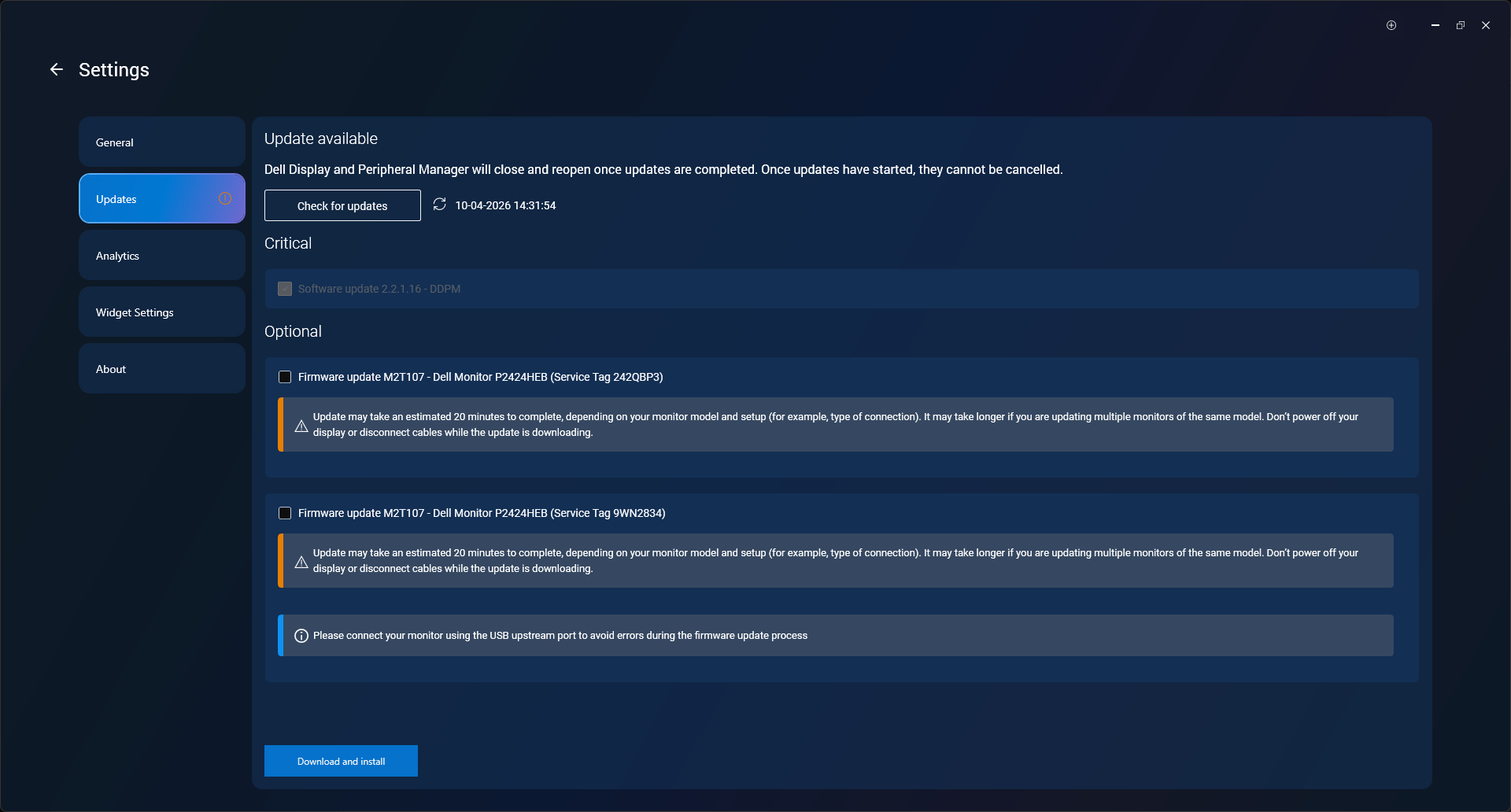
Dell streamlines the process with a dedicated utility that detects your monitor and installs updates automatically over USB.
Install the Dell Firmware Updater
Visit Dell Support and enter your monitor’s service tag or model number. Download the firmware update package, extract the ZIP file, and run Dell Monitor Firmware Update Utility.exe to install the app. Administrator rights are required.
Run the Automated Update
Connect the monitor to your PC using the USB upstream cable, then launch the Dell Firmware Updater. The software automatically detects the connected display and checks for available updates. If an update exists, it downloads and flashes the firmware without further input.
Watch the progress bar and do not unplug anything during the flash. When complete, the utility displays the message: “To complete update, turn off monitor, replug power cord, turn on monitor.”
Power Cycle the Dell Display
Turn off the monitor, disconnect the power cable, wait five seconds, then reconnect and power on. Confirm the new firmware version in the OSD or within the utility itself.
Lenovo Monitor Firmware Update Through Device Manager
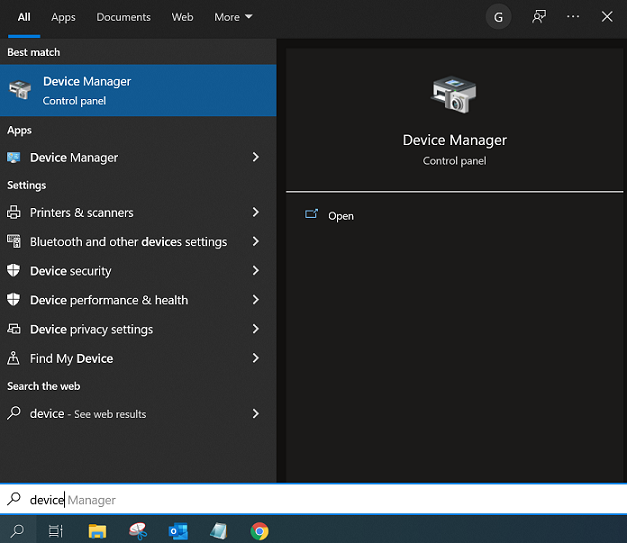
Lenovo takes a different approach by packaging firmware as monitor drivers and installing them through Windows Device Manager.
Download and Extract the Driver Package
Go to Lenovo Support and search by your monitor model. Download the Monitor Driver ZIP file, which actually contains the firmware update. Extract the contents to a known folder, such as C:\Lenovo_Firmware. Connect the monitor via DisplayPort (or the cable specified on Lenovo’s support page) and confirm it is powered on.
Install the Firmware via Device Manager
Open Device Manager by right-clicking the Start button. Expand the Monitors section, right-click your Lenovo display, and choose Properties. Go to the Driver tab and click Update Driver.
Select Browse my computer for drivers, then Let me pick from a list of available drivers on my computer. Click Have Disk, browse to the extracted folder, and select the .INF file. Click Next and follow the prompts. The screen may go black during the update; this is normal.
Finalize the Lenovo Update
After installation, delete all downloaded and extracted files. Restart your PC to ensure Windows fully recognizes the new firmware. Skipping the restart can cause the system to roll back or misapply the update.
Fix Common Monitor Firmware Update Errors

Even with careful preparation, problems can appear. Here is how to address the most frequent issues.
Monitor Not Detected by the Update Tool
A “Device Disconnect” message or no detection usually points to a cable issue. Use only the original USB cable, plug into the monitor’s upstream port (not a downstream hub), and connect directly to your PC. Reinstall the update tool or try another PC if detection still fails.
Update Fails Repeatedly
Corrupted firmware files, USB interference, or conflicting software are common culprits. Re-download the firmware from the manufacturer, close any third-party OSD tools like DisplayCAL, and try a different USB port. If failures continue, contact the manufacturer’s support team.
Power Loss During the Update
If power cuts out mid-flash, restore power immediately and attempt the update again. The bootloader may still be intact. If the monitor becomes unresponsive or stuck after repeated attempts, send it to an authorized service center rather than attempting DIY recovery.
Verify the Firmware Version After Updating
Always confirm the update succeeded by checking the firmware version:
- ASUS: OSD > System > Information
- MSI: Gaming OSD App > System Info
- Dell: OSD or Firmware Utility
- Lenovo: Device Manager or OSD (if supported)
Compare the version number against the release notes. A match means the update installed correctly.
When You Should Not Update Monitor Firmware
Firmware updates should not be routine. Only proceed when the release notes address a specific issue you are experiencing, when a new feature is required, or when the manufacturer recommends it for security.
Avoid updating if your monitor works perfectly, if no firmware is listed on the support page, or if you are unsure about the exact model number. Before starting, confirm the following:
- Correct model number, including suffixes like -K or -P
- Original cables for video and USB
- Stable power supply, ideally with a UPS
- No expected interruptions during the process
Best Practices After a Successful Firmware Update
Once the update completes, take these steps to wrap up cleanly:
- Reset OSD settings if required, especially on ASUS ROG models.
- Reconfigure brightness, color, and input preferences.
- Test all inputs and features to confirm normal operation.
- Delete downloaded firmware files to prevent accidental reuse.
For long-term care, document your settings before any future updates, check for new firmware annually or when troubleshooting display issues, and never use generic firmware. Model-specific files are the only safe option.
Frequently Asked Questions About Updating Monitor Firmware
Is updating monitor firmware safe?
Yes, when done correctly. The main risks come from power interruptions, wrong firmware files, and non-original cables. Following your brand’s exact steps and using a stable power source keeps the process safe.
How long does a monitor firmware update take?
Most updates take 10 to 15 minutes, though some may finish faster or slower depending on the brand and model. Do not rush the process or interrupt it once started.
Can I update monitor firmware without a PC?
Some monitors, like ASUS ProArt models, support updates via a USB flash drive. Most other brands require a Windows PC with the manufacturer’s update utility.
What happens if power goes out during the update?
Restore power immediately and try the update again. The bootloader may still be intact. If the monitor fails to respond after repeated attempts, contact an authorized service center.
Do all monitors support firmware updates?
No. If the support page for your model does not list a “BIOS and Firmware” section, no updates are available. In that case, contact technical support for hardware diagnostics.
Will updating firmware delete my monitor settings?
Often yes. Firmware updates commonly reset color profiles, brightness, and other OSD settings to factory defaults. Document your preferred settings before starting so you can restore them quickly.
Key Takeaways for Updating Monitor Firmware Safely
Updating monitor firmware can solve stubborn display problems and unlock new features, but only when approached with care. Use the exact procedure for your brand, stick to original cables and official tools, and never interrupt the process once it begins. Verify the new firmware version after flashing and reset your OSD settings to clear out old configurations. With the right preparation, a firmware update is one of the most effective ways to extend the life and performance of your monitor.


