
Adding a third monitor transforms how you work, play, and create. Developers can keep code on one screen, documentation on another, and a debugger on the third. Traders watch live charts while monitoring news feeds. Video editors stack timelines, previews, and asset libraries side by side. But getting that third display running is rarely as simple as plugging in a cable, especially on laptops with limited ports or MacBooks with strict silicon-based limits.
This guide walks you through every step of how to add a third monitor to your setup. You will learn how to verify hardware compatibility, pick the right connection method, troubleshoot Windows 11 detection issues, and optimize your workspace for comfort. We cover native ports, DisplayPort daisy chaining, and USB-C docks with DisplayLink technology, including solutions that bypass Apple Silicon’s one-monitor cap. You will also find tips on cable management, ambient lighting, and long-term maintenance.
Check Your Hardware Compatibility
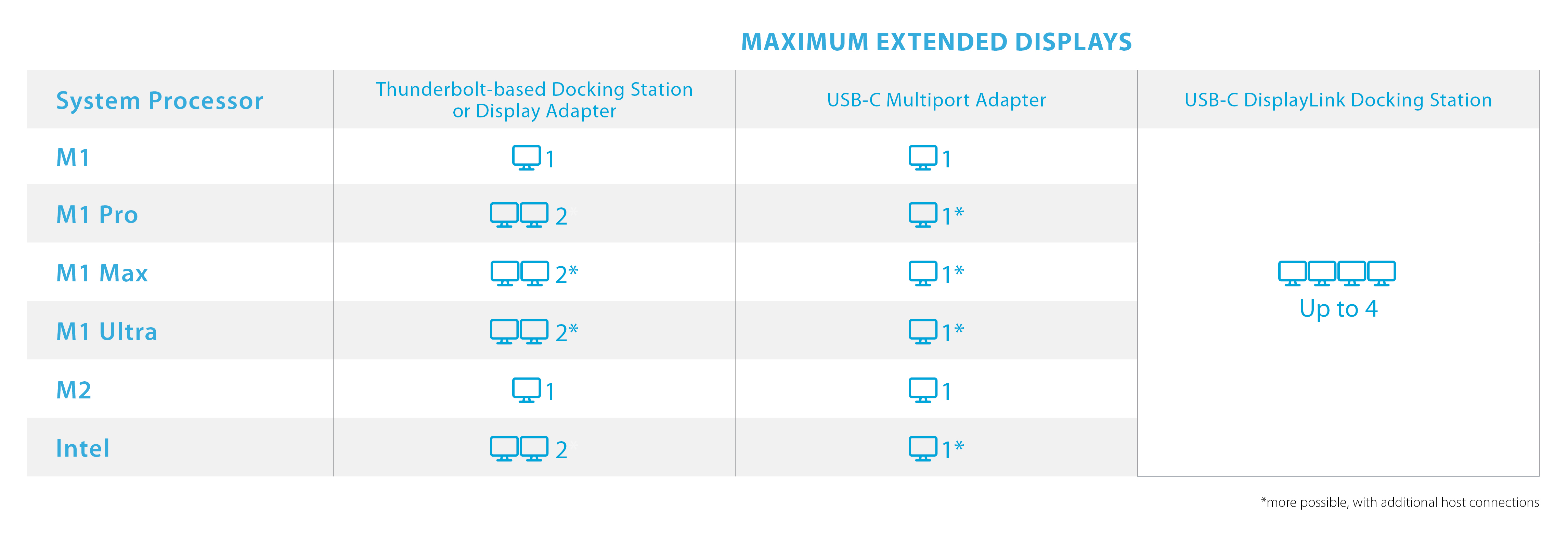
Before purchasing cables or docking stations, confirm your system can actually run three displays. Many laptops, even premium models, carry hidden limitations that block triple-monitor setups.
Verify GPU and Port Requirements
Your ability to run three screens depends on your graphics processing unit and your available video output ports.
- Windows laptops generally need a discrete graphics card plus at least three video-capable ports.
- Integrated graphics like Intel UHD often lack the bandwidth for three simultaneous displays.
- The ideal port layout includes two Thunderbolt or USB-C ports and one HDMI port.
Understand Apple Silicon Display Limits
MacBooks enforce strict chip-based restrictions on external monitors. The table below shows what each chip supports natively.
| Chip Model | Max External Monitors |
|---|---|
| M1 / M2 Base | 1 |
| M1 Pro / M2 Pro | 2 |
| M1 Max / M2 Max | 3 or more |
M1 and M2 base models, including the MacBook Air, cannot support three monitors natively. Only M1 Max and M2 Max chips allow triple displays through Thunderbolt and HDMI. Always verify your chip by clicking the Apple Menu and selecting About This Mac.
Choose the Right Connection Method

Three main approaches exist for adding a third monitor. Your choice depends on your hardware, budget, and workspace needs.
Use Native Ports (Direct Connection)
If your laptop has enough video outputs, connect each monitor directly to the system.
When This Works Best
- Your laptop has three compatible ports, such as two USB-C Thunderbolt ports and one HDMI port.
- Your system includes a dedicated GPU or an M1 Max or M2 Max chip.
Setup Steps
- Connect Monitor 1 via HDMI.
- Connect Monitor 2 via USB-C or DisplayPort.
- Connect Monitor 3 via the second USB-C or Thunderbolt port.
- Power on all monitors.
Downsides to Consider
- Cable clutter spreads across your desk and laptop.
- Disconnecting becomes tedious when you need to go mobile.
- Most MacBooks and budget Windows laptops simply cannot do this.
Set Up DisplayPort Daisy Chaining (MST)
Daisy chaining links monitors in a series, using only one video output from your laptop.
Hardware Requirements
- Your laptop must support DisplayPort 1.2 or higher, or Thunderbolt 3 or higher.
- Every monitor in the chain must support Multiple Stream Transport (MST).
- MST must be enabled in each monitor’s on-screen display settings.
Connection Topology
Laptop → Monitor 1 (Input) → Monitor 1 (Output) → Monitor 2 → Monitor 3
How to Enable MST
- Open the on-screen display menu on your first monitor.
- Navigate to the DisplayPort settings section.
- Turn on MST Mode.
- Repeat this process on any additional daisy-chained monitors.
Strengths
- Clean setup with only one cable running to your laptop.
- Frees up ports for other peripherals.
Weaknesses
- macOS support is highly restricted. M1 and M2 Pro chips max out at two total monitors.
- Bandwidth sharing can reduce refresh rates, dropping a 4K 60Hz signal to 4K 30Hz on the third screen.
Use a USB-C Dock with DisplayLink
DisplayLink docks bypass native hardware limits by compressing video over standard USB-C data lanes.
Best Use Cases
- M1 and M2 MacBooks limited to one native external display.
- Windows laptops with only one video port.
- Anyone wanting minimal cable clutter.
How DisplayLink Works
- The dock uses DisplayLink technology to compress video signals over USB data lanes.
- You must install the DisplayLink driver on your system.
- The dock acts as an external graphics processor through software.
Recommended Dock: BenQ beCreatus DP1310
- Single USB-C connection to your laptop.
- Outputs include two HDMI ports and one DisplayPort.
- Supports three 4K monitors at 60Hz simultaneously.
- Dual input support lets you run a laptop and gaming console at the same time.
- 180W total power delivery charges your laptop up to 100W.
- Aluminum shell provides passive heat dissipation during long sessions.
Setup Steps
- Download and install the DisplayLink driver from the official website.
- Connect the dock to your laptop using USB-C.
- Plug your monitors into the dock’s HDMI and DisplayPort outputs.
- Power on the dock and all monitors.
- Configure your display layout in your operating system settings.
Key Advantage
This method enables triple-monitor setups on M1 and M2 MacBook Air models, which is impossible through native connections alone.
Fix Windows 11 Third Monitor Issues
Even with correct hardware, Windows 11 can fail to extend your desktop to the third monitor, especially when using USB video adapters.
Third Monitor Detected But Not Extending
You see the screen listed in Display Settings, but something is wrong:
– The “Extend desktop to this display” option appears grayed out.
– Your mouse cursor refuses to move to the third screen.
– No global “Extend to all” option exists in the menu.
This is a known Windows 11 initialization bug that affects USB-based displays.
Fix: Disconnect-Then-Extend Method
Follow this exact sequence to force the display driver to reinitialize.
- Open Settings, then navigate to System and select Display.
- Click on Monitor 3 in the layout diagram.
- Under Multiple displays, select “Disconnect this display.”
- With Monitor 3 still selected, return to the dropdown and choose “Extend desktop to this display.”
- Drag the monitor boxes to match your physical desk layout.
- Click “Apply.” This step is critical, and skipping it means your changes will not save.
Additional Troubleshooting Tips
- Update drivers for your USB video adapter, such as J5 Create or Plugable models.
- Try different HDMI ports on the adapter, since some are limited to 1080p output.
- Reboot your system after installing new drivers.
Optimize Your Triple Monitor Workspace
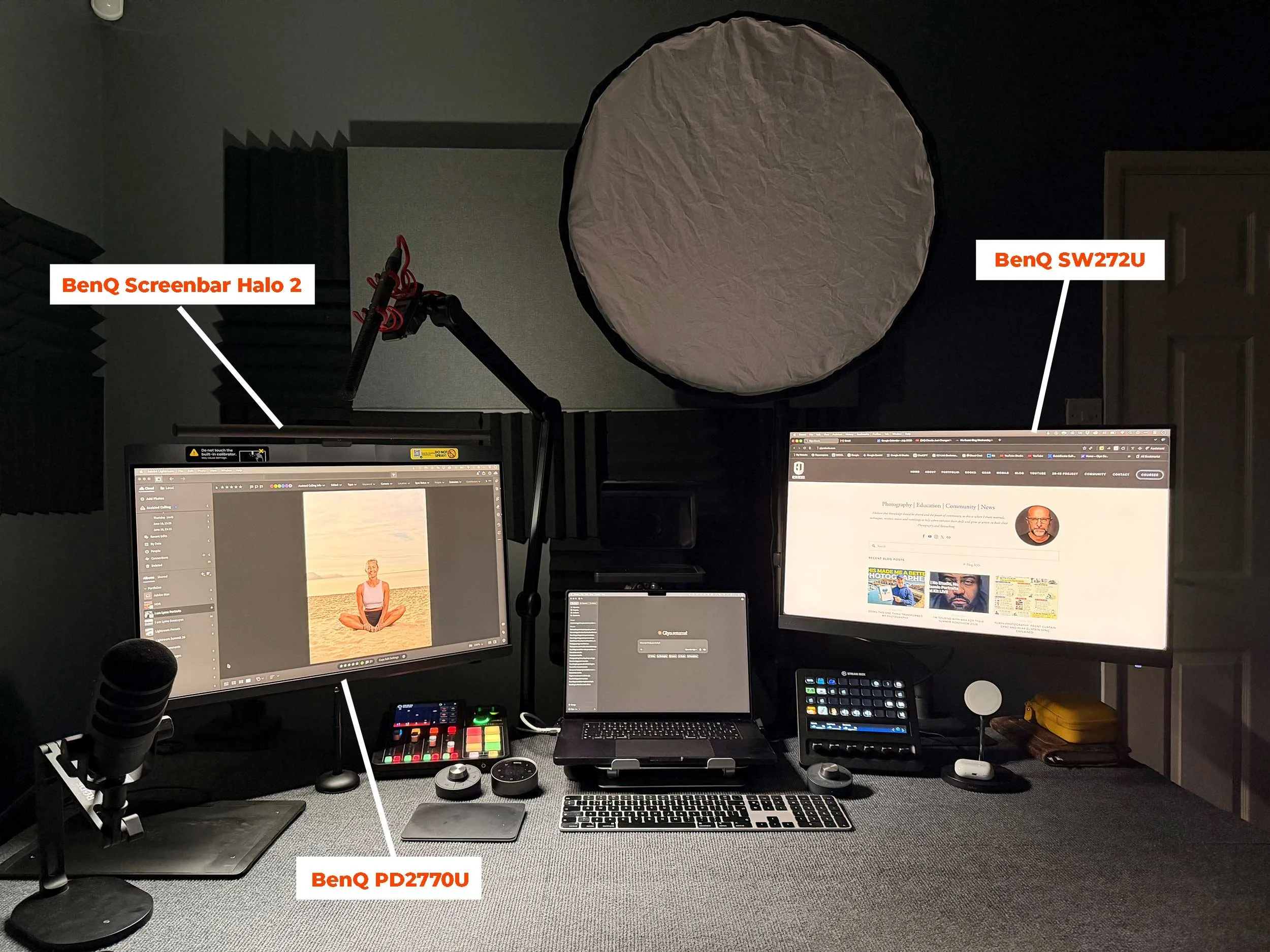
A functional setup goes beyond connectivity. Comfort, lighting, and cable management all affect your daily experience.
Reduce Eye Strain with Ambient Lighting
Large screen arrays create high contrast in dim rooms, leading to eye fatigue over long sessions.
Recommended Lighting: BenQ ScreenBar Series
- ScreenBar offers basic front-facing light with touch controls.
- ScreenBar Halo adds rear ambient glow and a wireless remote.
- ScreenBar Pro delivers brighter LEDs with an improved clamp design.
Place the light above your center monitor to illuminate your desk evenly without screen glare.
For Mobile Users: BenQ LaptopBar
- Portable and battery-powered with no cables.
- Ideal for hotel desks, co-working spaces, or café work sessions.
Manage Glare and Viewing Angles
- Position monitors perpendicular to windows or bright light sources.
- Use matte screens or anti-glare filters to reduce reflections.
- Angle side monitors slightly inward for more natural eye movement.
Tame Cable Chaos
- Use velcro straps or cable sleeves to bundle cords.
- Mount docks under your desk or near the monitor base.
- Choose docking stations with built-in cable management features.
Compare Connection Methods at a Glance

| Feature | Native Ports | Daisy Chain (MST) | USB-C Dock (DisplayLink) |
|---|---|---|---|
| Max Monitors | 3+ (GPU-limited) | 3+ (bandwidth-shared) | 3 at 4K 60Hz |
| Mac Support | M1/M2 Max only | Max 2 total | Works on M1/M2 Base |
| Cables to Laptop | 3 | 1 | 1 |
| Power Delivery | Varies | Rare | Up to 100W |
| Dual Input | No | No | Yes |
| Driver Required | No | No | Yes (DisplayLink) |
| Best For | High-end desktops | Clean Windows desktop | MacBooks, port-limited laptops |
Maintain Performance and Longevity
A triple-monitor setup requires ongoing care to stay reliable and fast.
Update DisplayLink Drivers Regularly
- Major OS updates can break DisplayLink functionality.
- Always download the latest version from the official DisplayLink website.
- Uninstall old drivers before installing new ones to prevent conflicts.
Ensure Proper Dock Ventilation
- High-wattage docks like the DP1310 generate significant heat.
- Place the dock on a hard, flat surface with airflow around all sides.
- Avoid enclosing the dock in drawers or stacking items on top.
Protect Your Laptop Ports
- Frequent plugging and unplugging wears out USB-C and HDMI ports over time.
- Use a dock as a central hub to minimize direct insertions.
- This reduces the risk of port damage and alignment issues.
Frequently Asked Questions About Adding a Third Monitor
Can an M1 or M2 MacBook Air support three monitors?
No. M1 and M2 base chips support only one external monitor natively. To achieve a triple-monitor setup, you need a DisplayLink-based USB-C dock and the DisplayLink driver installed on your system.
Why does Windows 11 detect my third monitor but not extend to it?
This is a known initialization bug in Windows 11 that affects USB video adapters. Use the Disconnect-Then-Extend method: select the third monitor, disconnect it, then re-enable the extend option, rearrange the layout, and click Apply.
Do I need a special graphics card for three monitors?
A discrete graphics card is strongly recommended for native triple-monitor setups on Windows laptops. Integrated graphics often lack the bandwidth to drive three displays simultaneously at acceptable resolutions and refresh rates.
Will daisy chaining reduce my monitor’s refresh rate?
Yes. Daisy chaining shares total bandwidth across all connected monitors. Adding a third screen can drop refresh rates, such as reducing a 4K 60Hz signal to 4K 30Hz, depending on your GPU and port capabilities.
Can I charge my laptop through a USB-C docking station?
Many modern docks offer power delivery up to 100W, which charges most laptops while transmitting video and data. The BenQ beCreatus DP1310, for example, delivers up to 100W to the host laptop plus 36W for peripherals.
Do DisplayLink docks work with gaming consoles?
Some docks feature dual input support, allowing you to connect both a laptop via USB-C and a console via HDMI 2.1. The BenQ DP1310 supports this configuration, enabling 4K 120Hz output for consoles like the PS5 or Xbox Series X.
Final Thoughts on Setting Up a Triple Monitor
A third monitor dramatically expands your workspace, but success depends on matching the right connection method to your hardware. Native ports work best for high-end Windows desktops and M1 Max MacBooks. DisplayPort daisy chaining keeps your desk clean if your monitors support MST. DisplayLink docks unlock triple displays on hardware that would otherwise be stuck at one or two screens.
Start by verifying your GPU, ports, and chip model. Then choose the method that fits your system and budget. Install the necessary drivers, configure your layout in display settings, and click Apply to save your changes. Add ambient lighting and cable management to keep your workspace comfortable and organized long term.
Ready to expand your screen real estate? Pick your connection method and start plugging in today.


