
You’re streaming music, downloading a large file, or running a background task, and you don’t need the screen on. Leaving your laptop monitor active drains battery, creates glare in dark rooms, and can risk screen burn-in over time. Closing the lid or putting the laptop to sleep might interrupt your downloads or audio. So how do you turn off the laptop monitor while keeping everything else running?
Multiple reliable methods exist to power down your display without affecting your system. Whether you use a Lenovo, HP, Dell, or any Windows 10 or 11 device, you can instantly black out the screen while downloads continue and audio keeps playing. This guide covers native keyboard shortcuts, Windows projection settings, third-party tools, registry tweaks, and external display configurations, all verified for modern systems including those with Windows 11 and Modern Standby.
Lower Brightness to Zero Using Fn Keys
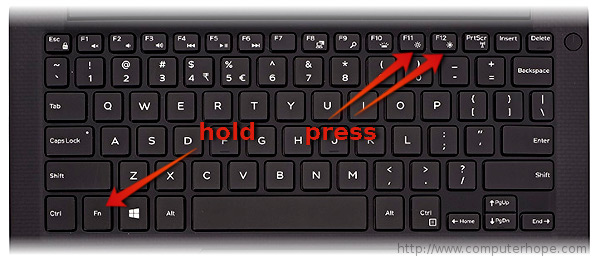
The fastest way to visually turn off your laptop monitor is by reducing brightness to its lowest level. This renders the screen black and saves nearly as much energy as a true power-off.
Press the Brightness Down Combination
Most laptops support hardware brightness adjustment using a Function (Fn) key combined with a brightness button. This works instantly and needs no software installation.
• Lenovo IdeaPad: Press Fn + F5 repeatedly to dim
• HP, Dell, ASUS: Look for the sun icon with a minus sign on function keys (usually F2 through F12)
• Repeat until the screen goes completely dark
Your system stays awake. Music plays, downloads continue, and apps run normally.
Note: Some models require you to press
Fnfirst, while others useFn Lockto reverse the behavior. IfFn + F5doesn’t work, tryFn + Left Arrowor check your laptop’s manual.
Wake the Screen Instantly
To bring the display back, press the brightness-up key (such as Fn + F6 on Lenovo) or simply move your mouse or press any key. This method works well for quick, temporary blackouts, especially when using your laptop as a media player.
Disable the Internal Screen with Win + P
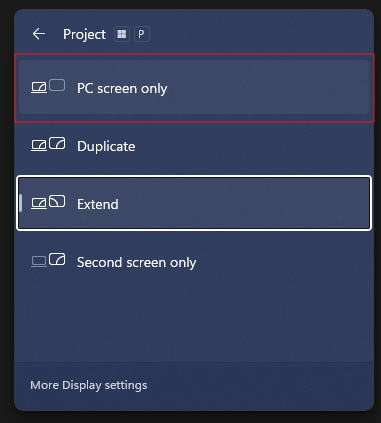
If you connect an external monitor, you can turn off your laptop screen completely and use only the external display instead.
Switch to Second Screen Only
This method uses Windows’ built-in projection feature:
- Press
Win + P - Select “Second screen only” from the sidebar
- The internal screen turns off immediately
Your desktop and all windows move to the external monitor, and the internal display consumes no power.
Visual cue: You’ll see a brief flash as Windows reconfigures display output. The laptop screen stays off until you switch back.
Re-enable Your Laptop Screen
Press Win + P again and choose one of these options:
• “Duplicate” shows the same screen on both displays
• “Extend” uses both screens as one workspace
• “PC screen only” turns off the external monitor and uses only the laptop screen
This approach works perfectly for docking stations, home offices, or presentations where the laptop itself isn’t needed for viewing.
Install Third-Party Monitor Control Software
For a true power-off command that cuts electricity to the display while the system runs, third-party tools offer the most reliable solution, especially on Windows 11.
Choose a Trusted Monitor-Off Tool
Popular lightweight utilities include:
• Turn Off Monitor (freeware)
• Display Off by NirSoft (portable, no installation needed)
• Screen Off by NCH Software
These apps send a low-level API command to the graphics driver to power down the display, just like closing the lid, but on demand.
Create a Desktop Shortcut
Most tools let you create a one-click shortcut:
- Install the software
- Open settings and select “Create Desktop Shortcut”
- Choose the “Turn Off Monitor” action
- Click “Apply” or “OK”
Double-click the shortcut to instantly turn off the screen.
Pro Tip: Rename the shortcut to “Sleep Screen” or add a custom icon for quick recognition.
Assign a Custom Keyboard Shortcut
Boost efficiency by binding a hotkey to the action:
- Right-click the desktop shortcut and select Properties
- In the “Shortcut key” field, press your preferred combo (such as
Ctrl + Alt + M) - Click Apply
Now press your custom shortcut to black out the screen instantly.
Warning: Avoid using system-critical combos like
Ctrl + Alt + Del. Choose unused combinations likeCtrl + Alt + Xinstead.
Pin to Taskbar for One-Click Access
For faster access, drag the shortcut to the taskbar to pin it. Some apps also add a system tray icon. Double-click that icon to turn off the screen. These tools support multi-monitor setups, turning off all displays simultaneously.
Add a Turn Off Display Option to the Right-Click Menu

If you prefer not to install extra software, you can add a “Turn Off Display” option to the desktop right-click menu using a registry edit.
Edit the Registry to Add the Context Menu Option
This method uses PowerShell to simulate system commands:
- Press
Win + R, typeregedit, then press Enter - Navigate to:
HKEY_CLASSES_ROOT\Directory\Background\shell - Right-click shell, select New, then Key, and name it
TurnOffDisplay - Inside
TurnOffDisplay, create another key namedcommand - In the
commandkey, double-click (Default) and paste this value:
powershell.exe -Command "([Reflection.Assembly]::LoadWithPartialName('Microsoft.VisualBasic') | Out-Null); [Microsoft.VisualBasic.Interaction]::AppActivate('Windows') | Out-Null; [Microsoft.VisualBasic.Interaction]::SendKeys('%{F4}')" - Close Registry Editor
Now, right-click your desktop and select “Turn Off Display” to black out the screen.
Caveat: This method simulates
Alt + F4on the desktop, which may not work consistently on all Windows 11 versions. It’s less reliable than dedicated software but avoids third-party installs.
Remove the Option Later
To undo this change, open regedit, navigate to HKEY_CLASSES_ROOT\Directory\Background\shell, and delete the TurnOffDisplay key.
Configure Lid and Power Settings
Modern Windows laptops often lack the “Turn off display” option for the power button due to Modern Standby (S0). However, you can still control screen behavior through lid and power plan settings.
Set Lid Close to Do Nothing
This setting helps when using external monitors with the laptop lid closed:
- Press
Win + R, typecontrol, then press Enter - Go to Hardware and Sound, then Power Options
- Click “Choose what closing the lid does”
- Set “When I close the lid” to “Do nothing” for both battery and plugged-in modes
- Click Save changes
Now you can close the lid without putting the laptop to sleep.
Critical: Ensure “Second screen only” is active via
Win + P, or your display may go black unexpectedly.
Prevent Sleep When Turning Off the Screen
If your laptop sleeps instead of just turning off the screen, adjust these settings:
• Go to Settings, then System, then Power & battery
• Set “Screen and sleep” to a longer time (such as 15 minutes)
• This prevents automatic sleep from overriding your manual screen-off action
Troubleshoot Common Issues
Even with the right method, problems can occur. Here’s how to fix the most frequent ones.
Screen Turns Off but System Sleeps
If audio stops or downloads pause, your system entered Sleep rather than just turning off the display.
Fix:
• Avoid using power button shortcuts unless “Turn off display” is confirmed available
• Use third-party tools or the brightness-down method instead
• Check your power plan and set “Put the computer to sleep” to Never for short tasks
Shortcut Doesn’t Work
If a desktop shortcut fails, try these solutions:
• Right-click the shortcut and select Run as administrator
• Reinstall the software
• Try Display Off by NirSoft, which is lightweight and rarely conflicts
External Monitor Stays On When Laptop Screen Should Be Off
After using Win + P and selecting “Second screen only,” if the internal screen stays on:
• Press Win + P again and reselect “Second screen only”
• Update your graphics driver (Intel, AMD, or NVIDIA)
• Restart the laptop to reset display detection
Optimize for Battery Life and Privacy
Turning off the monitor isn’t just convenient. It’s a strategic move for power savings and security.
Extend Battery Life Instantly
The display is one of the biggest power consumers in a laptop. Turning it off during idle tasks can extend battery life by 30 to 50 percent, depending on usage patterns.
Common use cases include:
• Music playback: Screen off, battery lasts hours longer
• File downloads: No need to keep the screen lit
• Background syncs or backups: Reduce heat and power draw
Gain Instant Privacy Protection
Need to step away quickly? A screen-off shortcut works faster than waiting for a timeout.
• Assign a hotkey such as Ctrl + Alt + M
• Press it to instantly blank the screen
• Wake with any key press, and your work remains intact
This approach works well for shared workspaces, public areas, or sensitive data handling.
Frequently Asked Questions About Turning Off a Laptop Monitor
What is the fastest way to turn off a laptop monitor?
The fastest method is pressing the brightness-down keys (such as Fn + F5 on Lenovo laptops) until the screen goes black. This takes effect instantly without any software installation and keeps your system fully operational.
Will turning off the monitor stop my downloads or music?
No. When you turn off the monitor using brightness controls, third-party tools, or projection settings, your system stays awake. Downloads, music playback, and background processes continue running normally. Only the display is deactivated.
Why does my laptop sleep instead of just turning off the screen?
This usually happens because the power button or lid action is configured to trigger Sleep mode. Modern Standby (S0) in Windows 11 often removes the “Turn off display” option entirely. Use third-party software or brightness controls to avoid triggering sleep.
Can I turn off the laptop screen while using an external monitor?
Yes. Press Win + P and select “Second screen only”. This disables the internal display completely while keeping your external monitor active. Perfect for docking stations and multi-monitor setups.
Is it safe to edit the registry to add a Turn Off Display option?
Yes, as long as you follow the steps carefully and back up the registry first. The method described adds a context menu entry that simulates Alt + F4. However, this approach may not work reliably on all Windows 11 versions, so dedicated software is often a safer choice.
Key Takeaways for Turning Off Your Laptop Monitor

You now have five proven methods to turn off your laptop monitor without sleeping the system. The Fn + Brightness Down approach offers instant results with no installation needed. The Win + P projection method works best for external monitor users. Third-party tools provide the most reliable true display-off experience, especially on Windows 11. The registry context menu suits tech-savvy users who want to avoid extra software. Finally, lid and power settings remain essential for docking and desktop replacement setups.
For most users, a desktop shortcut paired with a custom keyboard hotkey delivers the best balance of speed, reliability, and ease. Choose the method that matches your workflow, set up your preferred shortcut today, and start saving battery while keeping your work running smoothly.


