
A dusty screen or stubborn fingerprint can ruin your visual experience and strain your eyes during long work sessions. Knowing how to maintain a monitor properly prevents permanent coating damage and keeps your display crisp.
This guide details the exact tools, safe cleaning steps, and preventative habits you need to protect your investment. You will learn specific techniques for OLED, matte, and touchscreen panels to ensure longevity.
Essential Tools for Safe Monitor Cleaning
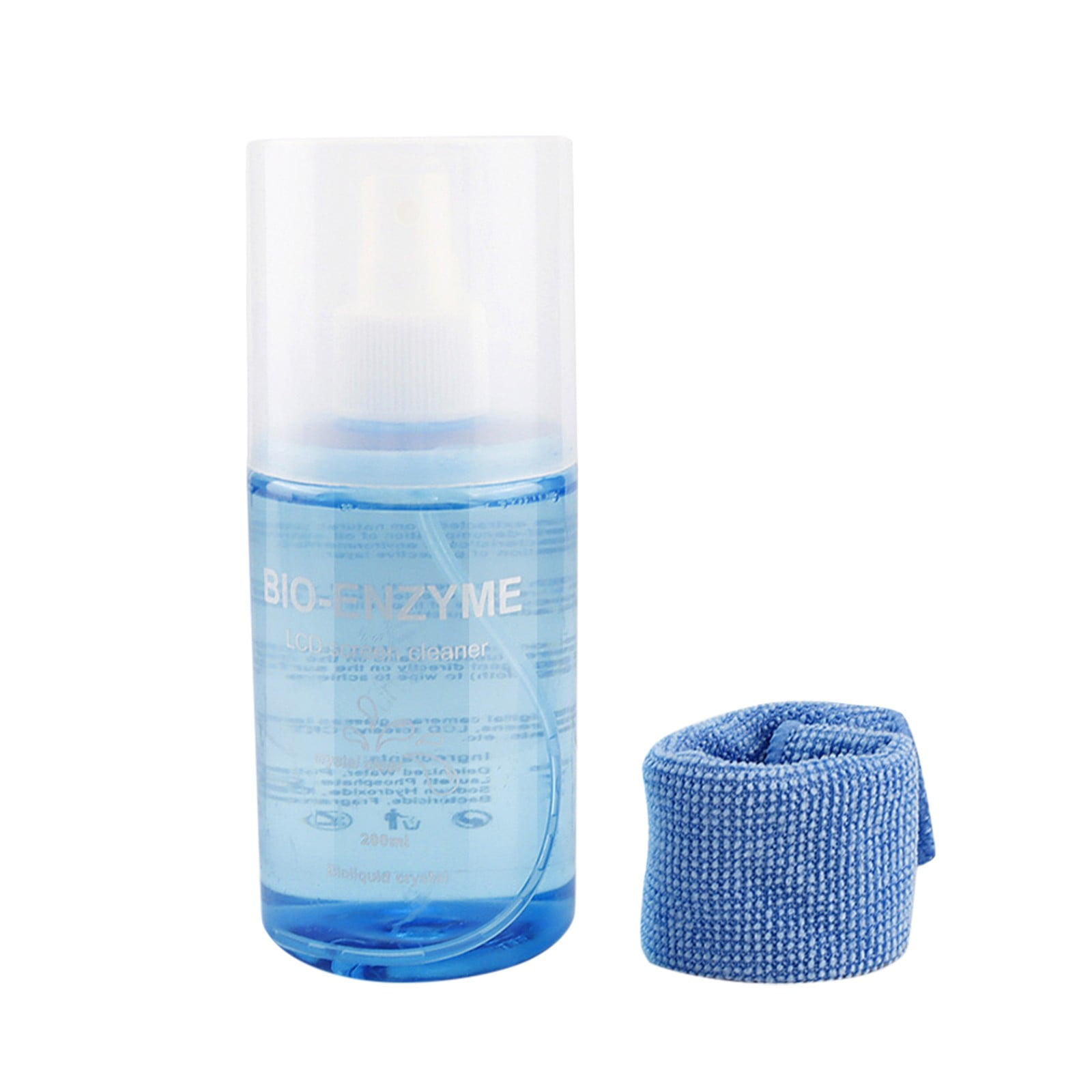
Selecting the correct supplies is the first step in learning how to maintain a monitor without causing harm. Modern screens feature delicate anti-reflective layers that scratch easily or degrade when exposed to harsh chemicals. Using the wrong materials can turn a simple cleaning task into a costly repair bill.
Approved Cleaning Supplies You Must Use
You need specific items to clean your screen safely and effectively.
* Soft microfiber cloths: These are lint-free and non-abrasive, perfect for lifting dust without scratching.
* Distilled water: Unlike tap water, it lacks minerals that leave white streaks or residue.
* Screen-safe cleaning solution: Formulated specifically for electronics to avoid chemical reactions with coatings.
* Compressed air: Ideal for blowing dust out of vents and corners without physical contact.
* Cotton swabs: Useful for cleaning tight crevices around buttons and ports.
Keep multiple cloths on hand so you have a dry one for dusting and a separate one for damp cleaning. This prevents cross-contamination between dry particles and wet smudges.
Dangerous Materials to Avoid Immediately
Common household items often cause more damage than the dirt they remove. Paper towels and tissues have rough fibers that create micro-scratches on the display surface. Old t-shirts or bath towels may seem soft but often leave lint or abrasives behind.
Household glass cleaners like Windex contain ammonia that strips anti-glare coatings permanently. Disinfecting wipes and hand sanitizers usually contain alcohol which dries out and cracks delicate screen layers. Never spray any liquid directly onto your monitor as moisture can seep under the bezel and destroy internal circuits.
Step-by-Step Guide to Clean Your Monitor
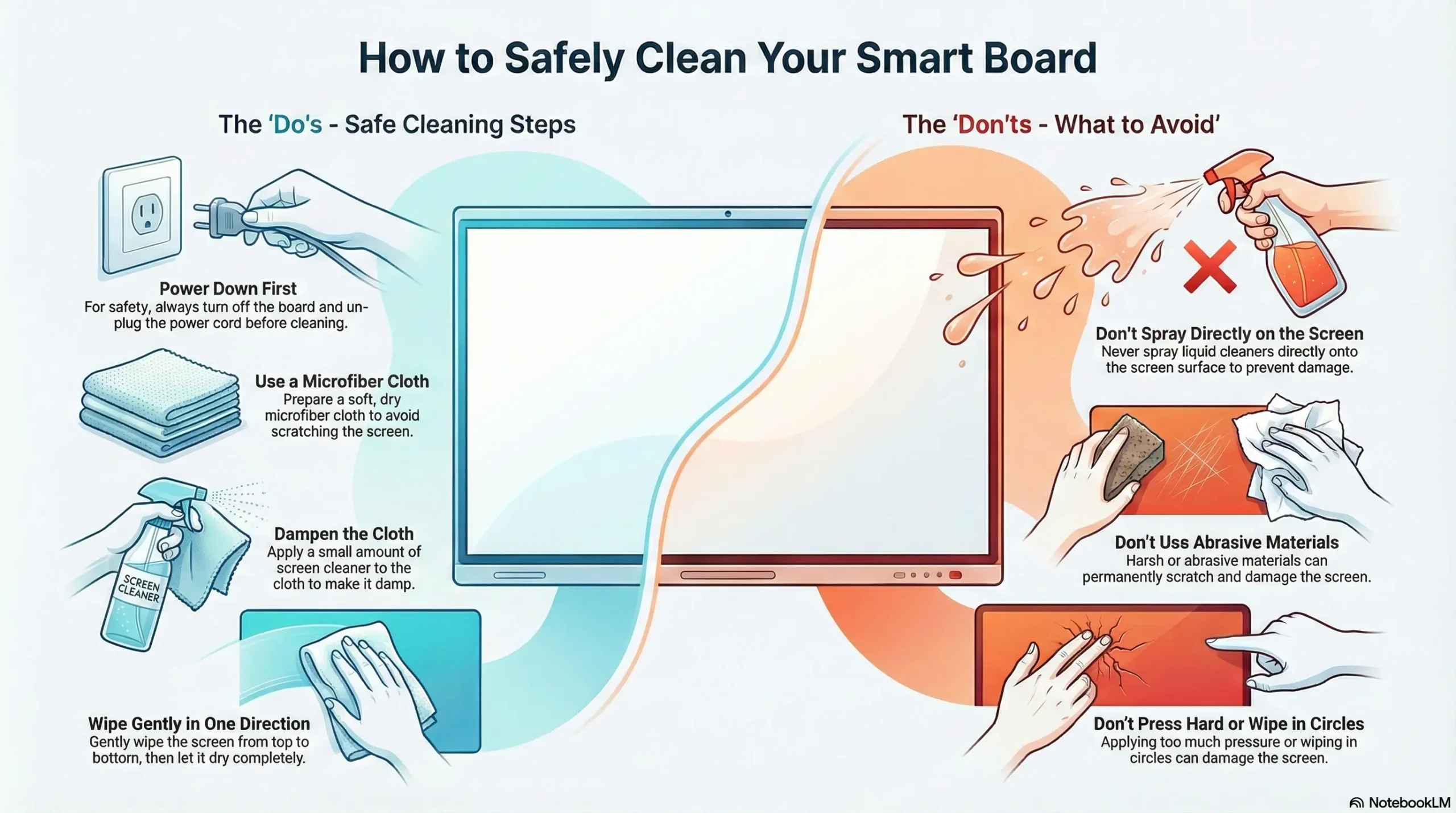
Following a strict procedure ensures you remove grime without introducing new problems. Rushing this process or skipping steps often leads to streaks and potential hardware failure.
Power Down and Let It Cool
Turn off and unplug your monitor before starting any cleaning work. A black screen makes dust and smudges much easier to see against the dark background. It also eliminates any risk of electrical shock while you are handling the device.
Allow the screen to cool down for 10 to 15 minutes if it has been running. Cleaning a hot screen causes liquids to evaporate too quickly, leaving behind stubborn streaks. Working on a cool panel gives you time to wipe gently without pressure.
Dry Dust Before Applying Any Liquid
Dry dusting is the most critical step that many people skip entirely. Wiping a dusty screen with a damp cloth grinds particles into the surface and causes fine scratches. Use a clean, dry microfiber cloth to wipe the entire screen with light, straight passes.
Use compressed air to remove dust from vents, ports, and corners where cloths cannot reach. Hold the can upright and spray from at least six inches away to avoid propellant leakage. Follow up with a soft-bristled brush for stubborn particles near the bezel edges.
Deep Clean Smudges Gently
Perform a deep clean only when you see fingerprints, oily spots, or dried marks. Lightly dampen a second microfiber cloth with distilled water or a screen-safe solution until it is barely moist. Gently wipe affected areas with light pressure using straight swipes rather than circular motions.
For oily residue, a mixture of distilled water and white vinegar can help break down the grease. Never use vinegar on matte finishes as it can degrade the textured coating over time. Buff the screen immediately with a dry microfiber cloth to remove moisture and prevent streaks.
Clean Vents, Bezels, and Controls
Dust buildup in vents blocks airflow and causes internal overheating that shortens component life. Use compressed air to blow out grilles on the back and sides of the monitor housing. For stubborn dust, use a cotton swab lightly dampened with water to dislodge particles.
Wipe the bezel and stand with a cloth dampened with mild soapy water or screen cleaner. Avoid getting moisture near ports or seams where it could drip inside. Use a dry or slightly damp cotton swab to clean buttons and ports without damaging labels.
Monitor-Specific Cleaning Rules by Panel Type

Different technologies require unique approaches when you maintain a monitor to avoid specific vulnerabilities. Ignoring these differences can lead to permanent damage tailored to your specific panel type.
LCD and IPS Panel Care
LCD and IPS monitors offer wide viewing angles but remain sensitive to harsh chemicals. Use a dry microfiber cloth weekly for routine maintenance. Start with distilled water for smudges and avoid vinegar unless dealing with tough grease.
Never apply heavy pressure to these panels as they can suffer image retention or pressure marks. Gentle wiping is sufficient to remove most contaminants without risking the display matrix.
VA Monitor Maintenance
VA panels deliver deep blacks that make smudges highly visible in dark scenes. Clean them like IPS panels by dry dusting first then using distilled water for stubborn spots. Wipe gently and dry immediately to avoid moisture pooling in the bezel.
A water and vinegar mix works well for oily marks on VA screens. Always test a small corner first to ensure the coating reacts well to the solution.
OLED and Glossy Screen Protocols
OLED and glossy gaming monitors are the most delicate due to their organic layers and high reflectivity. Clean weekly with light, straight swipes to avoid visible swirl marks. Avoid circular motions that can polish the surface unevenly.
Use only distilled water or manufacturer-approved solutions on these screens. Never use alcohol-based cleaners unless explicitly stated as safe by the manufacturer. Enable dark mode and dynamic wallpapers to prevent burn-in from static images.
Matte Finish Protection
Matte screens have a textured coating to reduce glare that is easily damaged by abrasion. Use only dry microfiber for routine cleaning to preserve the texture. If liquid is necessary, use distilled water only with no vinegar or alcohol.
Be extra gentle because scrubbing can “shine” the surface and create smooth, reflective patches. Once the matte texture is worn away, it cannot be restored.
Touchscreen and Laptop Screen Tips
Touchscreens and laptop displays get the most contact so oils build up fast. Wipe daily with a dry microfiber cloth to remove fingerprints. For deep cleaning, use minimal moisture and avoid pressing hard to protect the digitizer layer.
Never let liquid pool near the edges where touch sensors connect. Close laptops only over a clean keyboard or place a microfiber sheet on the keys to prevent dirt transfer.
Ultrawide and Curved Monitor Handling
Ultrawide and curved monitors have large, fragile surfaces that require careful handling. Support the frame lightly while cleaning to avoid flexing the panel. Clean in sections rather than one long swipe to control pressure distribution.
Gravity can pull liquid toward the bottom bezel on curved screens. Wipe from top to bottom and dry immediately to prevent pooling issues.
Portable Monitor Maintenance
Portable monitors face constant travel exposure and frequent handling. Carry dedicated microfiber cloths and never use clothing or napkins. Clean fingerprints right after use to prevent oil from soaking into the coating.
Store your device in a protective case and avoid stacking heavy items on top. Regular dry wipes are essential for these high-traffic screens.
Cleaning Frequency Based on Environment

Your cleaning schedule should match your specific environment and usage patterns. A dusty workshop needs daily care while a quiet home office may only need monthly deep cleaning.
| Environment | Dry Wipe | Deep Clean | Notes |
|---|---|---|---|
| Home Office | Weekly | Every 3–4 weeks | Low traffic with minimal grime |
| Open Office | Weekly or pre-use | Every 2 weeks | High touch with frequent smudges |
| Gaming Setup | Weekly | Every 1–2 weeks | Dark scenes reveal dust easily |
| Industrial Area | Daily | Daily | High dust requires constant care |
| OLED/Glossy | Weekly (light) | Weekly | Coatings degrade fast if dirty |
| Portable/Touch | Daily | As needed | Direct contact and travel exposure |
If dust returns within hours, check your room for open windows or HVAC vents blowing particles. Use a monitor cover when not in use to reduce accumulation.
Prevent Damage and Extend Monitor Lifespan
Protective habits are just as important as cleaning when you maintain a monitor effectively. Controlling your environment and usage prevents damage before it starts.
Control Your Monitor Environment
Place your monitor away from direct sunlight to prevent color fading and hot spots. Avoid heat sources like radiators or PC exhaust fans that can warp components. Do not position it in line with ceiling fans or AC vents that blow dust directly onto the screen.
Cover your monitor with a microfiber dust cloth when idle. For laptops, place a thin cloth over the keyboard before closing to block key-to-screen dirt transfer. Keep humidity moderate to reduce static buildup.
Adopt Smart Usage Habits
Never eat or drink near your monitor as spills are a leading cause of permanent damage. Even a small splash can seep in and short-circuit the display internals. Avoid touching the screen since clean hands still leave oils that degrade coatings over time.
Enable sleep mode after 5 to 10 minutes of inactivity to save power and reduce pixel wear. To prevent burn-in, avoid static images by using screen savers or rotating wallpapers. Gamers should enable pixel shifting if available.
Use Physical Protection
A screen protector is a low-cost shield against scratches, fingerprints, and impacts. Tempered glass works for touchscreens while anti-glare films help matte displays. Replace the protector when dirty instead of cleaning the screen aggressively.
When moving a monitor, unplug it, hold the base, and avoid tilting or pressing the screen. Ensure the stand is stable to prevent falls that could crack the panel.
Troubleshoot Common Cleaning Mistakes
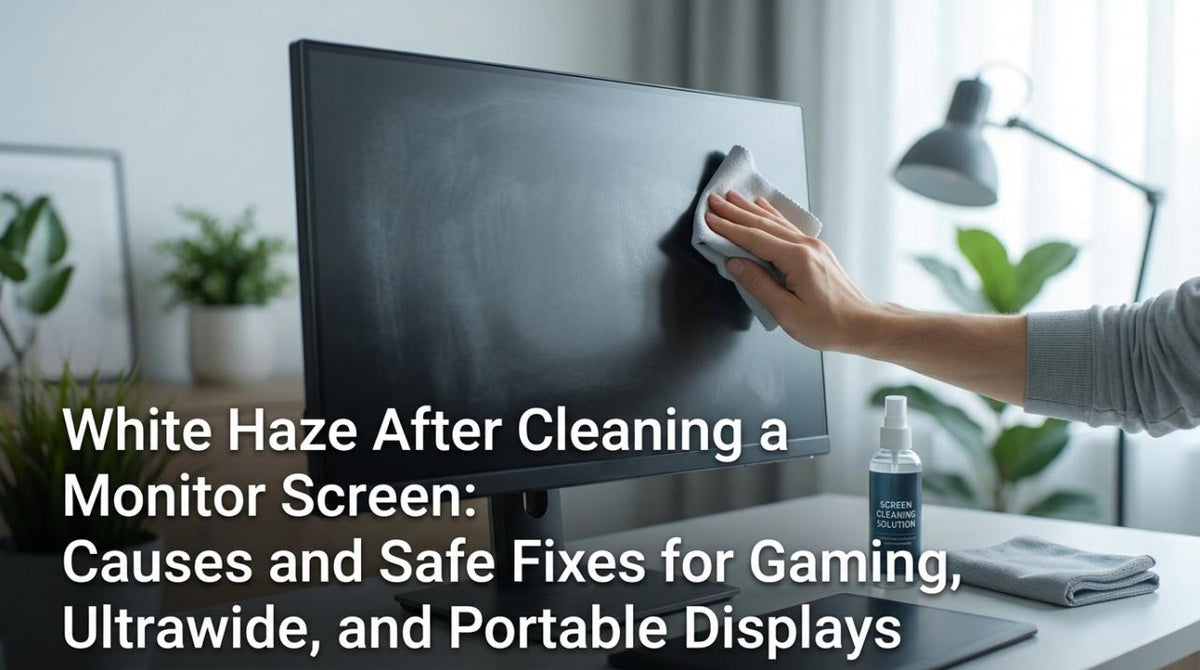
Even careful users make mistakes, but you can often fix them with the right approach. Knowing how to address these issues saves your screen from permanent damage.
Fix Streaks and Haze
Streaks after cleaning usually result from too much moisture or dirty cloths. Power off, unplug, and buff with a clean, dry microfiber cloth. If streaks persist, re-wipe with a cloth dampened only with distilled water and dry immediately.
White haze or cloudiness often means chemical damage from ammonia or alcohol. If it is residue, distilled water may help, but if the screen looks milky, the coating is likely destroyed. Edge haze indicates liquid seeped under the bezel, so power off and let it dry for 24 to 48 hours.
Handle Liquid Spills Immediately
Act fast if liquid hits your monitor to prevent internal短路.
1. Turn off and unplug instantly.
2. Blot excess with a dry, soft cloth without wiping.
3. Let it air dry upright for at least 24 hours in a warm place.
4. Do not power on until certain it is completely dry.
Contact a technician if the spill was large or sugary like soda. Internal damage is likely in these cases.
Reduce Static Buildup
Static attracts dust to the back and sides of your monitor. Clean vents regularly with a soft brush or compressed air. Maintain 40 to 60 percent room humidity and avoid synthetic clothing near the monitor to reduce charge.
Frequently Asked Questions About Monitor Maintenance
How often should I deep clean my monitor?
Most users should deep clean their monitor every 2 to 4 weeks depending on the environment. Home offices need less frequent cleaning than gaming setups or industrial areas. Dry dust weekly to prevent buildup between deep cleans.
Can I use Windex or glass cleaner on my screen?
No, never use Windex or glass cleaners containing ammonia or alcohol. These chemicals strip anti-reflective coatings and cause permanent cloudiness. Use only distilled water or solutions formulated specifically for electronics.
What is the best cloth for cleaning monitors?
A soft, lint-free microfiber cloth is the best tool for cleaning monitors. It lifts dust without scratching and leaves no fibers behind. Avoid paper towels, tissues, and rough fabrics that cause micro-scratches.
How do I remove stubborn fingerprints from an OLED screen?
Use a microfiber cloth lightly dampened with distilled water and wipe gently with straight swipes. Avoid circular motions that leave swirl marks on glossy surfaces. Dry immediately with a second clean, dry cloth.
Is it safe to spray cleaner directly on the monitor?
No, never spray liquid directly onto the screen. Moisture can seep under the bezel and damage internal circuits. Always apply the liquid to the cloth first, then wipe the screen.
Why does my screen look streaky after cleaning?
Streaks usually happen from using too much liquid or a dirty cloth. Buff the screen with a dry microfiber cloth to remove excess moisture. If streaks remain, re-wipe with distilled water only and dry immediately.
Key Takeaways for Maintaining Your Monitor
Properly maintaining your monitor requires the right tools, gentle techniques, and consistent habits. Stick to microfiber cloths and distilled water while avoiding harsh chemicals like ammonia or alcohol. Adapt your cleaning frequency to your environment and panel type for best results.
Start your next cleaning session by powering down and dry dusting before applying any liquid. These simple steps will keep your display clear, protect your investment, and ensure years of optimal performance.


