
Nothing ruins your viewing experience like a greasy fingerprint or dusty streak on your display. Cleaning it with the wrong products can strip delicate coatings and cause permanent harm to your screen.
You will learn exactly how to get smudges off monitor surfaces using safe, proven methods. This guide covers the right tools, step-by-step wiping techniques, and critical mistakes to avoid for a crystal-clear result.
Power Down Your Monitor Before Cleaning
Cleaning a powered-on screen poses electrical risks and makes it harder to see dirt. A black screen reveals every speck of dust and oily residue so you can clean thoroughly.
Turn Off and Disconnect Power Sources
Shut down your computer or monitor completely and unplug it from the wall. For laptops, close the lid and ensure the device is fully powered off. This prevents accidental inputs and protects internal circuits from moisture damage.
Verify the Spot Is Actually a Smudge
Check if the mark disappears when you wipe it gently with a dry cloth. If the spot remains static, it might be a dead pixel or a software overlay like a Windows activation message. Physical cleaning cannot fix digital artifacts or hardware defects.
Gather Only Safe Cleaning Tools for Your Screen

Using household rags or harsh chemicals is the fastest way to ruin your display forever. Many common items contain abrasives or solvents that strip anti-glare and oleophobic coatings.
Microfiber Cloths Are Essential
A clean, lint-free microfiber cloth is the only fabric safe for your screen. These cloths trap dust and oils without scratching the surface.
* Keep one dry cloth for dusting
* Use a second slightly damp cloth for smudges
* Reserve a third dry cloth for final polishing
Select the Right Cleaning Liquid
Distilled water is sufficient for most light cleaning tasks. For stubborn oily fingerprints, mix equal parts distilled water and white vinegar.
* Distilled water: Contains no minerals that leave streaks
* 50/50 vinegar mix: Breaks down tough grease effectively
* Specialized screen cleaners: Must be ammonia-free and alcohol-free
Always apply liquid to your cloth, never directly onto the screen.
Avoid These Damaging Materials
Never use paper towels, tissues, or old t-shirts as they cause micro-scratches. Harsh chemicals like Windex, isopropyl alcohol, and hand sanitizer will degrade your screen surface.
* ❌ Paper towels and tissues
* ❌ Glass cleaners with ammonia
* ❌ Disinfecting wipes with bleach
* ❌ Tap water with minerals
* ❌ Undiluted vinegar or alcohol
Follow This Step-by-Step Smudge Removal Process

A systematic approach ensures you remove dirt without grinding it into the panel. Following these steps minimizes risk and maximizes clarity.
Step 1: Remove Loose Dust First
Take a clean, dry microfiber cloth and gently wipe the screen. Use light circular motions to lift away loose particles. Skipping this step risks grinding dust into the screen when you apply moisture later.
Step 2: Dampen Cloth Gently
Moisten a second microfiber cloth with distilled water or your vinegar solution. Wring it out thoroughly until it is only slightly damp. The cloth should never drip water when held upright.
Step 3: Wipe Screen in Circular Motions
Clean the display using soft, circular strokes with minimal pressure. Work from the top of the screen down to the bottom. Focus on smudged areas but avoid scrubbing aggressively.
Step 4: Dry and Polish Immediately
Use a third dry microfiber cloth to wipe away any remaining moisture. This prevents streaks and ensures no liquid sits on the panel. If you see streaks, buff them gently with the dry cloth.
Step 5: Inspect Under Good Lighting
Turn your monitor back on to check for missed spots. If smudges persist, repeat the damp-wipe step with a fresh section of cloth. Most issues resolve with one gentle pass.
Adjust Technique for Different Screen Types
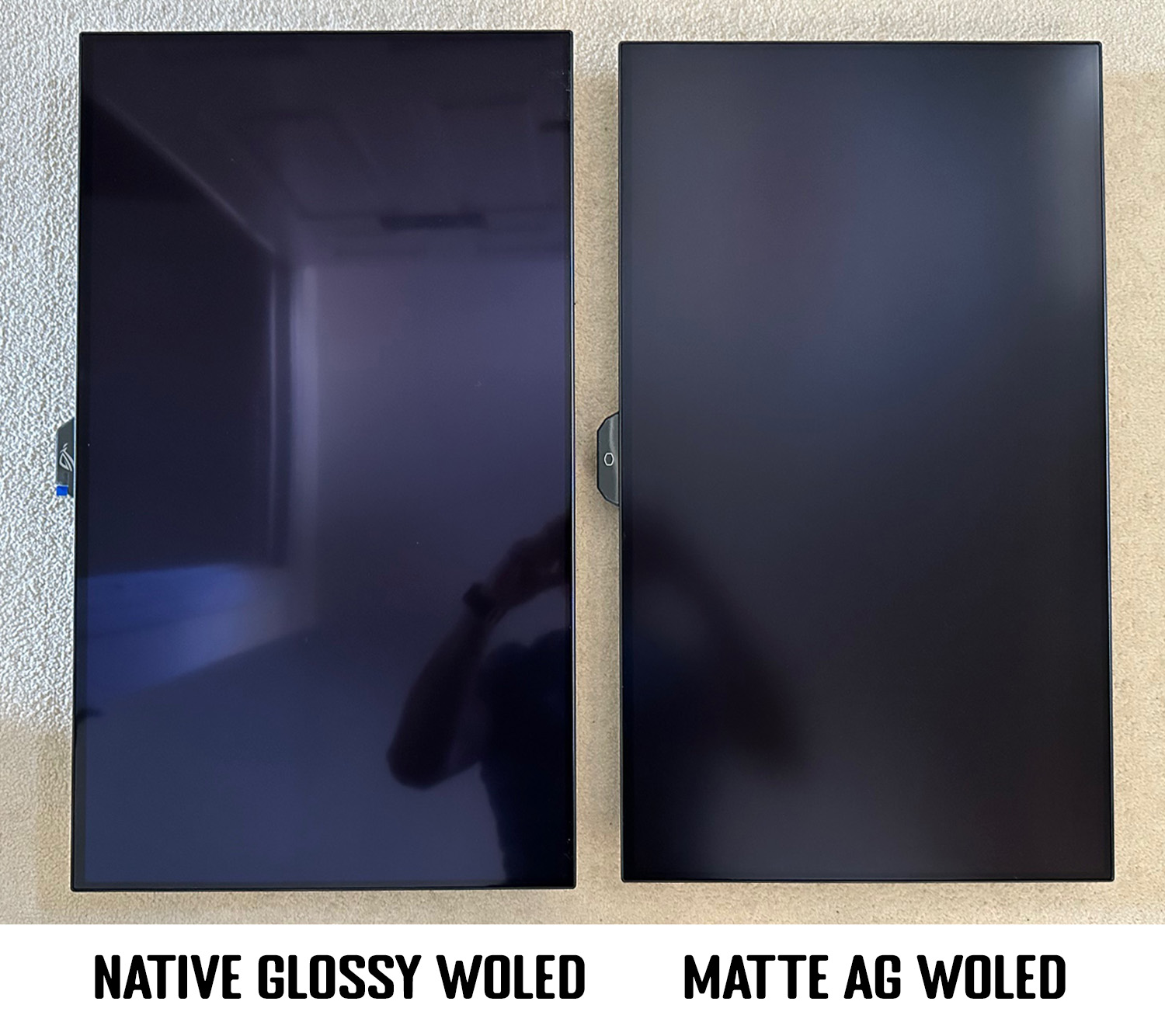
Not all displays react the same way to cleaning solutions. Your specific monitor type dictates the safest approach.
Matte Finish Monitors
Matte screens have a textured coating that reduces glare but traps dust easily.
* Use distilled water only if possible
* Avoid vinegar solutions that might alter texture
* Wipe very gently to prevent streaking
* Dry immediately to avoid water marks
Glossy and IPS LCD Screens
Glossy displays show reflections clearly but are generally easier to wipe clean.
* Start with a dry microfiber cloth
* Use water or vinegar mix for fingerprints
* Buff thoroughly to remove shine-enhancing streaks
OLED and Touchscreen Displays
These sensitive panels suffer from constant finger contact and require extra care.
* Clean daily with a dry microfiber cloth
* Use distilled water only for smudges
* Never use alcohol or strong cleaners
* Apply zero pressure to protect touch sensors
Laptop Screens
Laptops accumulate dirt from keyboards when closed.
* Follow standard desktop cleaning methods
* Be extra careful near hinges and edges
* Place a cloth over the keyboard before closing
Clean Bezel and Vents for Complete Maintenance

A truly clean monitor includes the frame and ventilation areas. Ignoring these parts allows dust to migrate back to your screen.
Wipe Frame and Back Panel
Use a separate cloth dampened with your cleaning solution for the bezel. These areas tolerate slightly more moisture than the screen itself. Avoid letting liquid drip into ports or seams.
Clear Dust from Vents
Dust buildup in vents causes overheating and performance issues.
* Use compressed air held 6 inches away
* Blow dust out from sides and back
* Never use high pressure directly on the screen
* Use a soft brush for stubborn buildup
Clean Buttons and Controls
Power buttons and menu controls collect grime from frequent touching. Dampen a cotton swab with water and wipe gently around the edges. Let all components dry completely before powering on.
Fix Common Cleaning Mistakes Quickly
Even careful users encounter issues like streaks or stubborn residue. Knowing how to correct these errors saves your screen.
Remove Streaks After Cleaning
Streaks usually mean you used too much moisture or a dirty cloth. Turn off the monitor and buff the area with a clean, dry microfiber cloth. Always use distilled water to prevent mineral deposits.
Tackle Stubborn Oily Smudges
Greasy fingerprints from food or skin resist plain water. Switch to a 50/50 mix of distilled water and white vinegar. Apply to the cloth and rub gently in circles without scrubbing hard.
Handle Liquid Spills Immediately
If liquid gets on the screen, unplug and power off immediately. Blot the area with a dry cloth without wiping. Let it air dry for at least 24 hours before turning it back on.
Prevent Smudges Long-Term With Good Habits
Consistent care reduces the need for deep cleaning sessions. Simple habits keep your display clear and sharp.
Establish a Cleaning Schedule
- Clean every two weeks for normal use
- Wipe weekly in dusty environments
- Clean touchscreens daily due to oils
Use Protective Measures
Apply a high-quality screen protector to shield against fingerprints. Use a fabric cover for desktop monitors when not in use. Store laptops in protective sleeves during travel.
Maintain a Clean Workspace
Dust your desk regularly to reduce airborne particles. Avoid eating directly over your keyboard or monitor. An air purifier helps minimize dust in the room.
Store Cloths Properly
Keep microfiber cloths in a sealed bag to prevent dirt accumulation. Wash them every few uses with mild soap. Never use fabric softener as it clogs the fibers.
Frequently Asked Questions About Cleaning Monitors
Can I use vinegar on my monitor?
Yes, but only as a 50/50 mix with distilled water. Avoid using it on matte screens as it may affect the texture. Always test on a small edge first.
Is it safe to clean a monitor with water?
Yes, provided you use distilled water only. Tap water leaves mineral streaks. Never spray water directly on the screen.
Why can’t I use paper towels?
Paper towels contain abrasive wood fibers that cause micro-scratches. These scratches accumulate and create a hazy, permanently damaged appearance.
Can I clean my monitor while it is on?
No. Always power off and unplug first. Heat from the screen causes streaks, and moisture increases electrical shock risk.
What if the smudge won’t come off?
If a spot remains after cleaning, it may be a dead pixel or software message. Physical cleaning cannot fix hardware or digital issues.
Are screen cleaning kits worth it?
They are useful if they contain ammonia-free solutions and quality microfiber. However, distilled water and vinegar work just as well for most needs.
Key Takeaways for How to Get Smudges Off Monitor

Keeping your display clear requires the right tools and a gentle touch. Always power down first, use only microfiber cloths, and stick to distilled water or a mild vinegar mix. Avoid harsh chemicals and paper products that cause permanent damage.
Start your next cleaning session with these safe practices to extend your monitor’s life. Your eyes will thank you for the improved clarity and reduced strain.


