
Is your screen feeling sluggish or blurry despite high-end hardware? You likely need to learn how to optimize monitor settings beyond simple brightness adjustments to fix input lag and motion blur. Factory defaults often hide performance bottlenecks that hurt competitive gameplay and visual fidelity.
This guide reveals the exact steps to force native refresh rates, tune response times, and disable laggy image processing. You will learn how to configure DisplayPort connections, calibrate overdrive settings, and apply system tweaks for maximum clarity. Follow these instructions to unlock the full potential of your display.
Select the Correct Connection Interface
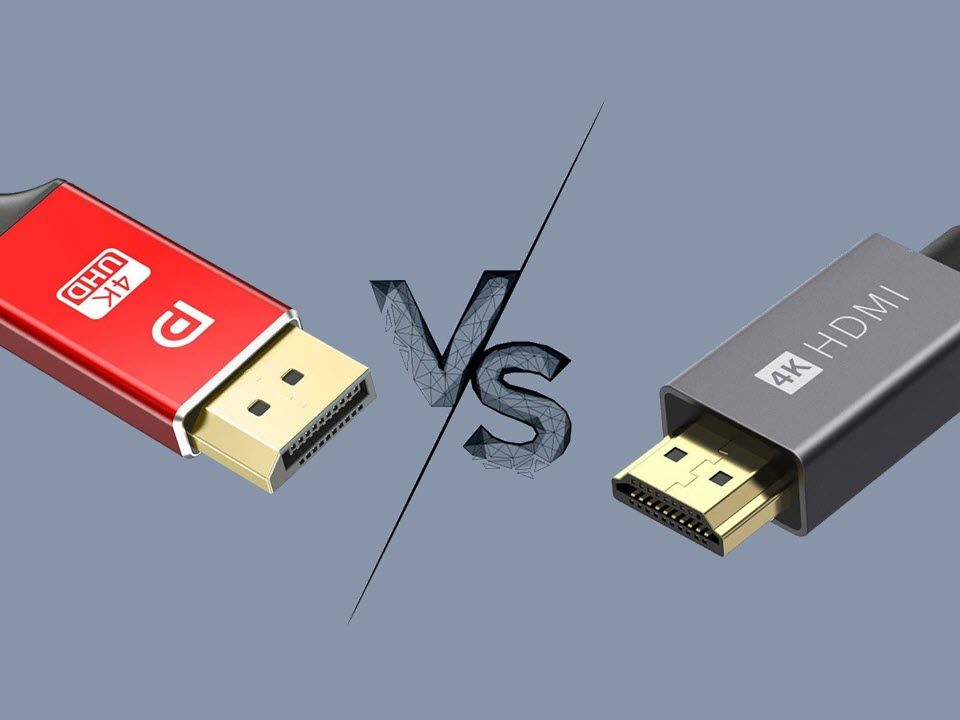
Your physical connection determines the maximum bandwidth and latency floor of your setup. Choosing the wrong port or cable can cap your refresh rate and introduce buffering delays.
Prioritize DisplayPort for PC Gaming
DisplayPort is the superior choice for computers because it transmits video packets directly with minimal buffering. This direct path reduces micro-stutters and ensures full compatibility with G-Sync and FreeSync technologies. You should only use HDMI if you are connecting a console like a PS5 or Xbox Series X.
Use the Included High-Speed Cable
Third-party cables often fail to meet the bandwidth requirements for high refresh rates like 144Hz or 240Hz. A substandard cable can cause flickering, signal drops, or prevent Variable Refresh Rate (VRR) from activating. Always start with the original DisplayPort cable provided in your monitor box.
Connect to the Primary GPU Output
Graphics cards designate a primary output port, usually labeled Port 1 or located nearest the PCIe bracket. Connecting your main display here ensures the signal routes directly through the GPU die rather than secondary multiplexers. Check your manufacturer documentation to identify the primary port for the lowest latency path.
Force Native Refresh Rate Accuracy

Windows often defaults to slightly incorrect refresh rates that disrupt frame pacing. You must manually enforce the exact integer value advertised by your monitor manufacturer.
Identify Refresh Rate Deviations
System settings sometimes display values like 239.47 Hz instead of a clean 240 Hz. This tiny deviation causes uneven frame delivery and undermines the effectiveness of VRR technologies. Correcting this ensures your GPU and monitor stay perfectly synchronized.
Install Custom Resolution Utility
You can use the Custom Resolution Utility (CRU) to define precise timing parameters.
1. Download CRU and extract the files as an Administrator.
2. Open the application and select your specific monitor from the dropdown list.
3. Navigate to Extension Blocks and select DisplayID.
4. Locate your target resolution and click Edit to change the type to Manual.
5. Enter the exact integer value, such as 240.000 Hz, and save the changes.
6. Run the included restart64.exe file to reload the driver.
Warning: If your screen goes black, wait 15 seconds for an automatic revert. If the issue persists, boot into Safe Mode and delete the custom resolution entry.
Lock Refresh Rate with Scripts
Windows may dynamically switch refresh rates when launching different applications. Use a VRR protection script to lock the display at your native rate. This prevents OS-level fluctuations that cause stuttering during gameplay.
Tune Timing Parameters for Latency
Adjusting horizontal timing values can further reduce the delay between your GPU output and the monitor rendering the image.
Adjust Front Porch and Sync Width
These values control the timing gaps between video frames. Lowering them reduces latency, which is critical for competitive gaming at 240Hz and above.
* Start with safe values of 10 for both Front Porch and Sync Width.
* Test stability, then try reducing both to 5 for aggressive tuning.
* Never go below 5 unless you have validated stability for your specific panel model.
Apply Changes via Control Panel
- NVIDIA Users: Go to Control Panel > Change Resolution > Customize > Enable hidden resolutions > Create Custom > Edit Timing.
- AMD Users: Open Radeon Software > Settings > Display > Custom Resolutions > Edit Timing.
Restart your driver or reboot the system to apply these low-level timing changes effectively.
Calibrate Overdrive for Motion Clarity
Overdrive accelerates pixel transitions to reduce motion blur, but incorrect settings cause visual artifacts. You must find the balance between speed and image quality.
Test for Inverse Ghosting
Setting overdrive too high causes overshoot, visible as bright halos or trails behind moving objects.
1. Visit a ghosting test website like TestUFO.
2. Set your monitor overdrive to the highest setting available.
3. Observe moving objects for white trails or halos.
4. Reduce the setting by one level if artifacts appear.
5. Repeat until the image is sharp with no visible overshoot.
Understand Brand-Specific Terminology
Manufacturers use different names for this feature.
* ASUS: OD (Esports or Extreme)
* Dell: Variable OD (Slider)
* LG: Overdrive (Speed)
* Samsung: Response Time (Fastest)
Note: Do not leave this setting on Normal or Standard for gaming, as these induce motion blur. OLED panels do not use traditional overdrive and can skip this step.
Enable Backlight Strobing Features

Backlight strobing reduces persistence blur by turning off the backlight between frames. This technique mimics CRT clarity for sharper motion.
Activate Motion Blur Reduction
Enable this feature in your monitor OSD under names like ELMB, MPRT, or Ultra Low Motion Blur. It significantly improves target tracking in fast-paced shooters. Be aware that it may dim the overall image brightness.
Evaluate Trade-offs and Compatibility
- Pros: Drastically sharper motion and better clarity.
- Cons: Reduced brightness, potential flicker, and possible VRR conflicts.
Many monitors disable VRR when strobing is active. Newer models may support both simultaneously. Enable this for competitive titles where clarity is paramount, but disable it if flickering causes discomfort.
Maximize Refresh Rate in Windows
Ensure your operating system recognizes and utilizes the full capability of your display hardware.
Set Display to Native Hertz
- Right-click the desktop and select Display Settings.
- Scroll down and click Advanced Display Settings.
- Select the Refresh Rate dropdown and choose the maximum available value.
Some monitors require you to enable an Overclock mode in the On-Screen Display menu to reach advertised speeds. Check your user manual for model-specific instructions.
Select the Correct Picture Mode
Starting with the right preset gives you full control over calibration parameters.
Use User or Custom Presets
Avoid locked presets like sRGB, Vivid, or Cinema.
* sRGB Mode: Often locks brightness and contrast controls.
* Vivid/Cinema: Distorts colors and gamma curves.
Select User, Custom, Game, or Racing modes for full adjustability. Perform a factory reset via the OSD before starting calibration to clear any legacy settings.
Set Brightness and Contrast Properly
Balancing light output ensures visibility without washing out details or causing eye strain.
Adjust Brightness for Environment
Brightness controls backlight intensity.
* Indoor Use: Set OSD brightness to 20–30.
* Bright Rooms: Increase up to 50 if necessary.
* Dark Rooms: Lower to 15 to reduce eye fatigue.
Use a brightness test pattern to ensure dark details remain visible without making blacks look gray.
Calibrate Contrast Without Clipping
Contrast affects white levels. Set this too high and you lose highlight detail; set it too low and the image looks flat. Increase contrast until white bars disappear on a gradient test, then lower it one step. The default setting is often optimal.
Fine-Tune Black Level and Gamma
Adjusting black levels and gamma helps you spot enemies hiding in shadows while maintaining overall image depth.
Lift Black Levels for Visibility
Features like Black Equalizer or Shadow Boost brighten dark areas without overexposing bright spots.
1. Load a near-black gradient test pattern.
2. Raise the black level until the darkest bars become visible.
3. Stop before the blacks start looking gray.
This provides a tactical advantage in FPS games but reduces overall contrast.
Set Gamma for Scene Balance
Gamma controls mid-tone brightness.
* Standard: 2.2 for most content.
* FPS Games: 2.0 to 2.1 for brighter shadows.
* Atmospheric Games: 2.4 for deeper blacks.
Adjust based on the specific game genre and your lighting conditions.
Balance Color Temperature and RGB
Achieving a neutral color balance ensures accurate visuals and reduces eye strain.
Target 6500K Color Temperature
Aim for the D65 standard of 6500K for neutral whites. Avoid Warm or Cool presets unless correcting a specific tint issue. A yellow tint indicates too much red, while a blue tint indicates excessive coolness.
Manually Adjust RGB Sliders
In User or Custom color modes, only decrease RGB values to correct imbalances.
* To fix a yellow tint, slightly lower Red and Green while keeping Blue at maximum.
* Keep adjustments small, under 10 points, to maintain contrast ratio.
Never copy ICC profiles from reviews as panel variance makes them inaccurate for your specific unit.
Optimize Sharpness Without Artifacts
Proper sharpness settings enhance edge definition without creating noise.
Calibrate Using Test Patterns
- Open a sharpness test pattern online.
- Set sharpness to maximum to see artificial patterns.
- Reduce the setting until these patterns disappear.
High sharpness adds halos and noise, while low settings cause blurriness. The default value is often the ideal setting.
Disable Harmful Image Processing
Many built-in features add input lag and visual artifacts that degrade performance.
Turn Off These Features
- Dynamic Contrast: Causes flickering brightness and adds lag.
- Motion Interpolation: Adds significant delay; intended for video only.
- Noise Reduction: Blurs the image and degrades clarity.
- Edge Enhancement: Creates artificial halos around objects.
- Low Blue Light: Distorts colors; use Windows Night Light instead.
- HDR: Increases processing delay and locks other settings.
Disable all such features to ensure the fastest possible signal path.
Disable MPO and Optimize Scaling
System-level settings can interfere with how Windows renders games on your display.
Run MPO Disabler Script
Multiplane Overlay (MPO) can cause flickering or black screens. Download and run an MPO disabler script as Administrator to force single-plane rendering. This stabilizes output, especially for VRR users.
Set Correct GPU Scaling
In your GPU control panel, set scaling to “Use the display’s native resolution.” Disable GPU scaling unless you specifically need to stretch lower-resolution games. This prevents unnecessary upscaling latency.
Handle Special Panel Types
Different display technologies require unique optimization approaches.
Local Dimming Considerations
Local dimming improves black levels on Mini-LED screens but can cause blooming. Disable it in SDR mode unless your model has excellent uniformity. It is often auto-enabled in HDR mode.
OLED Specific Settings
OLED panels have instant response times and do not need overdrive. Focus on enabling burn-in protection features like pixel shifting and logo dimming. Use Backlight Strobing if available for motion clarity.
Use Gaming Enhancements Wisely
Leverage built-in tools to gain a competitive edge without triggering anti-cheat systems.
Enable Virtual Crosshairs
On-screen crosshairs help in games without native reticles. Choose simple center dots or lines that do not distract from gameplay.
Use Black Equalizer Strategically
Boost shadow detail in games like CS2 or Valorant to spot enemies in dark corners. Set levels between 50 and 70 to avoid making the scene look flat.
Verify With Diagnostic Tools
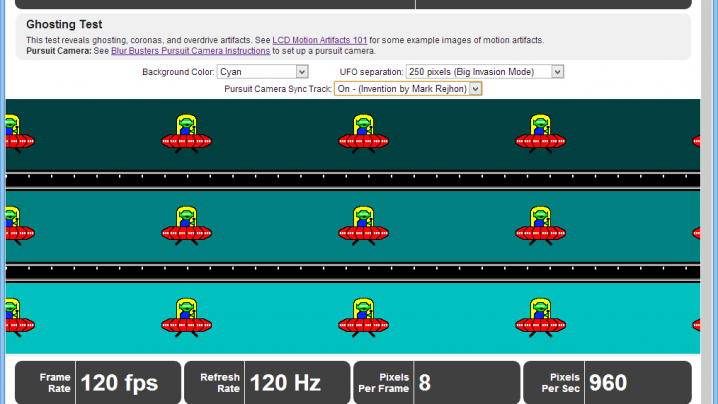
Always test your changes to ensure they are working correctly.
Essential Calibration Websites
- TestUFO: Checks ghosting, motion clarity, and refresh rate.
- Lagom LCD Test: Verifies sharpness, contrast, and gamma.
- Monitor Asset: Detects input lag and flicker.
Use gradient patterns to fine-tune black levels and contrast settings accurately.
Troubleshoot Common Failures
Quickly resolve issues that may arise during optimization.
Black Screen After CRU
Wait 15 seconds for an automatic revert. If the screen remains black, boot into Safe Mode and delete the custom resolution entry.
Flickering or Stuttering
Check that MPO is disabled, your cable is high-quality, and your VRR script is active. Ensure BFI and G-Sync are compatible on your specific model.
Inverse Ghosting
Reduce the overdrive setting by one step immediately if you see bright trails.
Washed-Out Blacks
Lower the Black Level setting or ensure Dynamic Contrast is disabled.
Maintain Optimal Performance Over Time
Preserve your image quality and system stability with regular maintenance.
Recalibrate Annually
Panels degrade over time. Perform a professional recalibration with a colorimeter once a year for color-critical work.
Reduce Idle Power Use
Turn off the monitor when not in use. Avoid Eco Mode as it limits performance. Manually lower brightness to save power while maintaining image quality.
Frequently Asked Questions About Monitor Optimization
How do I fix input lag on my monitor?
Connect via DisplayPort to the primary GPU port and disable all image processing features like Motion Interpolation. Ensure your refresh rate matches the monitor’s native specification exactly.
Should I use HDMI or DisplayPort for gaming?
Use DisplayPort for PC gaming as it offers lower latency and better support for high refresh rates. Reserve HDMI for consoles or TV connections where DisplayPort is unavailable.
Why does my screen look blurry in motion?
Your overdrive setting is likely too low or too high. Calibrate the response time setting using a ghosting test to find the highest value before inverse ghosting appears.
What is the best gamma setting for competitive gaming?
Set gamma to 2.2 for standard use. For competitive FPS games, try lowering it to 2.0 or 2.1 to brighten shadows and spot enemies more easily.
Does enabling HDR improve gaming performance?
No, HDR usually increases input lag and locks other optimization settings. Disable HDR for competitive gaming unless the specific title requires it for visual fidelity.
How often should I recalibrate my monitor?
Recalibrate your monitor annually as panels degrade over time. Use a colorimeter for professional accuracy if you do color-critical work.
Key Takeaways for Optimizing Your Monitor
Optimizing your display requires a systematic approach starting with the physical connection. Using DisplayPort on the primary GPU port and forcing the exact native refresh rate eliminates foundational latency issues. Tuning overdrive and disabling harmful image processing features further sharpens motion clarity and reduces input lag.
Apply these settings step-by-step to transform your viewing experience. Start by checking your cable and refresh rate, then move through calibration settings using test patterns. Your monitor will deliver the speed and clarity needed for competitive advantage.


