
You press a key to wake your computer, but instead of your desktop, the screen flashes “Power Saving Mode” or shows an amber light. This frustrating error means your monitor has power but receives no video signal from your PC.
This guide helps you fix monitor power saving mode issues by checking cables, resetting drivers, and testing hardware. You will learn how to restore your display quickly without unnecessary replacements or costly repairs.
Reset Your Graphics Driver with One Shortcut
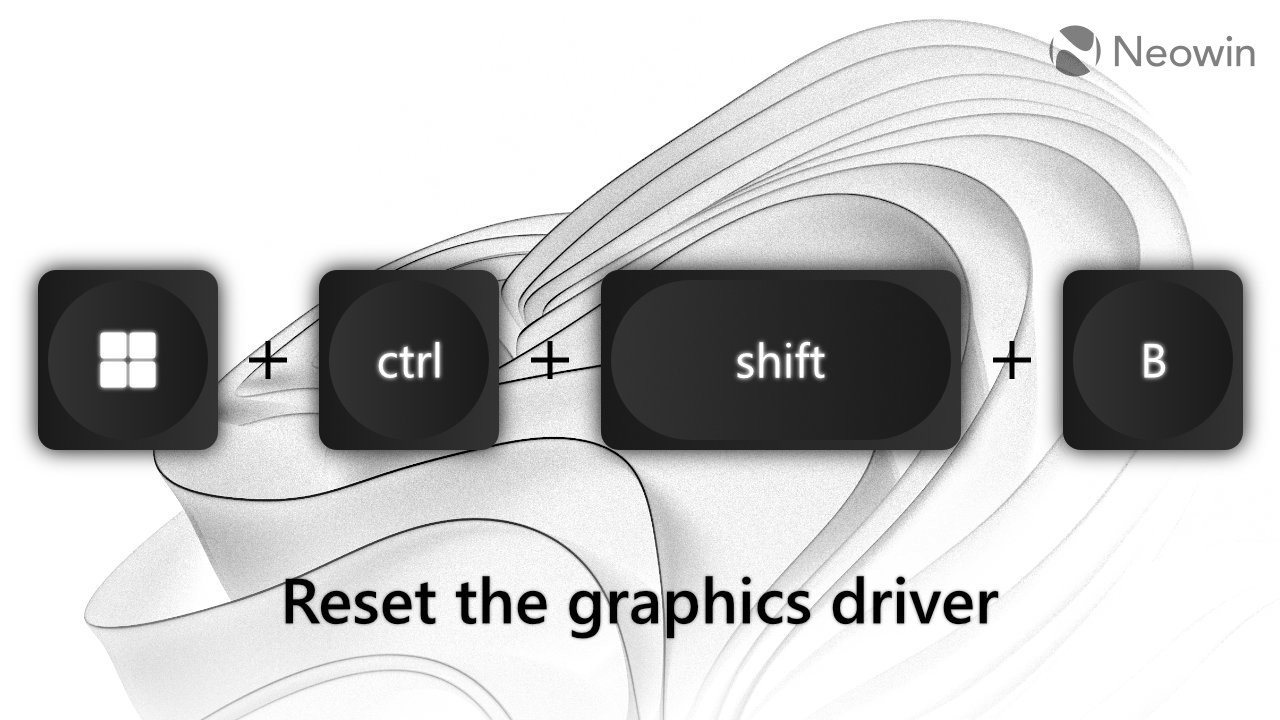
A sudden loss of video signal often stems from a temporary glitch in your graphics software rather than broken hardware. You can force Windows to reload the driver instantly without rebooting your entire system.
Use the Ctrl + Shift + Win + B Command
Press these four keys simultaneously to trigger a driver restart. You will hear a short beep, and your screen may flicker or go black for a second before returning.
- If the image returns: Your graphics driver crashed, and the reset fixed it.
- If the screen stays black: The issue likely involves cables, the GPU, or the monitor itself.
This shortcut is the fastest way to rule out a software hang before checking physical connections.
Cycle Display Output Modes on Laptops
Laptops frequently get confused about where to send video signals, especially after disconnecting from projectors or docking stations. The system might still be trying to output to a screen that is no longer connected.
Force the Correct Display Setting
Press Win + P to open the projection menu, then press P again and hit Enter to cycle options. Repeat this slowly to toggle between “PC screen only,” “Duplicate,” “Extend,” and “Second screen only.”
- Select “PC screen only”: This forces the laptop to ignore external displays and use the primary panel.
- Wait for response: Give the system a few seconds to switch modes after each selection.
Pro Tip: If you use a dock, setting this to “PC screen only” before connecting can prevent signal handshake errors.
Diagnose Software Conflicts in Safe Mode
Booting into Safe Mode loads Windows with minimal drivers, helping you determine if third-party software causes the display failure. This step isolates operating system issues from hardware failures.
Access Safe Mode via Recovery Options
- Hold the Shift key while clicking Restart in the Start Menu.
- Navigate to Troubleshoot > Advanced Options > Startup Settings.
- Click Restart and press F4 to enter Safe Mode.
Analyze the Display Behavior
- Monitor works in Safe Mode: A corrupted driver or startup application is blocking normal display function.
- Monitor stays in power saving mode: The problem is likely hardware-related, such as a bad cable or failing GPU.
If the display works here, proceed to update or reinstall your graphics drivers immediately.
Inspect and Reseat All Video Cables

Loose or damaged cables cause over 60% of “no signal” errors. Even a cable that looks secure can fail to transmit the high-speed data required for modern resolutions.
Perform a Complete Cable Reseat
Unplug the video cable from both the computer and the monitor, then plug them back in firmly. Ensure you also check the power cable connecting the monitor to the wall outlet.
- Check both ends: A loose connection at the GPU or monitor port breaks the signal chain.
- Look for damage: Inspect connectors for bent pins or fraying near the ends.
Swap with a Known-Good Cable
Test your setup with a different HDMI, DisplayPort, or USB-C cable to rule out internal wire damage.
- High refresh rates need quality: Gaming at 144Hz or 4K requires high-bandwidth cables like HDMI 2.0 or DisplayPort 1.2.
- Avoid old standards: An older HDMI 1.4 cable may not support your monitor’s native resolution.
Bypass Docks and USB-C Hubs
Docking stations and USB-C hubs are common points of failure due to firmware bugs or bandwidth limitations. These devices can interrupt the video signal between your laptop and monitor.
Connect Directly to the Computer
Remove the dock from your setup and plug the monitor directly into your laptop or PC video port.
- Direct connection works: The dock is faulty or needs a firmware update.
- Direct connection fails: The issue lies with the computer, cable, or monitor.
Power Cycle the Docking Station
Unplug the dock from both power and your laptop, wait 10 seconds, and reconnect everything. This clears temporary glitches in the dock’s firmware that may block video output.
Manually Select the Monitor Input Source
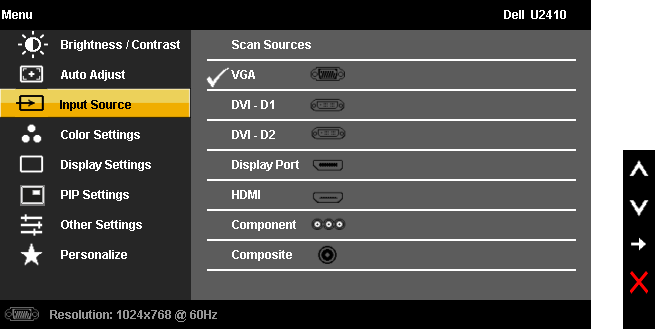
Automatic input detection often fails when multiple devices are connected or when waking from sleep. Your monitor might be looking at the wrong port for the active signal.
Use the Monitor OSD Buttons
Press the Input or Source button on your monitor bezel to open the On-Screen Display menu. Manually select the specific port you are using, such as HDMI 1, DisplayPort, or USB-C.
- Do not rely on auto-detect: Monitors often stop searching if they do not find a signal quickly.
- Verify active port: Ensure you select the port where your cable is physically plugged in.
Disable Aggressive Windows Power Settings
Windows power plans can force your display to sleep prematurely or prevent it from waking correctly. Adjusting these settings ensures your monitor stays active when needed.
Configure Advanced Power Options
- Press
Win + R, typepowercfg.cpl, and hit Enter. - Click Change plan settings followed by Change advanced power settings.
- Expand the Display section and set “Turn off display after” to Never.
- Expand USB settings and disable “USB selective suspend.”
Adjust Lid Close Actions for Laptops
Open the “Choose what closing the lid does” menu in Power Options. Set the action to Do nothing when plugged in to prevent the laptop from sleeping while using an external monitor.
Update or Reinstall Graphics Drivers
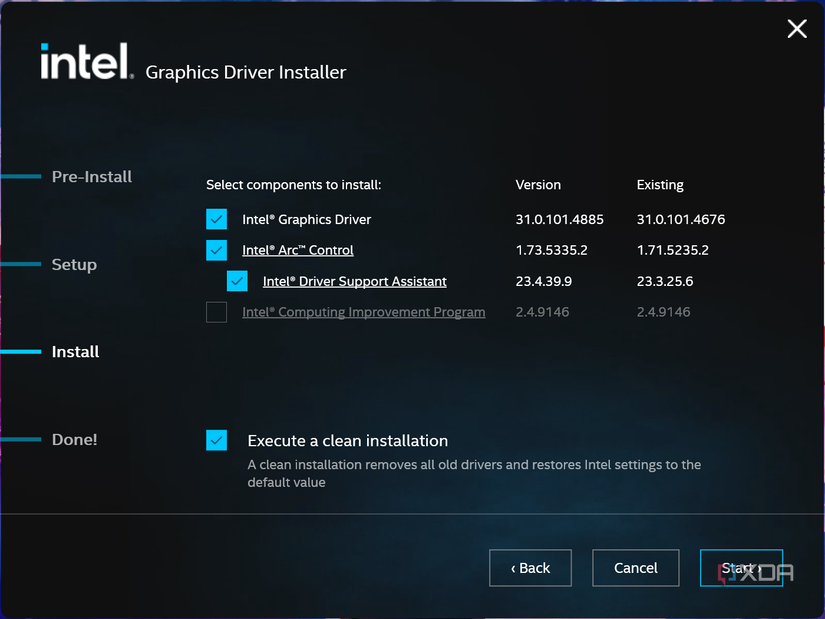
Outdated or corrupted graphics drivers are a leading cause of signal loss. Manufacturer-provided drivers are often more stable than generic versions installed by Windows Update.
Download Drivers from the Source
Visit the official website for your GPU manufacturer to get the latest software.
- NVIDIA users: Download from the GeForce Experience or NVIDIA website.
- AMD users: Use the AMD Adrenalin installer.
- Intel users: Utilize the Intel Driver & Support Assistant.
Perform a Clean Driver Installation
Uninstall your current graphics driver via the Control Panel, restart your computer, and then install the fresh download. This removes corrupted files that may cause display drops.
Alternative Method: Use Display Driver Uninstaller (DDU) in Safe Mode for a completely clean slate before reinstalling.
Test with Integrated Graphics
If your computer has a dedicated graphics card, testing with the integrated graphics helps isolate the faulty component. This step determines if the dedicated GPU is the problem.
Connect to Motherboard Video Ports
- Shut down your PC completely.
- Remove the video cable from your dedicated graphics card.
- Plug the cable into the video port on the motherboard.
- Power on the system.
Interpret the Test Results
- Image appears: Your dedicated GPU is likely failing, overheating, or seated incorrectly.
- No image appears: The issue may involve the motherboard, CPU, RAM, or the monitor itself.
Note: Some CPUs lack integrated graphics, so verify your processor model before testing.
Replace the CMOS Battery
A dead CMOS battery can cause boot failures and signal loss by resetting BIOS settings every time the computer powers off. This often manifests as an inability to wake from sleep or display video.
Identify CMOS Battery Symptoms
Look for signs like the system losing time, BIOS settings resetting, or random black screens during boot. These indicate the small coin cell on your motherboard is depleted.
Install a New CR2032 Battery
- Power off and unplug your computer.
- Open the case and locate the silver CR2032 battery on the motherboard.
- Remove the old battery and insert a new one with the correct orientation.
- Power on and enter BIOS to verify settings.
Replacing this battery costs less than five dollars and solves many mysterious boot issues.
Test the Monitor on Another Device

Connecting your monitor to a different source confirms whether the panel itself is functional or faulty. This step isolates the monitor from the rest of your system.
Connect to a Different Source
Plug the monitor into a laptop, game console, or friend’s PC using the same cable.
- Monitor works: Your original computer or its settings are the cause.
- Monitor fails: The monitor input board or panel is likely defective.
Self-Test Feature: Disconnect the video cable entirely. If the monitor shows a moving box or color bars, the panel is healthy, confirming the issue is with the source device.
Lower Resolution and Refresh Rate

High-resolution settings can overwhelm older cables or struggling hardware, causing the signal to drop. Reducing these demands can stabilize a shaky connection.
Force Lower Display Settings
- Boot into Safe Mode for reliable access.
- Right-click the desktop and select Display settings.
- Change resolution to 1920×1080 and refresh rate to 60Hz.
This reduces bandwidth requirements and helps identify if your current setup cannot handle higher settings.
Disable HDR and Adaptive Sync Features
Gaming features like G-Sync, FreeSync, and HDR increase signal complexity and can cause instability on certain setups. Disabling them temporarily helps diagnose compatibility issues.
Turn Off Advanced Display Features
Navigate to your GPU control panel or Windows Display settings to disable HDR and Adaptive Sync.
- NVIDIA: Uncheck G-SYNC in the Display section.
- AMD: Disable FreeSync in Radeon Settings.
- Windows: Turn off HDR in System > Display.
If the screen stabilizes after disabling these, update your monitor firmware or try a higher-quality cable.
Check for Overheating and Power Supply Issues
Signal loss during heavy usage like gaming often points to thermal throttling or insufficient power. Your GPU may shut off video output to protect itself from damage.
Monitor GPU Temperatures
Use tools like MSI Afterburner or HWMonitor to check if your GPU exceeds 85°C. High temperatures can cause driver crashes and signal loss.
Verify Power Supply Adequacy
Ensure your power supply unit (PSU) provides enough wattage for your graphics card. Power spikes during gaming can cause an underpowered PSU to cut video output.
Clean Ports and Prevent Static Discharge
Dust buildup or static electricity can disrupt the delicate handshake between your monitor and computer. Cleaning ports and grounding yourself resolves many intermittent issues.
Clear Debris from Connectors
Use compressed air to blow dust out of GPU, monitor, and dock ports before reconnecting cables.
Ground Yourself Before Handling Hardware
Touch a metal part of your computer case to discharge static electricity. Static buildup can confuse monitor logic boards, particularly on Samsung and Dell models.
Decide When to Replace Components
Use this decision matrix to avoid unnecessary expenses and target the right fix.
| Symptom | Likely Cause | Action |
|---|---|---|
| Flickering at high refresh rates | Bad cable | Replace HDMI/DP cable |
| Works direct but not via dock | Faulty dock | Bypass or replace dock |
| Works in Safe Mode only | Driver issue | Clean reinstall GPU driver |
| No BIOS logo on boot | Dead CMOS battery | Replace CR2032 battery |
| Fails on all devices | Monitor failure | Repair or replace monitor |
| Drops only during gaming | GPU/PSU/Heat | Check temps and PSU |
Rule of Thumb: Always replace the cheapest component, the cable, before testing expensive hardware.
Final Steps and Prevention
Prevent future occurrences by maintaining your hardware and keeping software updated. Regular maintenance ensures a stable video signal over time.
Apply These Maintenance Tips
- Use high-quality cables rated for your specific resolution.
- Update firmware for your GPU, monitor, and dock regularly.
- Clean dust from vents every few months to prevent overheating.
- Replace the CMOS battery every 5 to 7 years as preventive care.
Quick Recovery Checklist
✅ Press Ctrl + Shift + Win + B to reset driver
✅ Check input source on monitor OSD
✅ Reseat video cable at both ends
✅ Try a different cable
✅ Boot into Safe Mode
✅ Test on another device
Frequently Asked Questions About Monitor Power Saving Mode
Why does my monitor say power saving mode but the PC is on?
This means the monitor has electrical power but receives no video signal. Check your cable connections, ensure the correct input source is selected, and try resetting your graphics driver with Ctrl + Shift + Win + B.
Can a bad cable cause power saving mode?
Yes, damaged or low-quality cables are the most common cause. A frayed cable may transmit power but fail to send the video data required to wake the display.
How do I know if my graphics card is dead?
If the monitor works with integrated graphics but not with the dedicated card, the GPU is likely faulty. Also, if you see no BIOS logo and hear no fans, the card may have failed completely.
Does replacing the CMOS battery fix black screens?
It can, if the system loses BIOS settings or fails to initialize video hardware after power loss. A dead battery often causes boot failures that look like monitor issues.
Why does my screen go black only when gaming?
This usually indicates overheating, insufficient power supply, or driver instability under load. Monitor your GPU temperatures and ensure your PSU meets the graphics card requirements.
What does the amber light on my monitor mean?
An amber or orange light typically indicates the monitor is in standby or power saving mode due to no signal. A green or blue light usually means an active signal is present.
Key Takeaways for Fixing Monitor Power Saving Mode
Fixing monitor power saving mode usually involves finding the break in the signal chain between your computer and display. Most issues resolve by reseating cables, resetting the graphics driver, or updating outdated software.
Start with the simplest solutions like checking connections and using keyboard shortcuts before moving to hardware tests. By following this logical path, you can restore your display quickly and avoid unnecessary costs.


