
Your screen stays black despite the computer powering on, leaving you staring at a lifeless void. This frustrating scenario often stems from loose cables or simple setting errors rather than broken hardware.
You can resolve most display failures by following a logical diagnostic path to isolate the issue. This guide teaches you how to fix monitor not working problems by testing power, connections, and internal components step by step.
Diagnose Power Status and Signal Indicators
The color of your monitor’s LED light reveals whether the issue involves electricity or video data. A dark light suggests a power failure, while an amber glow typically means the unit has power but lacks a signal.
Interpret LED Light Colors
Check the small indicator on your screen frame to determine the next course of action.
* No Light: The device receives no electricity from the wall or internal supply.
* Amber or Orange: Power is present, but the computer sends no video data.
* Blue or Green: The display functions normally, indicating a software or input selection error.
Perform a Monitor Self-Test
Disconnect the video cable from the back of the screen while the device remains powered on. A functional panel will display a “No Signal” box or a floating diagnostic pattern. If the screen stays completely black during this test, the monitor hardware itself has likely failed.
Verify Computer Boot Sequence
Listen closely for spinning fans or hard drive sounds to confirm your PC is actually running. Look for motherboard LEDs labeled CPU or VGA, as a red light here often points to a graphics card failure preventing any image output.
Secure Cables and Physical Connections

Loose or damaged cables cause the majority of display interruptions, making this the most critical area to inspect first. Ensuring every connector sits firmly in its port often resolves the issue instantly.
Reseat Power and Video Connectors
Push your HDMI or DisplayPort cable firmly until you feel a distinct click or resistance. Loose fits at either the wall outlet or the monitor port can interrupt the electrical flow needed for operation.
Replace Faulty Video Cables
Swap your current cable with a known working one from a television or gaming console. Cheap or bent cables often degrade over time and fail to transmit high-bandwidth signals required for modern resolutions.
Avoid Analog Adapter Errors
Using an adapter requires specific attention to signal direction to ensure compatibility. Passive adapters work for HDMI to VGA conversions, but VGA to HDMI requires an expensive active converter to function.
Configure Input Sources and Monitor Settings
Your display might be working perfectly while looking at the wrong input channel. Manually selecting the correct source ensures the screen listens to the right port.
Manually Select Input Source
Press the Menu or Source button on your monitor to access the On-Screen Display. Navigate to the Input option and choose the specific port matching your cable, such as HDMI 1 or DisplayPort.
Test with an External Device
Connect a laptop or game console directly to the monitor to verify panel functionality. If this test device produces an image, your monitor is healthy, and the problem lies within your computer configuration.
Reset Monitor to Factory Defaults
Corrupted internal settings can cause blank screens or flickering images on your display. Access the OSD menu, find the Reset option, and confirm to restore all calibration and input settings to their original state.
Inspect GPU and Internal PC Hardware
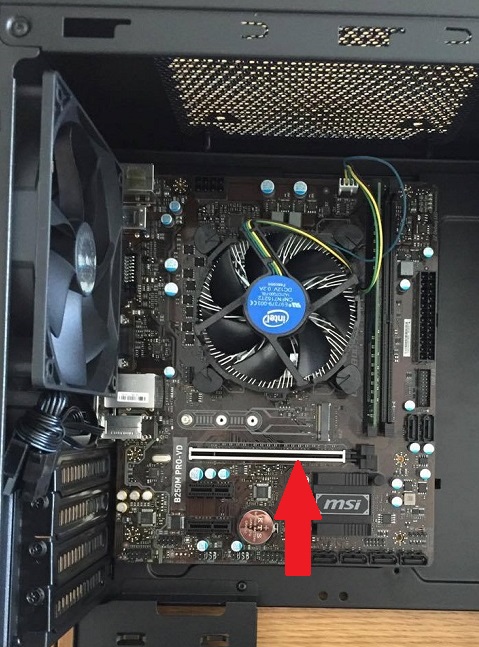
If external checks pass, the fault likely resides inside your computer case with the graphics card or memory modules. Proper seating and power delivery are essential for video output.
Connect to the Correct Video Port
Ensure your cable plugs into the horizontal expansion slots of your graphics card rather than the vertical motherboard ports. Using the motherboard port while a dedicated GPU is installed will result in no signal.
Reseat the Graphics Card
Power down your system and open the case to remove the graphics card completely. Reinsert the card firmly into the top PCIe slot until it clicks, then reconnect all required power cables from the power supply.
Troubleshoot RAM Modules
Loose memory sticks frequently prevent computers from booting past the initial startup screen. Remove each stick and reinsert it firmly, or try booting with one stick at a time to identify a faulty module.
Reset CMOS and BIOS Settings
Corrupted BIOS configurations can block display initialization entirely. Remove the coin-shaped battery from your motherboard for five minutes or use the CLR_CMOS jumper to reset these settings to factory defaults.
Resolve Software and Driver Conflicts
Hardware may be sound while software glitches prevent the image from appearing. Booting into a diagnostic mode helps isolate driver issues from physical failures.
Boot Into Safe Mode
Force your computer to start with basic drivers by interrupting the boot process three times. If the display works in this mode, a corrupted graphics driver or conflicting application is the culprit.
Reinstall Graphics Drivers
Open Device Manager while in Safe Mode and uninstall your current display adapter completely. Restart your computer to allow Windows to install a basic driver, then download the latest version from the manufacturer.
Adjust Resolution and Refresh Rate
High refresh rates or unsupported resolutions can cause black screens on capable monitors. Lower your display settings to 1920×1080 at 60Hz within Safe Mode to regain visibility.
Address Special Cases and Edge Scenarios
Unique setups like multi-monitor arrays or laptops require specific troubleshooting steps beyond standard desktop procedures. These configurations often introduce additional points of failure.
Fix Multi-Monitor Detection Issues
Press Windows Key plus P to ensure your projection mode is set to Extend or Duplicate. Disconnect secondary screens to test the primary display, as some graphics cards limit active ports simultaneously.
Enable Laptop External Displays
Laptops often require a function key combination to toggle video output to an external screen. Check your manual for the specific Fn key sequence or use the projection menu to force signal output.
Prevent Overheating Shutdowns
Screens that black out after extended use often suffer from thermal throttling or dust buildup. Clean vents with compressed air and ensure your setup has adequate airflow to maintain stable operation.
Follow This Step-by-Step Repair Order
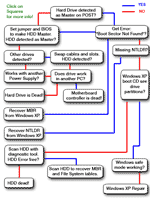
Adhering to a logical sequence prevents unnecessary part replacement and saves significant time. Start with the simplest external factors before moving to complex internal diagnostics.
- Check the monitor power light and swap power outlets.
- Reseat video cables and try a different port type.
- Manually select the correct input source via monitor buttons.
- Connect a test device to isolate the monitor from the PC.
- Listen for PC fans and check motherboard diagnostic LEDs.
- Reseat RAM sticks and the graphics card inside the case.
- Reset the CMOS battery to clear BIOS errors.
- Boot into Safe Mode to troubleshoot driver conflicts.
- Lower resolution settings to 1080p and 60Hz.
- Test components in another system if issues persist.
Frequently Asked Questions About Fixing Monitor Issues
Why is my monitor light on but the screen black?
This usually indicates the monitor has power but receives no video signal from the computer. Check your cable connections, ensure the input source matches your port, and verify the graphics card is seated correctly.
How do I know if my monitor is dead or just the cable?
Perform a self-test by unplugging the video cable while the monitor is on. If a “No Signal” message appears, the monitor works and the cable or computer is at fault. A completely black screen suggests monitor failure.
Can bad RAM cause a black screen?
Yes, faulty or loose RAM often prevents the computer from completing its startup sequence. Reseating the memory sticks or testing them one by one can resolve this common boot failure.
What does an amber light on my monitor mean?
An amber or orange light typically means the device is in standby mode and not receiving a video signal. Verify your computer is powered on and that the video cable is securely connected at both ends.
How do I reset my monitor without buttons?
Most monitors require the physical buttons or joystick for a reset, though some allow resets via companion software. Unplugging the power cord for 60 seconds can also force a hard reset of the internal logic.
Key Takeaways for Fixing Your Monitor Not Working Issues
Most display failures result from loose cables, incorrect input settings, or minor driver conflicts rather than permanent hardware damage. By systematically checking power indicators, reseating internal components, and testing with alternate devices, you can identify and resolve the root cause efficiently.
Start with simple external checks like cable swaps and input selection before opening your computer case. If these steps fail to restore your display, proceed to internal hardware diagnostics like reseating the GPU and resetting the BIOS to factory defaults.


