
You are lining up a critical shot in a competitive shooter, but your crosshair feels stuck in molasses while your character moves. This frustrating delay is input lag on your monitor, a measurable gap between your command and the action on screen. Even a powerful PC cannot overcome this bottleneck if your display settings are adding unnecessary processing time.
This guide reveals exactly how to fix input lag on monitor setups by targeting every link in the signal chain. You will learn to configure OSD menus, optimize cable connections, and tweak Windows settings to shave milliseconds off your response time. Follow these steps to restore instant responsiveness to your gameplay.
Enable Game Mode on Your Monitor

The most immediate way to reduce latency is by accessing your monitor’s On-Screen Display (OSD) menu. Manufacturers often enable heavy image processing by default to make colors pop, but these features create a buffer that delays your input signal.
Activate Low-Latency Display Mode
Locate the physical menu button on your display and find the “Game Mode” setting. This feature bypasses non-essential image processors like motion smoothing and noise reduction that can add up to 100ms of delay.
- Navigate to the Picture or Display tab in your OSD.
- Select Game Mode and switch it to On.
- Look for alternative names like “PC Mode” or “Standard” on certain brands.
Enabling this mode ensures your monitor uses its native processing speed, typically reducing latency to the 10–15ms hardware baseline.
Disable Image Enhancements
Even with Game Mode active, specific filters may remain enabled and degrade performance. You must manually turn off these features to ensure a pure signal path.
- HDR: Disable unless viewing specific HDR content to avoid tone mapping delays.
- Dynamic Contrast: Turn off real-time brightness adjustments.
- Noise Reduction: Avoid signal processing that smooths grain.
- Motion Interpolation: Ensure the “soap opera effect” is strictly off.
- Low Blue Light: Use Windows Night Light instead of monitor processing.
These settings often hide in advanced submenus, so check every tab to guarantee minimal processing overhead.
Optimize Refresh Rate and Timing Settings

Your monitor must run at its maximum designed speed to minimize the time between frames. A display capped at 60Hz feels significantly slower than one running at 240Hz due to the longer duration of each frame.
Verify Native Refresh Rate
Windows sometimes defaults to a lower refresh rate after driver updates or cable changes. You need to confirm your system outputs the correct frequency.
- Right-click your desktop and select Display Settings.
- Scroll down and click Advanced Display.
- Ensure the refresh rate matches your monitor’s maximum capability.
If your desired rate is missing, your cable or GPU driver may be limiting the signal bandwidth.
Use CRU to Fix Refresh Rate
Manufacturers sometimes report slightly inaccurate timing values, such as 239.47Hz instead of 240Hz. You can correct this using the Custom Resolution Utility (CRU) tool.
- Download CRU and run the executable as Administrator.
- Select your monitor from the dropdown list.
- Find your maximum refresh rate in the detailed resolutions list.
- Edit the entry to Manual type and enter the exact value like 240.00.
- Run the restart64 file to apply changes.
Your screen may go black for 15 seconds while the driver resets. This ensures precise timing alignment between your GPU and panel.
Adjust Front Porch and Sync Width
Advanced users can further reduce latency by tweaking signal timing parameters like Front Porch and Sync Width. Lowering these values shortens the delay between frame transmissions.
- Open NVIDIA Control Panel or AMD Radeon Software.
- Navigate to the custom resolution creation menu.
- Adjust Front Porch and Sync Width values to 10 in small increments.
- Test stability after each change to avoid signal loss.
Invalid settings will cause a temporary black screen before reverting automatically. This fine-tuning can shave extra milliseconds off high-refresh panels.
Use Correct Cable and Port Connections
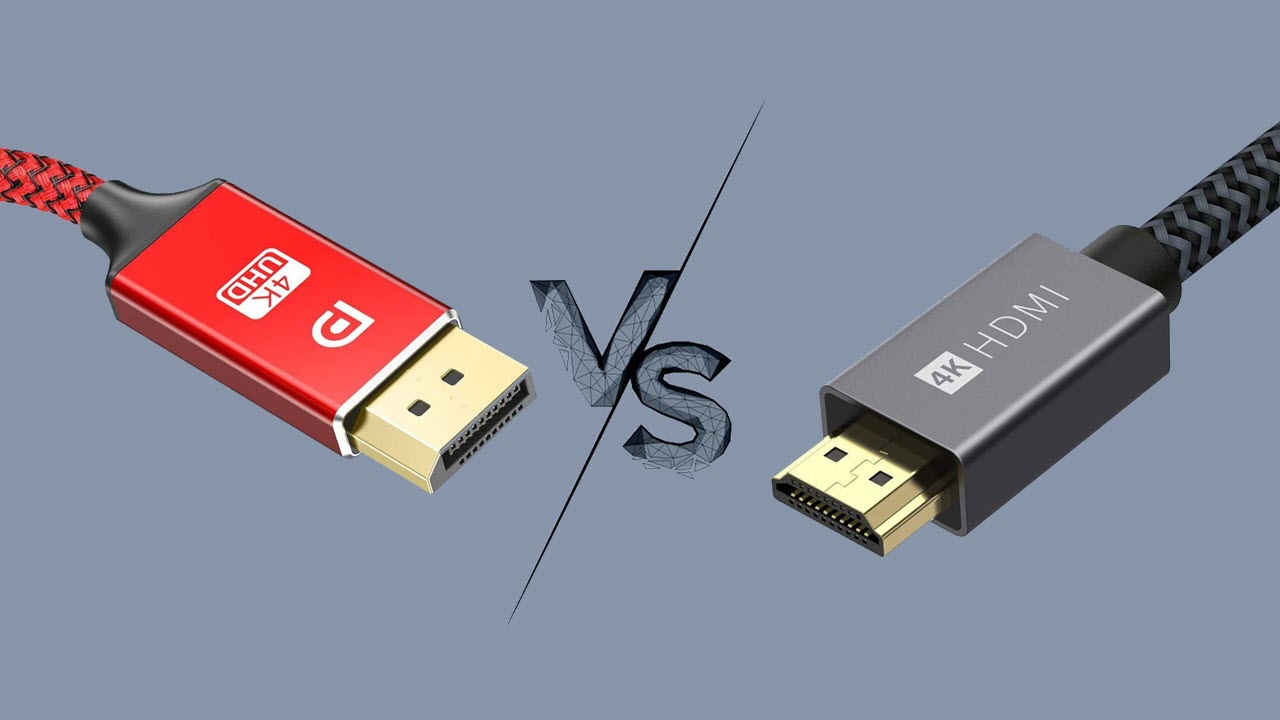
The physical link between your PC and monitor dictates the maximum bandwidth and transmission efficiency. Using the wrong cable type forces your system into a lower performance mode.
Choose DisplayPort Over HDMI
DisplayPort is the superior choice for PC gaming due to its packet-based protocol and lower overhead. It generally provides a more direct path for your video signal compared to HDMI.
- Use DisplayPort 1.4 for up to 240Hz at 1080p or 1440p.
- Reserve HDMI 2.1 for consoles or specific 4K 120Hz setups.
- Avoid HDMI 2.0 for high-refresh gaming as it caps at 60Hz in 4K.
Always prioritize the DisplayPort connection if your hardware supports it to ensure the lowest possible latency.
Use a Certified High-Speed Cable
A damaged or low-quality cable can force your system to downgrade its signal quality. This results in reduced refresh rates or increased error correction delays.
- Select a certified high-speed DisplayPort 1.4 cable.
- Use the original cable provided with your monitor when possible.
- Avoid excessively long or unbranded cables that lack proper shielding.
Ensuring a robust physical connection prevents the system from falling back to safe, low-bandwidth modes.
Plug Into Primary GPU Port
Not all ports on your graphics card are created equal. Some secondary ports route through different controllers that may introduce minor delays.
Connect your main gaming monitor to the top-most DisplayPort on your GPU. Check your specific graphics card manual to identify the primary port designation. This direct connection ensures your signal takes the fastest possible path from the GPU to the screen.
Disable V-Sync and Manage FPS Properly
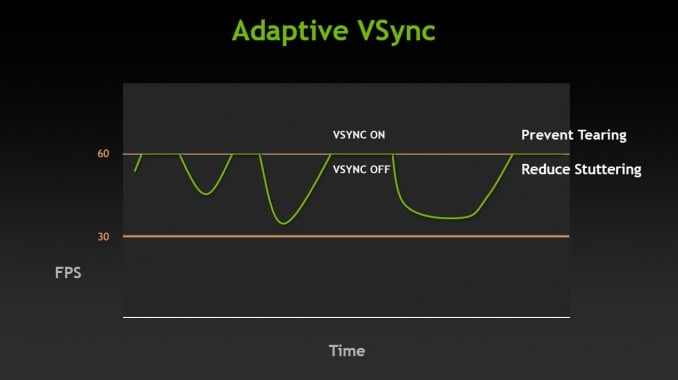
Synchronization technologies can introduce significant input lag by forcing your GPU to wait for the monitor. Understanding when to disable these features is crucial for competitive responsiveness.
Turn Off V-Sync
Vertical Synchronization prevents screen tearing but adds substantial delay by queuing frames. This waiting period makes your controls feel disconnected from your actions.
- Open your in-game video settings.
- Locate the V-Sync option and set it to Off.
- Verify the setting in your GPU control panel under 3D settings.
Only use V-Sync if screen tearing is unbearable and you cannot use Adaptive Sync technologies.
Cap FPS Strategically
Managing your frame rate helps maintain consistent frame times and reduces latency spikes. The goal is to keep the render queue empty while maximizing updates.
- Competitive Gaming: Cap FPS slightly below your refresh rate if using G-Sync.
- Minimum Latency: Uncap FPS entirely to let your GPU render as many frames as possible.
- Stability: Set a limit your system maintains 100% of the time to prevent stuttering.
Use in-game limiters or tools like Rivatuner Statistics Server for precise frame control.
Tweak Windows and GPU Settings
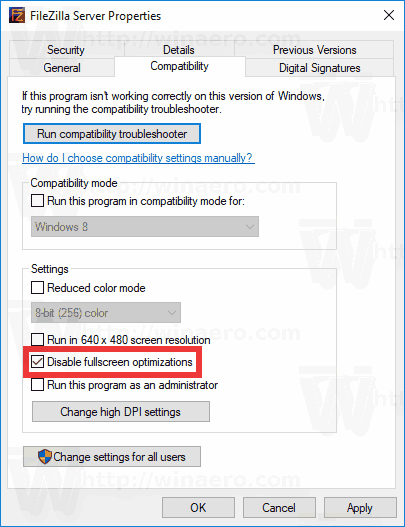
Operating system configurations can introduce micro-stutters and processing delays. Disabling specific Windows features ensures your game receives priority access to hardware resources.
Disable Full Screen Optimizations
Windows Full Screen Optimizations can cause input delays and stuttering when switching between windows. Disabling this feature often improves responsiveness in competitive titles.
- Right-click the game executable file.
- Select Properties and go to the Compatibility tab.
- Check the box for Disable Full Screen Optimizations.
- Apply changes and restart the game.
This simple step prevents Windows from interfering with your game’s exclusive fullscreen mode.
Turn Off Multiplane Overlay
Multiplane Overlay (MPO) allows Windows to composite multiple video layers but can cause latency spikes in games. Disabling it forces the GPU to handle rendering directly.
- Download the official MPO disable script from NVIDIA or AMD.
- Run the script to modify the necessary registry keys.
- Restart your computer to apply the changes.
Many users report smoother gameplay and reduced input lag after disabling this Windows feature.
Update GPU and Monitor Firmware
Outdated software can contain bugs that negatively impact latency. Manufacturers frequently release updates to improve performance and fix synchronization issues.
- Update your GPU drivers via GeForce Experience or AMD Adrenalin.
- Check the manufacturer website for monitor firmware updates.
- Install any available patches to ensure optimal hardware communication.
Keeping your firmware current ensures you benefit from the latest latency optimizations.
Configure Peripherals Correctly

Your input devices are the start of the signal chain. If your mouse or keyboard introduces delay, no amount of monitor tweaking will fix the problem.
Set High Mouse Polling Rate
Your mouse reports its position to the PC at a specific frequency called the polling rate. Higher rates mean faster updates and lower latency.
- Open your mouse configuration software.
- Locate the Polling Rate setting.
- Set the value to 1000Hz or higher if supported.
Standard office mice often run at 125Hz, adding 8ms of delay compared to the 1ms of a gaming mouse.
Prefer Wired or High-End Wireless
While modern wireless technology is excellent, interference or low battery can introduce lag. Wired connections remain the most reliable option for competitive play.
- Replace batteries or charge wireless devices fully.
- Move the USB receiver closer to the mouse to reduce interference.
- Switch to a wired connection temporarily to test for improvements.
If latency disappears with a wire, your wireless setup may be suffering from signal issues.
Diagnose and Isolate Lag Source
Input lag can originate from various sources including network issues or faulty hardware. You must isolate the variable causing the delay to fix it effectively.
Test Without Internet
Network lag often mimics input lag in online games. You need to rule out connectivity issues before blaming your hardware.
- Play a single-player campaign or offline practice mode.
- Observe if the delay persists without an internet connection.
- If the game feels smooth offline, the issue is network-related.
This test confirms whether the problem lies within your local setup or your internet connection.
Swap Components to Test
Hardware faults can introduce unexpected delays. Swapping components helps identify the specific device causing the bottleneck.
- Try a different mouse or keyboard to rule out peripheral failure.
- Connect your PC to a different monitor to check display latency.
- Test your setup on another computer to isolate system-wide issues.
Systematic swapping reveals whether the fix requires new hardware or just configuration changes.
Check Input Source and Resolution
Mismatched settings between your PC output and monitor input can force unnecessary scaling. This processing adds delay to every frame.
- Ensure the monitor is set to the correct input source.
- Match Windows resolution to your monitor’s native resolution.
- Set display scaling to 100% to avoid GPU upscaling.
Correct alignment ensures your monitor displays the image without additional processing steps.
Advanced Tweaks and Myths
Some users explore experimental methods to squeeze out every last millisecond. While some tweaks work, others are purely mythical or potentially harmful.
Disable Monitor in Device Manager
A controversial tweak involves disabling the monitor driver in Windows Device Manager. This forces Windows to treat the display as a generic device.
- Open Device Manager and expand the Monitors category.
- Right-click your display and select Disable device.
- Restart your computer to apply the change.
This may remove OS-level processing but will prevent brightness control via Windows settings.
Brightness and Backlight Settings
Anecdotal evidence suggests lowering brightness might reduce perceived lag. While unproven scientifically, some users report a snappier feel with minimum brightness settings.
- Lower brightness to minimum via OSD buttons.
- Enable backlight strobing features like ULMB if available.
- Observe any changes in motion clarity and responsiveness.
These adjustments primarily affect motion blur rather than true signal latency.
Avoid EMF Filters and Scams
Be wary of products claiming to reduce input lag via EMF filters or USB dongles. These devices do not interact with the graphics signal path.
- Ignore claims about “energy field” optimization.
- Save your money instead of buying unproven gadgets.
- Focus on proven configuration changes for real results.
Real latency reduction comes from proper setup, not magical accessories.
Frequently Asked Questions About Input Lag
What is the difference between input lag and response time?
Input lag is the delay between your command and the image starting to change. Response time measures how fast pixels change color once the update begins. Both affect perceived smoothness but are distinct technical metrics.
Does HDMI cause more input lag than DisplayPort?
DisplayPort generally offers lower latency due to its packet-based protocol. HDMI can introduce slightly more delay, especially on older versions, making DisplayPort the preferred choice for PC gaming.
Why does my monitor feel laggy even with high FPS?
High FPS alone does not guarantee low latency if V-Sync is on or if Game Mode is disabled. Check your monitor OSD settings and ensure vertical synchronization is turned off.
Can wireless mice cause input lag?
Modern high-end wireless mice perform similarly to wired ones. However, low battery or interference can cause spikes. Switch to wired mode to test if the wireless connection is the culprit.
Does lowering resolution reduce input lag?
Lowering resolution reduces GPU workload, potentially increasing FPS and lowering latency. However, mismatched resolution scaling on the monitor can add processing delay, so native resolution is usually best.
Key Takeaways for Fixing Input Lag on Monitor
Reducing input lag requires a systematic approach targeting your monitor, cables, and system settings. By enabling Game Mode, using DisplayPort, and disabling V-Sync, you can bring your latency down to competitive standards under 15ms. Consistent frame rates and high polling peripherals further ensure your inputs register instantly.
Start by checking your OSD settings and verifying your refresh rate today. These foundational steps provide the most significant improvements for immediate responsiveness. Your gameplay will feel sharper and more connected with every adjustment you make.


