
Is your screen displaying fuzzy, soft, or unclear text? You are not alone. Blurry text is a common complaint for Windows users, especially those with high-resolution screens or multiple monitors. The issue usually stems from scaling settings, outdated drivers, or power-saving modes rather than a broken monitor.
This guide explains exactly how to fix blurry text on your monitor using proven steps. You will learn to adjust DPI scaling, optimize Windows settings, and correct hardware configurations to restore sharp, readable fonts instantly.
Match Scaling Percentages Across All Displays

Using multiple monitors often creates scaling conflicts that ruin text clarity. When one screen uses 150% scaling and another uses 100%, Windows may bitmap-scale applications instead of redrawing them. This results in fuzzy text when you move windows between screens.
Resolve Mixed-DPI Conflicts
Ensure every connected monitor uses the exact same scaling percentage.
* Go to Settings > System > Display.
* Select each monitor and set the scale to the same value (e.g., all at 100% or all at 125%).
* Log out and log back in to force applications to reinitialize with the correct DPI.
Choose the Right Scaling for Your Pixel Density
Pixel density determines how well your screen handles fractional scaling.
* 27″ 1440p: Works well at 100% or 125%.
* 28″ 4K: Best at 150% to hide interpolation blur.
* 32″ 1080p: Stick to 100% only. Higher scaling causes severe blurriness.
* Portable 4K: Use 200% to prevent tiny UI elements while keeping text crisp.
Pro Tip: Fractional scaling forces Windows to interpolate pixels, creating gray edges. Stick to 100% or 200% whenever possible for the sharpest results.
Set Native Resolution and Correct Refresh Rate

Running a display below its native resolution stretches pixels and softens text. Additionally, incorrect refresh rate settings can cause vibrating or interlaced text that appears blurry.
Confirm Native Resolution Settings
Always use the resolution recommended by your monitor manufacturer.
1. Press Win + I and select System then Display.
2. Click Display resolution and choose the option marked (Recommended).
3. Click Keep changes if the text looks sharp.
Verify Progressive Scan Mode
Some Intel graphics setups default to interlaced mode (60i), which splits frames and blurs text.
* Open Advanced display settings.
* Click Display adapter properties and select the Monitor tab.
* Ensure the refresh rate is set to 60 Hz or 60p, not 60i.
* Check NVIDIA or AMD control panels if you have a dedicated graphics card.
Optimize Windows Text and Display Settings
Windows includes built-in tools designed to sharpen fonts on LCD screens. Disabling these features or using performance modes can accidentally degrade text quality.
Run the ClearType Text Tuner
ClearType uses sub-pixel rendering to smooth font edges on LCD panels.
1. Type “Adjust ClearType text” in the Start menu search bar.
2. Check the box to Turn on ClearType.
3. Follow the wizard and select the text samples that look clearest on your specific monitor.
4. Repeat the process for each connected display.
Enable Font Smoothing
Windows may disable font smoothing if set to “Best Performance” mode.
* Search for “performance” and open Adjust the appearance and performance of Windows.
* Select Adjust for best appearance.
* Alternatively, choose Custom and ensure Smooth edges of screen fonts is checked.
* Click Apply to save changes.
Toggle Automatic App Fix
Windows can attempt to fix blurry legacy apps, but this feature sometimes causes issues.
* Navigate to Settings > System > Display > Advanced scaling settings.
* Find “Let Windows try to fix apps so they’re not blurry”.
* Test the setting with it both On and Off to see which yields better results for your specific software.
Fix App-Specific Blurry Text
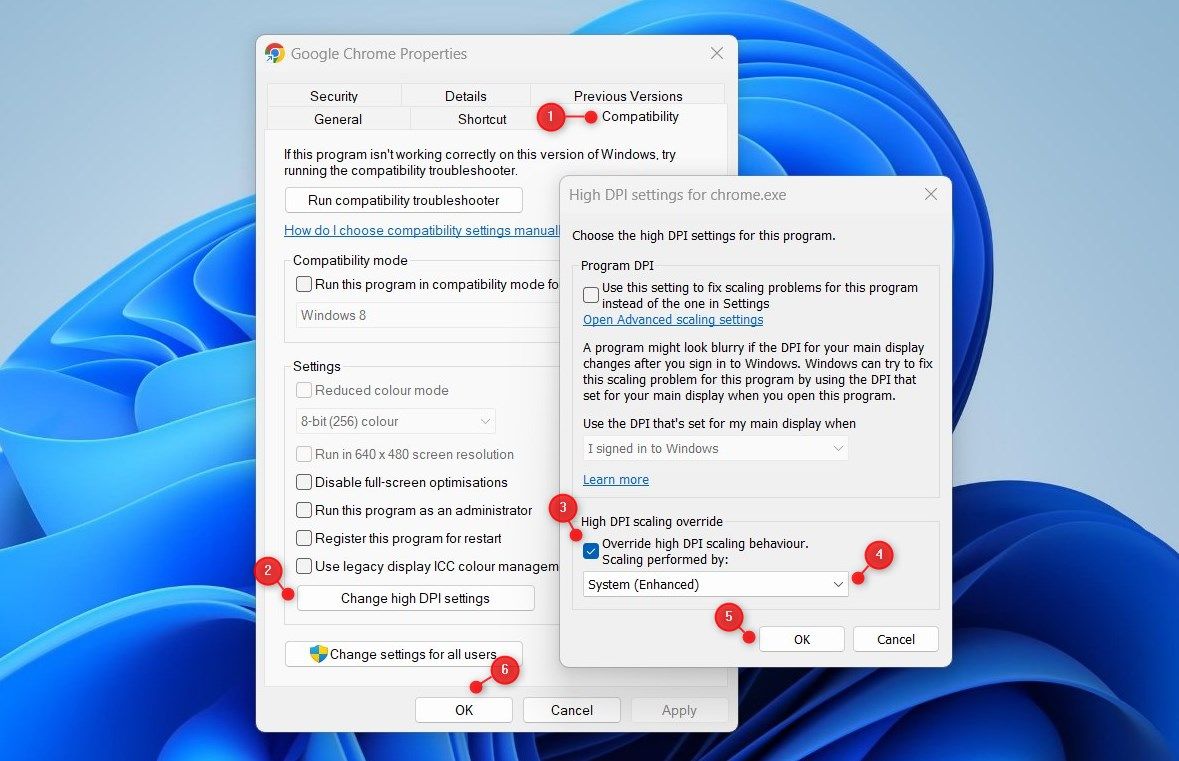
Certain applications like Chrome, Discord, or older games often ignore system scaling settings. You can force these programs to render correctly using compatibility overrides.
Override High DPI Scaling Per Application
This method forces specific programs to handle their own rendering.
1. Right-click the application shortcut and select Properties.
2. Go to the Compatibility tab and click Change high DPI settings.
3. Check Override high DPI scaling behavior.
4. Select System (Enhanced) for older apps or Application for modern ones.
5. Click OK, then Apply, and restart the application.
Clear Application Cache
Creative software and game launchers may cache low-resolution assets.
* Close the application completely.
* Apply the DPI override settings mentioned above.
* Reopen the app to force a full UI re-render.
Check Monitor Hardware and Connections
Physical settings on your monitor and the type of cable you use significantly impact image sharpness. Power-saving modes and analog signals are frequent culprits.
Switch From Echo to Standard Mode
Many monitors default to an Echo mode that reduces internal resolution to save power.
* Press the physical buttons on your monitor to open the OSD menu.
* Navigate to Mode and change it from Echo to User, Standard, or Normal.
* Exit the menu and observe the immediate improvement in text crispness.
Replace VGA Cables With HDMI or DisplayPort
VGA is an analog signal prone to degradation and scaling artifacts.
* Swap any VGA cables for HDMI or DisplayPort connections.
* Use DisplayPort for high-resolution setups like 1440p or 4K.
* Ensure cables are securely connected at both ends to prevent signal loss.
Adjust Monitor OSD Settings
Fine-tune your monitor’s internal image processing.
* Aspect Ratio: Set to Native or 1:1. Avoid “Fit” or “Expand”.
* Overscan: Disable this feature to prevent cropping and stretching.
* Adaptive Contrast: Turn this off as it often softens text edges.
* Sharpness: Adjust manually, starting at 50%. Too high creates halos while too low looks soft.
Update or Roll Back Graphics Drivers
Corrupt or outdated drivers frequently cause rendering glitches. Conversely, a new driver update might introduce bugs that affect text clarity.
Update Graphics Drivers
Ensure your GPU has the latest software for optimal performance.
1. Press Win + X and select Device Manager.
2. Expand Display adapters.
3. Right-click your GPU and select Update driver.
4. Choose Search automatically or download the latest version directly from NVIDIA, AMD, or Intel.
Roll Back Driver If Issues Persist
If blurriness started after a recent update, revert to the previous version.
* Open Device Manager and right-click your GPU.
* Select Properties and go to the Driver tab.
* Click Roll Back Driver and restart your computer.
* Check your manufacturer’s website for BIOS updates if the issue involves docking stations.
Disable FXAA for Desktop Clarity
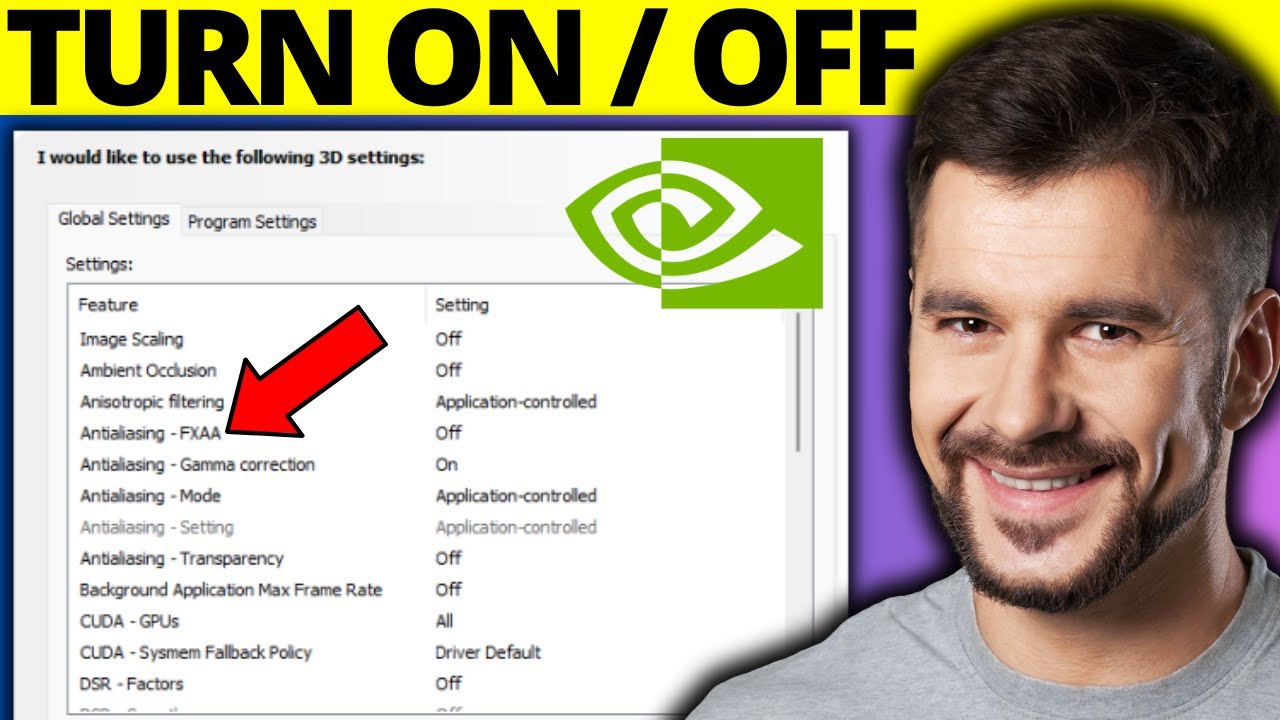
Anti-aliasing features designed for gaming can blur desktop text when applied globally.
Turn Off FXAA in Graphics Settings
FXAA smooths jagged edges in games but softens desktop fonts.
1. Open NVIDIA Control Panel or AMD Radeon Software.
2. Navigate to Manage 3D Settings.
3. Locate FXAA or Anti-Aliasing settings.
4. Set the option to Off for general desktop use.
5. Apply changes and restart if necessary.
Assess Hardware Limitations
Sometimes the hardware itself limits text sharpness. Large monitors with low resolutions struggle to display crisp text at higher scaling levels.
Know When It Is a PPI Problem
A 32-inch 1080p monitor has low pixel density, making text look soft at any scaling above 100%.
* Use 100% scaling only on low PPI screens.
* Sit farther from the screen to reduce perceived blur.
* Consider upgrading to a higher PPI display like a 27″ 1440p or 28″ 4K monitor.
Consider a Factory Reset
If software corruption persists despite all other fixes, a reset may help.
* Reset your monitor to factory defaults via the OSD menu.
* Perform a Windows reset as a last resort for persistent system-wide issues.
* Remember that most blurry text cases resolve without needing hardware replacement.
Frequently Asked Questions About Fixing Blurry Text
Why is text blurry on one monitor but clear on the other?
This usually happens due to mismatched scaling percentages between screens. Set both monitors to the same scaling value in Display Settings and log out to reinitialize the DPI cache.
Does changing resolution fix blurry text?
Yes, if you are not using the native resolution. Running a monitor below its native resolution stretches pixels and causes fuzziness. Always select the recommended resolution.
What is Echo mode on a monitor?
Echo mode is a power-saving setting that reduces internal resolution and sharpness. Changing this setting to Standard or User mode in your monitor menu often fixes fuzzy text immediately.
Why does text look blurry only in specific apps?
Some applications do not handle high DPI scaling well. You can fix this by right-clicking the app, going to Properties > Compatibility, and overriding the high DPI scaling behavior.
Is VGA cable causing my blurry text?
VGA is an analog signal that degrades easily and causes scaling artifacts. Switching to a digital HDMI or DisplayPort cable often resolves fuzziness and improves overall clarity.
Key Takeaways for Fixing Blurry Text on Your Monitor
Blurry text is almost always a configuration issue rather than a hardware defect. Start by matching scaling percentages across all monitors and ensuring you are using the native resolution. Next, check your monitor mode settings and replace any old VGA cables with digital alternatives.
Most users can resolve these display issues in under ten minutes by adjusting Windows scaling and running the ClearType tuner. Apply these fixes today to enjoy sharp, readable text on your screen without buying new equipment.


