
You sit down to work, hit the power button, and the screen stays black. Is the monitor dead or just disconnected? Millions face this frustrating issue every year without realizing the fix is often simple. Knowing how to check if a monitor is working saves you time and prevents unnecessary spending on replacements.
This guide walks you through a step-by-step method to diagnose your display accurately. You will learn to interpret power lights, test cables, run self-tests, and isolate hardware faults to find the real culprit quickly.
Decode Power Indicator Light Colors
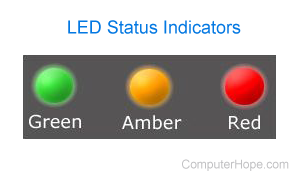
The LED power light on your monitor tells the immediate story of its health. Do not assume a black screen means a broken display before checking this crucial visual cue.
What an Off or Amber Light Means
If the LED is completely off, the monitor receives no electrical power. Check your wall outlet and ensure the power cable is seated firmly at both ends. An amber or orange light indicates the monitor has power but detects no video signal from your computer.
Interpreting White or Blue Lights
A white or blue light usually means the monitor expects an image. If the screen remains black while this light is on, you likely have a backlight failure or a resolution mismatch. The panel itself may be functional even if the image is invisible.
Pro Tip: Rapid blinking patterns often signal specific internal errors. Consult your user manual to decode these flashes before assuming total failure.
Inspect and Reseat Physical Cables
Loose or damaged cables cause most “dead monitor” scenarios. You must verify every physical connection before blaming the hardware itself.
Reseating Video and Power Cables
- Unplug the video cable from both the monitor and the computer.
- Inspect the connector pins for bends or debris.
- Push the cable back in firmly until it clicks or seats completely.
- Swap the power cable with a known working one from another device.
Checking Port Integrity
Look inside the HDMI, DisplayPort, or VGA ports for dust or physical damage. If you use an adapter, ensure it is an active converter if you are changing signal types from analog to digital.
Warning: Never force a cable into a port. If it does not fit smoothly, you may be using the wrong type or damaging the internal pins.
Manually Select the Correct Input Source
Monitors often fail to auto-switch to the correct input source automatically. Your computer might be sending a signal that the monitor is ignoring because it is looking at the wrong port.
Using the On-Screen Display Menu
- Press the physical menu button on your monitor bezel.
- Navigate to the Input or Source option.
- Manually select the specific port you are using, such as HDMI 1 or DisplayPort.
If the menu appears but displays a “No Signal” message, your monitor is working correctly. This confirms the issue lies with your computer or the connecting cable rather than the display panel.
Perform the Isolation Test Method

Connecting your monitor to a different device is the most reliable way to confirm functionality. This process eliminates guesswork by testing variables individually.
Testing with Another Computer
Unplug the monitor from your current PC and connect it to a laptop or gaming console. Use the same video cable for this test. If the image appears on the second device, your original computer is the problem.
Swapping Cables and Monitors
Replace your current video cable with a new one to rule out wire faults. Conversely, plug a known working monitor into your original PC. If the second monitor works, your original display is defective.
Pro Tip: Always test with two known-good variables to isolate the failure point accurately.
Run the Built-in Self-Test Feature
Many modern monitors include a Built-in Self-Test (BIST) that checks internal hardware without needing a computer signal. This feature is essential for diagnosing panel health.
Activating the Self-Test Mode
- Turn off the monitor completely.
- Disconnect the video cable from the monitor entirely.
- Turn the monitor back on while the video cable remains unplugged.
Analyzing Self-Test Results
A floating dialog box or color bars indicate the monitor electronics and panel are functional. A black screen with the power light on suggests an internal hardware failure. A “Check Signal” message confirms the monitor is alive and searching for input.
Note: Self-test behavior varies by brand. Dell and Alienware models often show a specific floating dialog box when no signal is detected.
Identify Visual Artifacts and Defects
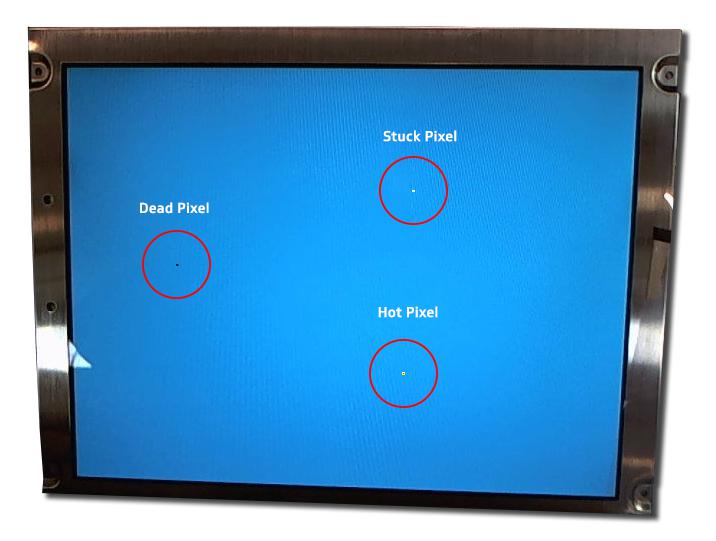
A screen that partially works may still be dying. Specific visual artifacts point directly to internal hardware issues requiring attention.
Recognizing Lines and Pixel Issues
Horizontal or vertical lines often indicate damaged internal ribbon cables or panel trauma. Dead pixels appear as permanent black spots while stuck pixels show constant color. These defects remain visible during the self-test mode.
Diagnosing Flicker and Color Problems
Flickering screens often signal a failing backlight or loose connection. Washed-out colors usually result from poor quality cables or incorrect driver settings rather than panel death.
Expert Note: A flickering screen that passes the self-test likely has a failing backlight inverter rather than a dead monitor panel.
Verify PC Graphics Port Selection
Connecting to the wrong port is one of the most common mistakes users make. Your monitor cannot work if it receives no signal from an inactive video output.
Distinguishing GPU from Motherboard Ports
If your PC has a dedicated graphics card, plug the monitor into the horizontal ports on the expansion card. The vertical ports on the motherboard are often disabled when a dedicated GPU is installed.
Booting in Safe Mode
Corrupted drivers can cause black screens after Windows loads. Boot into Safe Mode by interrupting the startup process three times. If the display works in Safe Mode, uninstall and reinstall your graphics drivers.
Rule Out Resolution Mismatches
Your monitor might reject a signal if the computer sends a resolution or refresh rate it cannot support. This often happens after driver updates or game installations.
Resetting Display Settings
- Boot your computer into Safe Mode.
- Right-click the desktop and select Display Settings.
- Set the resolution to 1920×1080 and the refresh rate to 60 Hz.
High refresh rate monitors often require DisplayPort cables to function above 60 Hz. HDMI cables may not support the bandwidth needed for 144 Hz or higher settings.
Test Internal PC Hardware Components

If no image appears during the initial boot sequence, your computer may not be completing its power-on self-test. This prevents any video signal from reaching the monitor.
Checking Debug Codes and LEDs
Listen for beep codes from the motherboard speaker. Many motherboards also have diagnostic LEDs labeled CPU, DRAM, or VGA that light up to indicate which component failed to start.
Reseating RAM and Graphics Cards
- Power off and unplug your computer completely.
- Remove and reinsert your RAM sticks until they click.
- Remove and reinstall your graphics card firmly.
- Ensure all PCIe power cables are connected to the GPU.
Advanced Internal Monitor Diagnostics
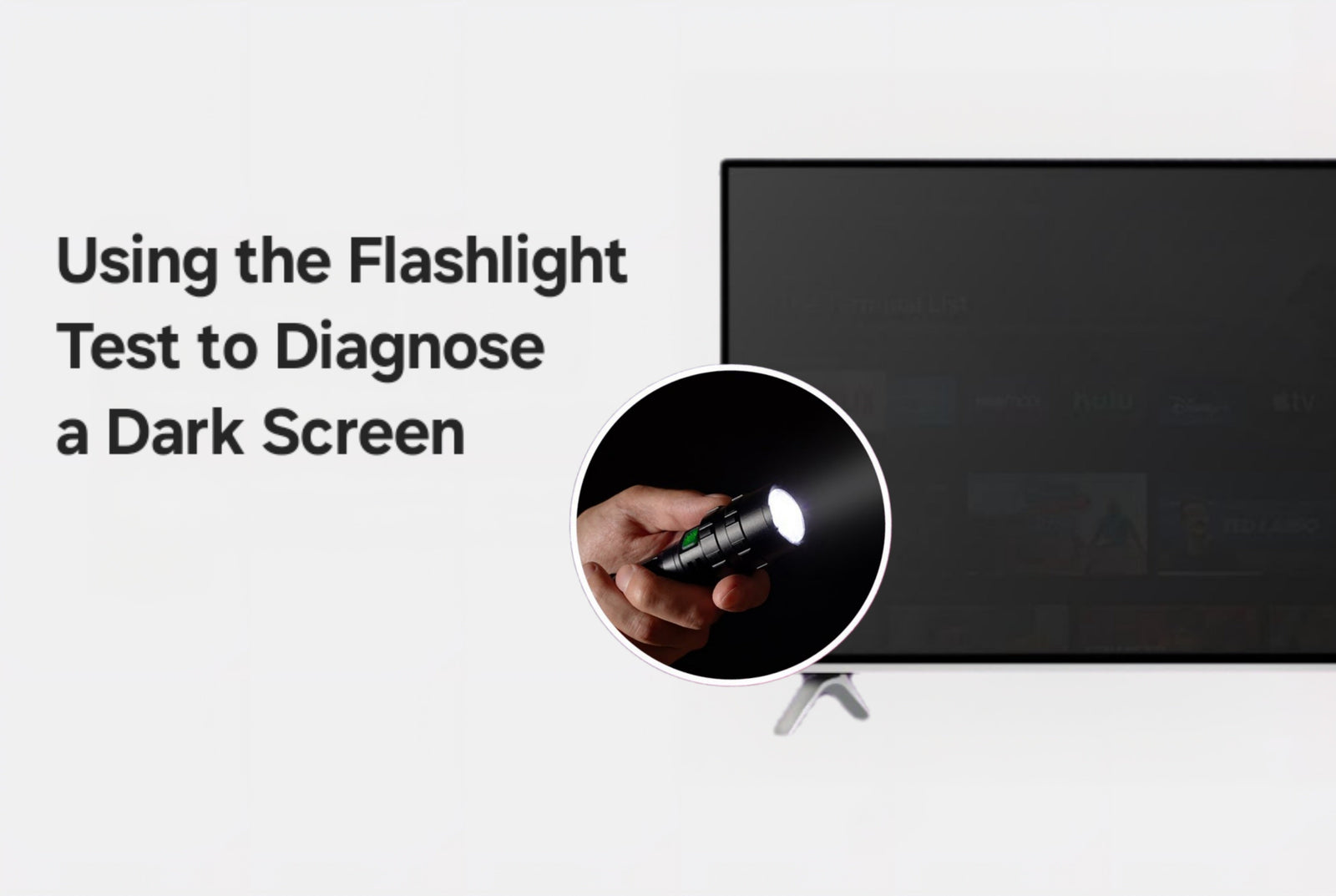
Warning: Opening a monitor voids warranties and risks electric shock. Only attempt these steps if you are experienced with electronics.
Performing the Flashlight Test
Shine a bright flashlight directly at the black screen while the monitor is on. If you see a faint image, the backlight has failed while the panel remains functional. This is common in older LCD units.
Evaluating Repair Viability
Technicians can test internal power boards for correct voltages using a multimeter. However, repair costs often exceed the price of a new unit for modern monitors. Replacement is usually the best option for internal failures.
Final Checklist for Monitor Diagnosis
Use this summary to quickly determine the status of your display hardware.
| Step | Action | What It Tells You |
|---|---|---|
| 1 | Check power LED | No light means power issue; amber means no signal |
| 2 | Reseat all cables | Rules out loose connections |
| 3 | Select input manually | Ensures correct source is active |
| 4 | Run self-test | Confirms monitor hardware is functional |
| 5 | Connect to another device | Isolates monitor vs PC issue |
| 6 | Swap video cable | Eliminates cable failure |
| 7 | Boot in Safe Mode | Tests for driver issues |
| 8 | Reseat RAM/GPU | Checks for PC hardware failure |
| 9 | Flashlight test | Reveals backlight failure |
| 10 | Final verdict | If self-test fails, monitor is defective |
Frequently Asked Questions About Monitor Diagnostics
What does it mean if my monitor light is orange but the screen is black?
An orange or amber light means the monitor has power but receives no video signal. This usually indicates an issue with your computer, the video cable, or the selected input source rather than a dead monitor.
How do I run a self-test on my monitor without a computer?
Turn off the monitor, disconnect the video cable completely, and turn it back on. If a floating dialog or color bars appear, the monitor hardware is working correctly.
Can a bad cable make a working monitor look dead?
Yes, damaged or low-quality cables frequently cause black screens or flickering. Swapping the cable with a known working one is a critical step in troubleshooting display issues.
Why does my monitor work on another PC but not mine?
This indicates your original computer has the problem. Check your graphics drivers, ensure the cable is plugged into the GPU port, and verify your resolution settings match the monitor capabilities.
Is it worth repairing a monitor with a black screen?
Repair is rarely cost-effective for modern monitors unless under warranty. Internal component failures often cost as much as a new unit, making replacement the practical choice.
Key Takeaways for Checking Monitor Functionality
Most “broken” monitors are actually suffering from loose cables, wrong input settings, or PC-side configuration errors. By checking the power LED, running the built-in self-test, and isolating the device with another computer, you can confidently determine if your monitor is truly dead.
Save your money and time by diagnosing the issue thoroughly before buying a replacement. If the self-test fails and the monitor shows no image on multiple devices, only then should you consider it defective and look for warranty options or a new unit.


