
Staring at a pile of monitor parts and a confusing manual can make setup feel impossible before you even begin. You need a clear path to safely attach your stand, connect cables, and optimize settings without damaging your new screen.
This guide details exactly how to assemble a monitor using tool-free stands or VESA desk mounts. You will learn to verify components, install hardware securely, configure display settings, and position your screen for maximum comfort.
Unbox and Verify All Monitor Components
Start by confirming every part is present to avoid mid-assembly delays. Missing bolts or incorrect clamps can stop your progress immediately.
Check Monitor and Stand Parts
Your box should contain the monitor panel, a stand base with a riser column, and a power cable. Look for video cables like HDMI or DisplayPort along with a USB upstream cable for hub functionality. Ensure the user manual, warranty card, and any protective pads are included.
Confirm Mount or Riser Hardware
If you are using a desk mount, verify the presence of a C-clamp or grommet base, vertical pole, and VESA mounting plate. Wooden risers typically include side panels and shelves that use a friction-fit design requiring no screws. Contact the manufacturer immediately if any hardware is missing.
Prepare Your Workspace
Place the monitor screen-down on its original foam box to prevent scratches during assembly. Clear space behind your desk for cable routing and keep tools like a screwdriver or hex wrench nearby. Get help from another person if your monitor is larger than 27 inches.
Attach the Monitor Stand Using Tool-Free Methods

Many modern monitors use snap-in mechanisms that require no tools for basic stand installation. Follow these specific steps based on your brand mechanism.
Install Philips-Style Click Mounts
Align the stand latch with the slot on the back of your monitor panel. Slide the stand upward until you hear a distinct click indicating it is locked. Gently wiggle the stand to confirm it is secure with no wobbling before lifting the unit.
Secure Dell-Style Twist Locks
Insert the base plate into the riser column and tilt the assembly slightly. Twist the riser clockwise to engage the internal locking mechanism. Snap on the cover plate by inserting one tab straight and angling the second tab under before pressing until it clicks.
Tighten Screw-In Stands
Lay the monitor face-down on a soft surface and align the stand with the mounting slots. Use the included M4 bolts to secure the stand with a screwdriver or Allen key. Do not overtighten these screws as this can crack the plastic housing of the monitor.
Install a VESA Desk Mount for Ergonomics
A VESA mount offers superior adjustability for ergonomic positioning or dual-monitor setups. Choose between a C-clamp for standard desks or a grommet base for desks with pre-drilled holes.
Mount the C-Clamp Base
Attach the clamp to the pole using small screws and select the alignment hole matching your desk thickness. Place the protective pad on the lower jaw and flip the bracket upward for thick desks or downward for thin ones. Slide the clamp onto the desk edge and tighten the hand knob firmly.
Install the Grommet Base
Drill a clean 3/8 inch hole if your desk lacks one, ensuring no cables lie beneath the drill path. Remove the clamp handle and slide the oval plate over the grommet bolt before inserting it from above. Attach the handle from underneath and tighten until the mount is anchored securely.
Assemble the Pole and Arms
Secure the pole to the base using the center bolt and nut while leaving a small gap on the second bolt for adjustments. Slide the monitor arms onto the pole and lock them at your preferred height using the rear bolt. Attach cable clips to the pole and arms now to make future cable management easier.
Mount the Monitor to the VESA Plate

Connecting your monitor to the arm requires removing the original stand and attaching the VESA plate carefully. Precision here prevents damage to your display panel.
Remove the Original Stand
Turn the monitor face-down and locate the release button or screws on the back cover. Press the button or unscrew the fasteners to detach the factory stand completely. Keep these screws safe in case you need to reinstall the original stand later.
Attach the VESA Plate
Choose bolts matching your monitor VESA pattern, typically 75x75mm or 100x100mm. Align the plate with the back of the monitor ensuring the hook faces upward. Hand-tighten the four screws using plastic-tipped versions if provided to avoid casing damage.
Lock the Monitor to the Arm
Hold the monitor and slide the VESA plate into the swivel arm from the front while angling upward. Push up until you hear a solid click that indicates the lock has engaged fully. Insert and tighten the security bolt with an Allen key to prevent accidental drops.
Connect Cables for Power and Video Signals

Bring your monitor to life by connecting power and video cables correctly. Proper cabling ensures optimal resolution and refresh rate performance.
Plug in the Power Cable
Connect the power cable to the DC-in port on your monitor and plug the other end into a surge protector. Flip the manual power switch usually located on the back or side of the unit. The LED indicator should light up to show the monitor is in standby mode.
Choose the Right Video Cable
Select DisplayPort for gaming at 144Hz or higher resolutions like 1440p and 4K. Use HDMI 2.0 or higher for consoles and laptops requiring up to 60Hz at 4K resolution. Connect USB-C directly to modern laptops for video, data, and charging through a single cable.
Route Cables and Enable Audio
Plug the video cable into the dedicated GPU port on your PC rather than the motherboard. Connect the USB upstream cable to activate the monitor USB hub and built-in speakers. Set your monitor as the default playback device in your operating system sound settings.
Configure Display Settings in Windows
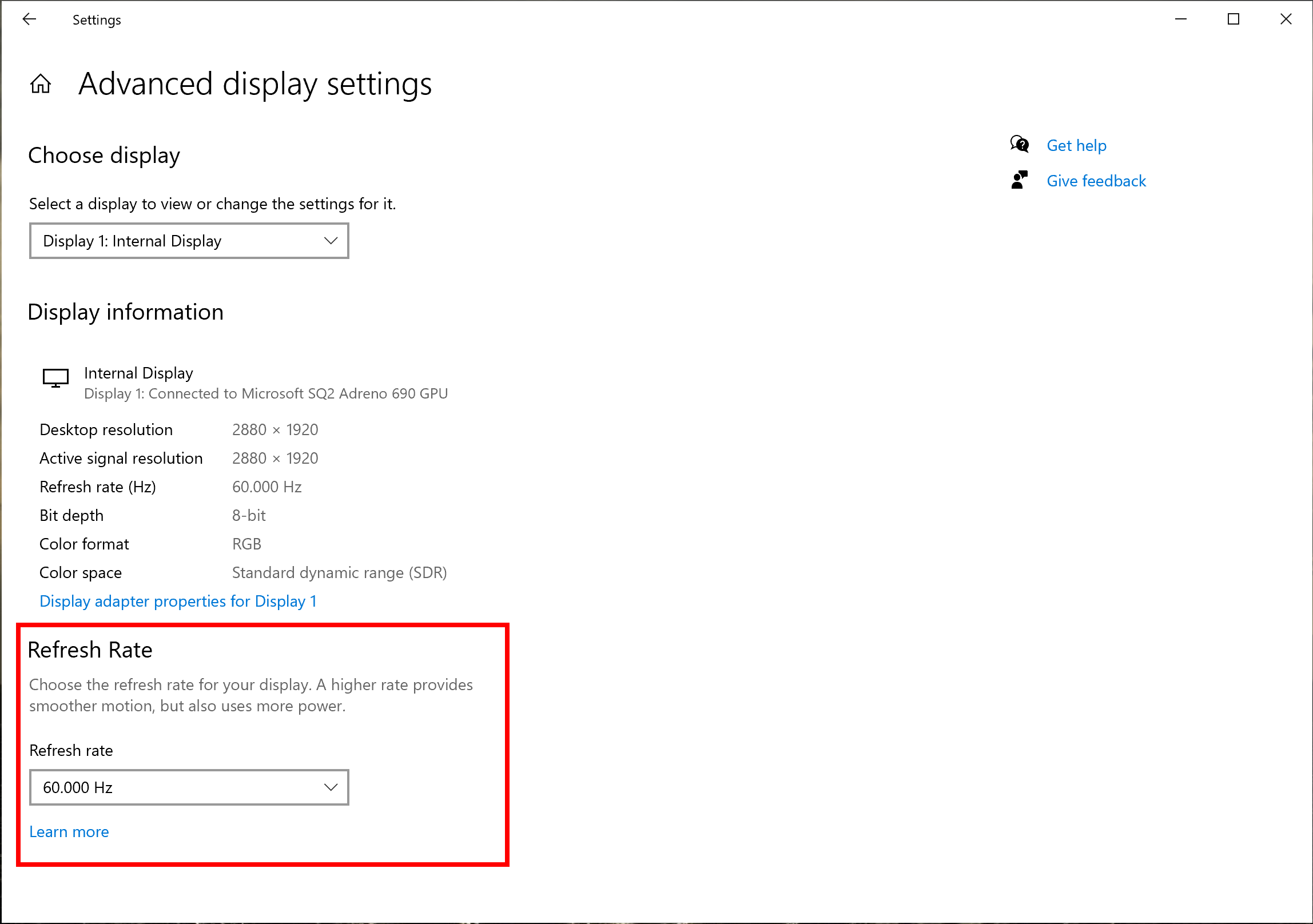
Optimize your visual experience by configuring Windows to match your monitor native capabilities. Correct settings prevent blurry text and ensure smooth motion.
Set Native Resolution
Right-click your desktop and select Display Settings to access resolution options. Choose your monitor from the list and set the resolution to its native value like 2560 by 1440. Update your graphics drivers if the native resolution option does not appear in the menu.
Enable High Refresh Rate
Navigate to Advanced Display Settings and click Display Adapter Properties to find the Monitor tab. Change the refresh rate from the default 60 Hz to your monitor maximum such as 75 Hz or 144 Hz. Verify your cable is plugged into the GPU if high refresh rate options are missing.
Arrange Multiple Monitors
Drag monitor icons in Display Settings to match the physical layout of your screens on the desk. Select Extend to spread your workspace across multiple displays or Duplicate to mirror them. Use graphics driver software for advanced color depth and scaling configurations.
Calibrate the On-Screen Display Menu

Fine-tune your viewing experience using the physical buttons on your monitor to access the On-Screen Display. Proper calibration reduces eye strain and improves color accuracy.
Adjust Brightness and Contrast
Set brightness so whites appear clear but not blinding in your ambient lighting conditions. Adjust contrast high enough to see dark details without making blacks look gray. Avoid maximum brightness in dark rooms to minimize eye fatigue.
Select the Right Color Mode
Choose sRGB mode for photo editing and tasks requiring color accuracy. Select 6500K or Standard mode for balanced colors during general office work. Use Custom RGB to manually tweak red, green, and blue gains for precision tasks.
Enable Gaming and Eye Care Features
Activate Overdrive or Smart Response to reduce motion blur but set it to Normal to avoid ghosting. Turn on Low Blue Light mode for warmer tones during night use. Ensure Flicker-Free technology is enabled to prevent eye strain at low brightness levels.
Position Your Monitor for Ergonomic Comfort
Proper positioning prevents neck and back pain during long work sessions. Follow these guidelines to create a healthy workspace environment.
Set the Correct Height and Distance
Position the top of your screen at or slightly below eye level to reduce neck strain. Maintain a viewing distance of 2 to 3 feet between your eyes and the display. Look slightly downward rather than upward to keep your neck in a neutral position.
Adjust Tilt, Swivel, and Pivot
Tilt the screen between negative 5 degrees and positive 20 degrees to reduce glare. Swivel the monitor left or right to share your screen or fit your desk layout. Pivot the display to portrait mode for coding, reading documents, or browsing social media feeds.
Maintain Healthy Posture
Sit with your back straight and shoulders relaxed while keeping elbows at 90 degrees. Raise the monitor using a riser if your desk is too low instead of lowering your chair excessively. Ensure your feet rest flat on the floor or a footrest for proper support.
Troubleshoot Common Assembly Issues
Address common problems quickly with these diagnostic steps to get your system running smoothly. Most issues stem from loose connections or incorrect settings.
Fix No Display or Black Screen
Verify the power LED is lit and check that all cables are seated firmly in their ports. Press the Input or Source button on your monitor to select the correct video port. Cycle through HDMI, DisplayPort, and USB-C inputs in the OSD if auto-detection fails.
Resolve 60Hz Refresh Rate Limits
Check that your video cable is plugged into the dedicated GPU port and not the motherboard. Replace old HDMI cables with DisplayPort or HDMI 2.0 cables to support higher refresh rates. Update your graphics drivers to ensure the system recognizes monitor capabilities.
Correct USB or Audio Failures
Connect the USB upstream cable from the monitor to your PC to activate built-in USB ports. Go to Windows Sound Settings and select your monitor as the default playback device for audio. Tighten the tension bolt on your VESA arm if the monitor sags or tilts unexpectedly.
Assemble Dual Monitors and Wooden Stands
Special setups require specific techniques for alignment and stability. Follow these steps for dual-arm mounts or wooden riser assemblies.
Set Up Dual Monitor Arms
Use thumb knobs to align both screens at the exact same height for a seamless view. Slide the arms horizontally so inner bezels touch or align perfectly. Route cables through central pole clips to prevent tangling between the two arms.
Assemble a Wooden Monitor Riser
Slide side panels upright and insert the bottom shelf into lower slots if included. Press the top shelf firmly into upper slots noting that a tight fit is normal for friction-fit designs. Pull shelves straight out to disassemble for storage or moving without tools.
Drill a Grommet Hole If Needed
Confirm your desk thickness is between 0.4 and 1.6 inches before drilling. Mark your drill spot carefully and drill a clean 3/8 inch hole avoiding cables underneath. Feed the grommet bolt through the hole and secure it from below with the handle.
Maintain Your Monitor Long Term
Regular maintenance keeps your setup running smoothly and extends the life of your equipment. Simple habits prevent damage and ensure consistent performance.
Clean Safely and Regularly
Use a dry or slightly damp microfiber cloth to wipe the screen gently. Never spray liquid directly on the screen to avoid damage to internal components. Avoid ammonia-based cleaners that can strip protective coatings from the display.
Check Mount Stability Periodically
Tighten all bolts on VESA mounts every six months to ensure continued stability. Inspect cable routing to ensure no wires are pinched or bent at sharp angles. Visit the manufacturer website occasionally to download firmware updates for your monitor.
Store Original Packaging
Keep your original box and foam inserts for warranty claims or future moves. Monitors are fragile and original packaging offers the best protection during transport. This preparation saves time and stress if you need to return or relocate your equipment.
Frequently Asked Questions About Monitor Assembly
What tools do I need to assemble a monitor?
Most modern monitors require no tools for stand installation due to tool-free mechanisms. You may need a screwdriver, hex wrench, or drill if installing a grommet mount or screw-in stand. Always check your specific model manual for required tools before starting.
Can I use any cable for high refresh rate gaming?
No, you must use DisplayPort or HDMI 2.0 and higher cables for refresh rates above 60Hz. Older cables often cap performance at 60Hz or lower resolutions regardless of monitor capability. Check cable specifications to ensure they support your desired resolution and refresh rate.
Why is my monitor resolution stuck at 60Hz?
This usually happens when the cable is plugged into the motherboard instead of the dedicated GPU. It can also result from using an outdated cable or missing graphics driver updates. Verify your connection point and cable type to resolve this common issue.
How do I stop my mounted monitor from sagging?
Tighten the tension bolt located on the arm hinge or behind the VESA bracket. Adjust this bolt until the monitor holds its position without tilting too easily. Regular checks every six months help maintain proper tension over time.
Do wooden monitor stands require screws for assembly?
High-quality wooden stands typically use friction-fit joints that require no screws or tools. You simply slide the shelves into interlocking slots on the side panels firmly. A tight fit is intentional and ensures stability without hardware.
Key Takeaways for Assembling Your Monitor Successfully
You now know how to assemble a monitor safely from unboxing to final calibration. Proper component verification, secure mounting, and correct cable selection are essential for a stable setup. Following ergonomic guidelines ensures long-term comfort during work or gaming sessions.
Take action today by checking your current setup against the troubleshooting steps provided. A well-assembled monitor improves productivity and reduces physical strain immediately. Enjoy your optimized workspace with confidence in your professional-grade installation.


