
You have a perfectly good monitor on your desk but hate tripping over HDMI cables every time you switch devices. What if you could turn that wired screen into a wireless display just like a smart TV? The good news is that you can make this happen today. However, you cannot do it with software alone because standard monitors lack built-in Wi-Fi hardware.
This guide explains exactly how to convert monitor to wireless display using proven methods that actually work. We will walk you through the best hardware options, DIY projects, and software tricks for seamless screen mirroring. You will learn which tools fit your budget and how to set them up in under ten minutes.
Wireless HDMI Transmitter and Receiver Kits
Dedicated wireless HDMI kits offer the most reliable way to turn any monitor into a wireless display. These devices provide high resolution and minimal lag for a experience close to a direct cable connection. They are the gold standard for users who need consistency without network congestion.
How the Technology Works
A wireless HDMI kit uses two small devices to bridge the gap between your computer and screen. The transmitter plugs into your PC video port while the receiver connects to your monitor HDMI input. The system compresses your video signal and sends it over a dedicated 5GHz wireless band. This direct point-to-point link bypasses your home Wi-Fi entirely for faster speeds.
Top Hardware Recommendations
- Microsoft Wireless Display Adapter: Best for Windows 10 and 11 users needing smooth integration.
- Lindy Wireless HDMI Kit: Supports up to 4K resolution at 30Hz for office work.
- NVIDIA SHIELD Wireless Display: Designed for gamers using GeForce Experience with ultra-low latency.
- Lumens Wireless HDMI Pro: Professional-grade equipment for high-fidelity wireless projection.
Five Step Setup Process
- Connect Transmitter: Plug the unit into your PC HDMI or DisplayPort using an adapter if needed.
- Plug in Receiver: Insert the receiver device into your monitor HDMI port.
- Power Both Units: Use USB power from your PC or a wall adapter to energize both devices.
- Wait for Pairing: Most kits auto-pair within seconds of powering up without manual configuration.
- Enable Wireless Display: Press
Win + Pon Windows and choose Extend or Duplicate mode.
✅ Pro Tip: Use one wired monitor and one wireless monitor to extend your desktop seamlessly across two screens.
Performance Metrics and Trade-Offs

| Feature | Performance Details |
| :— | :— |
| Max Resolution | Up to 4K depending on model |
| Latency | 20 to 60ms ideal for video |
| Ease of Use | Plug-and-play in under 10 minutes |
| Price Range | $50 to $150 |
| Drawbacks | Needs power for both units |
⚠️ Watch Out: Avoid cheap no-name brands as many suffer from signal dropouts and poor refresh rates.
Smart Streaming Devices for Casting
Smart streaming sticks like Chromecast or Fire Stick turn your monitor into a versatile smart display. This method is ideal if you already own a streaming device or plan to use the monitor for media consumption. It offers an easy entry point for casual users who want flexibility.
How Casting Devices Function
Devices like Google Chromecast or Amazon Fire Stick act as receivers for screen mirroring protocols. Once plugged into HDMI and connected to Wi-Fi, they accept streams from your computer. Your PC sends the video signal to the stick, which then renders the image on your monitor. This works with Miracast, Google Cast, and AirPlay protocols.
Chromecast Setup Instructions
- Plug In: Insert the Chromecast into your monitor HDMI port.
- Power It: Connect the USB cable to a power source or monitor USB port.
- Connect to Wi-Fi: Use the Google Home app on your phone to join the network.
- Cast from PC: Press
Win + Kon Windows and select your Chromecast device. - Choose Mode: Mirror your entire screen or cast a specific Chrome browser tab.
✅ Bonus: You can stream YouTube, Hulu, or Zoom directly on the stick without needing your PC.
Best Use Cases for Streaming Sticks
- Low Cost Entry: Devices start at just $30 for basic models.
- Multi-Use Functionality: Watch TV, join meetings, or mirror your screen easily.
- Independent Operation: Use apps directly on the stick without turning on your PC.
- Easy Setup: Guided app setup gets you running in minutes.
⚠️ Limitation: This method is not ideal for gaming due to latency ranging from 100 to 300ms.
AirPlay Options for Mac Users
Mac owners can use AirPlay to mirror their screens to Apple TV or AirPlay 2-compatible devices. Simply click the AirPlay icon in your menu bar and select your receiver. This works flawlessly with macOS and allows for easy iPhone screen sharing too.
Software-Based Remote Desktop Solutions
You can use software to stream your desktop to a secondary device connected to the monitor if you lack extra hardware. This method requires a receiver device like a tablet, old laptop, or smart TV to act as the display endpoint. It is a great way to repurpose old tech you already own.
How Remote Streaming Works
Install remote desktop software on both your main PC and a client device. The client connects to your monitor via HDMI and streams your desktop over your local Wi-Fi network. Your main computer processes the graphics while the client device displays the video feed.
Top Software Tools Compared
| Tool | Best For | Latency | Ease of Use |
|---|---|---|---|
| Parsec | Gamers and designers | 15 to 40ms | Medium |
| Splashtop | Remote work tasks | 50 to 100ms | Easy |
| TeamViewer | Full remote control | 100 to 200ms | Easy |
| RDP/VNC | DIY Raspberry Pi setups | 100ms+ | Hard |
Parsec Setup Example
- Install Parsec: Download and install the software on your host PC and client device.
- Link Accounts: Sign in with the same account on both devices to enable connection.
- Connect Client to Monitor: Use an HDMI cable to connect your tablet or laptop to the display.
- Start Stream: Open Parsec on the client device and select your main PC from the list.
- Control Wirelessly: Use a keyboard, mouse, or touch input to control your main system.
✅ Pro Tip: Use Parsec with a game controller to turn your monitor into a cloud gaming station.
When to Use This Method
- You have an old tablet or mini PC lying around unused.
- You need secure remote access for business tasks via Splashtop.
- You are okay with moderate latency for office work and web browsing.
❌ Not for: Competitive gaming, video editing, or real-time design work requiring precision.
DIY Wireless Display with Raspberry Pi
Building a custom wireless receiver with a Raspberry Pi is the most cost-effective solution for tech-savvy users. This approach offers maximum flexibility and allows you to create a dedicated display receiver for a fraction of commercial kit costs. It is perfect for hobbyists who enjoy tinkering.
Required Components List
- Raspberry Pi 4 or 5: Costs between $55 and $80 depending on memory.
- MicroSD Card: Minimum 16GB capacity for the operating system.
- Power Supply: Official Raspberry Pi power adapter recommended.
- HDMI Cable: To connect the Pi to your monitor.
- Wi-Fi Network: Stable connection for streaming video data.
Installation and Configuration Steps
- Flash OS: Install Raspberry Pi OS (64-bit) using the Raspberry Pi Imager tool.
- Enable Remote Access: Turn on SSH and VNC during the initial setup process.
- Install Parsec: Run the installation command to add the Parsec receiver software.
- Link to Account: Log in via the Parsec app to connect to your main computer.
- Connect to Monitor: Plug the Pi into the monitor HDMI port and power it on.
- Stream from PC: Open Parsec on your computer and select your Pi as the host.
✅ Bonus Functions: Turn your Pi into a media center with Kodi, a home server, or a smart home hub.
Performance and Cost Analysis
- Cost: Approximately $50 for the Pi unit and under $100 fully equipped.
- Latency: As low as 30ms when using optimized software like Parsec.
- Resolution: Supports 1080p standard with some 4K models available.
- Customization: Full control over software stack and additional features.
⚠️ Challenges: Requires Linux familiarity, troubleshooting network issues, and manual updates.
Compare Solutions to Find Your Match

Not all wireless display methods are equal for every situation. Your ideal choice depends on your budget, specific use case, and technical comfort level. Use this guide to match the right tool to your specific needs.
Quick Decision Guide
| Use Case | Best Option | Why Choose This |
|---|---|---|
| Seamless Office Work | Wireless HDMI Kit | Plug-and-play with Extend mode support |
| Streaming Netflix/YouTube | Chromecast or Fire Stick | Built-in apps and low cost |
| Low-Latency Gaming | Parsec or NVIDIA SHIELD | Frame-accurate and highly responsive |
| Remote Work Access | Splashtop or TeamViewer | Secure and cross-platform compatible |
| Budget DIY Project | Raspberry Pi + Parsec | Reusable and multi-functional |
| Travel Presentations | Microsoft Wireless Adapter | Portable and works with any laptop |
Latency Comparison Chart
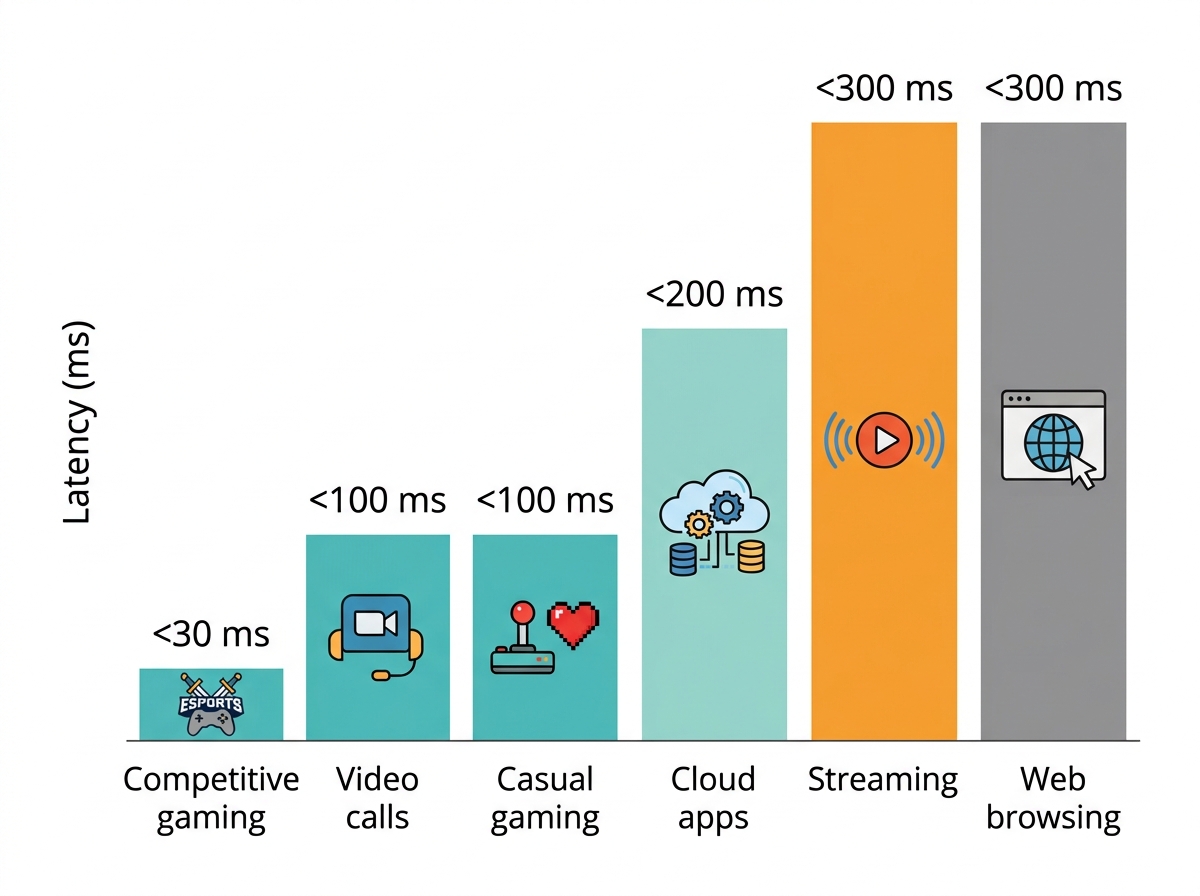
| Method | Typical Latency | Suitable For |
| :— | :— | :— |
| Wireless HDMI Kit | 20 to 60ms | Video, office, light gaming |
| Chromecast | 100 to 200ms | Streaming and web browsing |
| Parsec (Gaming) | 15 to 40ms | Competitive gaming |
| TeamViewer | 100 to 250ms | File access and remote control |
| VNC (Raspberry Pi) | 100 to 300ms | Basic desktop use |
Cost Breakdown Analysis
| Solution | Hardware Cost | Ongoing Cost |
|---|---|---|
| Wireless HDMI Kit | $50 to $150 | None |
| Chromecast | $30 to $50 | None |
| Raspberry Pi Setup | ~$50 | Time for setup |
| Software Only (Parsec) | $0 if device owned | Free tier available |
Critical Tips for Success

Avoid frustration with these expert-backed recommendations for your wireless setup. Following these guidelines ensures stable performance and reduces common connectivity issues.
Use a 5GHz Wi-Fi Network
All wireless display methods perform dramatically better on 5GHz Wi-Fi networks. This band is faster, less congested, and reduces interference from microwaves and Bluetooth devices. Ensure both your PC and receiver are on the 5GHz band in your router settings.
Power the Receiver Properly
Most wireless receivers need stable power to function correctly. Do not rely on your monitor USB port unless it is rated for 5V/1A or higher. Use a wall USB adapter or powered hub to ensure consistent performance.
Minimize Physical Obstacles
Keep the transmitter and receiver in the same room with a clear line of sight. Walls, metal objects, and large electronics can degrade signal quality significantly. Reducing physical barriers improves stream stability.
Update Firmware and Drivers
Streaming devices and adapters receive regular updates to fix bugs and improve performance. Outdated firmware can cause lag, disconnects, or compatibility issues with new operating systems. Check monthly using manufacturer apps to verify updates.
Match Your Use Case
Do not buy a $150 wireless HDMI kit if you just want to watch YouTube videos. Conversely, do not rely on Chromecast for competitive gaming. Match the tool to the task to ensure satisfaction with your how to convert monitor to wireless display project.
Frequently Asked Questions About Wireless Displays
Can I make my monitor wireless without buying any hardware?
No, you cannot make a standard monitor wireless without external hardware. Monitors lack internal Wi-Fi receivers and decoding chips. You must use a streaming stick, wireless HDMI kit, or a secondary device like a Raspberry Pi to receive the signal.
What is the best wireless display method for gaming?
Parsec software or the NVIDIA SHIELD Wireless Display offers the lowest latency for gaming. Dedicated wireless HDMI kits are also good for light gaming with latency between 20 to 60ms. Avoid standard casting sticks like Chromecast for fast-paced games.
How much does it cost to convert a monitor to wireless?
Costs range from $30 for a basic Chromecast to $150 for high-end wireless HDMI kits. A DIY Raspberry Pi setup costs around $50 if you need to buy the board. Software-only solutions are free if you already own a secondary device.
Does wireless display work with Mac and iPhone?
Yes, Mac and iPhone users can use AirPlay to mirror screens to Apple TV or AirPlay 2-compatible devices. You can also use third-party receivers like Chromecast or software like Parsec for cross-platform compatibility.
Will there be lag when using a wireless monitor?
Yes, all wireless solutions have some latency compared to a direct cable. Dedicated HDMI kits offer the least lag at 20 to 60ms, while casting sticks may have 100ms or more. Competitive gamers should test thoroughly before relying on wireless.
Do I need a strong Wi-Fi network for wireless displays?
Yes, a stable and high-bandwidth Wi-Fi connection is critical for quality performance. A 5GHz network is highly recommended over 2.4GHz to reduce interference and increase throughput for smooth video streaming.
Key Takeaways for Converting Your Monitor to Wireless
You do not need a smart monitor to enjoy wireless screen sharing with the right approach. The best method depends on your needs, with wireless HDMI kits offering the best balance of speed and simplicity for most users. Gamers should prioritize low-latency options like Parsec while casual users can save money with streaming sticks.
All solutions eliminate video cables and reduce desk clutter for a cleaner workspace. While power cables remain necessary, the result is a modern setup that feels truly wireless. Start with a budget-friendly Chromecast for media or invest in a dedicated adapter for seamless Windows integration.


