
Your monitor keeps going black after just a few minutes, even when you are in the middle of reading or working. This frustrating experience is common on modern Windows devices that ship with aggressive default timeouts. The good news is that you can increase monitor sleep time through built-in settings, advanced power options, or command-line tools when standard methods fail.
Modern operating systems like Windows 11 and Windows 10 prioritize battery life and reduce carbon emissions by defaulting to short screen-off timers. While this helps conserve energy, it is not ideal for every workflow. In this guide, you will learn how to extend your monitor sleep timer across different scenarios, including troubleshooting stubborn timeouts caused by third-party software.
Adjust Screen Timeout in Windows 11

The easiest way to increase monitor sleep time on Windows 11 is through the Settings app.
Access Power and Battery Settings
- Press Start and select Settings (or press
Win + I). - Go to System then Power & battery.
- Click Screen, sleep, & hibernate timeouts.
Here, you will see four key settings you can adjust:
- On battery, turn my screen off after
- When plugged in, turn my screen off after
- On battery, make my device sleep after
- When plugged in, make my device sleep after
Use the dropdown menus to select longer durations up to 5 hours, or choose Never if you want the screen to stay on indefinitely.
Pro Tip: If you use a desktop or always-plugged laptop, focus on the “plugged in” options. Laptops should balance both battery and AC settings.
Understand Windows 11 Default Changes
Microsoft has tightened default timeouts in Windows 11 to reduce environmental impact and extend battery lifespan. For Modern Standby devices, the screen-off default dropped from 4 minutes to 3 minutes on battery and from 10 minutes to 5 minutes when plugged in. For S3 devices, similar reductions apply across both power states.
Modify Sleep Settings in Windows 10
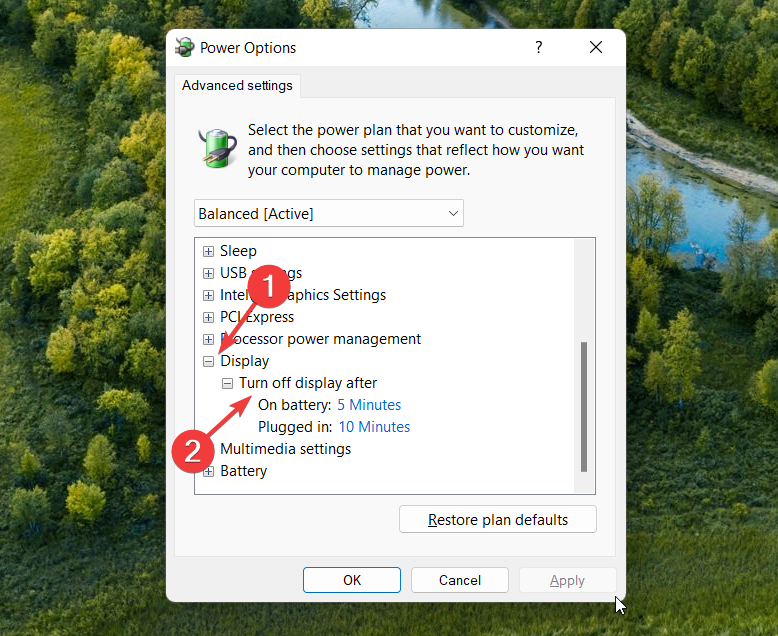
Windows 10 offers two methods to adjust monitor sleep time: the modern Settings interface and the classic Control Panel.
Method 1: Use the Settings App
- Open Start then Settings then System then Power & sleep.
- Under Screen, change both “When plugged in, turn off after” and “When on battery, turn off after.”
- Under Sleep, adjust “Put the computer to sleep after” for both power states.
Choose up to 5 hours or select Never for indefinite display time.
Method 2: Use Control Panel for More Control
For deeper customization, use the legacy Power Options interface:
- Press
Win + R, typepowercfg.cpl, and press Enter. - Click Change plan settings next to your active plan.
- Change values for Turn off the display and Put the computer to sleep.
- Click Save changes.
This method gives you access to advanced settings that the modern Settings app hides.
Fix Monitor Turning Off Too Soon
Ever set the timeout to 30 minutes only to have your screen go black after 1 minute? This usually means something is overriding your settings.
Common Causes of Premature Sleep
- Third-party optimization software like Dell Optimizer or Lenovo Vantage
- Hidden power settings not visible in the GUI
- Group Policies enforcing strict timeouts
- Manufacturer firmware-level controls
Even changing Registry keys or Group Policy may not help if a background utility keeps resetting everything.
Stop Dell Optimizer from Forcing Short Timeouts
Dell Optimizer is known to ignore Windows power settings and enforce aggressive display-off rules, sometimes as short as 30 seconds.
Symptoms of Interference
- Screen turns off too fast despite correct settings
- Changes revert after reboot
powercfgcommands do not persist- Power report shows “Video Idle Timeout” as the trigger
Solution: Uninstall or Disable Dell Optimizer
- Go to Settings then Apps then Installed apps.
- Search for Dell Optimizer.
- Click the three dots and select Uninstall.
- Restart your PC.
After removal, reopen Power Options, reset your desired screen timeout, and use powercfg commands to lock in changes.
Note: Similar tools like Lenovo Vantage or HP Support Assistant may cause the same issue. Temporarily disable or uninstall them to test.
Use Command Line to Force Longer Timeouts
When GUI settings fail, use powercfg in an elevated Command Prompt to directly edit power schemes.
Open Elevated Command Prompt
- Press
Win + S, type cmd. - Right-click Command Prompt and select Run as administrator.
Set Display Off Timeout in Seconds
Replace [seconds] with your desired value:
- 60 equals 1 minute
- 900 equals 15 minutes
- 3600 equals 1 hour
- 0 equals Never
cmd

powercfg /SETACVALUEINDEX SCHEME_CURRENT SUB_VIDEO VIDEOCONLOCK 900

powercfg /SETDCVALUEINDEX SCHEME_CURRENT SUB_VIDEO VIDEOCONLOCK 900

powercfg /SETACTIVE SCHEME_CURRENT
The SETACVALUEINDEX command applies when plugged in, while SETDCVALUEINDEX applies on battery. The final command activates your current scheme.
Warning: You must run these commands as Administrator. No error message does not guarantee success, so verify with a power report afterward.
Reveal Hidden Power Settings in Advanced Menu
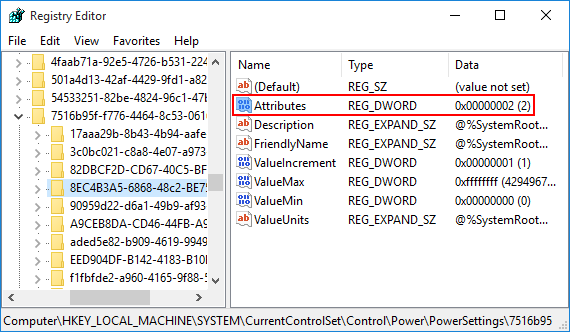
Some critical options, like System Unattended Sleep Timeout, are hidden by default.
Show Hidden Settings via Registry
- Press
Win + R, typeregedit, and press Enter. - Navigate to:
HKEY_LOCAL_MACHINE\SYSTEM\CurrentControlSet\Control\Power\PowerSettings\238C9FA8-0AAD-41ED-83F4-97BE242C8F20\7bc4a2f9-d8fc-4469-b07b-33eb785aaca0
This path corresponds to “System unattended sleep timeout.”
- Double-click Attributes.
- Change Value data from
1to2. - Click OK.
Now return to Power Options and open Change advanced power settings. Expand Sleep and you will see the previously hidden setting. Set it to 0 (Never) or a higher value to prevent immediate sleep after waking.
Prevent Lock Screen from Forcing Sleep
Sometimes the lock screen timeout causes the display to turn off before the main sleep timer activates.
Adjust Console Lock Display Timeout
Use powercfg to control how long the display stays on after locking:
cmd

powercfg /SETACVALUEINDEX SCHEME_CURRENT SUB_VIDEO CONSOLELOCK 900

powercfg /SETDCVALUEINDEX SCHEME_CURRENT SUB_VIDEO CONSOLELOCK 900

powercfg /SETACTIVE SCHEME_CURRENT
Setting the value to 900 equals 15 minutes, which is a good starting point for most users.
Verify Your Changes Are Active

Do not assume your settings stuck. Check with a system power report.
Generate Power Report
- Open Command Prompt as Administrator.
- Run:
cmd

powercfg /systempowerreport
- Wait about 60 seconds. A report saves to:
C:\Windows\system32\system-power-report.html
- Open it in your browser and check:
– Display idle timeouts
– Reasons for sleep (look for “Video Idle Timeout” or “User Request”)
– Confirm your new values appear under Active Power Settings
If the old timeout still shows, a policy or app is overriding your changes.
Check for Group Policy Conflicts
In corporate or managed environments, Group Policy may enforce short timeouts that local settings cannot override.
View Applied Policies
Run this command in an Admin Command Prompt:
cmd

gpresult /r
Look for Applied Group Policy Objects related to Power Management, Screen Saver, or Energy Policy. If policies are active, contact your IT admin or run gpupdate /force after making local changes to force a refresh.
Important: On domain-joined PCs, local changes may be overwritten at the next policy refresh.
Optimize Power Without Short Sleep Times
Want to save energy but keep the screen on longer? Try these alternatives.
Enable Dark Mode
Go to Settings then Personalization then Colors then Choose your mode and select Dark. This saves power on OLED and AMOLED displays where black pixels consume negligible energy.
Use Dynamic Refresh Rate
On supported laptops, go to Settings then System then Display then Advanced display and enable Variable refresh rate or Dynamic refresh rate. This lowers the refresh rate during static content like reading, saving power without turning off the screen.
Lower Brightness Manually
Even with a long timeout, high brightness drains battery quickly. Reduce brightness to 50 to 70 percent for extended unplugged use.
Enable Energy Saver Features
Windows 11 includes Energy Saver that activates on low battery to dim the screen and limit background processes. You can also enable “Lower screen brightness when using energy saver” for additional savings.
Frequently Asked Questions About Monitor Sleep Time
Why does my monitor turn off so quickly even after I change the settings?
Third-party software like Dell Optimizer, Lenovo Vantage, or HP Support Assistant often overrides Windows power settings. These manufacturer utilities enforce their own idle timeout policies. Uninstalling or disabling them usually restores your control over screen sleep time.
What is the maximum screen timeout I can set in Windows?
Windows allows you to set screen and sleep timeouts up to 5 hours in the Settings app, or you can choose “Never” for indefinite display time. For values beyond 5 hours, you need to use the powercfg command-line tool with custom second values.
How do I stop my screen from turning off after locking?
Use the powercfg command to adjust the Console Lock Display Off Timeout. Run powercfg /SETACVALUEINDEX SCHEME_CURRENT SUB_VIDEO CONSOLELOCK 900 in an elevated Command Prompt to set 15 minutes for the plugged-in state, then run the same command with SETDCVALUEINDEX for battery.
Will setting my monitor to Never sleep harm my battery?
Yes, keeping the display on indefinitely drains battery faster and can reduce long-term battery lifespan. If you use a laptop on battery power, consider setting separate timeouts for plugged-in and battery states to balance usability with battery health.
How can I tell what is causing my monitor to sleep?
Run powercfg /systempowerreport in an elevated Command Prompt to generate a diagnostic HTML report. Look for entries like “Video Idle Timeout” or “User Request” under sleep reasons to identify the trigger and confirm your settings are active.
Can Group Policy override my local power settings?
Yes, domain-joined PCs often have Group Policies that enforce specific timeout values. Run gpresult /r to view applied policies. If a policy controls your power settings, you must contact your IT administrator or use gpupdate /force to refresh policies after local changes.
Key Takeaways for Increasing Monitor Sleep Time

Start with the basic Settings app to adjust screen and sleep timeouts for both battery and plugged-in states. If those settings revert or fail to apply, check for third-party software like Dell Optimizer that may be overriding your configuration. Use powercfg commands in an elevated Command Prompt to force custom timeout values when GUI methods fail.
For persistent issues, reveal hidden power settings through the Registry Editor and check Group Policy with gpresult /r. Always verify your changes by generating a system power report to confirm the new timeouts are active.
Your next step: open Settings right now and adjust your screen timeout to at least 15 minutes. If the change does not stick, follow the command-line and troubleshooting sections to identify and remove whatever is interfering with your power settings.


