
You’re in the middle of a firefight, but the action stutters, enemies teleport across the screen, and your reflexes feel sluggish. The culprit is low FPS on your monitor. Even with a high-refresh-rate display, your system may not be delivering enough frames to match its potential. Learning how to increase FPS on monitor goes beyond upgrading hardware. It starts with smart software tweaks and a clear understanding of how your system, GPU, and display work together.
Frames Per Second (FPS) measures how many images your PC renders each second, while your monitor’s refresh rate (measured in Hz) determines how many of those frames it can actually show. If your monitor supports 144Hz but your game runs at 60 FPS, you’re only seeing a fraction of the smoothness you could. Worse, mismatched performance can cause screen tearing or input lag. This guide walks you through proven, step-by-step methods to increase FPS on monitor, from simple in-game settings to advanced hardware upgrades, all based on your system’s real capabilities.
Verify Your Monitor Refresh Rate
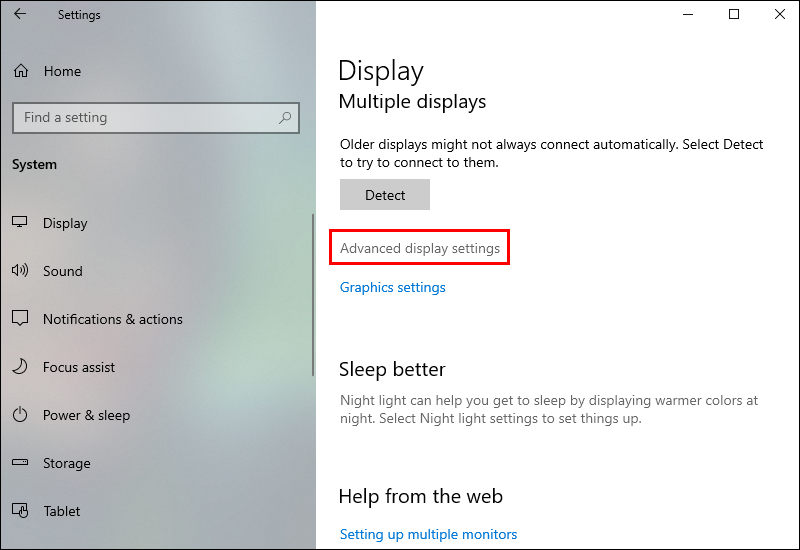
Before boosting FPS, confirm your monitor can actually display it. A 60Hz screen caps visible performance at 60 FPS, no matter how powerful your PC is.
Check the Current Refresh Rate
- Right-click the desktop and select Display settings
- Scroll down and click Advanced display settings
- Find the Refresh rate dropdown menu
- Select the highest available value (such as 144 Hz)
Restart your PC if the new setting does not apply immediately.
Match Cable and Port Specs
Your connection must support high refresh rates for the best results:
- 1080p at 144Hz: Requires HDMI 2.0 or DisplayPort 1.2
- 1440p or 4K: Needs DisplayPort 1.4 or HDMI 2.1
- DisplayPort: More reliable for high refresh rates than HDMI
Ensure you plug into a GPU port, not the motherboard, unless you use integrated graphics.
Enable Performance Mode in Windows
Windows can silently throttle your game performance. Fix this with two key settings.
Turn On Game Mode
Game Mode prioritizes CPU and GPU resources for games:
- Press Start and type “Game Mode”
- Open Game Mode settings
- Toggle Game Mode to On
On Windows 11, navigate to Settings > Gaming > Game Mode instead. This reduces background tasks and may improve FPS by 5 to 15 percent in CPU-heavy titles.
Set Power Plan to Best Performance
Laptops and desktops often default to power-saving modes that limit performance.
For All Users
- Open Control Panel > Hardware and Sound > Power Options
- Select Best performance
For Laptops
- Always plug in when gaming
- Avoid Battery Saver mode, which limits CPU and GPU clocks
On some laptops, enable Performance or Turbo mode in manufacturer software like Dell Power Manager or Lenovo Vantage.
Update Graphics Drivers
Outdated drivers are a top cause of low FPS. New updates often include performance boosts for recent games.
NVIDIA: Use GeForce Experience
- Download NVIDIA GeForce Experience
- Open the app and go to the Drivers tab
- Install the latest Game Ready Driver
You can also visit the NVIDIA website, enter your GPU model manually, and download the driver directly.
AMD: Use Radeon Software
- Open AMD Radeon Software
- Go to the Updates tab
- Download and install the latest Adrenalin Edition driver
Alternatively, visit AMD’s support page and search by GPU model. Reboot after installation to ensure full activation.
Optimize GPU Control Panel Settings
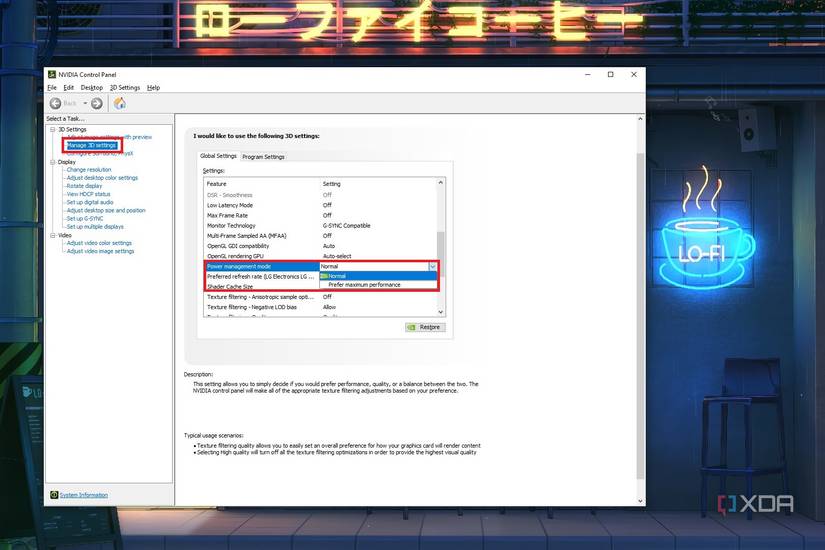
Tune global graphics settings to favor speed over visuals.
NVIDIA Control Panel: Max Performance
- Right-click the desktop and select NVIDIA Control Panel
- Go to Manage 3D Settings > Global Settings
- Apply these settings:
– Power management mode: Prefer maximum performance
– Vertical sync: Off, unless tearing is severe
– Texture filtering quality: High performance
– Low Latency Mode: On or Ultra
These apply to all games unless overridden per program.
AMD Radeon Software: Boost Frame Rates
- Open AMD Radeon Software
- Navigate to Graphics > Graphics Settings
- Set the following options:
– V-Sync: Off
– Texture Filtering Quality: Performance
– Wait for Vertical Refresh: Off, unless the application specifies otherwise
– Power Profile: High Performance
Adjust per-game settings under the Gaming tab if needed.
Lower In-Game Graphics Settings

This is the fastest way to gain FPS. Target the most demanding settings first.
Reduce Resolution Scaling
- Lower render resolution to 75% or 50% in game settings
- Or reduce desktop resolution temporarily (such as 1080p to 900p)
Softer image quality is the trade-off, but you gain major FPS improvements ideal for competitive games.
Turn Off Heavy Visual Effects
Adjust these settings in order of impact:
- Shadows: Set to Low or Off
- Anti-Aliasing: Use FXAA or disable entirely
- Texture Quality: Medium if VRAM is under 6GB
- View Distance: Reduce to 70 to 80% of max
- Post-Processing: Disable motion blur and depth of field
Use the Low or Balanced preset, then selectively boost key visuals like textures.
Disable V-Sync and Use a Frame Cap
V-Sync off prevents FPS caps but may cause tearing. Set an FPS limit to monitor refresh rate minus 3 (such as 141 FPS on 144Hz) to reduce tearing and GPU load. Use the in-game limiter or your GPU control panel.
Fix Thermal Throttling

Overheating CPUs and GPUs throttle performance, causing sudden FPS drops during long sessions.
Monitor Temperatures
Use tools like MSI Afterburner with RivaTuner, HWMonitor, or Core Temp. Safe limits are below 85°C for CPU and below 83°C for GPU under load.
Improve Cooling
- Clean dust from fans, vents, and heatsinks
- Improve airflow by adding case fans and keeping your PC in open space
- Use a cooling pad for laptops and elevate them for airflow
- Replace dried thermal paste on CPU and GPU (advanced)
These steps prevent performance drops and keep your system running smoothly.
Eliminate CPU Bottlenecks
Even with a powerful GPU, a weak CPU can limit FPS in demanding games.
Diagnose the Bottleneck
Check Task Manager or MSI Afterburner while gaming. If GPU usage stays below 90% and FPS is low, your CPU may be bottlenecking. This is common in games like CS2, Warzone, and RTS titles.
Reduce CPU Load
Lower these in-game settings:
- Draw distance
- NPC or enemy count
- Physics quality
- AI complexity
If your CPU is outdated (such as older Intel i3 or i5, or AMD Ryzen 3), consider upgrading.
Upgrade Hardware When Software Is Not Enough
If you have optimized everything but still lag, it is time for hardware upgrades.
Upgrade the Graphics Card
The GPU is the number one upgrade for FPS gains:
- Budget: NVIDIA RTX 3050 or AMD RX 6600
- Mid-range: RTX 4060 or RX 7600
- High-end: RTX 4070, RTX 4080, or RX 7800 XT
Ensure your PSU has enough wattage and available PCIe slots. Most laptops cannot upgrade GPUs, but some support external GPUs (eGPU) via Thunderbolt 3 or 4.
Add More RAM
- Minimum: 16GB DDR4 or DDR5
- For 1440p or 4K gaming: 32GB recommended
- Use dual-channel (two sticks) for better performance
Check motherboard compatibility before buying.
Switch to SSD Storage
Even if you keep an HDD for bulk storage, install your OS and games on an NVMe SSD. This reduces load times, eliminates stutters, and smooths open-world gameplay. Moving Cyberpunk 2077 from HDD to SSD, for example, eliminates texture pop-in and hitching.
Overclock GPU for Extra FPS
Unlock free performance if you are comfortable with some risk.
Use MSI Afterburner
- Download MSI Afterburner
- Open the app and slowly increase Core Clock by 50 MHz
- Test stability with Unigine Heaven or in-game
- If stable, increase Memory Clock by 100 MHz
- Repeat and test after each step
Monitor temperatures below 83°C and stop if you see crashes or visual artifacts. Not all GPUs overclock well due to silicon lottery variance. Typical gains range from 5 to 15% more FPS.
Prevent Screen Tearing Without V-Sync
Disabling V-Sync can cause tearing. Use adaptive sync technology instead.
Enable G-Sync (NVIDIA)
Your monitor must be G-Sync compatible. In NVIDIA Control Panel, go to Set up G-Sync and enable it. G-Sync works over DisplayPort or HDMI on supported models.
Enable FreeSync (AMD)
Your monitor must support FreeSync. In AMD Radeon Software, go to FreeSync and turn it on. Set it to Full Screen or Desktop mode. This syncs your monitor’s refresh rate to GPU output, eliminating tearing and stuttering.
Frequently Asked Questions About Increasing FPS on Monitor
What is the fastest way to increase FPS on monitor?
The fastest method is lowering in-game graphics settings. Start by reducing shadows, anti-aliasing, and resolution scaling. You can also enable Game Mode and set your power plan to Best Performance for immediate gains.
Can a 60Hz monitor show more than 60 FPS?
No. A 60Hz monitor physically cannot display more than 60 frames per second. However, generating higher FPS can reduce input lag, even if the extra frames are not all visible on screen.
Does V-Sync lower FPS?
V-Sync caps your frame rate to match your monitor’s refresh rate to prevent tearing. If your GPU could output more FPS, turning V-Sync off allows higher frame rates but may introduce screen tearing.
How do I know if my CPU is bottlenecking my FPS?
Open MSI Afterburner or Task Manager while gaming. If your GPU usage stays below 90% but FPS remains low, your CPU is likely the bottleneck. Lowering CPU-intensive settings like draw distance and physics can help.
Will upgrading RAM increase FPS?
Upgrading RAM can increase FPS if you currently have less than 16GB or use a single stick. Modern games perform best with 16GB in dual-channel configuration. Beyond 32GB, gains are minimal for most games.
Is an SSD better than an HDD for gaming FPS?
An SSD does not directly increase maximum FPS, but it eliminates stutters and hitching caused by slow data streaming. Open-world games benefit most, with faster load times and smoother asset streaming.
Key Takeaways for Boosting FPS on Your Monitor
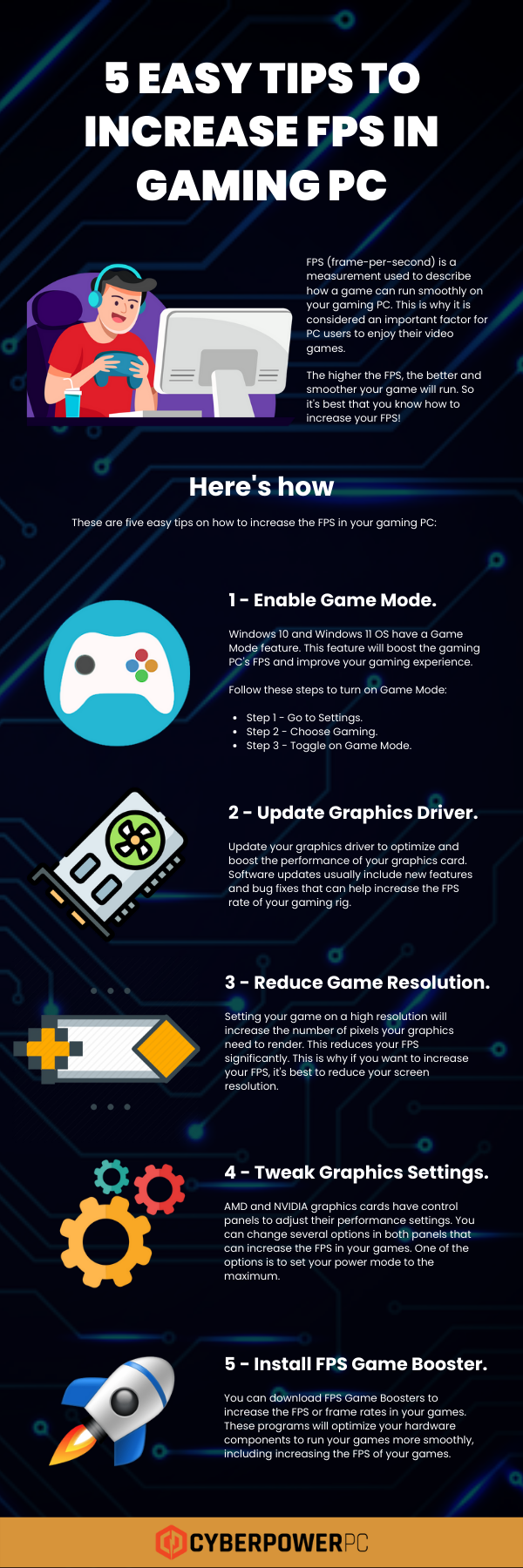
Increasing FPS on your monitor comes down to three core strategies: software tuning, thermal management, and smart hardware choices. Start with driver updates and Windows settings, which can deliver 30 or more FPS for free. If performance still lags, focus on in-game optimizations like lowering shadows and resolution scaling. Finally, consider hardware upgrades like a better GPU, more RAM, or an SSD for long-term gains. With the right setup, even a budget system can deliver smooth gameplay that fully utilizes your monitor’s refresh rate.


