
Fingerprints on your monitor can ruin focus, distort color accuracy, and make dark scenes look cloudy. Whether you own a glossy gaming display, a matte office screen, or a touchscreen laptop, oily smudges are an unavoidable part of daily use. The wrong cleaning method can permanently destroy anti-glare coatings and oleophobic layers.
This guide breaks down exactly how to get fingerprints off monitor screens without causing damage. You will learn which tools work, which products to avoid, step-by-step protocols for different panel types, and prevention tips to keep your display crystal clear longer.
Start with a Dry Microfiber Cloth

Use Only Lint-Free Microfiber
Always begin your cleaning routine dry. A clean, soft microfiber cloth lifts the majority of fresh fingerprints and dust without introducing moisture. Choose cloths specifically labeled for electronics or optics, and never reuse kitchen or bathroom rags because they may contain detergent residue or grit.
Wipe the screen using broad, overlapping strokes or light circular motions. Apply minimal pressure and let the cloth do the work. Avoid concentrating on one spot, since focused friction can create temporary hazing on matte finishes.
Why Dry First?
Dry cleaning removes loose particles before any moisture is introduced. This prevents dust from turning into an abrasive paste that could scratch the surface. It also reduces the need for liquid, which minimizes streaks and seepage into bezels.
Pro Tip: Keep a dedicated microfiber cloth near your desk for quick daily wipe-downs. Never use your sleeve, tissue, or shirt, as these materials are too rough and often leave lint behind.
When to Use Moisture
Identify Stubborn Oily Smudges
If fingerprints remain after a dry pass, especially visible under angled light, it is time to add slight moisture. These marks contain skin oils that do not evaporate and require dampening to dissolve.
Only use liquid when truly necessary. Over-wetting causes streaks, halo effects, and potential internal damage if moisture enters the panel edges.
Choose the Right Liquid
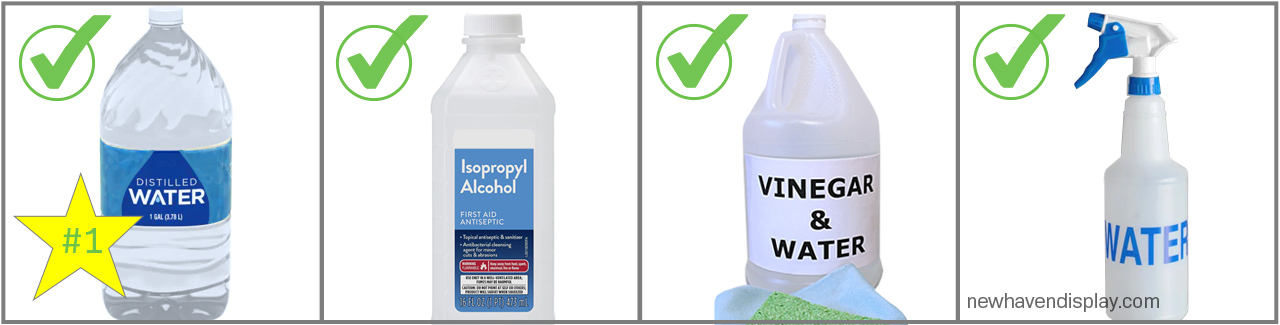
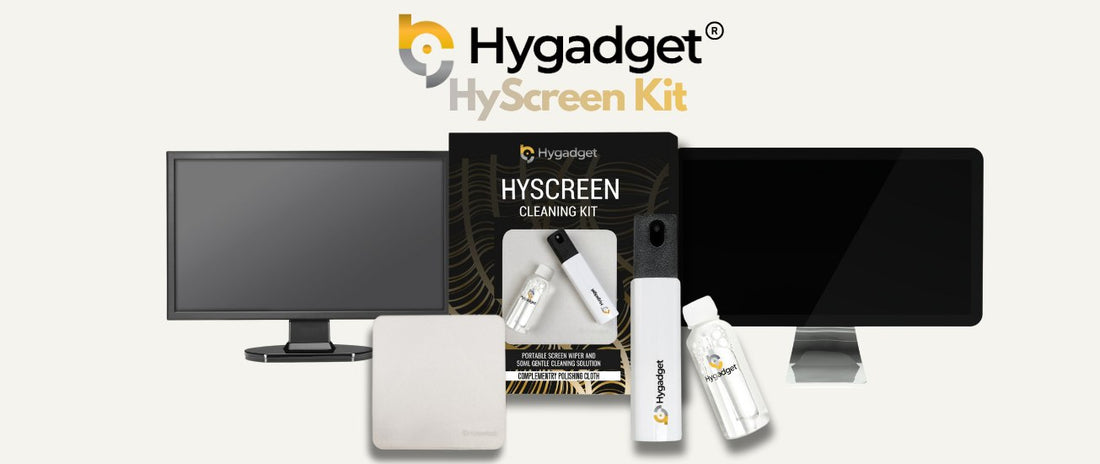
The safest option is distilled water, which lacks the minerals found in tap water that leave spots when dry. For tougher grime, use a screen-safe cleaner labeled for LCD, LED, or OLED displays.
Never spray directly onto the screen. Always mist the cloth first until it feels barely damp. A cloth that drips, beads, or feels wet is too saturated.
Avoid the following:
- Tap water (causes mineral streaks)
- Household glass cleaners (ammonia destroys coatings)
- Hand sanitizer or alcohol wipes (strip oleophobic layers)
- Vinegar mixes (use sparingly on VA panels only)
Clean Without Damaging the Screen
Follow the Safe Wipe Technique
- Power off the monitor and unplug it. A black screen makes smudges easier to spot.
- Cool down the display if it has been in use. Cleaning a warm panel can cause streaks.
- Dampen your microfiber cloth with one to two sprays of distilled water or screen cleaner.
- Wipe gently in circular motions over the smudged area.
- Blend outward with light strokes to avoid a polished halo effect.
- Dry immediately with a second clean, dry microfiber section.
Work quickly and efficiently. The screen should never stay wet for more than a few seconds.
Prevent the Halo Effect
One of the most common mistakes is cleaning only the fingerprint, leaving a shiny patch that stands out. To avoid this, always extend your wipe beyond the smudge. Blend the cleaned area into the surrounding surface with broad, feathered strokes.
Visual Cue: Tilt the monitor under room light after cleaning. If you see a distinct circle or sheen difference, buff the entire section lightly with a dry cloth to even the finish.
Handle Different Screen Types Correctly
Glossy and Semi-Gloss Panels
These screens show every fingerprint due to high reflectivity but are easier to clean thanks to their smooth surface.
Method:
- Dry microfiber first
- Use distilled water if needed
- Wipe in straight lines or circles, then buff dry
- Avoid alcohol, as it can leave hazing
Because smudges are so visible, clean more frequently, ideally every few days with heavy use.
Matte Anti-Glare Screens
Matte finishes hide dust but trap oils in their textured surface. Aggressive wiping spreads oil and can polish the texture, creating shiny spots.
Method:
- Dry cloth only for routine cleaning
- For oily marks, use minimal distilled water
- Wipe gently without scrubbing
- Never use vinegar or alcohol
Warning: Shiny patches on matte screens are often permanent coating damage from improper cleaning. Once lost, the anti-glare texture will not return.
Gaming and High-Refresh Monitors
These often feature sensitive anti-reflective coatings optimized for fast motion and low input lag.
Best Practice:
- Clean weekly with dry microfiber
- Use only distilled water when dampening
- Avoid circular scrubbing near logos or bezels
- Tilt the monitor slightly upward to prevent liquid pooling at the bottom edge
High-brightness usage means oils bake into the surface faster, so clean after long sessions.
Ultrawide and Curved Displays
Large, curved screens are prone to uneven cleaning and dust buildup.
Method:
- Work in sections from left to right
- Support the frame lightly with your non-dominant hand
- Never press into the center, since panel flex can crack internal layers
- Use long, even strokes for a consistent finish
Due to their size, these attract more airborne particles. Reduce cleaning frequency by managing desk airflow and dusting surroundings regularly.
Touchscreen and Portable Displays
Touchscreens have extra layers including digitizers, adhesives, and optical coatings that are vulnerable to moisture and chemicals.
Critical Rules:
- Power off before cleaning
- Place on a flat surface and do not hold while wiping
- Use small circular motions only where needed
- Keep moisture away from bezels, ports, and speaker holes
- Avoid alcohol unless manufacturer-approved
Excessive pressure or liquid can cause dead zones or reduced touch sensitivity.
Fix Common Cleaning Mistakes
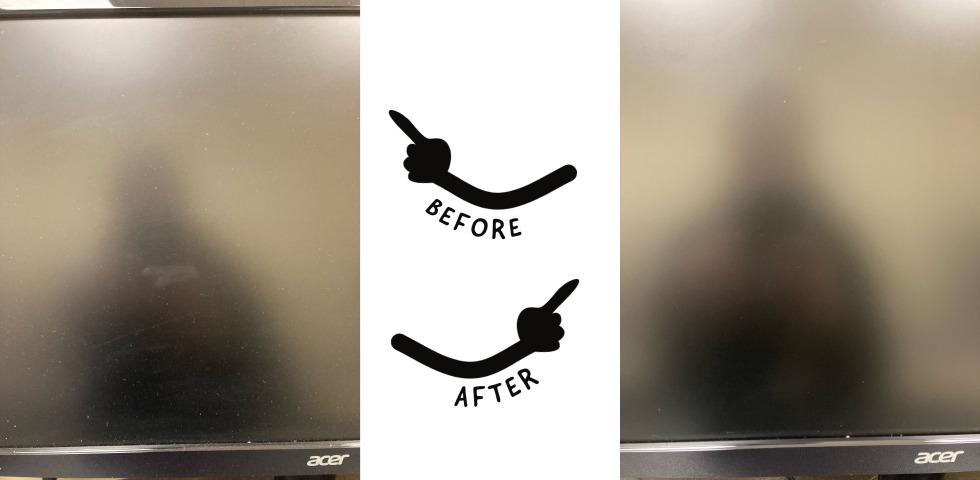
Remove Streaks and Haze
Streaks usually mean too much liquid, a dirty cloth, or tap water minerals.
Fix:
- Use a fresh, dry microfiber cloth
- Buff the entire screen lightly to even the finish
- Clean in a dust-free environment to prevent particles from embedding
If haze persists, it may be coating damage rather than dirt. Stop cleaning and assess for wear.
Deal With Stubborn Smudges
If a mark will not lift after one damp pass:
- Repeat with a clean barely damp cloth
- Do not increase pressure or switch to alcohol
- Stop if the mark spreads, clouds, or looks unchanged
Persistent marks are often not surface grime but coating wear, pressure damage, or internal panel issues. Further cleaning will only make things worse.
Soften Dried Debris
Do not pick at stuck-on dust or dried specks with fingernails or tools.
Safe Method:
- Hold a damp microfiber cloth against the spot for 5 to 10 seconds
- Let moisture loosen the debris
- Wipe gently once softened
Scraping can scratch or create permanent shiny patches, especially on matte screens.
Prevent Fingerprints Between Cleanings
Reduce Screen Contact
The best way to keep your monitor clean is to avoid touching it.
- Use a mouse and keyboard instead of tapping the screen
- Opt for a stylus on touch devices
- Keep hands clean and dry during use
Pro Tip: Apply a matte screen protector if you frequently rest your hand near the display.
Manage Your Workspace
Airflow carries dust and oils to your screen.
- Avoid placing monitors near open windows or HVAC vents
- Dust your desk and peripherals weekly
- Use a dust cover when the monitor is off
- Store laptops in protective sleeves
For shared or high-traffic environments, clean screens daily or before each use.
Protect Laptops When Closed
Closing a laptop with a dirty keyboard transfers grime to the screen.
Simple Fix:
- Place a thin microfiber cloth over the keyboard before shutting the lid
- Clean the keyboard regularly to reduce transfer
This prevents keyboard imprint smudging and extends screen life.
Know What Not to Use
Banned Cleaning Tools
| Item | Risk |
|---|---|
| Paper towels, tissues, napkins | Cause micro-scratches and leave lint |
| Household glass cleaners (Windex) | Ammonia destroys anti-glare coatings |
| Alcohol wipes, hand sanitizer | Strip oleophobic layers and cause hazing |
| Clorox or disinfecting wipes | Damage adhesives and dissolve coatings |
| Eyeglass cleaners | Often contain unsafe surfactants |
These may seem convenient, but they can permanently degrade screen quality.
Avoid Direct Spraying
Spraying liquid onto the screen risks seepage into:
- Panel edges
- USB-C, HDMI, or power ports
- Speaker grilles
- Touch sensor seams
Always spray the cloth, not the monitor.
Frequently Asked Questions About Removing Fingerprints from Monitors
Can I use Windex to clean fingerprints off my monitor?
No. Windex and other household glass cleaners contain ammonia, which permanently destroys anti-glare and oleophobic coatings. Stick to distilled water or cleaners specifically labeled safe for LCD, LED, or OLED screens.
Is it safe to use alcohol wipes on a monitor screen?
Generally no. Isopropyl alcohol above 70 percent can strip protective coatings and cause hazing. Only use alcohol if the manufacturer explicitly approves it for your specific model, especially for touchscreens.
How often should I clean fingerprints off my monitor?
For standard use, clean every one to two weeks. High-touch or shared environments may require daily cleaning. Gaming monitors typically need a weekly dry pass unless touched frequently.
Why does my monitor look streaky after cleaning?
Streaks usually result from too much liquid, a dirty cloth, or mineral deposits from tap water. Use a clean, dry microfiber cloth to buff the screen and blend the finish across a wider area.
What is the best cloth for cleaning a monitor?
A lint-free microfiber cloth designed for electronics or optics is the safest choice. Keep separate cloths for dry dusting and damp cleaning, and never reuse household rags that may carry grit or detergent residue.
Can fingerprints permanently damage a screen?
Fingerprints themselves do not damage screens, but aggressive cleaning to remove them often does. Scrubbing with paper towels or harsh chemicals can destroy coatings and create permanent shiny patches, especially on matte displays.
Key Takeaways for Safely Removing Fingerprints from Your Monitor
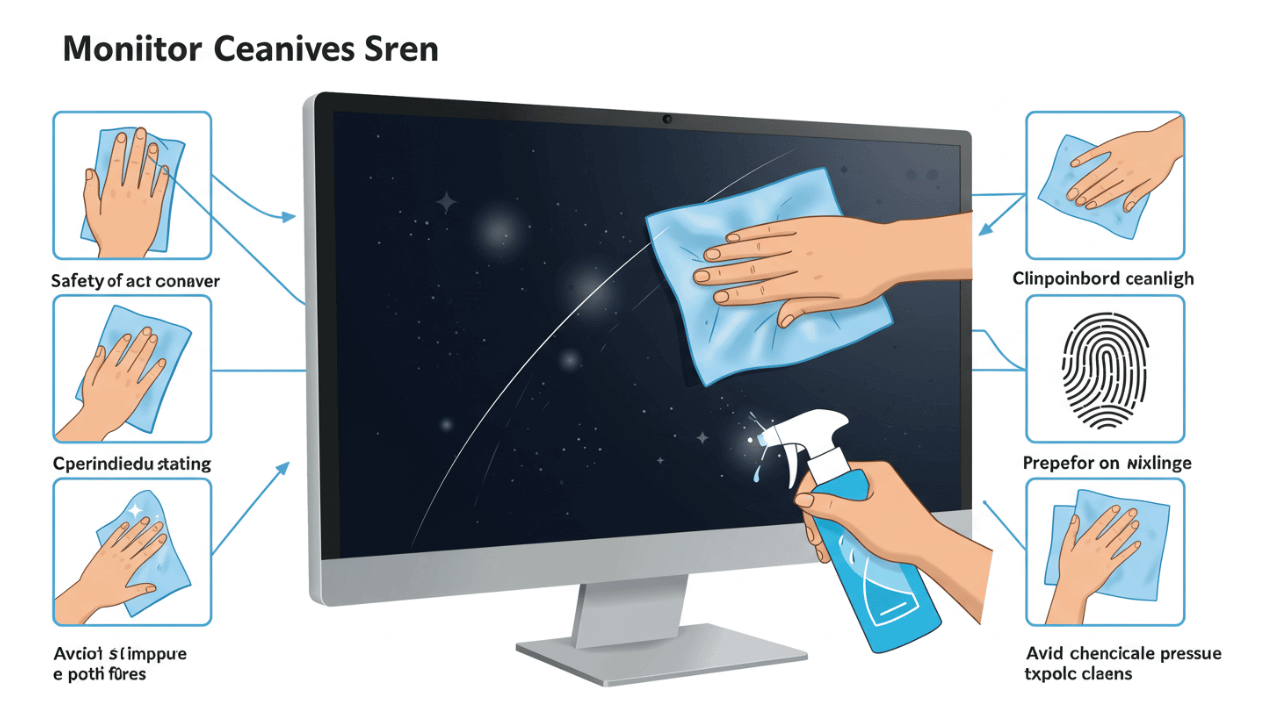
Learning how to get fingerprints off monitor screens comes down to three simple principles. Start with a dry microfiber cloth, introduce moisture only when needed, and avoid harsh chemicals like ammonia or alcohol. Most smudges vanish with a gentle wipe using distilled water on a barely damp cloth.
Different screen types require slightly different approaches. Glossy panels show every smudge but clean easily, while matte screens hide dust yet trap oils in their texture. Touchscreens and curved displays demand extra caution around edges and pressure points.
For long-term clarity, focus on prevention. Keep hands away from the screen, manage workspace airflow, and use a keyboard barrier on laptops. When in doubt, clean less aggressively. Stop immediately if a mark does not lift, since persistent spots are often coating damage rather than dirt. Your monitor will stay clear and protected for years with the right routine.


