
You’re in the middle of a tense match, eyes locked on the screen, but something feels off. Your monitor offers no targeting aid, no aiming anchor, just empty pixels where a crosshair should be. Most displays ship without this feature, leaving precision entirely up to your mouse and reflexes. That’s exactly where Crosshair V2 comes in, delivering a software-based reticle that overlays directly onto your screen. This guide walks you through how to get a crosshair on monitor using reliable tools, in-game settings, and overlay tricks that work across virtually any setup.
You’ll learn step-by-step installation, customization options, platform compatibility tips, and how to avoid common pitfalls. Whether you game on a 240Hz display or a standard 60Hz panel, you’ll finish with a crisp, low-latency crosshair that sharpens your aim without hurting performance.
Why Monitors Don’t Ship With Built-In Crosshairs
Hardware Focuses on Speed, Not Aiming
Display manufacturers prioritize resolution, refresh rate, and response time. A crosshair is a software concern handled by the game itself, not the panel. Even premium 240Hz or 360Hz monitors skip this feature because no industry standard exists for it.
Crosshair V2 Solves the Problem
Crosshair V2 overlays a precision reticle directly onto your screen, independent of any game. You get a consistent aiming point even in titles that hide the crosshair or block customization options.
Operating Systems Skip It Too
Windows and macOS offer no system-level crosshair tools. Cursor tweaks and accessibility overlays exist, but a persistent aiming reticle simply isn’t built in. Players must rely on third-party apps or in-game menus, which vary in quality and stability.
Install Crosshair V2 on Your PC
Download From the Official Site
Head to the CenterPoint Gaming website and grab the latest Crosshair V2 installer. Avoid third-party downloads to steer clear of malware or outdated builds. The file is lightweight and runs smoothly on Windows 10 and 11.
Run the Installer as Administrator
Right-click the downloaded file and choose Run as administrator. This grants the overlay the permissions it needs to render above games and full-screen apps. Skipping this step can cause the crosshair to flicker or fail entirely.
Approve Firewall Access
Windows may ask for firewall permission during setup. Click Allow so the app can receive updates and sync your settings. Blocking it won’t kill functionality but may limit future customization features.
Launch and Turn On the Overlay
Open Crosshair V2 From the System Tray
After installation, launch the app using your Start menu or desktop shortcut. It runs quietly in the background and parks itself in the system tray near your clock.
Activate the Reticle
Click the tray icon and flip the Enable Crosshair toggle. A default white crosshair appears instantly at the center of your screen. Because it renders at the OS level, it works over games, browsers, and full-screen applications.
Confirm Low-Latency Response
Sweep your mouse across the screen quickly. The crosshair should remain perfectly still with no blur or lag. Crosshair V2 uses DirectX and OpenGL hooking for minimal input delay, making it ideal for competitive shooters.
Customize the Crosshair Look
Resize and Adjust Thickness
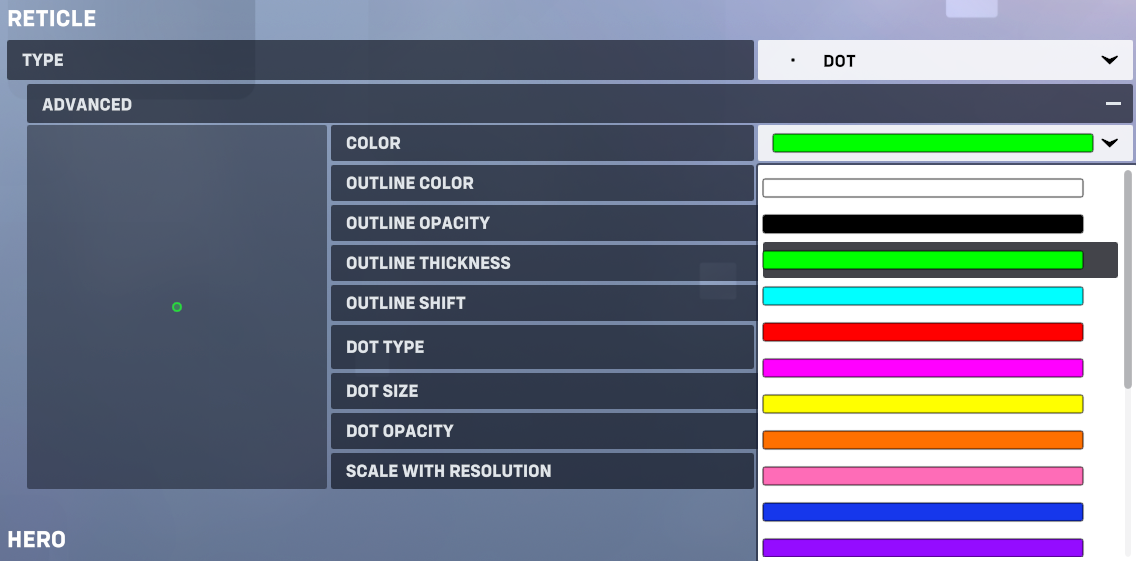
Open the settings panel and drag the Size Slider to scale the reticle. Snipers benefit from a tiny 2 to 4 pixel cross, while fast-paced shooters call for 6 to 8 pixels. The Thickness control lets you widen or slim the lines independently for better contrast.
Set Opacity for Clarity
Use the Opacity Slider to find your sweet spot between visibility and immersion. At 100 percent, the crosshair is bold and obvious. Drop to 50 percent for a subtle look that fades into busy backgrounds. Avoid going below 20 percent, since tracking becomes difficult during fast action.
Pick a Color That Pops
Choose from preset colors like red, green, blue, cyan, or a custom RGB value. Green offers strong contrast on most maps, while red shines in dark-themed games. Match your keyboard lighting or monitor glow for a unified aesthetic.
Set Up Platform Compatibility
Enable Steam Overlay Access
If you launch games through Steam, open Settings > In-Game and confirm Enable Steam Overlay is checked. Inside Crosshair V2, turn on Allow Overlay Injection so the reticle shows even when Steam’s interface is active.
Run With Microsoft Store Games
Some Microsoft Store titles run in restricted mode. To fix this:
1. Right-click the Crosshair V2 shortcut
2. Open Properties > Compatibility
3. Check Run this program as an administrator
4. Apply changes and restart the app
This grants the elevated access needed to overlay UWP games.
Use With Epic Games Launcher
Crosshair V2 works seamlessly with Epic titles like Fortnite and Rocket League. No extra configuration is needed. The crosshair stays visible through loading screens and full-screen transitions.
Fix Common Crosshair Problems
Crosshair Won’t Appear
Check the Running Process
Open Task Manager with Ctrl+Shift+Esc and look for CrosshairV2.exe under Processes. If it’s missing, relaunch the app. Persistent crashes mean you should reinstall the latest version from the official site.
Update Your Graphics Driver
Outdated GPU drivers can block overlay tools. Update NVIDIA GeForce Experience, AMD Software, or Intel Arc to the latest stable release. Restart your PC afterward and try again.
Disable Conflicting Overlays
Apps like Discord, MSI Afterburner, and GeForce Experience can block other overlays. Temporarily turn them off:
– Discord: User Settings > Voice & Video > Disable in-game overlay
– MSI Afterburner: Settings > General > Uncheck Enable On-Screen Display
– GeForce Experience: Settings > General > Turn off In-Game Overlay
Flickering or Ghosting
Lower Opacity or Size
High opacity plus aggressive anti-aliasing causes visual artifacts. Drop opacity to 70 or 80 percent and disable edge smoothing in the app settings.
Switch Rendering Modes
In advanced settings, toggle between DirectX, OpenGL, and GDI rendering. GDI is slower but more compatible. DirectX delivers the best performance on modern GPUs.
Input Lag Issues
Turn Off V-Sync
V-Sync adds frame delay that makes the crosshair feel sluggish. Disable it in your game’s video settings. Pair with G-Sync or FreeSync for smoother motion without screen tearing.
Cap FPS Slightly Below Refresh Rate
Run your game at 237 FPS on a 240Hz monitor. This prevents buffer conflicts and keeps the overlay responsive. Use in-game limiters or RTSS for precise control.
Optimize Settings for Competitive Play

Choose a Minimalist Reticle
Pro players favor a small red or green dot around 2 pixels with 90 percent opacity. Simple shapes reduce visual noise and speed up target acquisition.
Match Crosshair to Mouse Sensitivity
Low sensitivity calls for a smaller crosshair. High sensitivity benefits from a slightly larger reticle for quick centering. Test your setup in aim trainers like Kovaak’s or Aim Lab.
Test in Real Matches
Spend 10 to 15 minutes in deathmatch modes evaluating performance. Focus on whether the crosshair stays centered, remains visible against light and dark backgrounds, and distracts during fast turns. Adjust settings on the fly using the floating control panel.
Stay Compliant and Avoid Bans
Is Crosshair V2 Allowed?
Yes. Crosshair V2 does not modify game files or inject code into game processes. It operates as a screen overlay, similar to Discord or OBS. Valve, Epic, and Microsoft do not classify it as cheating software.
Skip Suspicious Configurations
Avoid auto-aim features, tracking crosshairs, or movement-locked reticles. These are bannable offenses. Crosshair V2 only displays a static center point, which stays compliant with anti-cheat systems like VAC, Easy Anti-Cheat, and BattlEye.
Keep the Software Updated
CenterPoint Gaming releases patches to maintain compatibility with anti-cheat updates. Enable auto-updates in settings to ensure you always run an approved version.
Explore Alternative Crosshair Methods

Use In-Game Crosshair Settings
Many shooters include built-in crosshair customization:
– CS2 offers color, size, gap, and outline controls
– Valorant lets you adjust thickness, length, and opacity
– Overwatch 2 includes dynamic crosshairs that shift during recoil
Check Settings > Accessibility > Reticle or HUD menus to enable and tweak these options.
Try Browser-Based Crosshair Tools
Free web apps like Crosshair.net or Crosshair.io overlay a reticle through a full-screen HTML page. Limitations include higher latency, the need for a running browser, and poor support for exclusive full-screen mode. These work best for casual testing.
Create a Custom Resolution Dot
Some users build a custom resolution with a pixel dot at the center using NVIDIA Control Panel or CRU. Drawbacks include a permanent dot, compatibility issues, and poor multi-monitor support. Skip this unless you need a hardware-level workaround.
Keep Your Setup Running Smoothly
Run a Clean Boot for Testing
If the crosshair misbehaves, perform a clean boot:
1. Press Win + R and type msconfig
2. Go to Services, check Hide Microsoft services, then click Disable all
3. Open Startup in Task Manager and disable everything
4. Restart your PC
Launch Crosshair V2 alone to test, then re-enable services gradually to find conflicts.
Monitor System Resources
Open Task Manager and check CPU, GPU, and RAM usage. Crosshair V2 should use less than 1 percent CPU and around 50MB of RAM. Higher usage suggests a conflict or malware.
Update Software Regularly
Check for updates monthly. New GPU drivers, Windows patches, and game updates can affect overlay behavior. Crosshair V2 updates often include fixes for specific title compatibility.
Frequently Asked Questions About Getting a Crosshair on Monitor
Can I add a crosshair to any monitor?
Yes. Software overlays like Crosshair V2 work on virtually any monitor because they render at the operating system level. Your display’s brand, size, or refresh rate does not limit compatibility.
Does using a crosshair overlay cause lag?
No, when properly configured. Crosshair V2 uses less than 1 percent CPU and minimal RAM. To keep latency low, disable V-Sync, update your GPU drivers, and cap your FPS slightly below your refresh rate.
Will Crosshair V2 get me banned in online games?
No. Crosshair V2 does not modify game files or inject code into game processes. It functions as a screen overlay, similar to Discord or OBS, and stays compliant with anti-cheat systems like VAC, Easy Anti-Cheat, and BattlEye.
Do games have built-in crosshair settings?
Most competitive shooters include crosshair customization. CS2, Valorant, and Overwatch 2 all offer color, size, thickness, and opacity controls. Check your game’s settings menu under Accessibility or HUD options.
Why does my crosshair flicker in some games?
Flickering usually comes from conflicting overlays or aggressive anti-aliasing. Disable Discord, MSI Afterburner, and GeForce Experience overlays. Lower opacity to around 70 percent and switch rendering modes if issues persist.
Can I use a crosshair on a laptop?
Yes. Crosshair V2 runs on Windows 10 and 11 laptops without issue. Make sure you run the installer as administrator and update your integrated or dedicated GPU drivers for best results.
Key Takeaways for Adding a Crosshair to Your Monitor
Learning how to get a crosshair on monitor comes down to three core steps. First, install a reliable overlay like Crosshair V2 from the official CenterPoint Gaming site and run it with administrator rights. Second, customize size, color, and opacity to match your game and sensitivity for maximum visibility. Third, keep your drivers updated and disable conflicting overlays to maintain low latency and prevent flickering.
Your next step is simple: download Crosshair V2, launch your favorite shooter, and fine-tune the reticle in a few deathmatch rounds. Once dialed in, you’ll notice quicker target acquisition and more consistent aim across every match you play.


