
Are you struggling to move your mouse or drag windows to the left onto a second monitor, only to realize the cursor goes right instead? You are not alone. Many users face this frustrating mismatch between their physical monitor setup and how Windows arranges displays logically. The good news: changing your extended monitor direction is quick and easy once you know where to look.
This guide covers everything from repositioning display icons to match your desk layout, rotating screens for portrait mode, and troubleshooting common issues. By the end, your multi-monitor experience will feel natural and intuitive, whether you use Windows 10 or 11 with Intel, NVIDIA, or AMD graphics.
Rearrange Monitor Layout in Windows
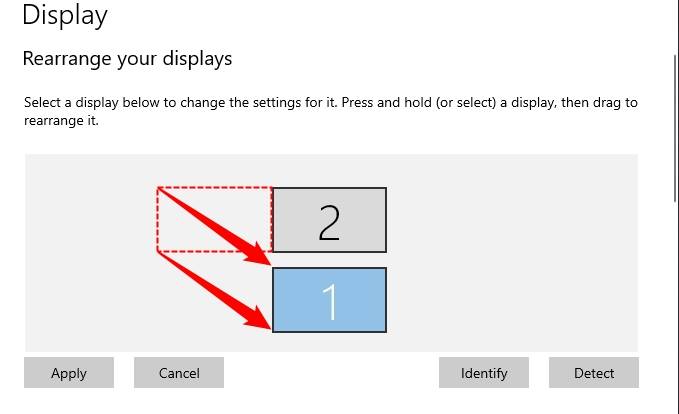
When your extended monitor appears on the wrong side in Windows, your mouse movement feels backwards. Fixing this does not require new hardware. You just need a simple drag-and-drop adjustment in display settings.
Match Monitor Position to Physical Setup
Windows assigns each display a number and arranges them left-to-right by default. If your secondary monitor is physically to the left of your laptop but Windows treats it as being on the right, follow these steps:
- Right-click your desktop and select Display settings.
- Look at the diagram showing numbered rectangles representing your connected displays.
- Click Identify to see large numbers appear on each screen.
- Click and drag the monitor icon (e.g., “2”) to the left of the primary display (“1”).
- Release the mouse button. The change applies instantly.
Now, moving your mouse to the left edge of your main screen will transition smoothly to the extended monitor.
Pro Tip: This only changes the logical arrangement, not which monitor is primary. To switch the main display, check “Make this my main display” under the target monitor’s settings.
Validate Correct Cursor Flow
After rearranging, take a moment to confirm everything works:
- Move your cursor slowly from one screen to the other.
- Drag a window across the boundary to confirm smooth transitions.
- Ensure the taskbar behaves as expected if set to show on all monitors.
If the direction still feels off, double-check that the monitor numbers match your physical layout using the Identify feature.
Rotate Monitor Orientation for Portrait or Flipped Viewing
:max_bytes(150000):strip_icc()/windows-11-rotated-screen-f1eb1728b65646f596a6efa9c80c3e2c.jpg)
Changing the direction can also mean rotating the screen. This is especially useful if you have mounted a monitor vertically for coding, reading, or design work.
Use Built-in Display Orientation Settings
To rotate a single monitor in Windows 10 or 11:
- Open Display settings via right-click on the desktop.
- Click the rectangle representing the monitor you want to rotate.
- Scroll down to Scale and layout.
- Find the Orientation dropdown and choose one of these options:
– Landscape (standard horizontal view)
– Portrait (rotated 90 degrees)
– Landscape (flipped) (upside-down horizontal)
– Portrait (flipped) (rotated 270 degrees) - Confirm within 15 seconds, or Windows reverts automatically.
⚠️ Warning: Always ensure the mouse cursor is on the target monitor before rotating. Otherwise, you might end up rotating the wrong screen.
Apply Rotation via Keyboard Shortcut
Speed up orientation switching with a quick key combo:
Ctrl + Alt + Up Arrowreturns to LandscapeCtrl + Alt + Right Arrowrotates to PortraitCtrl + Alt + Down Arrowflips to Landscape (flipped)Ctrl + Alt + Left Arrowrotates to Portrait (flipped)
This shortcut works only on the monitor where the mouse pointer is located.
✅ Works best on modern systems with Intel, AMD, or NVIDIA drivers. May be disabled on older machines or corporate-managed PCs.
Rotate Through Graphics Context Menu
Some GPUs add direct rotation options to the desktop right-click menu:
- Right-click the desktop.
- Look for Graphics Options > Rotation.
- Select the monitor and desired angle.
Available options depend on your graphics driver. If missing, update your drivers or enable hotkeys in the control panel.
Use Graphics Control Panels for Advanced Rotation
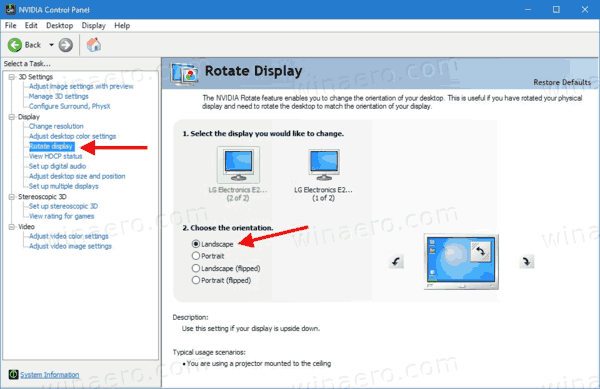
When Windows settings do not offer enough control, or the orientation option is grayed out, use your GPU’s dedicated software.
Intel HD Graphics Rotation
Method 1: Intel Control Panel
1. Open Display settings.
2. Click Advanced display settings.
3. Select Display adapter properties.
4. Go to the Intel® HD Graphics Control Panel tab.
5. Choose the display, then select Rotation.
6. Pick 90°, 180°, or 270° and click OK.
Method 2: Desktop Context Menu
1. Right-click desktop → Graphics Options → Rotation.
2. Select target monitor and rotation angle.
💡 Intel’s driver often disables
Ctrl + Alt + Arrowshortcuts by default. Enable them in Options and Support > Hot Keys.
NVIDIA Control Panel for Quadro and GeForce
NVIDIA offers precise per-monitor control.
Rotate via NVIDIA Control Panel:
1. Right-click desktop → NVIDIA Control Panel.
2. Under Display, click Rotate display.
3. Choose the monitor.
4. Select rotation: 0°, 90°, 180°, or 270°.
5. Click Apply.
The screen will flash briefly as it reorients.
Legacy Path (Windows 7/10 Advanced Properties):
1. Right-click desktop → Display Settings → Advanced.
2. Go to the NVIDIA tab.
3. Find NVRotate dropdown and select angle.
4. Click Apply.
✅ Ideal for multi-monitor workstations where stability and precision matter.
Fix Common Rotation and Layout Issues
Even when following the correct steps, some users hit snags. Here is how to troubleshoot.
“Orientation Option Is Grayed Out”
This usually means the connected display does not support rotation, or outdated drivers are active.
Fix:
– Update your graphics driver from Intel, AMD, or NVIDIA’s official site.
– Avoid Windows Generic PnP Driver. Install manufacturer-specific software.
– Reboot after updating.
“Keyboard Shortcut Doesn’t Work”
If Ctrl + Alt + Arrow does nothing, try these fixes.
For Intel Systems:
1. Open Intel Graphics Command Center or Control Panel.
2. Navigate to Options and Support.
3. Ensure Enable Rotation Hot Keys is checked.
For AMD/NVIDIA:
– Check if the feature is disabled in the GPU control panel.
– Some laptops disable hotkeys to prevent accidental rotation.
🔄 Alternative: Use iRotate (see below) to restore shortcut functionality.
“I Rotated the Wrong Monitor!”
No problem. Within 15 seconds of applying a rotation, Windows asks:
“Keep these display settings?”
Click Revert or wait 15 seconds for automatic rollback.
After that, use any method above to rotate the correct monitor. Just make sure your mouse pointer is on the right screen first.
Use iRotate for Reliable, Driver-Free Rotation
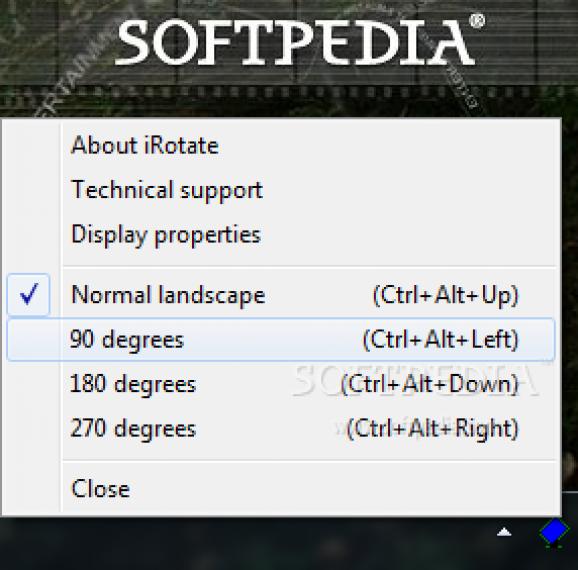
When built-in shortcuts fail or you need more control, iRotate is a lightweight third-party solution.
Why Use iRotate?
- Bypasses broken
Ctrl + Alt + Arrowshortcuts - Works across NVIDIA, AMD, Intel, Matrox, and more
- Adds system tray icon for one-click rotation
- File size: under 125KB, minimal CPU use
- Requires no additional drivers
Set Up iRotate
- Download iRotate from the official source.
- Install and launch the application.
- Assign custom hotkeys (e.g.,
Win + Leftto rotate 90°). - Use the system tray menu to rotate any monitor instantly.
💼 Perfect for developers, financial traders, or designers who frequently switch between landscape and portrait modes.
Key Differences Between Layout and Orientation

Understanding these two concepts prevents confusion:
| Feature | Purpose | Tool Used |
|---|---|---|
| Monitor Layout | Sets cursor movement direction (left/right/up/down) | Drag icons in Display Settings |
| Screen Orientation | Rotates image (portrait, flipped) | Orientation dropdown or GPU panel |
✅ Example: You can place your second monitor to the left (layout) and rotate it to portrait mode (orientation). Both settings work independently.
Best Practices for Multi-Monitor Setup
Follow these tips to avoid future issues with your extended monitor direction setup.
Always Identify Before Adjusting
Click Identify in Display Settings to verify which on-screen number matches each physical monitor.
Update Graphics Drivers Regularly
Old drivers often lack full rotation support or disable hotkeys. Check every 3 to 6 months.
Test After Changes
After rearranging or rotating:
– Move the mouse across boundaries
– Drag full-screen apps
– Confirm text readability in portrait mode
Set Primary Display Correctly
If you moved your main screen, ensure “Make this my main display” is checked on the correct monitor. This affects where the taskbar and login screen appear.
Frequently Asked Questions About Changing Extended Monitor Direction
Why does my mouse go the wrong way on my second monitor?
This happens because Windows treats your extended monitor as being on the opposite side of where it physically sits. You can fix this by dragging the monitor icon in Display Settings to match your real desk layout.
How do I rotate just one monitor in a dual setup?
Open Display Settings, click the rectangle of the monitor you want to rotate, then choose your orientation under Scale and layout. Make sure your mouse cursor is on that monitor first.
What if the orientation option is grayed out?
This usually means your display does not support rotation, or your graphics driver is outdated. Update your driver from Intel, AMD, or NVIDIA’s official site, then reboot.
Do Ctrl+Alt+Arrow shortcuts work on all PCs?
No. These shortcuts depend on graphics driver support. They may be disabled on older systems, corporate PCs, or by default on Intel graphics. Enable them in your GPU control panel if needed.
Can I change extended monitor direction without restarting?
Yes. All layout and orientation changes apply instantly in Windows 10 and 11. No reboot is required, though you have 15 seconds to confirm any rotation before Windows reverts automatically.
What is iRotate and when should I use it?
iRotate is a free utility under 125KB that adds system tray access to rotation controls. Use it when native shortcuts fail or you frequently switch between landscape and portrait modes.
Final Takeaways for Changing Extended Monitor Direction
Changing your extended monitor direction is straightforward once you know the right tools. Use Display Settings to fix left/right mismatches, apply orientation settings or keyboard shortcuts for rotation, and fall back on Intel, NVIDIA, or iRotate when native options fail.
With this guide, you can align your digital workspace with your physical desk, eliminate awkward mouse movements, and boost productivity across multiple screens. Start by clicking Identify in Display Settings today, and your multi-monitor setup will feel seamless within minutes.


